A Detailed Reference of Document Preview
It is the process of reviewing documents in their intended format before it is sent to the recipient. This allows the sender to verify the content, layout, and accuracy of the document, ensuring that it meets quality standards and presents the intended information clearly to the customer.
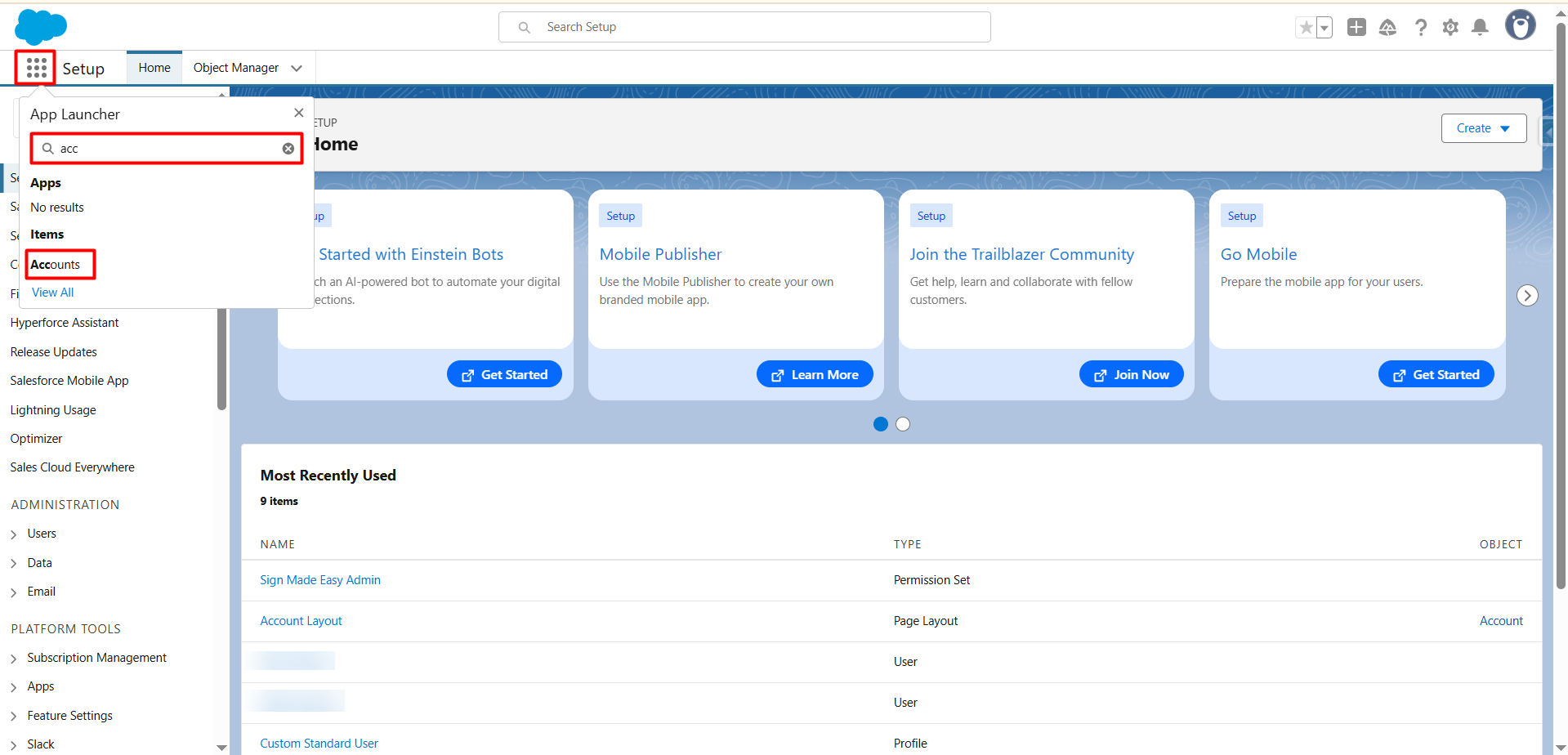
Step 1:- Open the App Launcher, search for the object where the SME button was created, and select it to proceed.
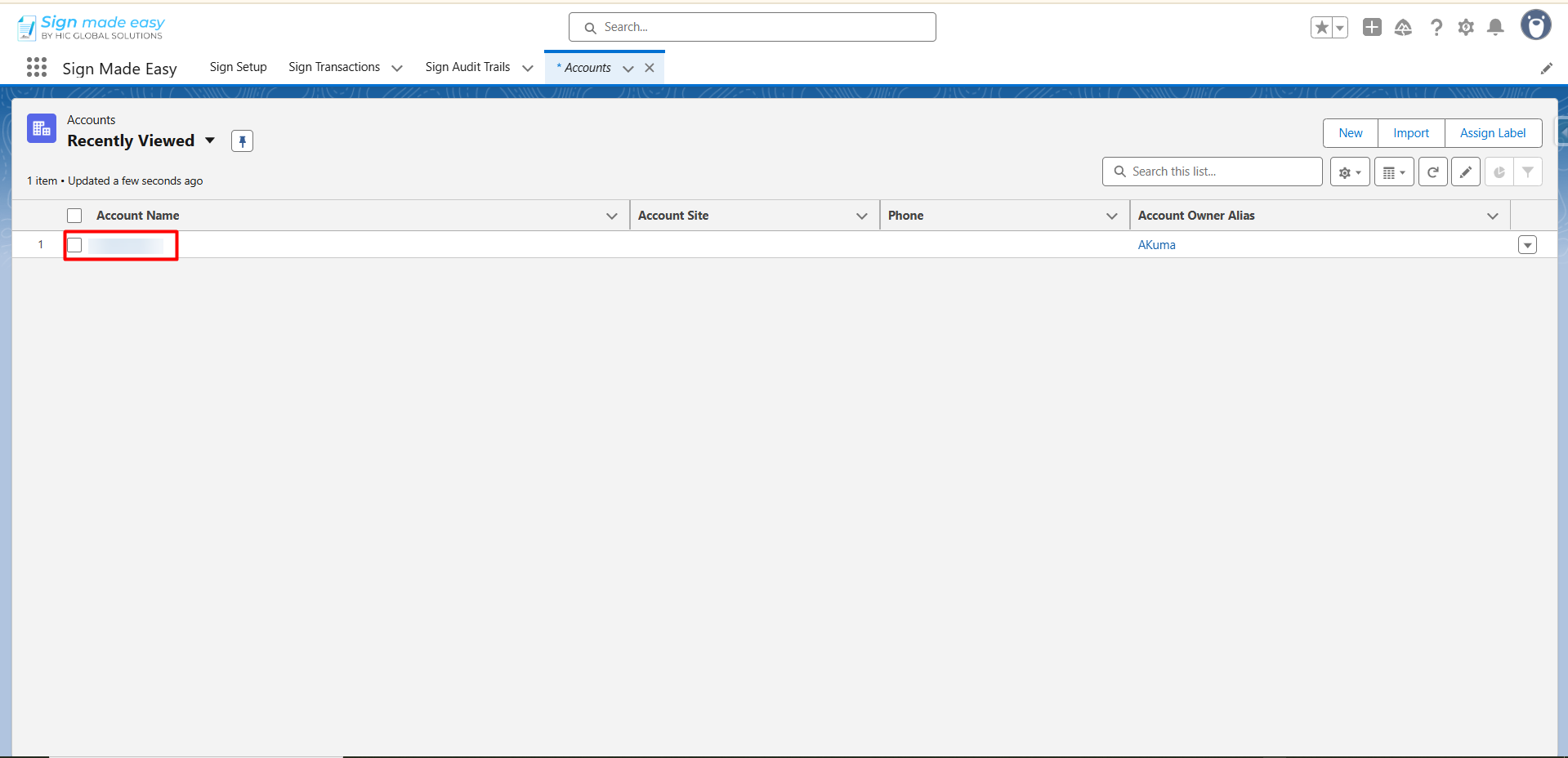
Step 2:- Navigate to the record page of the selected object from which you intend to initiate the SME process. If no record exists, create a new one by clicking the New button before proceeding.
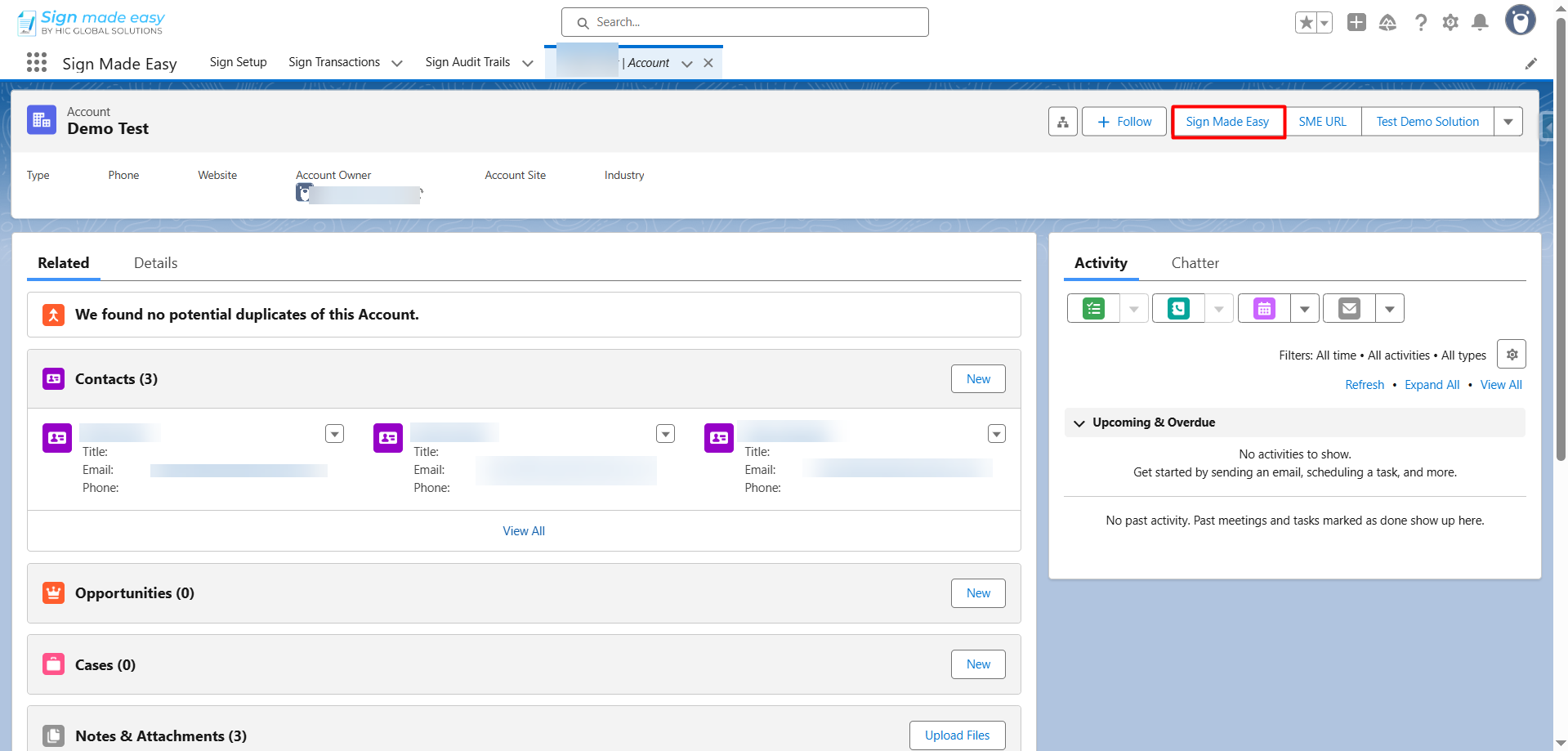
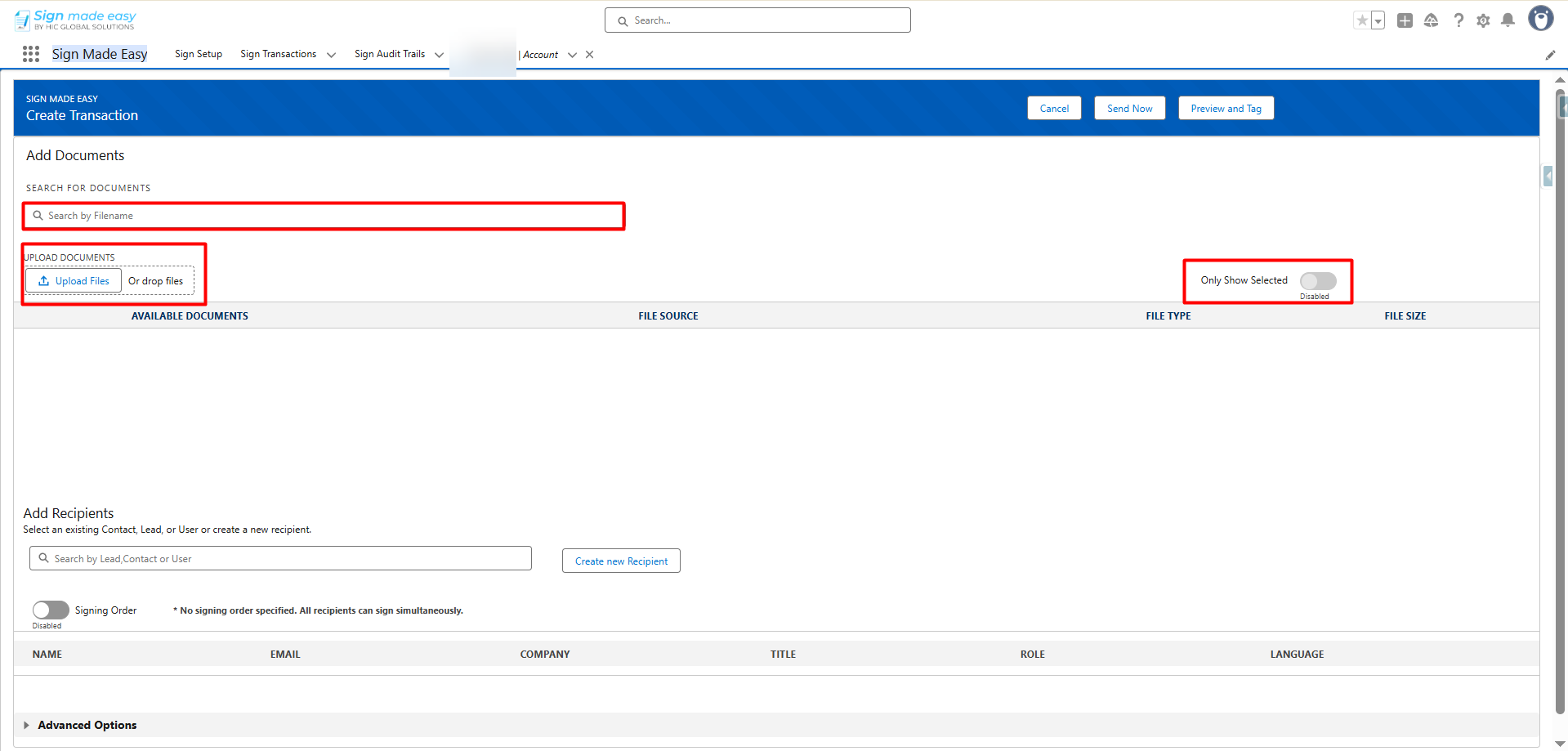
Step 3:- Next, click the button you created. The Create Transaction interface will appear, allowing you to add documents and recipient details.
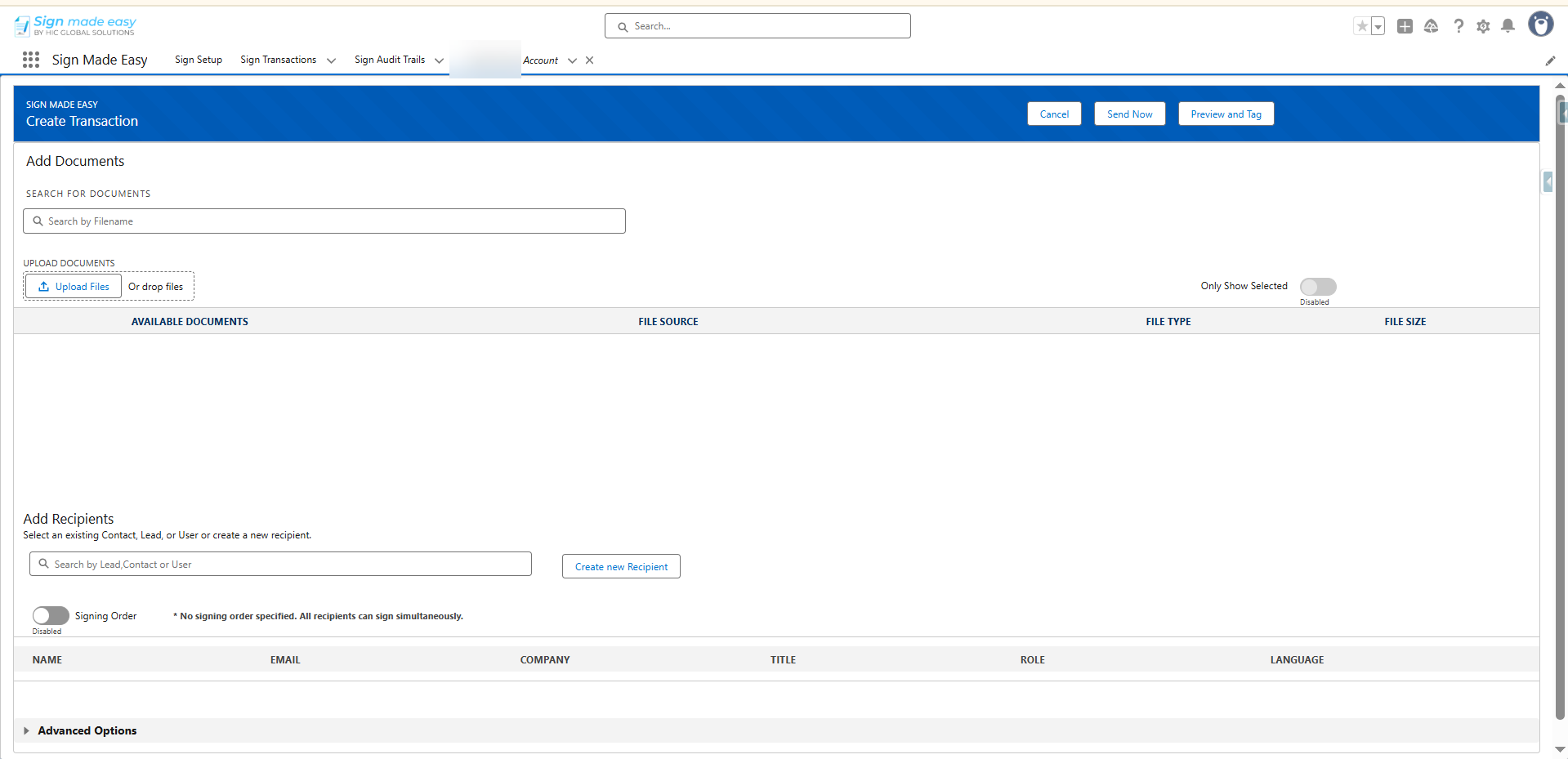
Step 4:- Add Documents
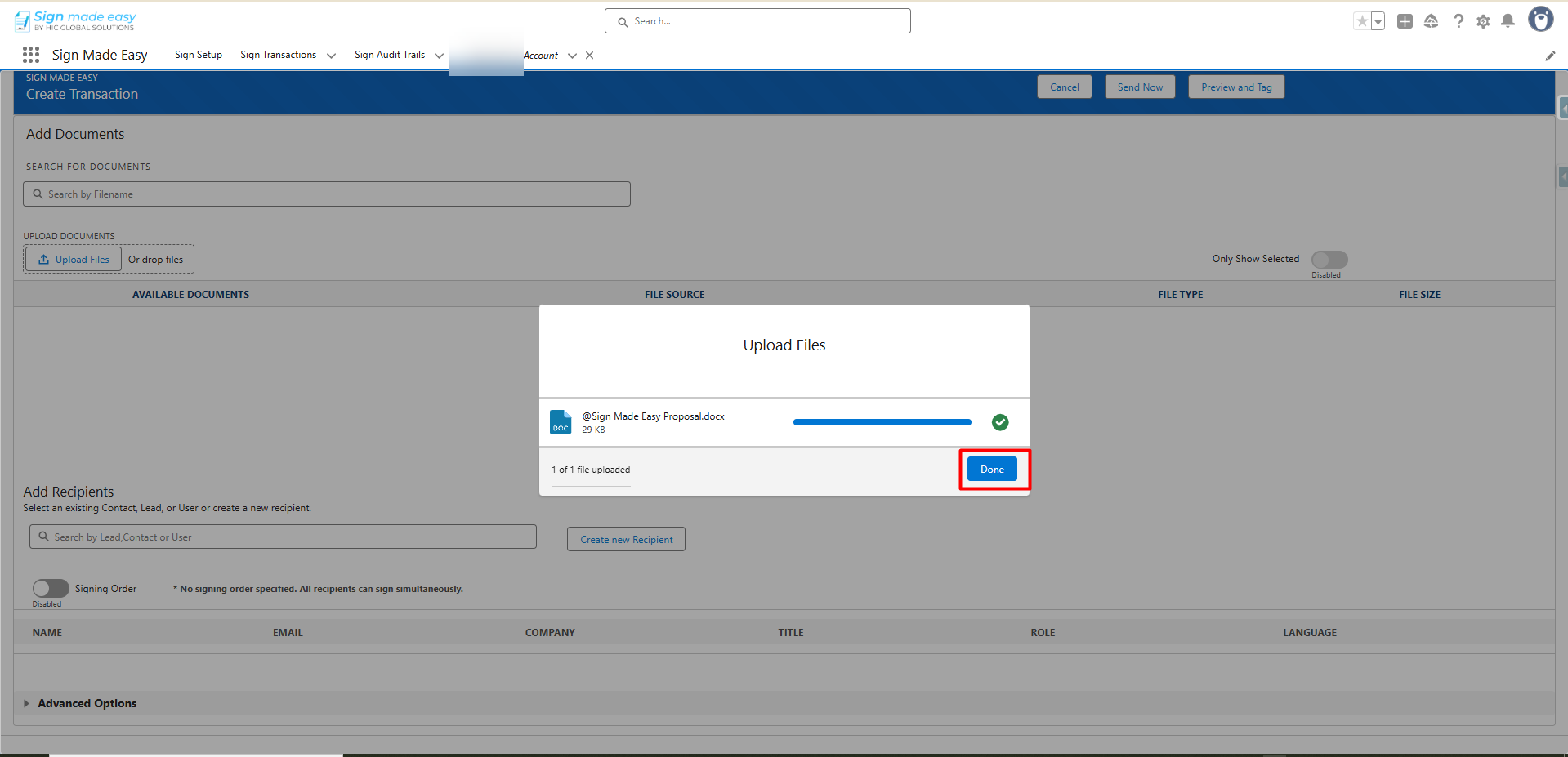
- You can upload a new document or select documents already associated with the parent record’s Notes and Attachments.
- You can search for a document by its name using the Add Documents search bar.
- Supported file formats include PDF, DOC, and DOCX.
- You may also add documents using the drag-and-drop functionality.
The maximum supported file size for each transaction record in Sign Made Easy is 15 MB. - To view only the selected documents, enable the Show Only Selected toggle.
Step 5:- Add Recipient
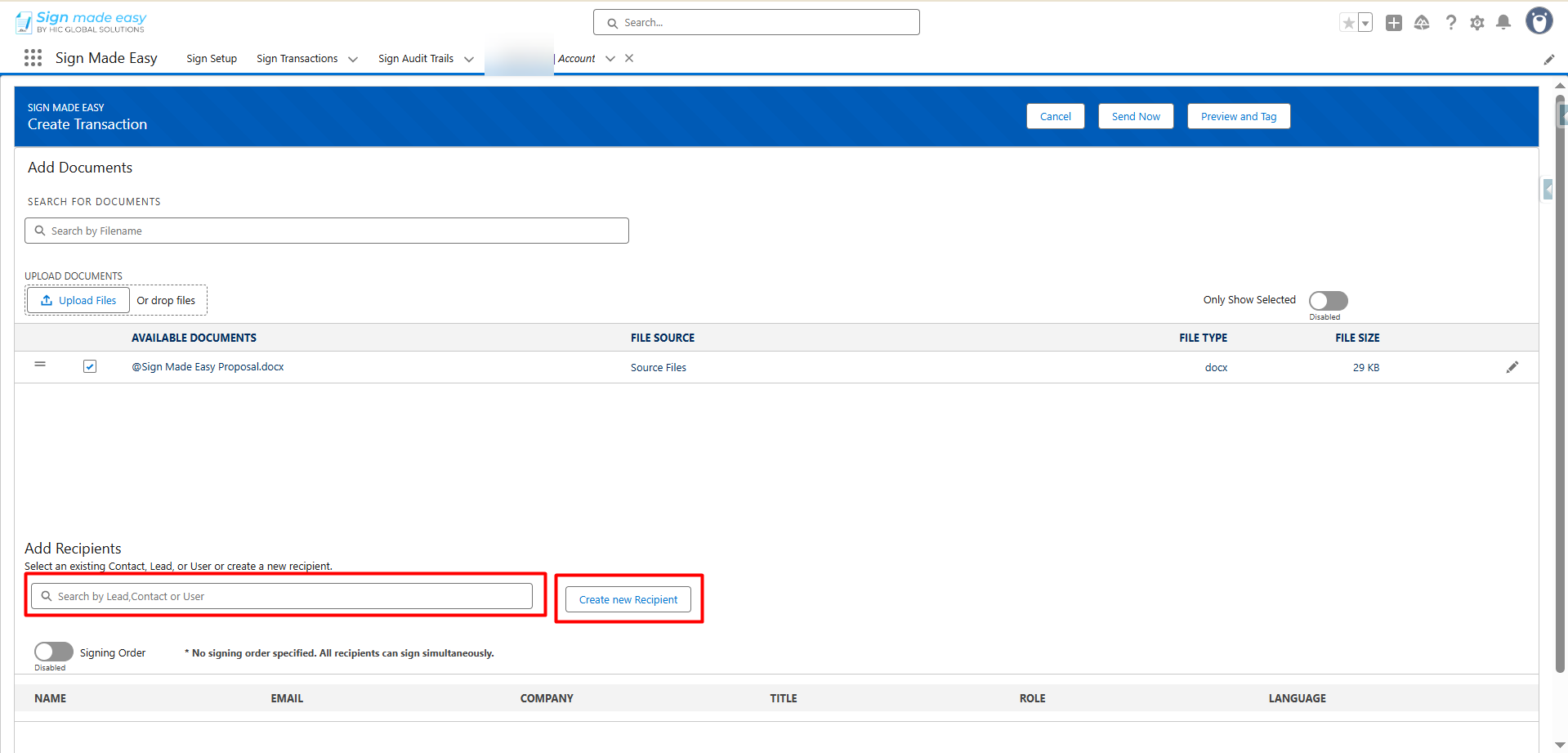
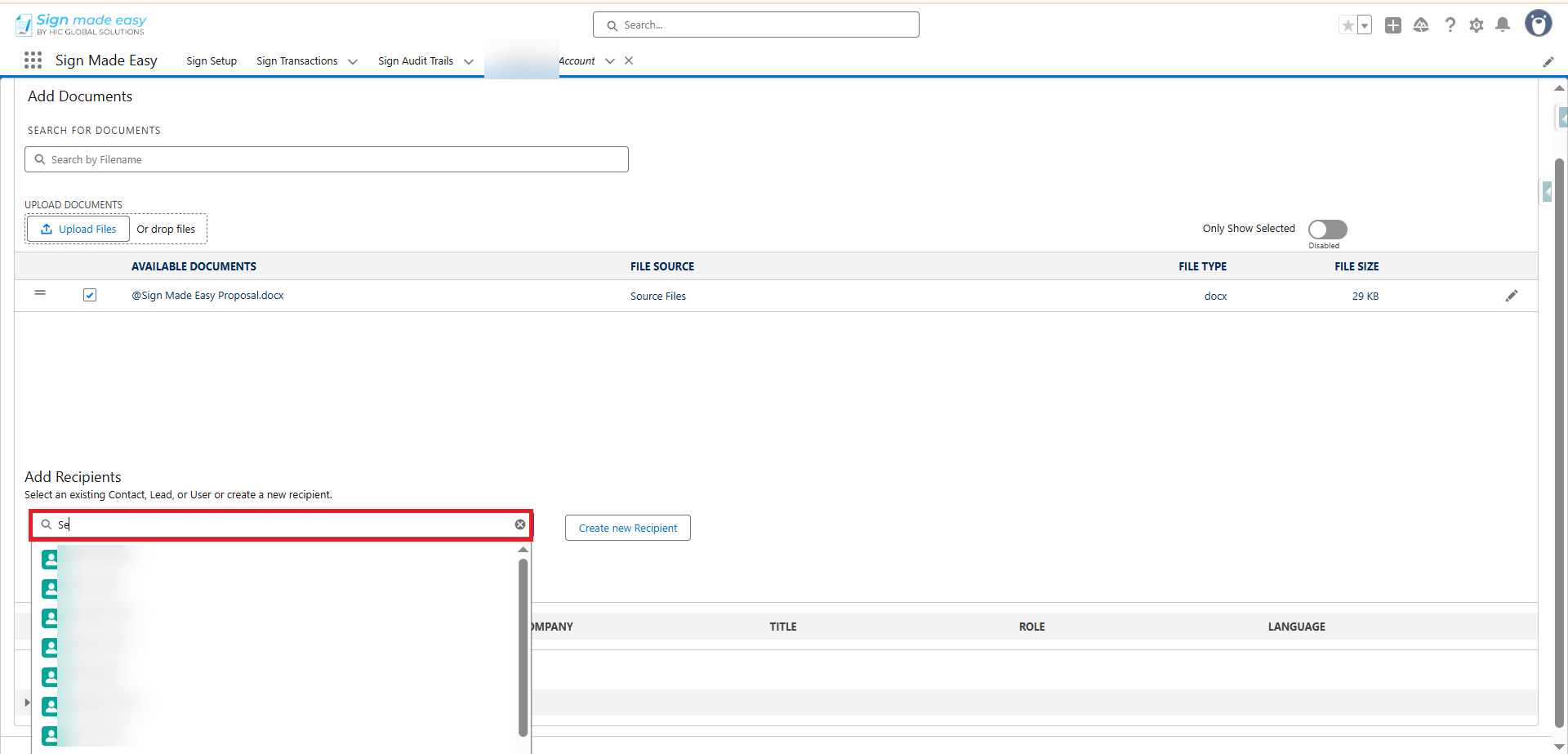
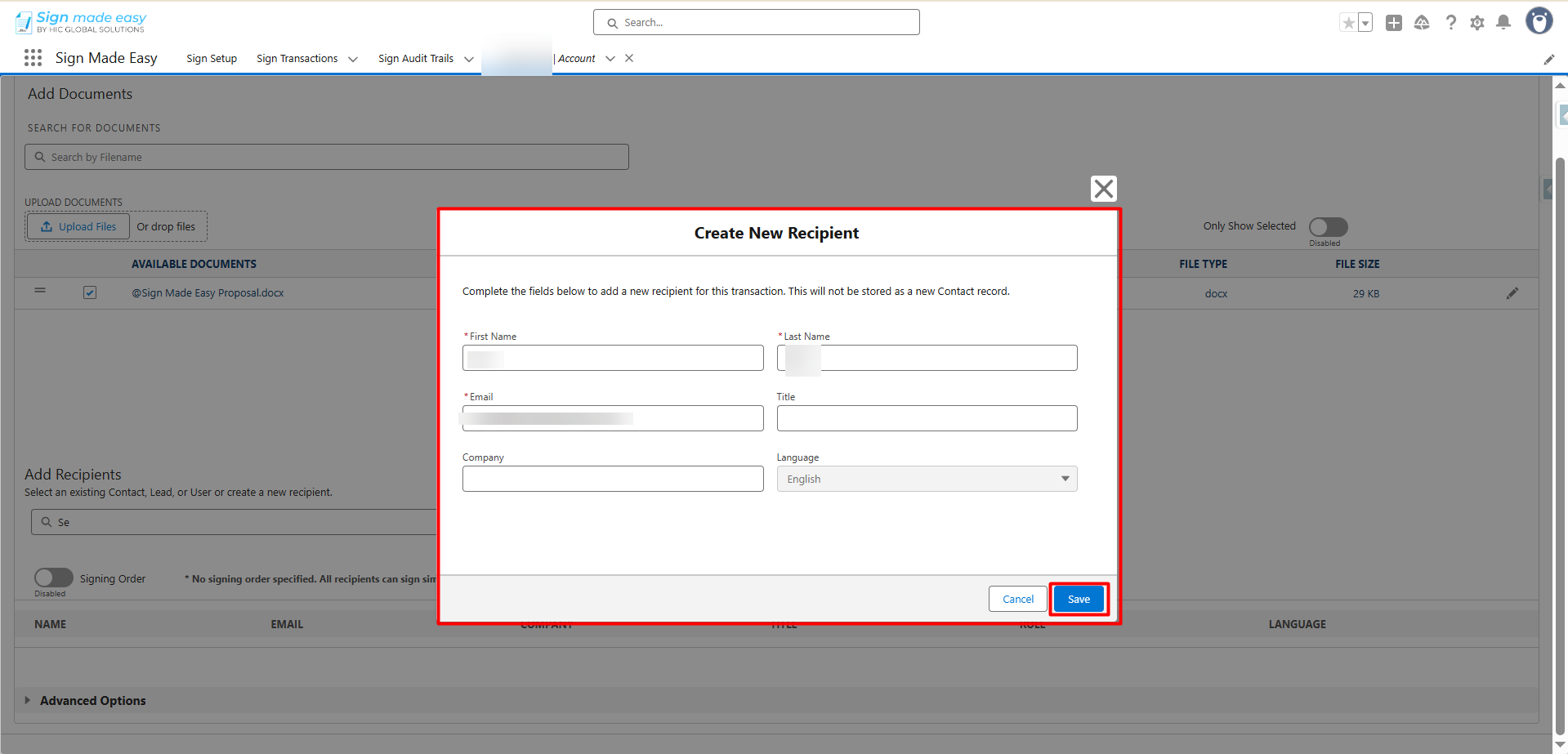
- You can add recipients by selecting existing Lead, Contact, or User records through the Add Recipient search bar. If the required recipient does not exist, you can create a new one using the Create New Recipient button.
- The Create New Recipient button does not create Contact, Lead, or User records in Salesforce; it only creates Sign Recipient records.
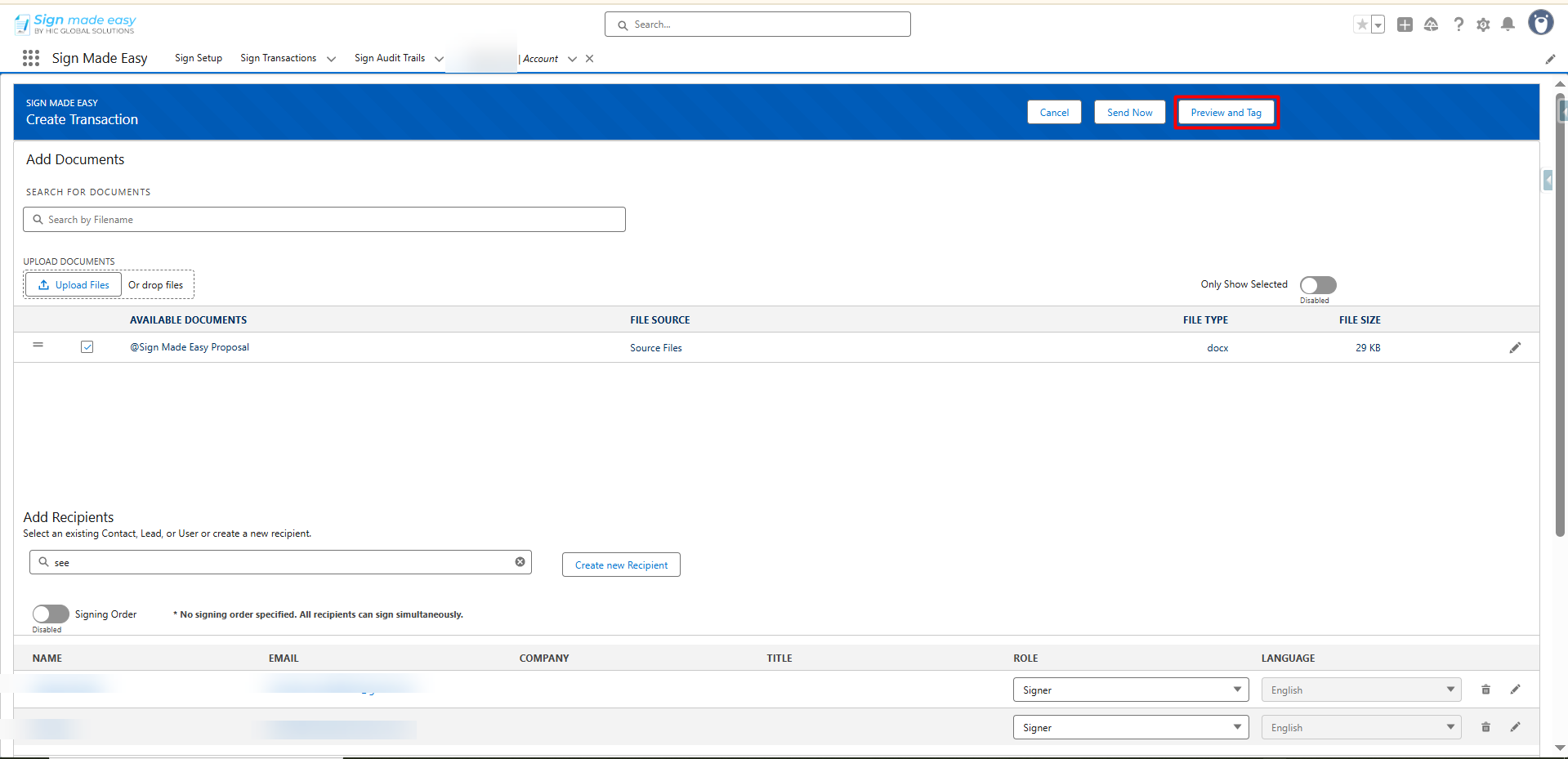
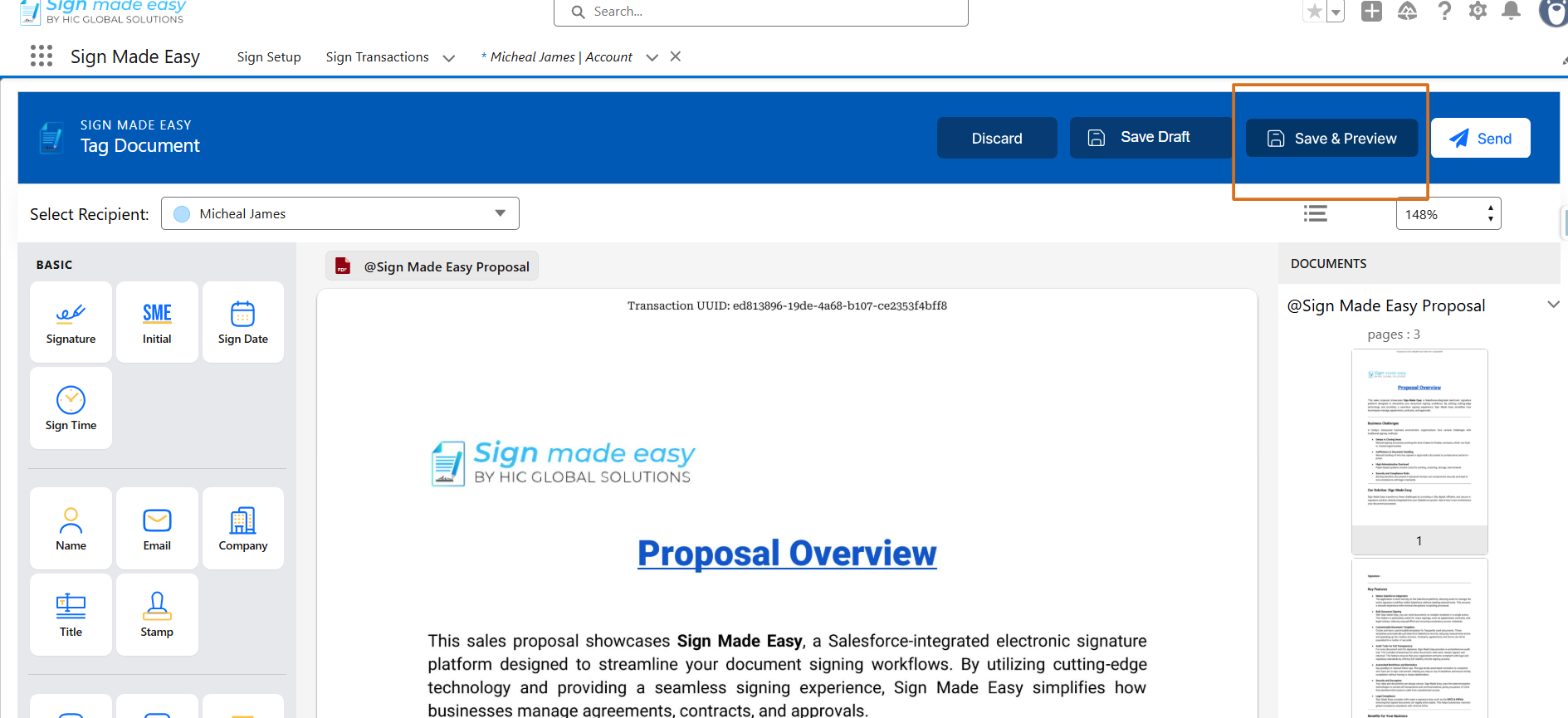
Step 6:- Click on the Save & Preview Button to preview the document.
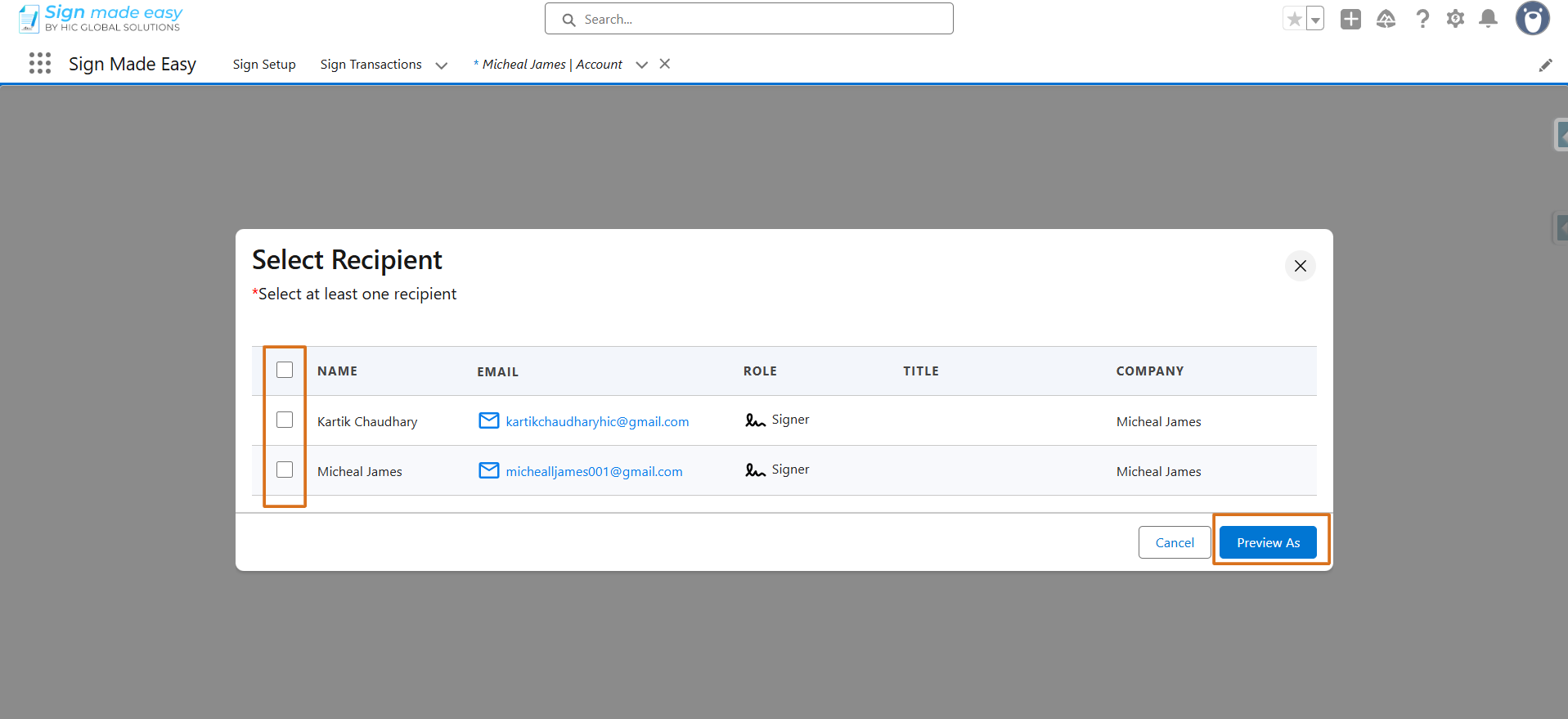
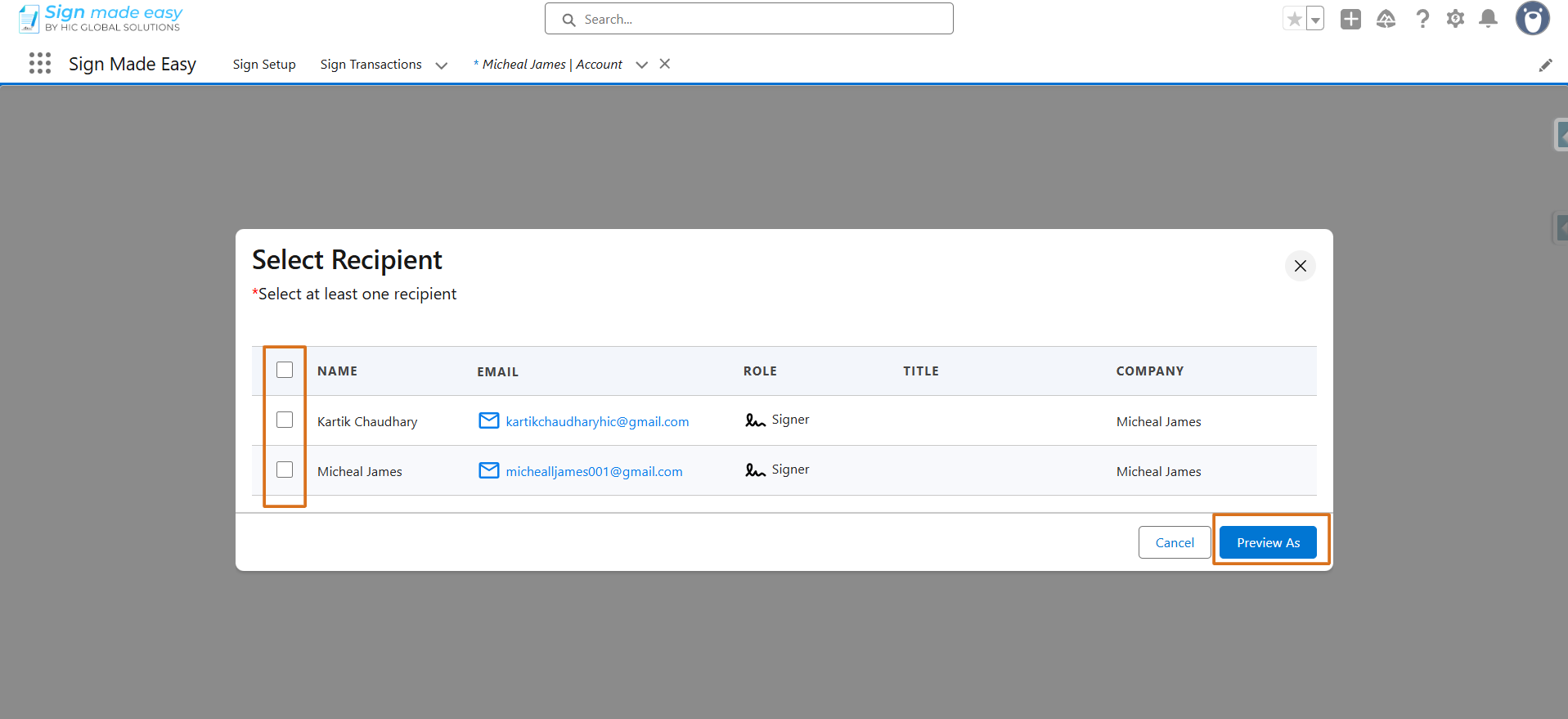
Step 7:- Select the recipient and click on the preview As button to preview the document.
Preview Document window open for the selected recipient
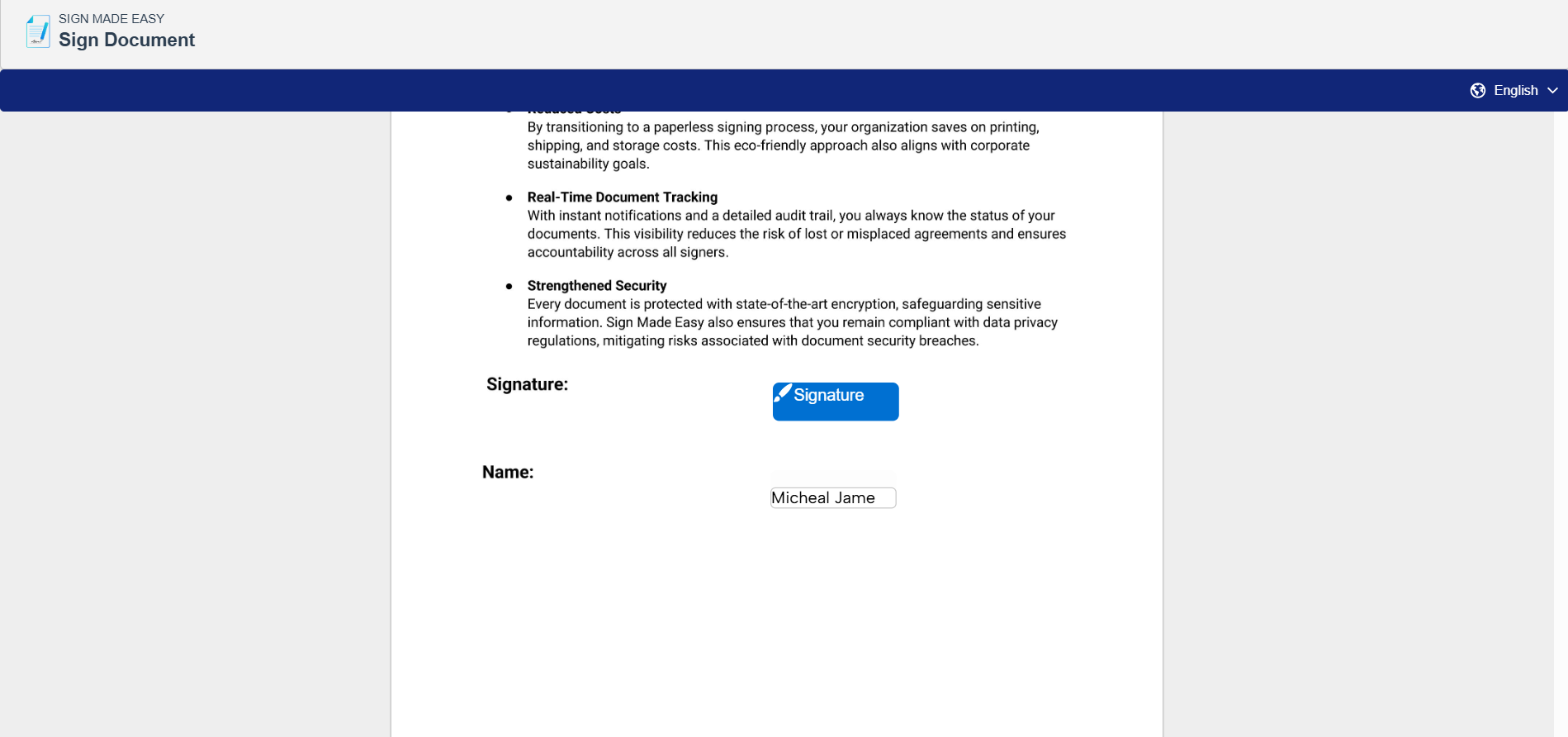
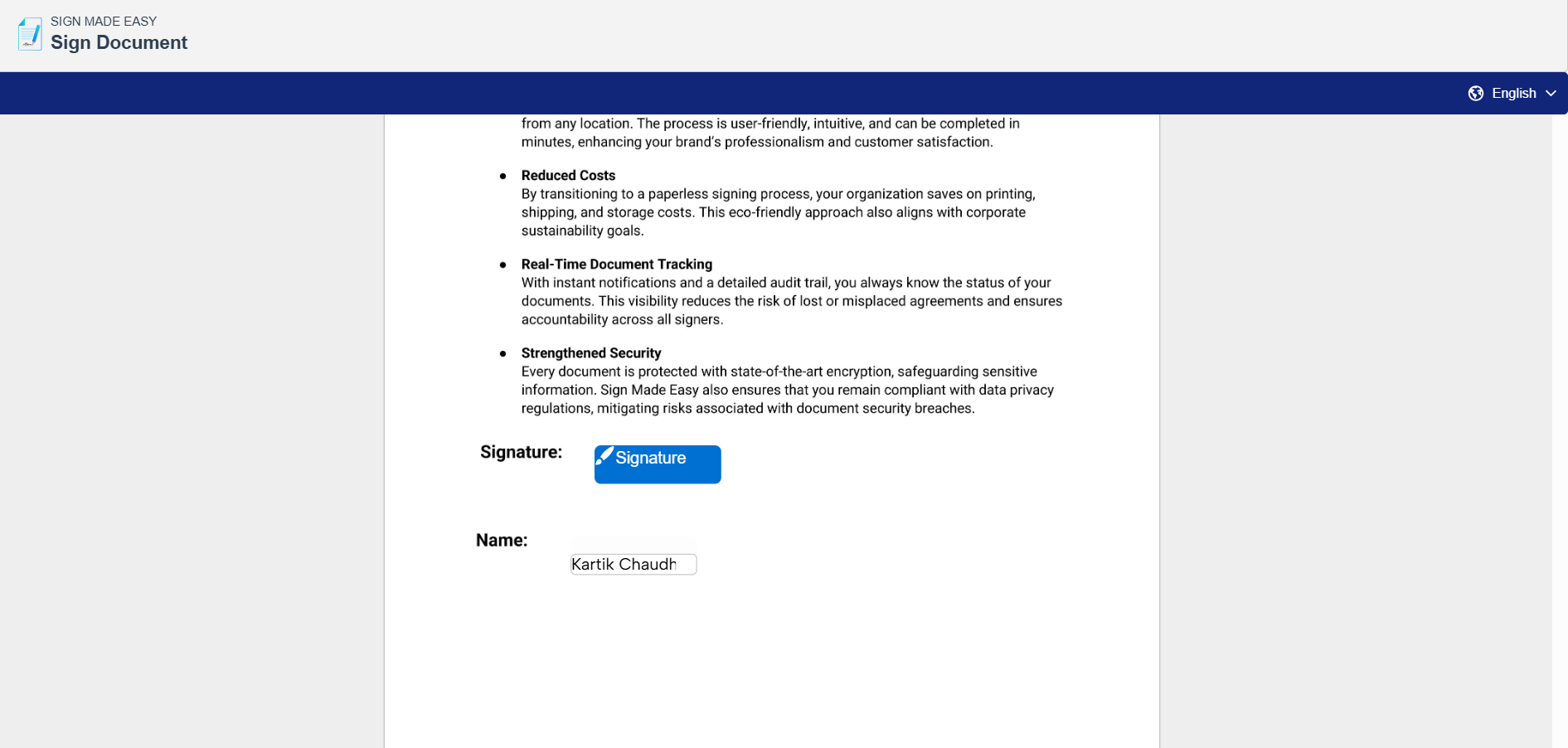
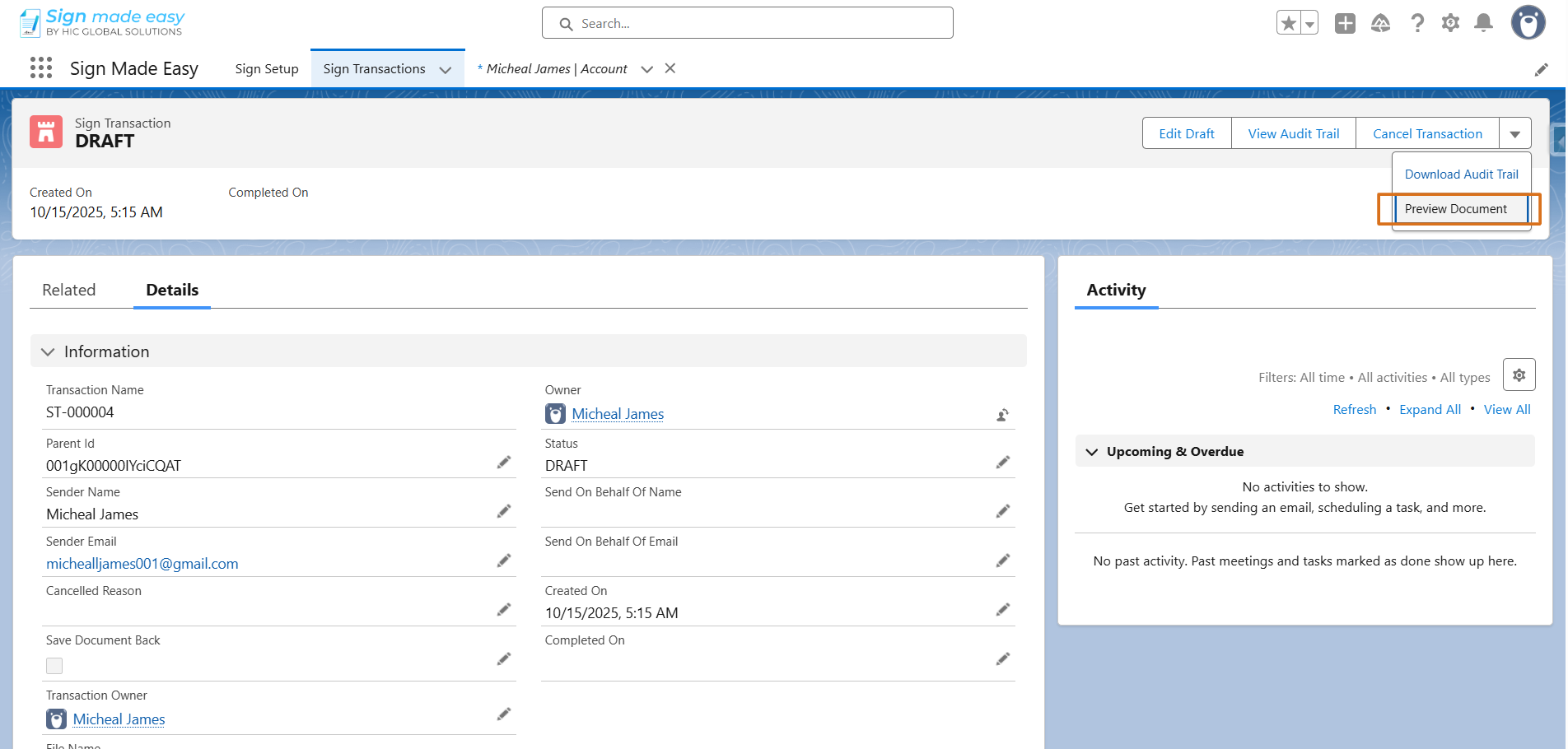
You can also preview the document from the Salesforce button when your transaction is in Draft status.
Was this article helpful?
That’s Great!
Thank you for your feedback
Sorry! We couldn't be helpful
Thank you for your feedback
Feedback sent
We appreciate your effort and will try to fix the article