Sign Dashboard has been introduced to provide a centralized view of e-signature transactions and their current status. Users can view transaction activity for all users or filter the dashboard by individual users, making it easier to monitor and manage signing activities from one place.
Step-by-Step Guide to the Sign Dashboard
Note: Administrators must assign the required custom permission to users who need access to the Sign Dashboard. Users without this permission cannot access the dashboard . Click here for custom permission.
Step 1: Open the Sign Dashboard
Open the App Launcher, search for Sign Dashboard, and open it.
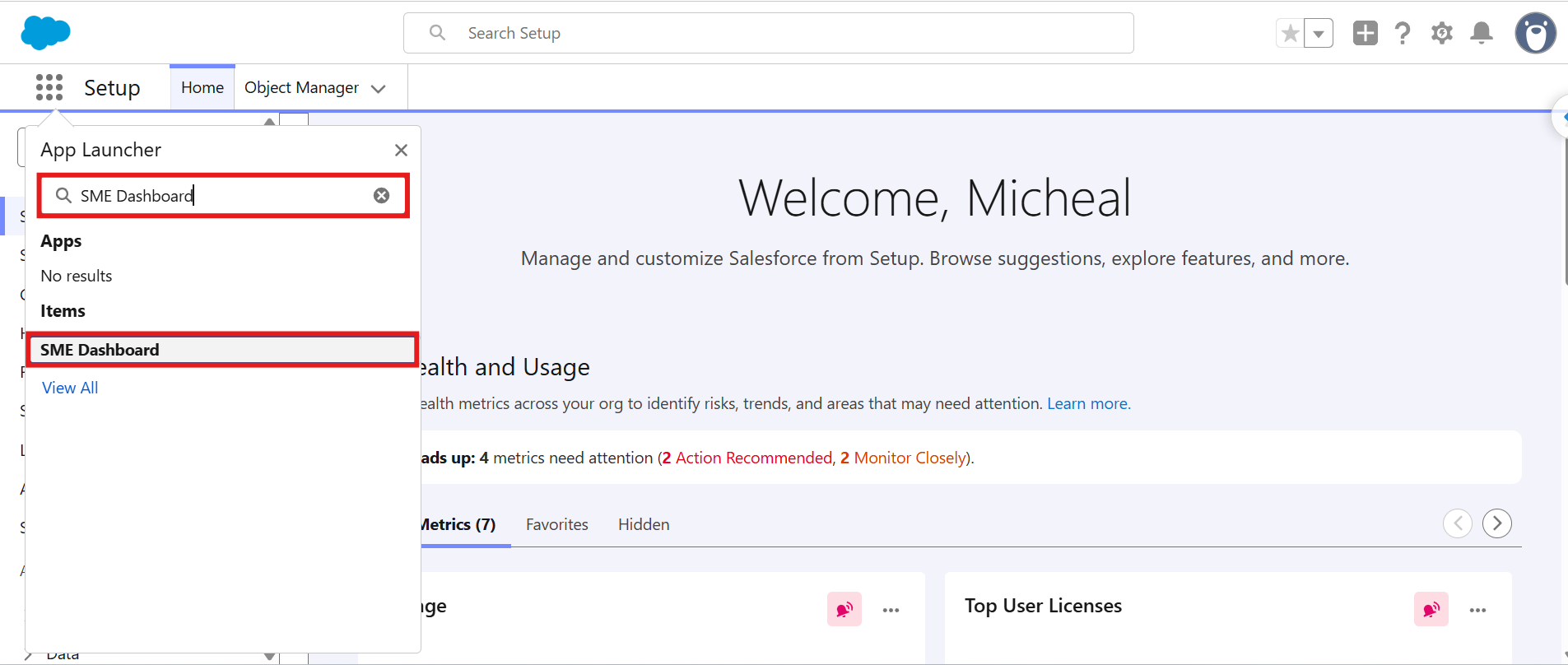
The dashboard allows you to view transaction details based on individual users. Click the user selection dropdown in the top-right corner of the dashboard and select a specific user to view their transaction activity and statistics.
If you want to view the transaction statistics for all users, select All Users from the dropdown. The dashboard will display the combined transaction activity and statistics for all users.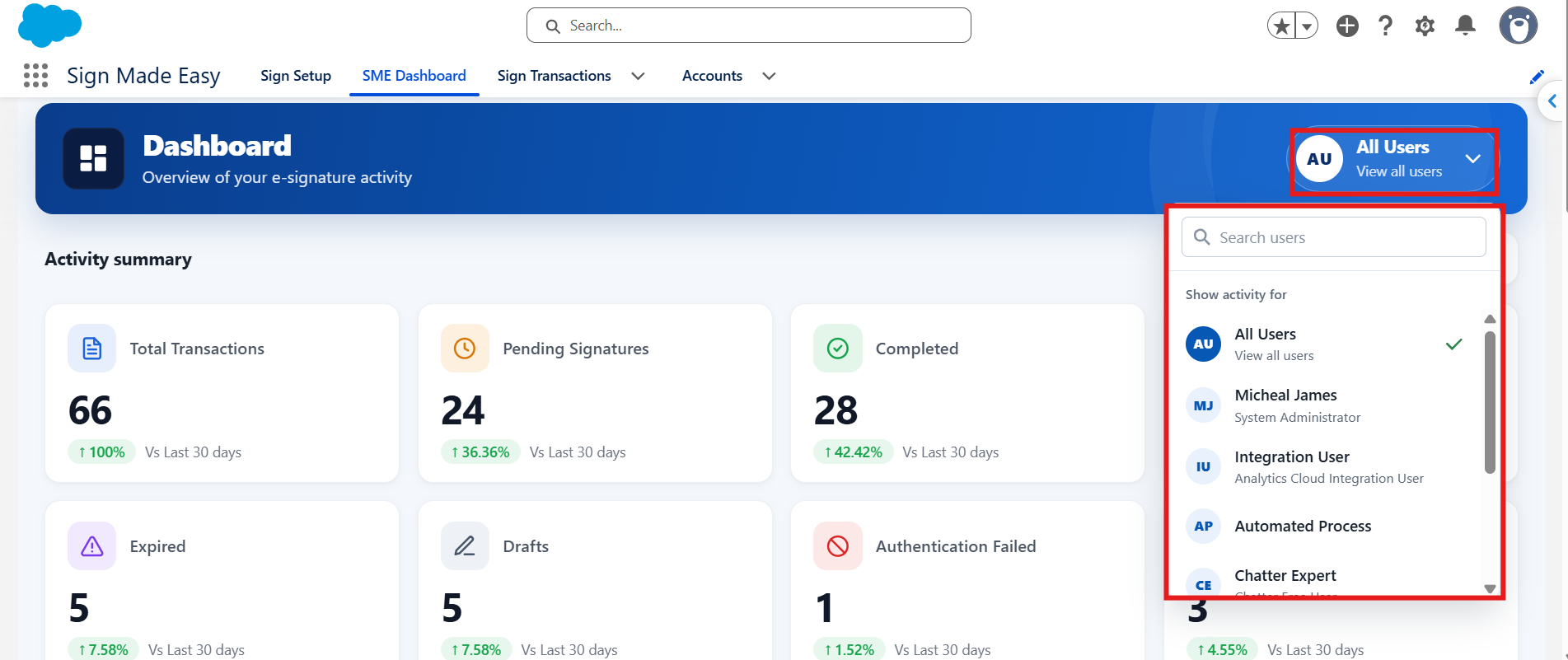
The Date Range Filter allows you to view dashboard statistics and transaction activity for a specific period.
To apply a date filter, click the Date Range selector in the top-right corner of the dashboard. You can choose from the following predefined options:
Last 7 Days: Displays transaction data for the last seven days.
Last 30 Days: Displays transaction data for the last 30 days.
Last 90 Days: Displays transaction data for the last 90 days.
Month to Date: Displays transaction data from the beginning of the current month to the current date.
Year to Date: Displays transaction data from the beginning of the current year to the current date.
Custom Range: Allows you to select a specific start date and end date using the calendar.
After selecting your preferred date range, click Apply to update the dashboard and view the transaction statistics for the selected period. If you do not want to apply the changes, click Cancel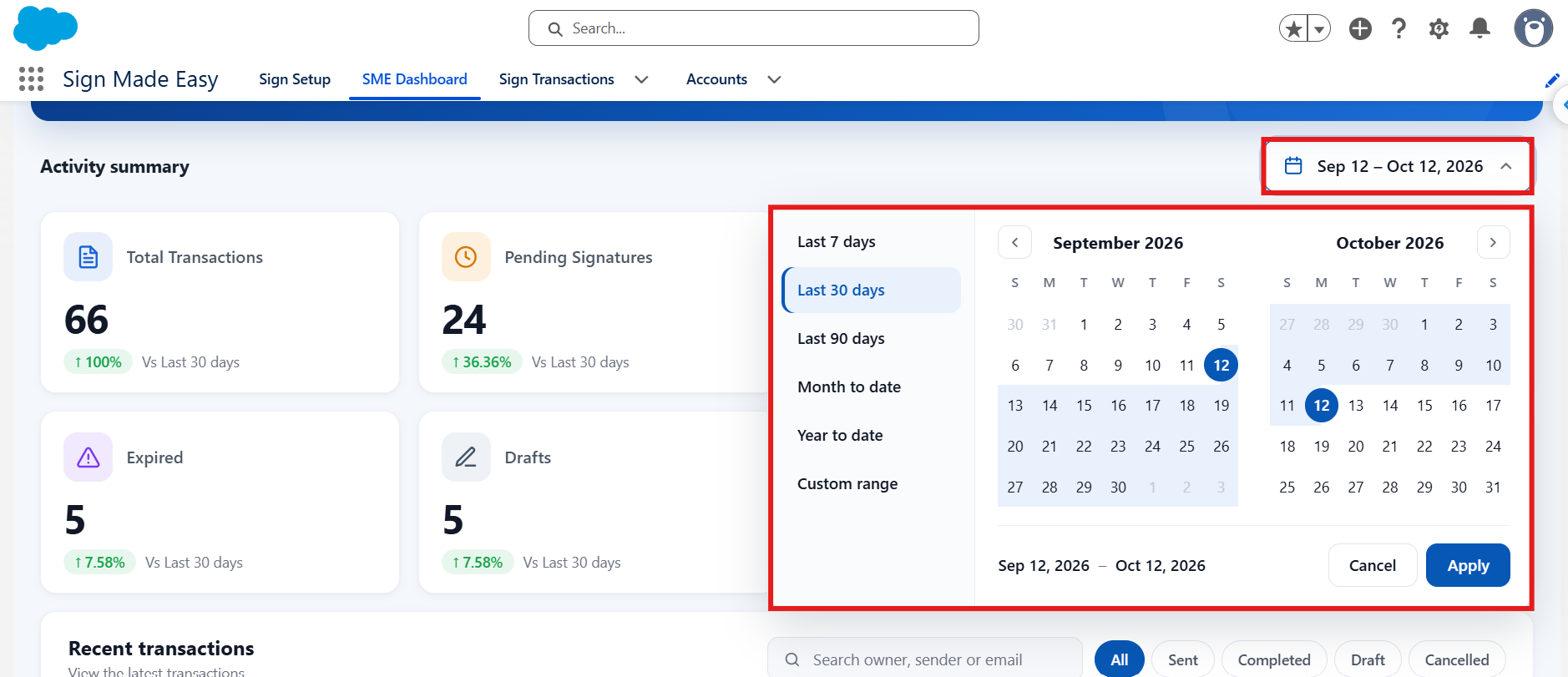
Step 2: Review Transaction Statistics
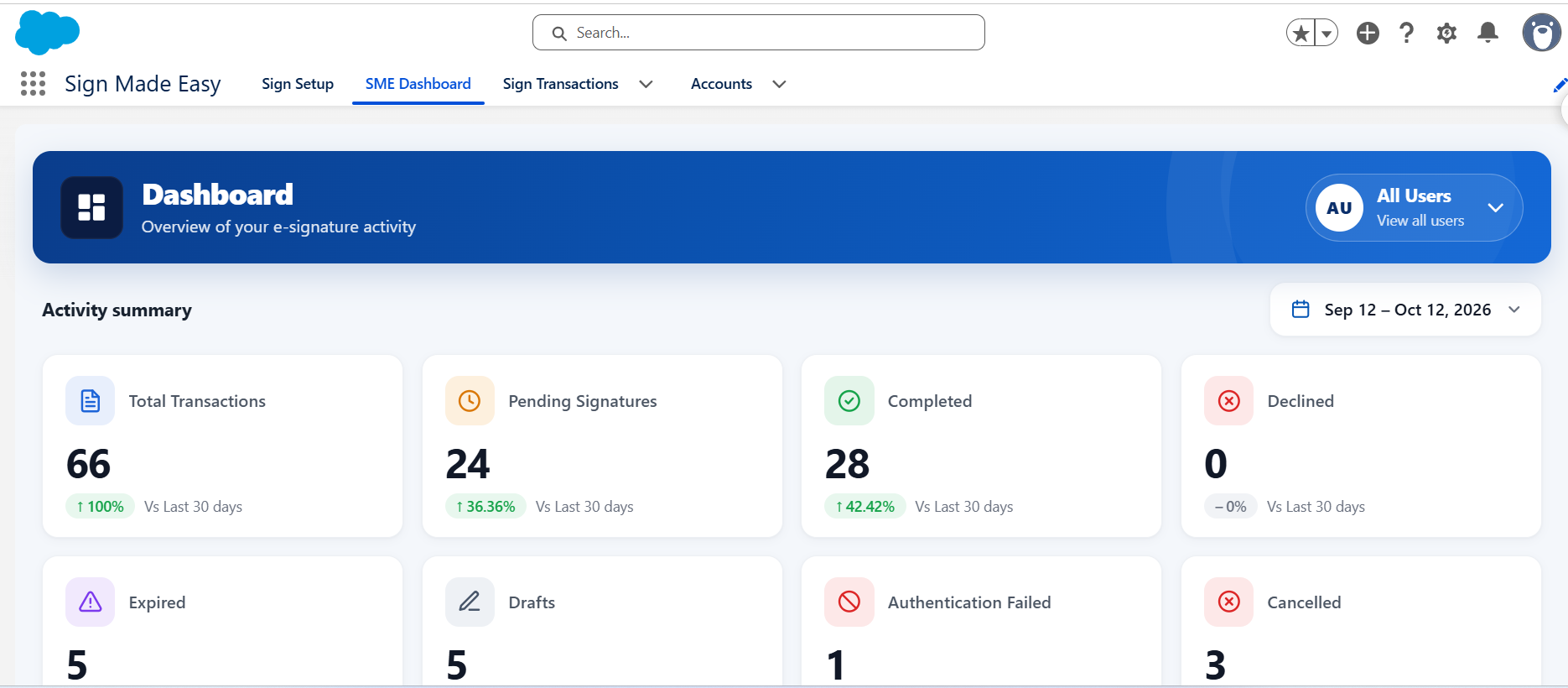
The dashboard displays the following transaction statistics:
Total Transactions: Displays the total number of sign transactions within the selected date range.
Pending Signatures: Displays the number of transactions awaiting signatures from recipients.
Completed: Displays the number of transactions for which the signing process has been completed successfully.
Declined: Displays the number of transactions declined by recipients.
Expired: Displays the number of transactions that expired before the signing process was completed.
Draft: Displays the number of transactions saved as drafts that have not yet been sent for signing.
Authentication Failed: Displays the number of transactions for which recipient authentication failed.
Cancelled: Displays the number of transactions that have been cancelled.
When you open Total Transactions, you will be redirected to a dedicated page displaying all Sign Transactions.
On this page, you can use the Add Columns option to customize the Sign Transactions table by adding fields from the Sign Transactions object as columns. This allows you to view the relevant transaction details in a single table.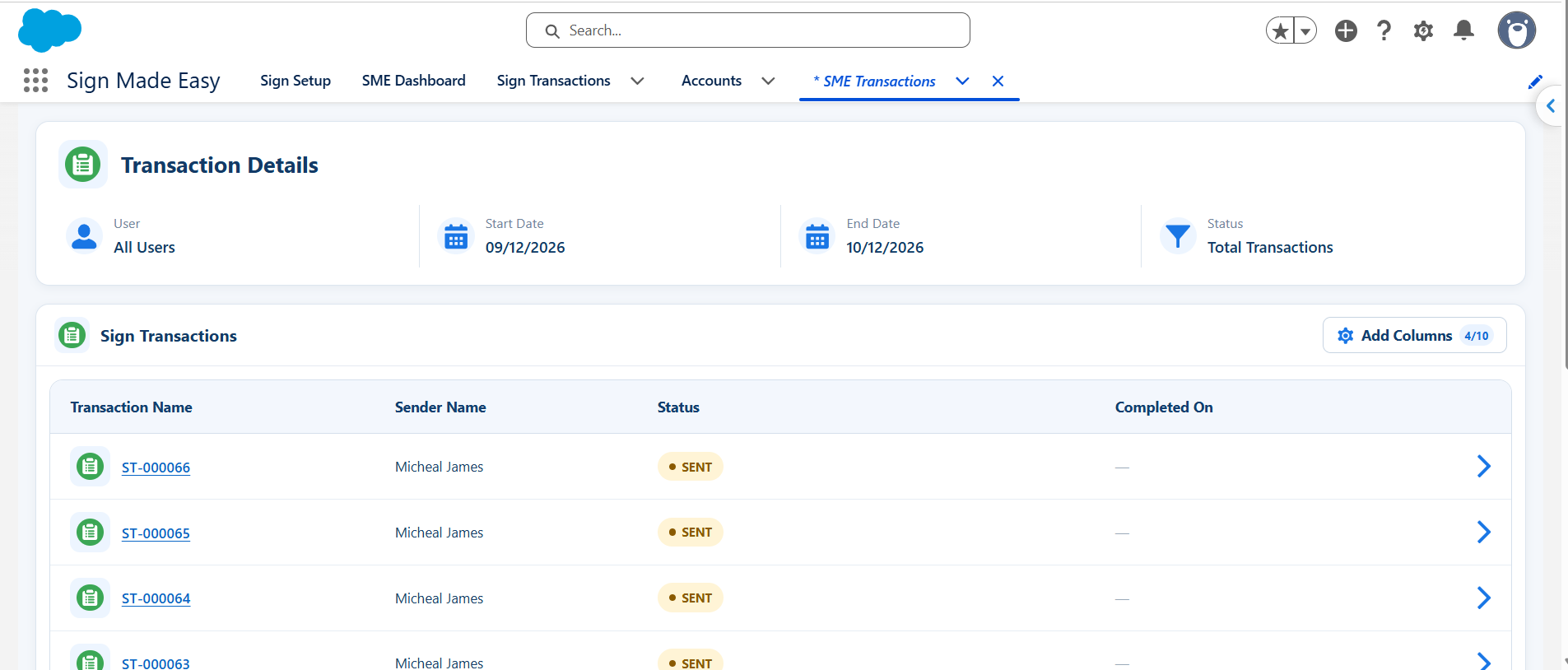
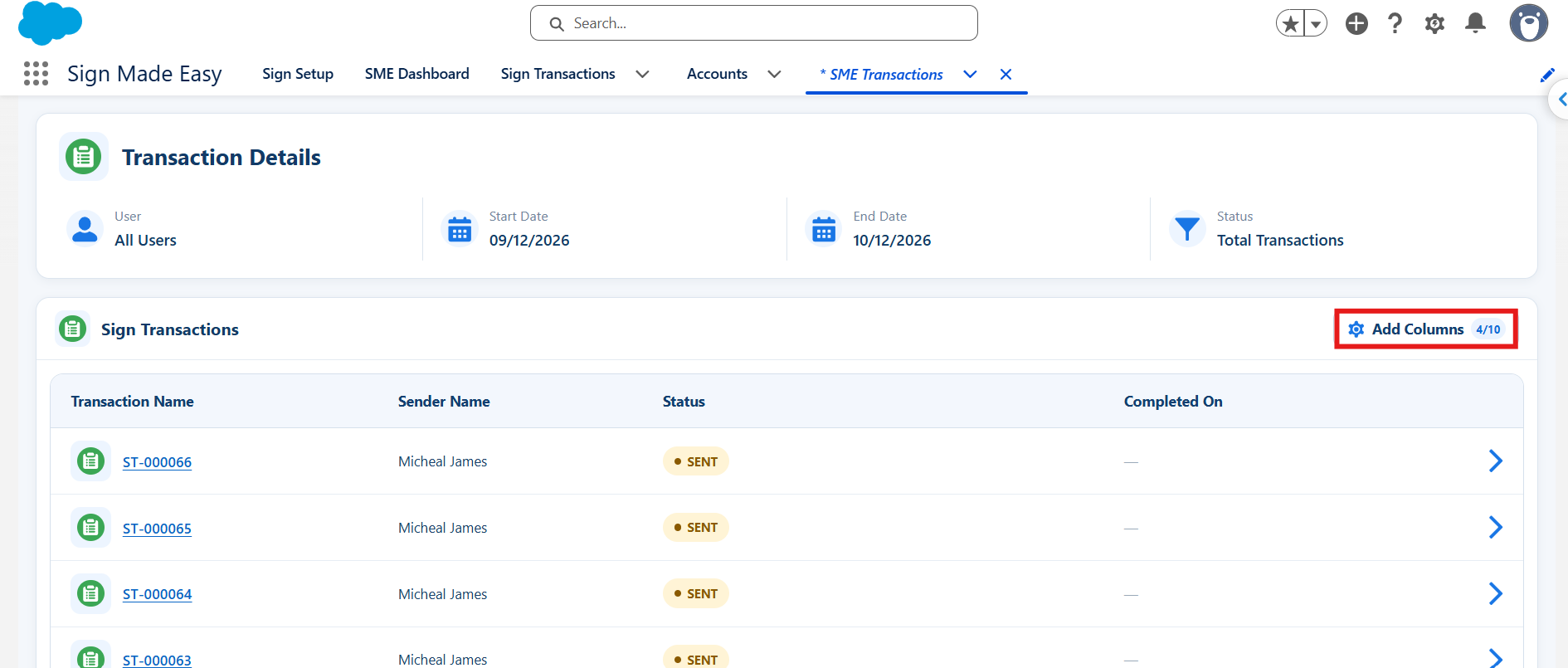
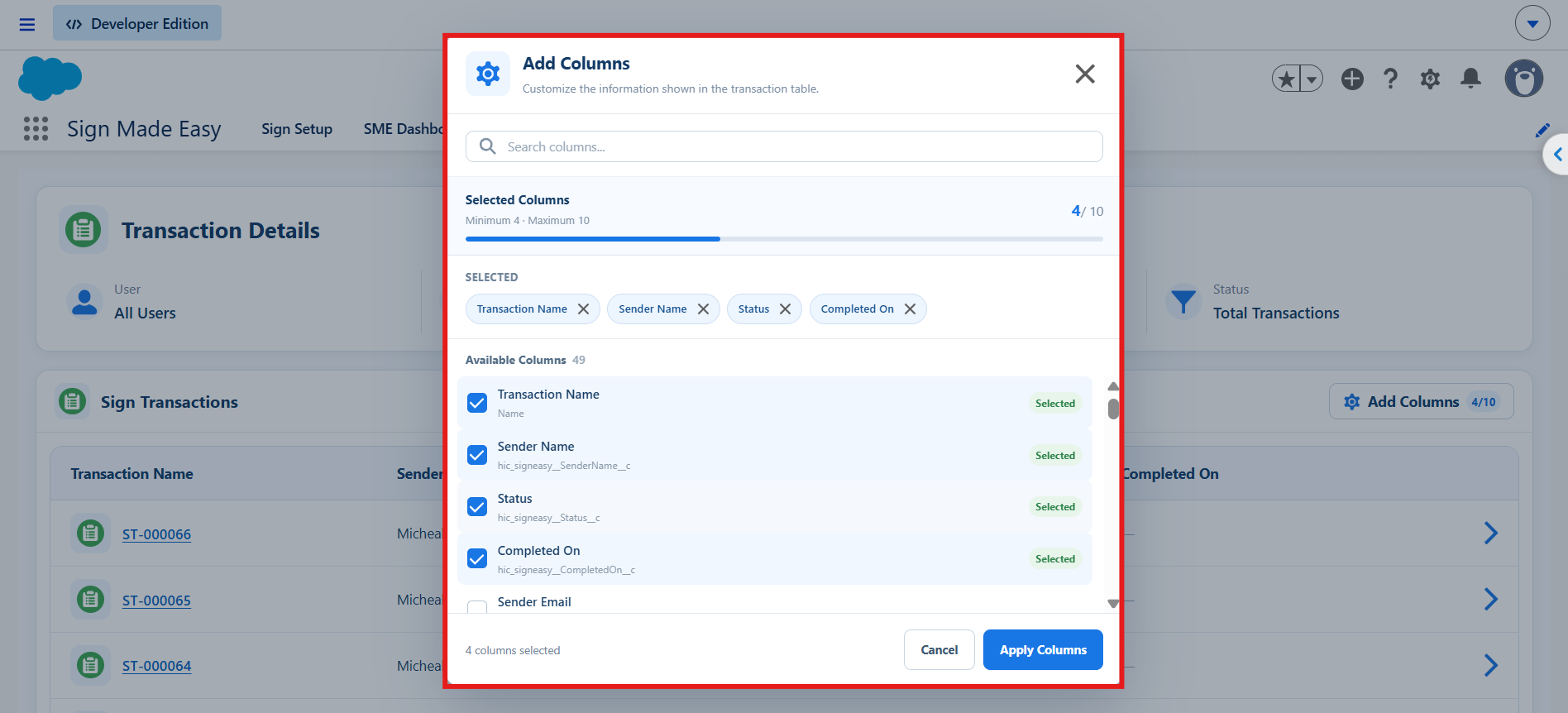
.
Similarly, you can open other transaction status categories, such as Pending Signatures, Completed, Declined, Expired, Draft, Authentication Failed, and Cancelled, to view the corresponding transaction records. You can also use the Add Columns option on each page to customize the table and display the relevant fields according to your requirements.
On the Home page, you will find several additional sections that provide useful information and quick access to key features. These sections are described below
The Recent Transactions section displays the latest sign transactions, along with their owner, status, sender details, creation date, and completion date.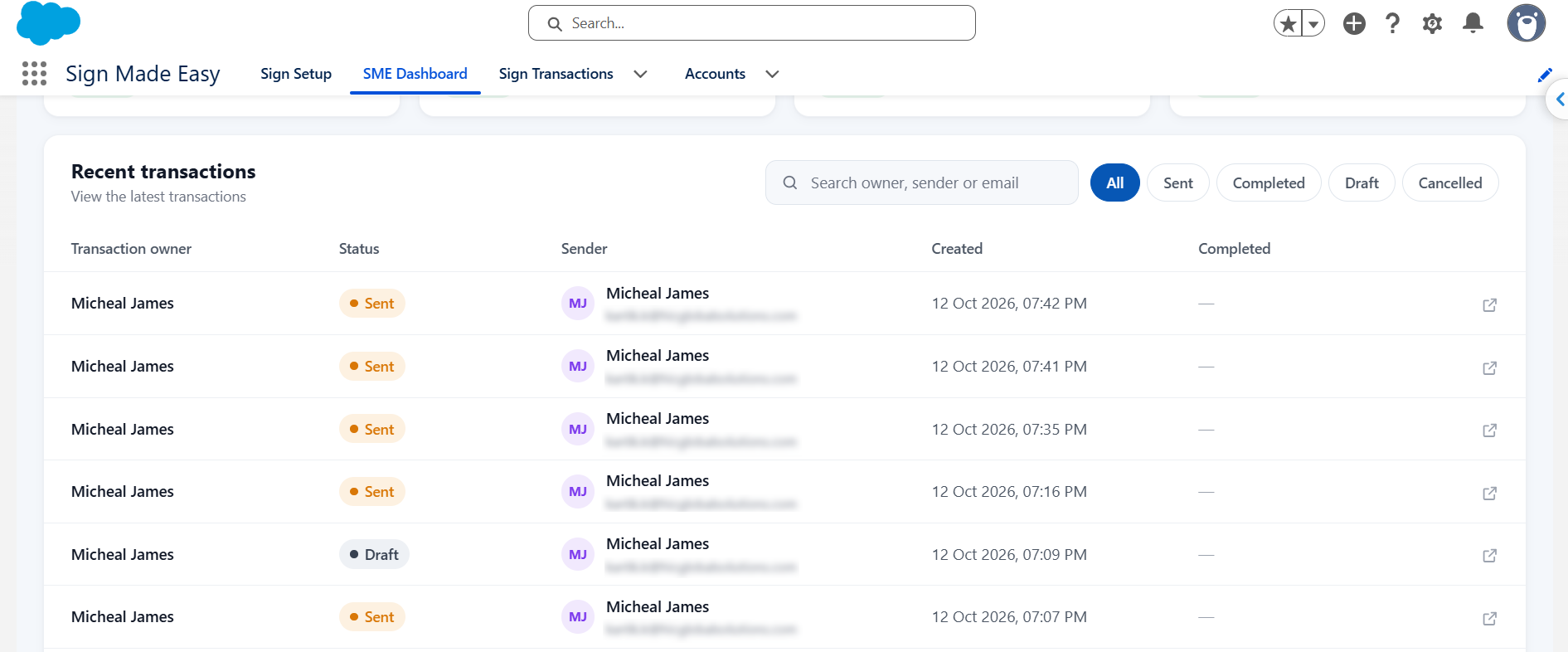
.
The Transactions Created Over Time section displays a graph showing transaction activity over a selected period. It helps you understand how many transactions were created or completed on different dates.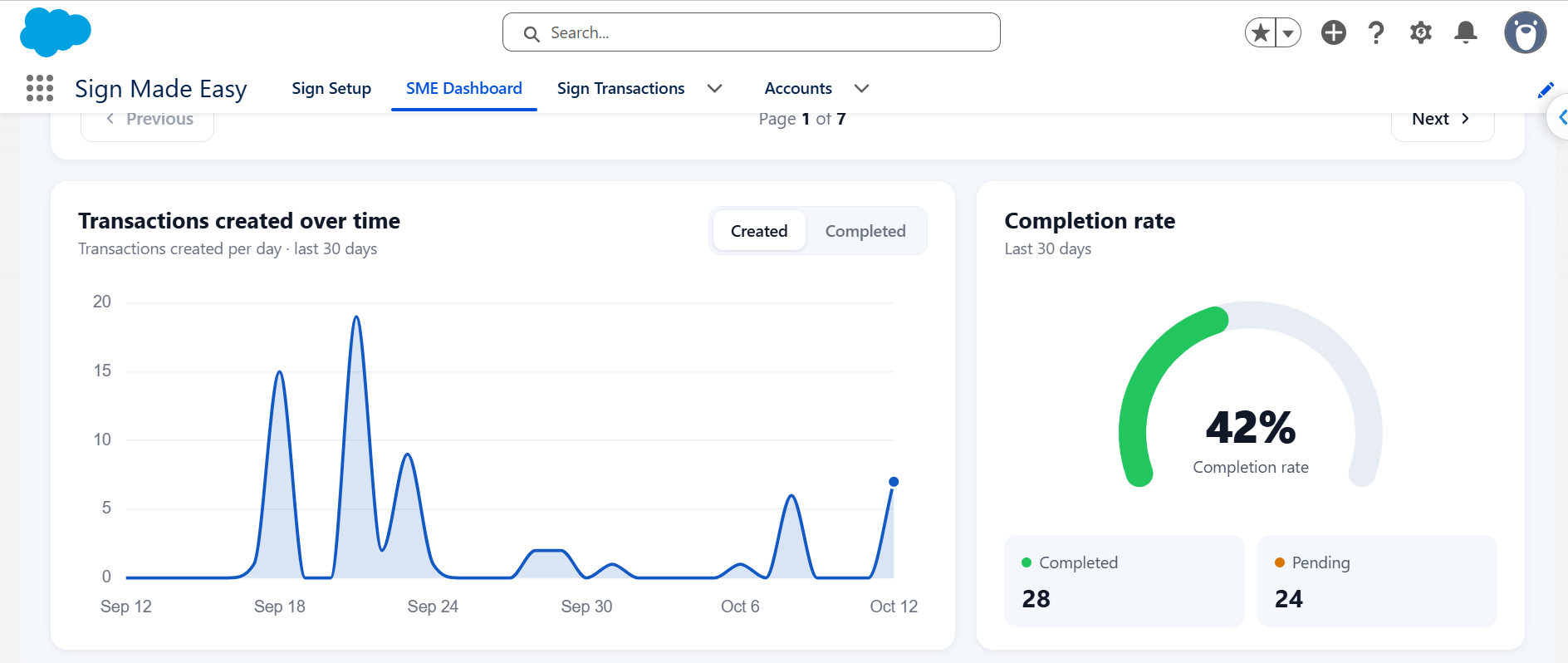
The Completion Rate section displays the percentage of transactions completed during the last 30 days, along with the corresponding counts of completed and pending transactions.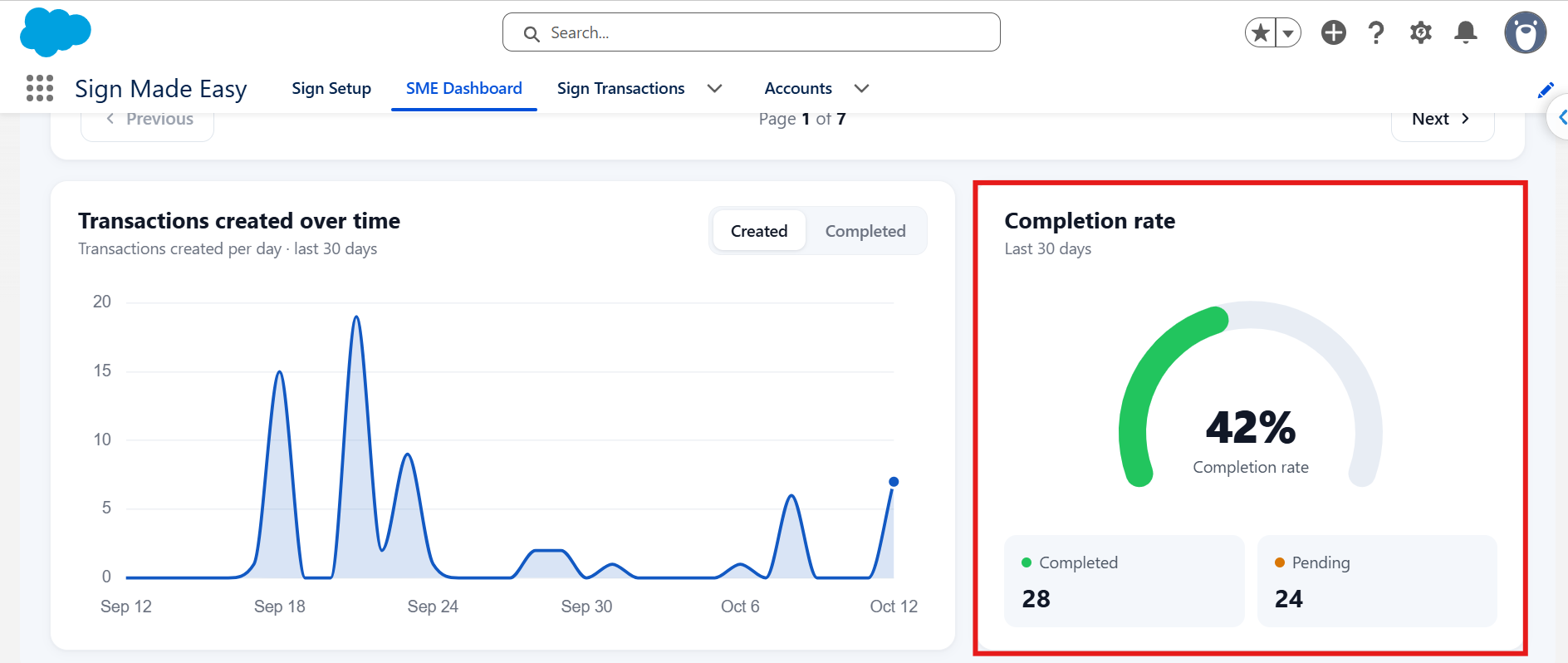
Was this article helpful?
That’s Great!
Thank you for your feedback
Sorry! We couldn't be helpful
Thank you for your feedback
Feedback sent
We appreciate your effort and will try to fix the article