A Detailed Reference For Form Field
A form field in a PDF is a space that allows users to input information directly into the document.
If your PDF already contains form fields, they are automatically recognized and converted into SME tags, making the signing process seamless and efficient.
Unlock advanced features and enhance your productivity by upgrading to Sign Made Easy Pro. Please contact our Support Team to access the advanced features of the SME PRO package.
Step 1:- You need to add form fields to the PDF.
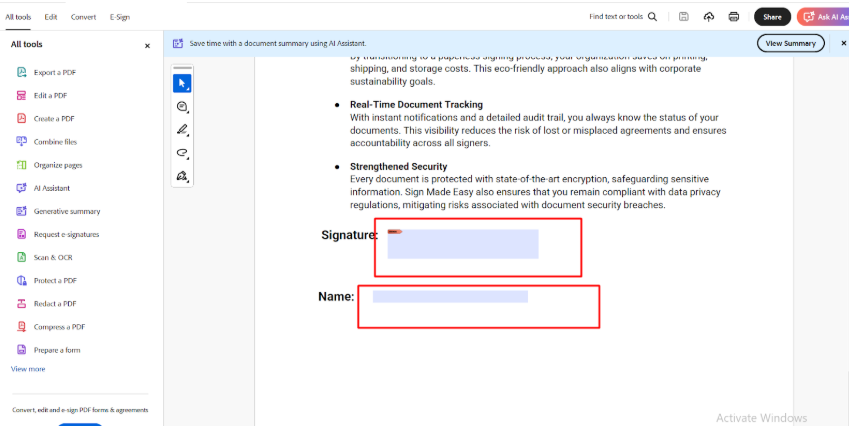
Note: You can add form fields to the PDF using any PDF editor.
Step 2:- Create a transaction, add the document, select the recipient, and check the “Assign Form Fields” checkbox.
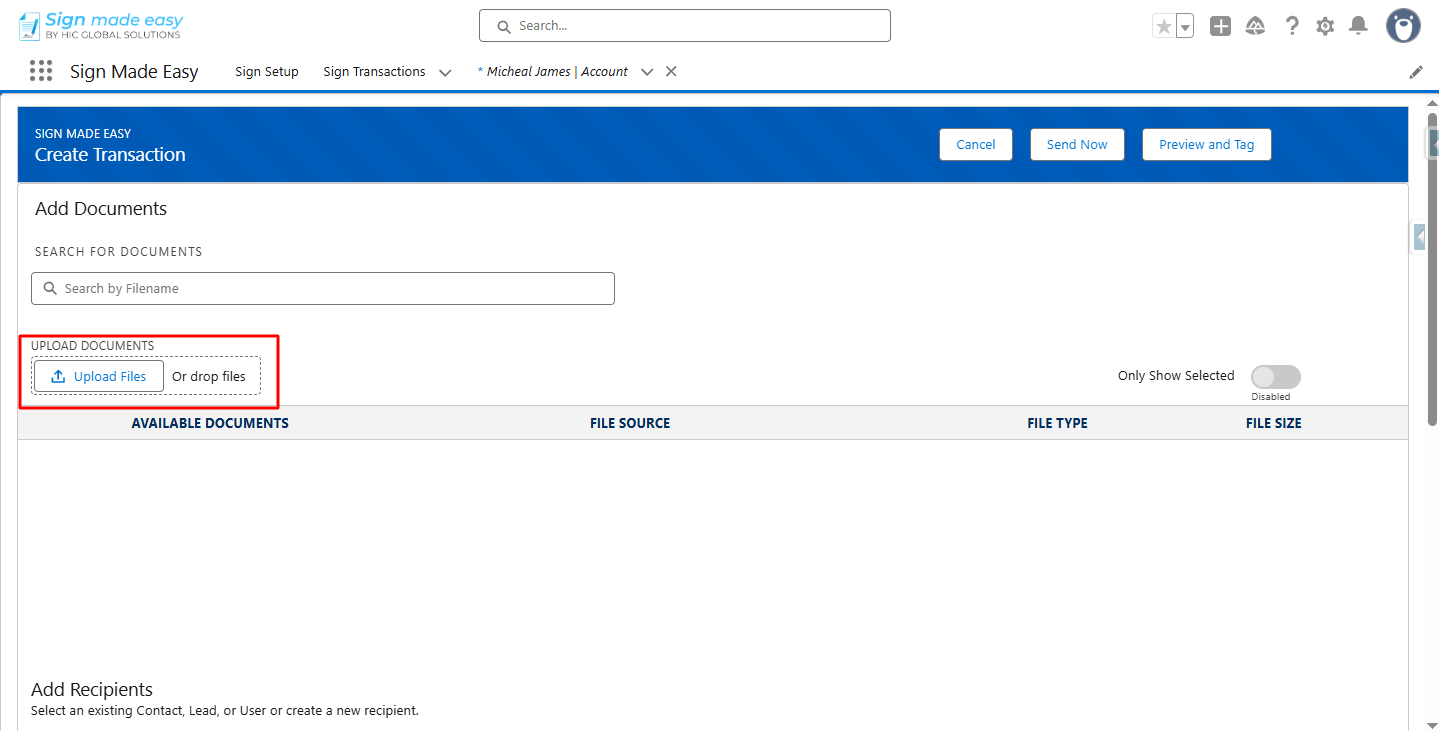
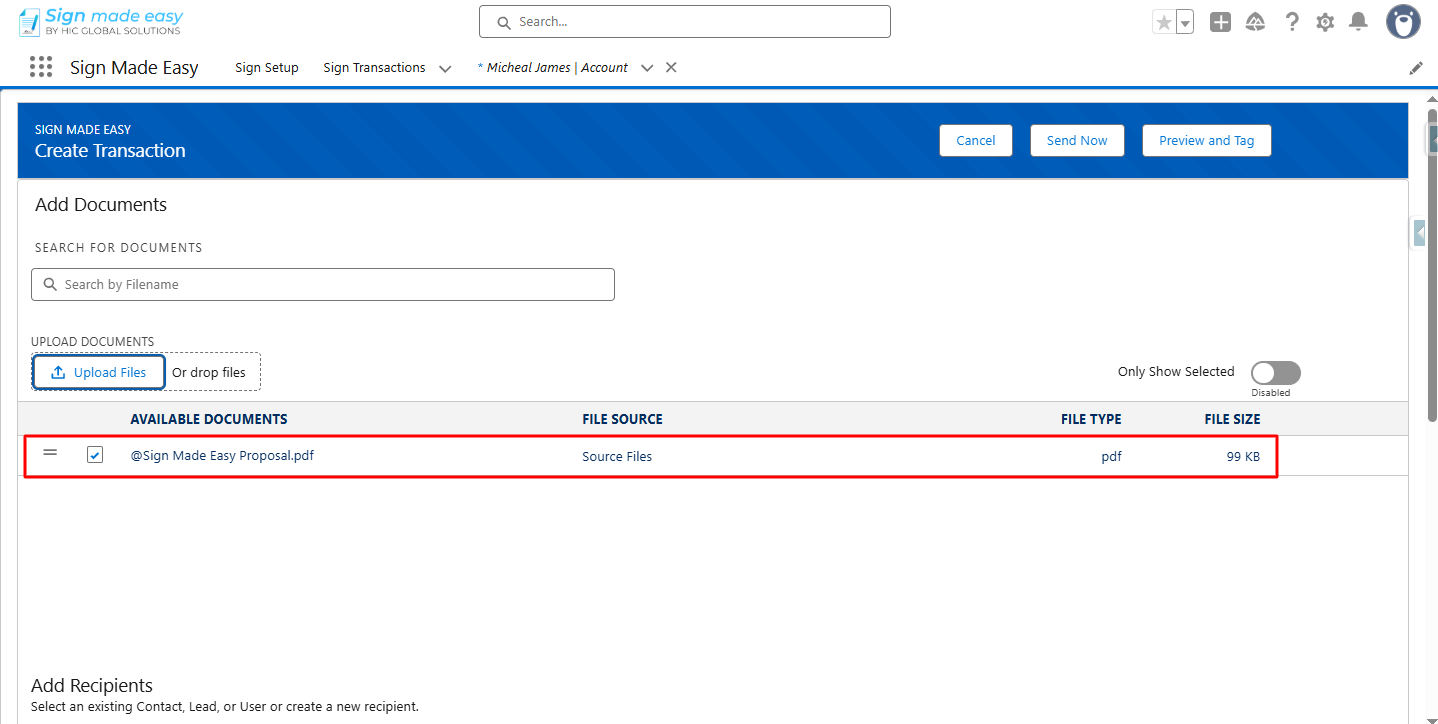
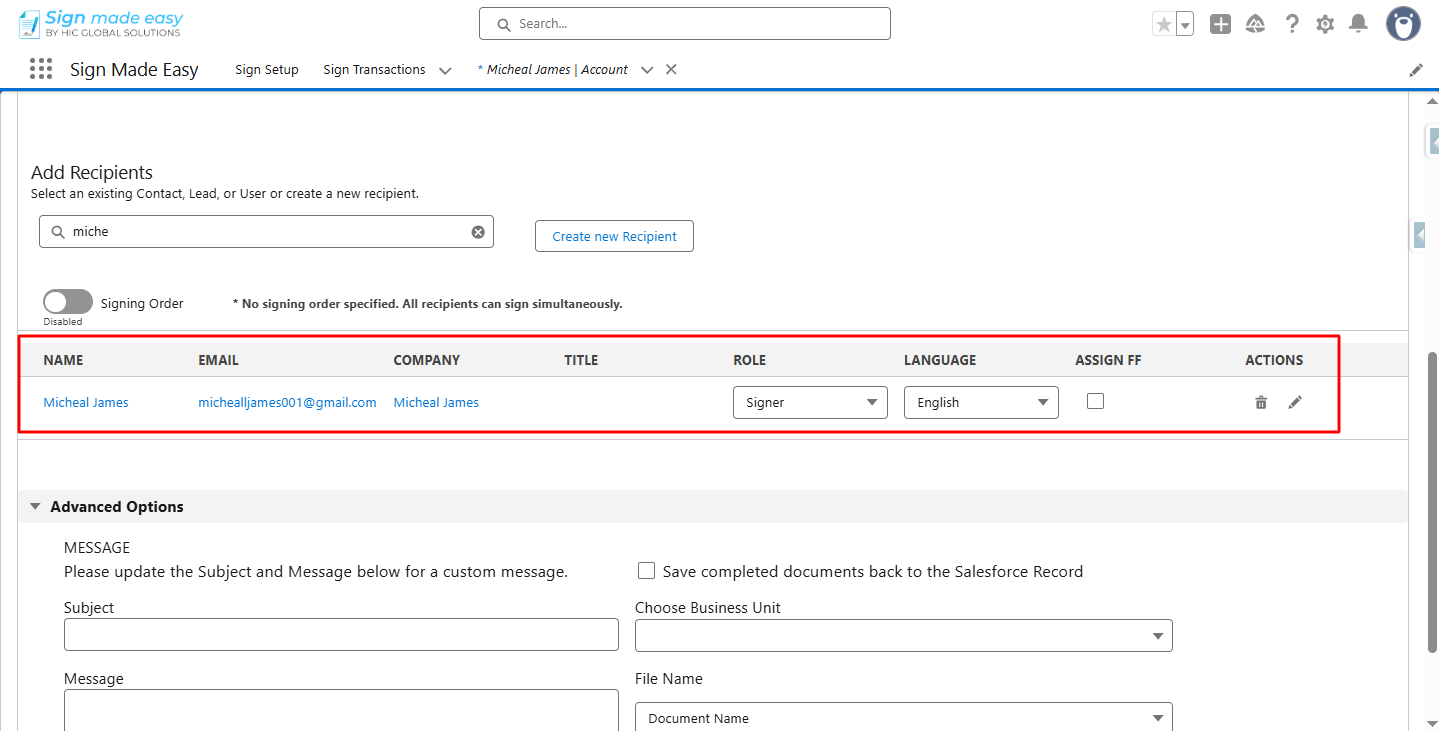
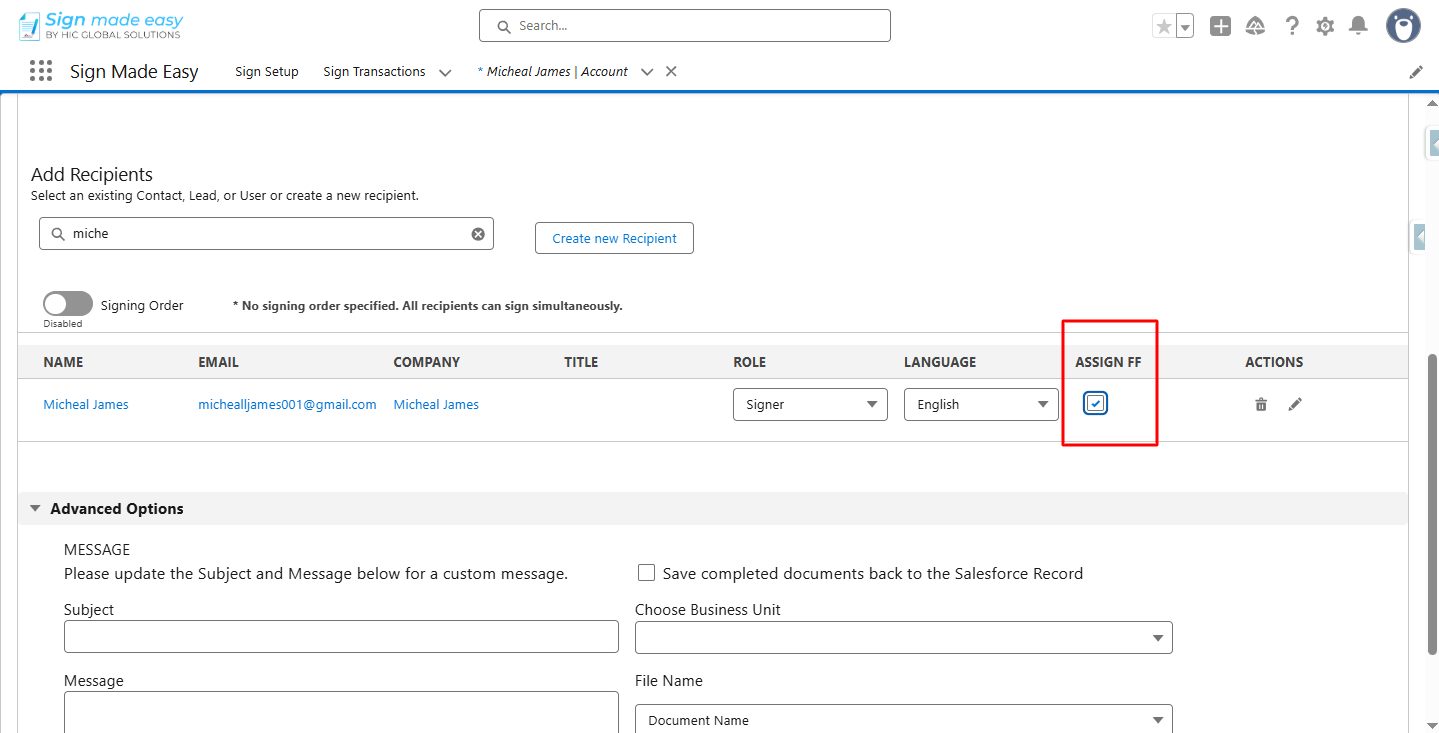
Note: You can use the “Assign Form Fields” option for only one recipient per transaction.
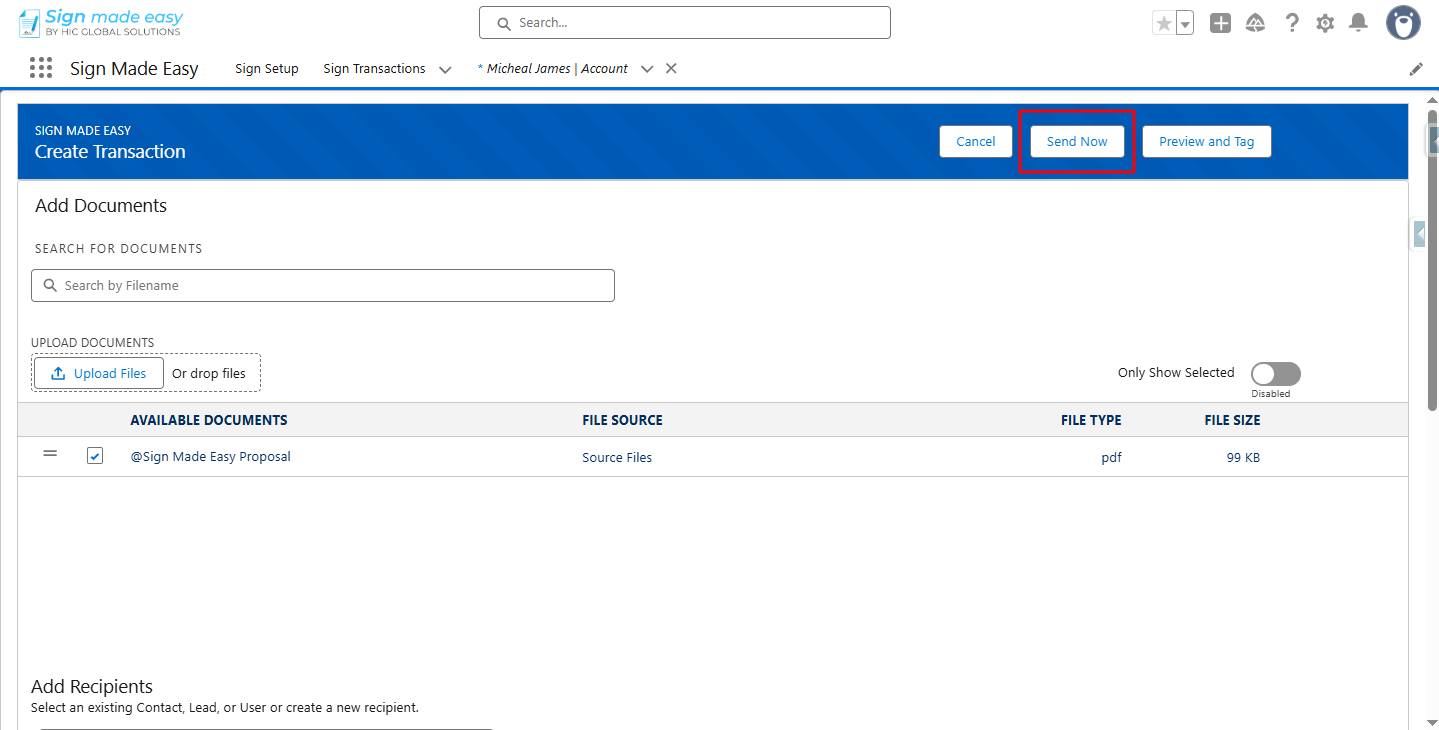
Step 3:- You can directly send the transaction via the "Send Now" button.
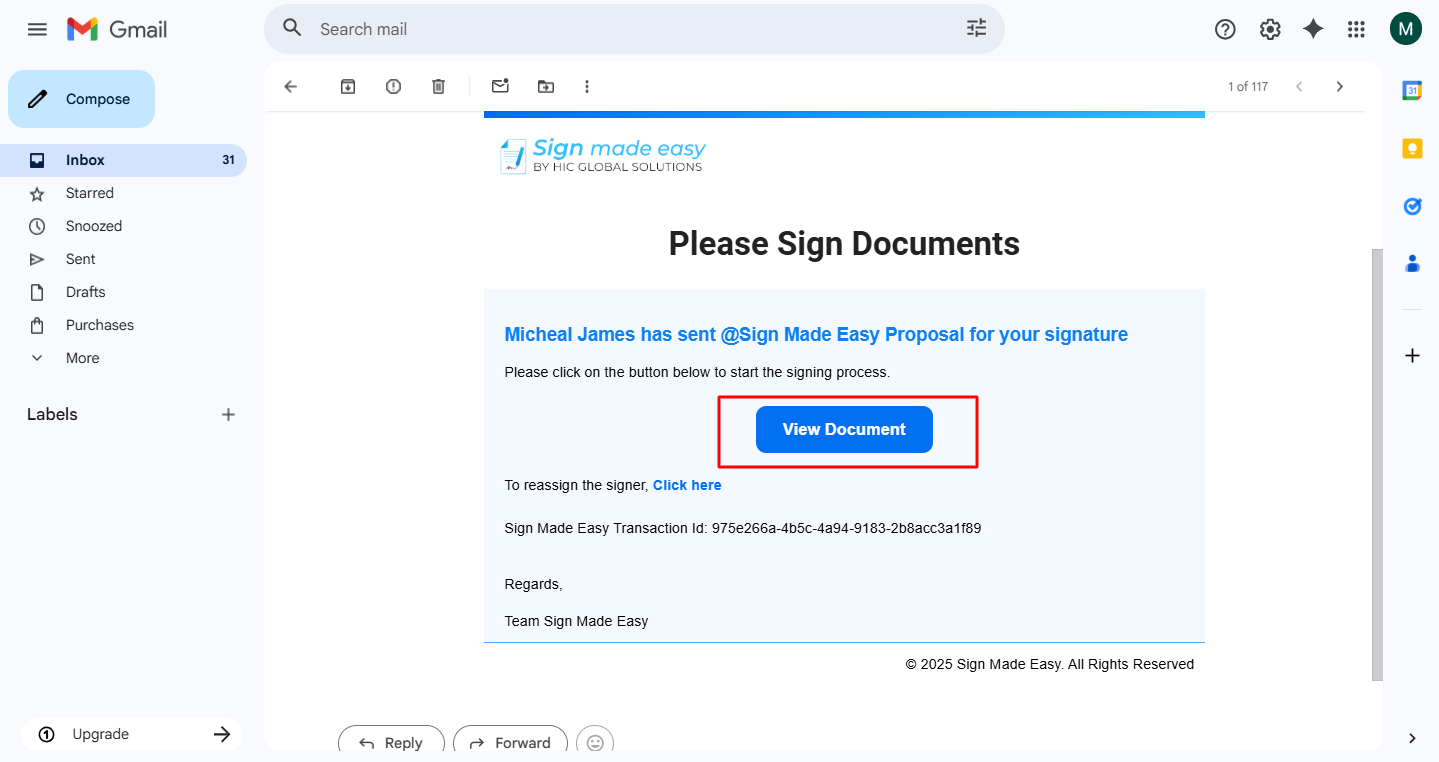
Step 4:- After the documents are sent, recipients will receive an email notification. To complete the e-signature process, they must open the email and click the View Document button.
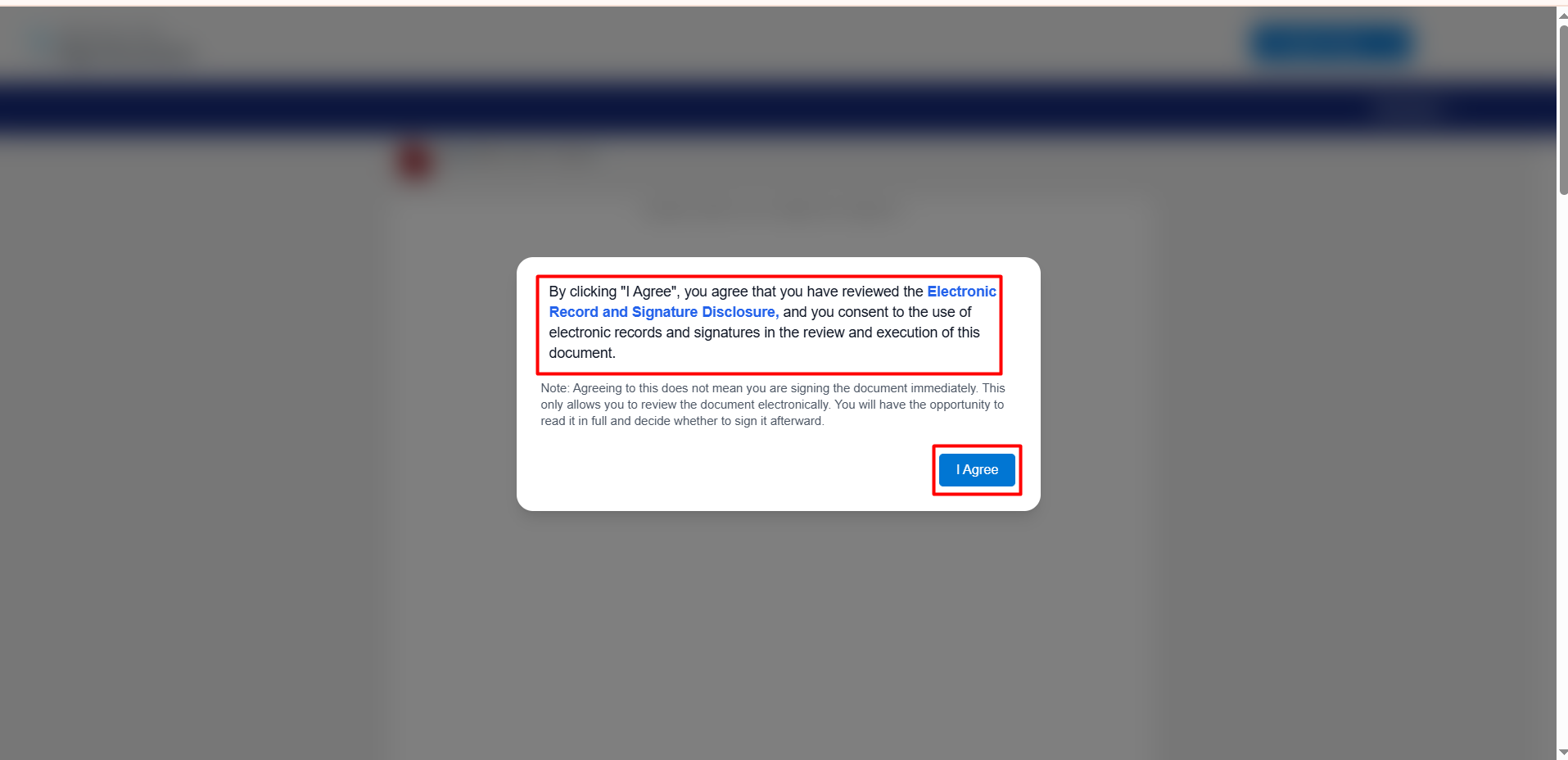
Step 5:- By clicking "I Agree," you confirm that you have read and reviewed the terms and conditions of Sign Made Easy through the Electronic Record and Signature Disclosure. You also consent to the use of electronic records and signatures for reviewing and executing this document.
Step 6:- You can see that the form fields in the document have been converted into “Sign Made Easy” tags.
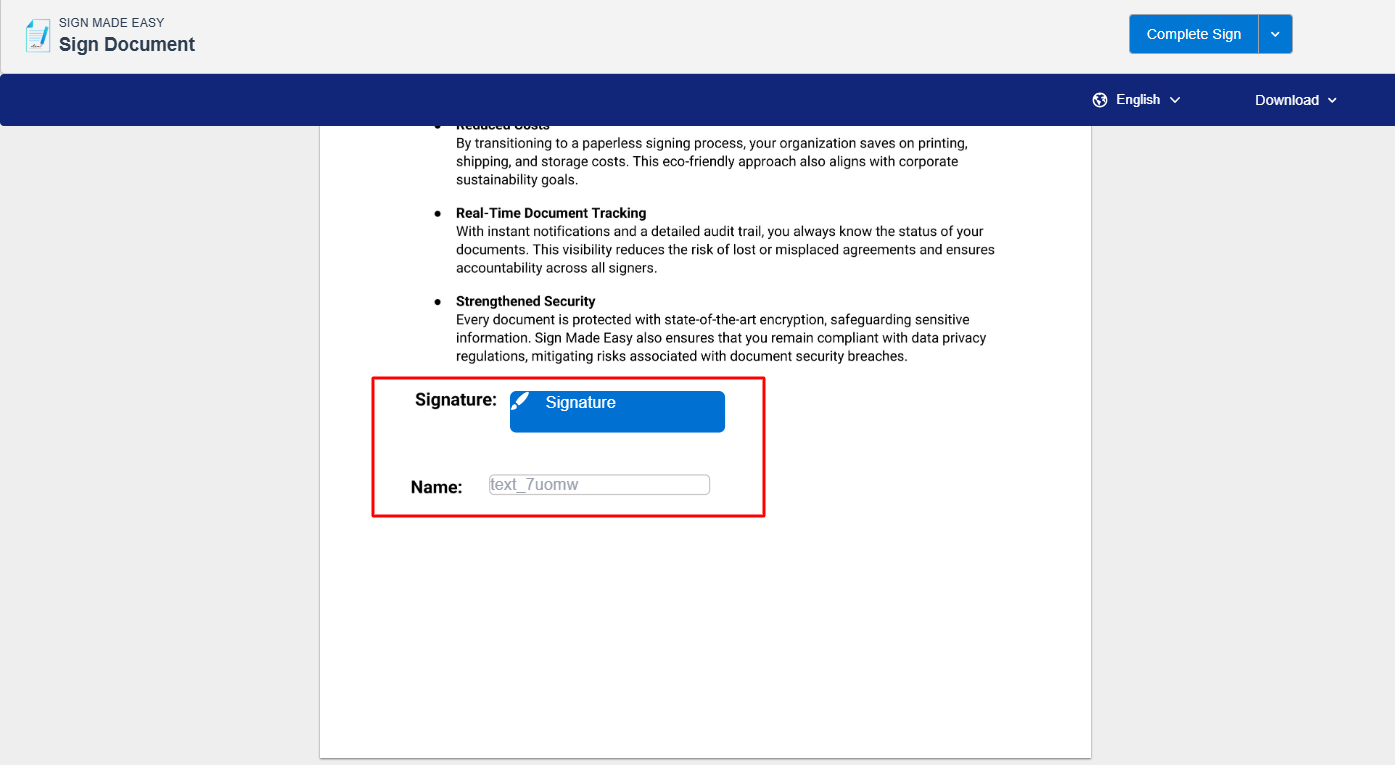
Step 7:- To complete the transaction record, enter the required values in the tags. This can be done by clicking on each tag and providing the necessary input.
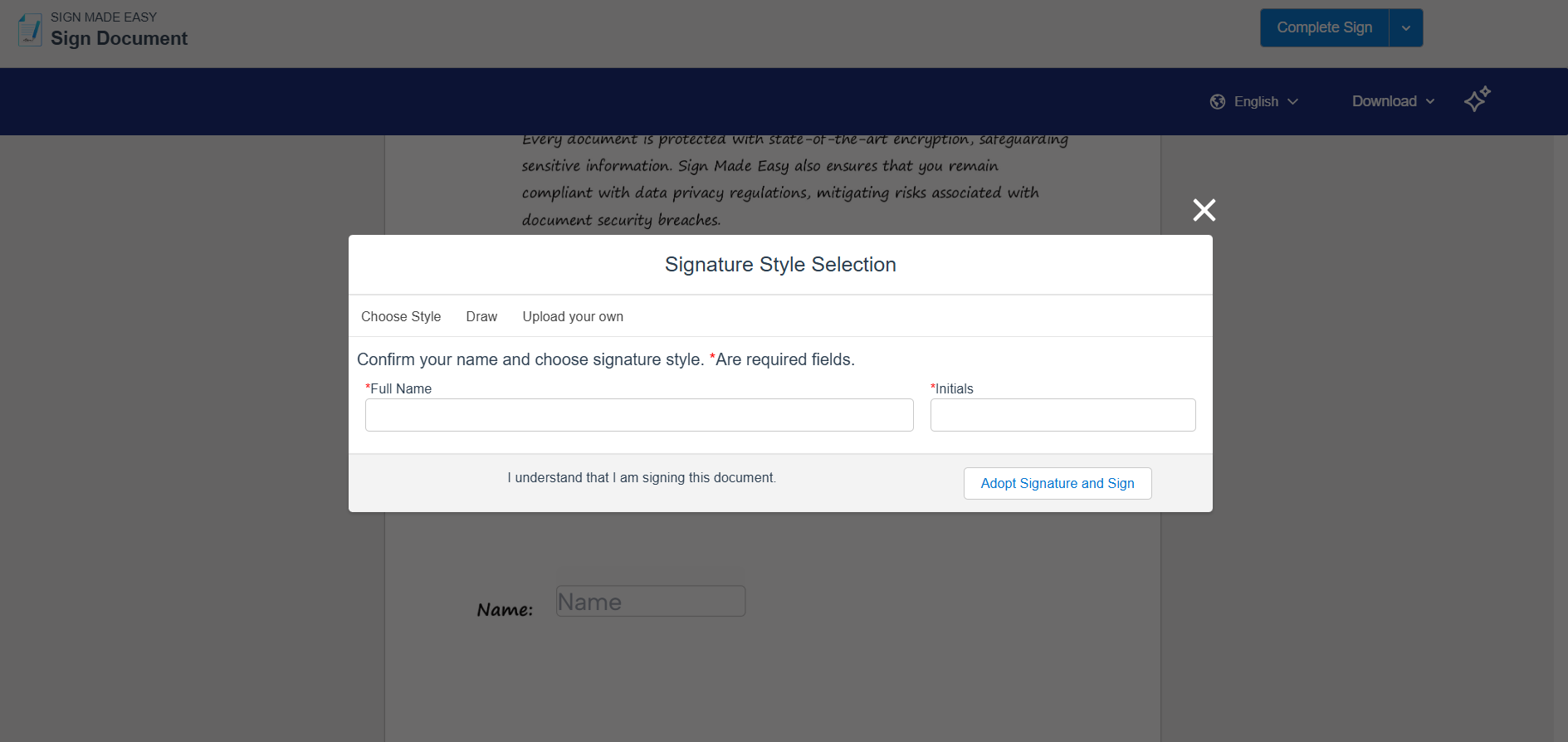
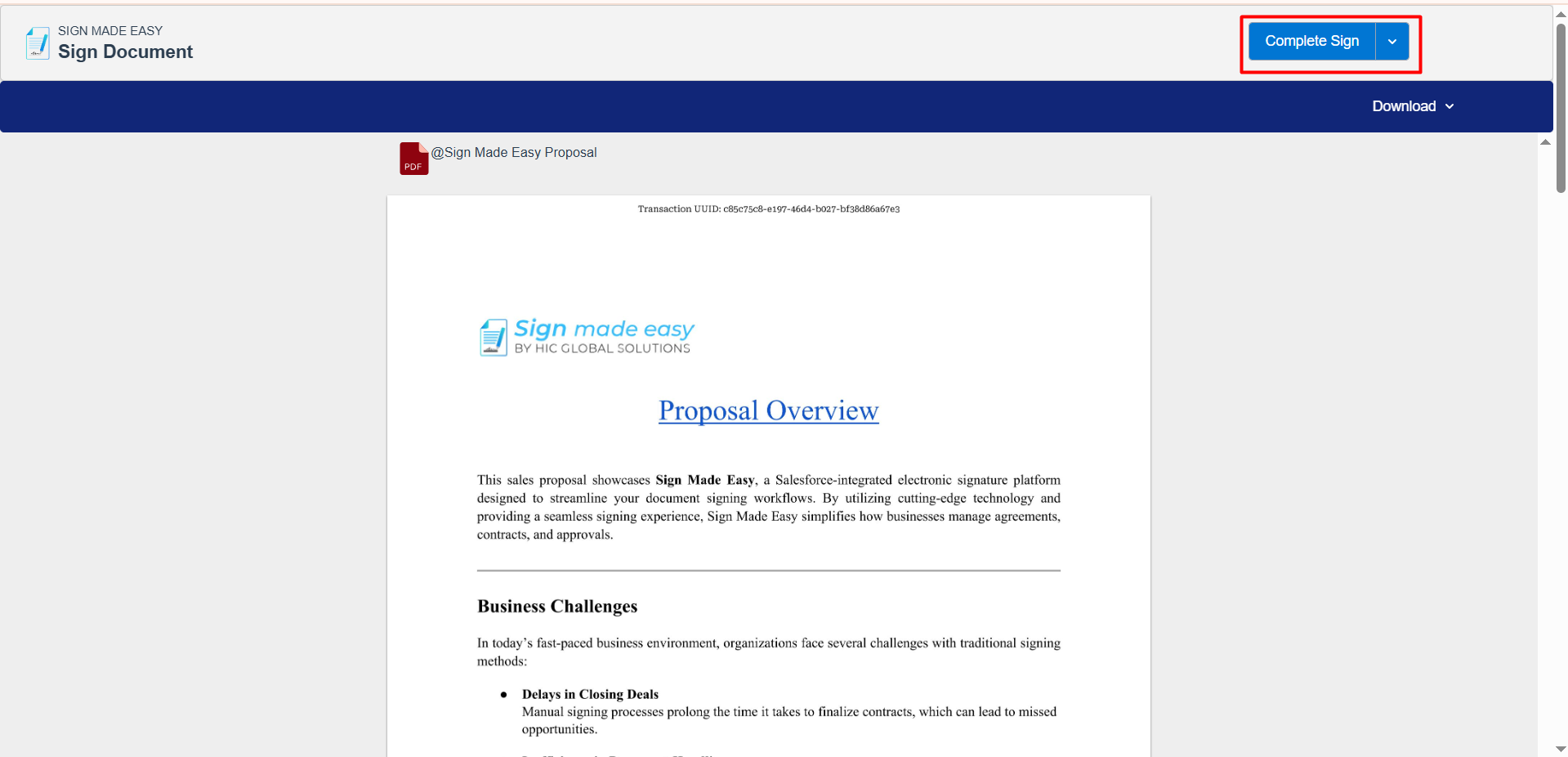
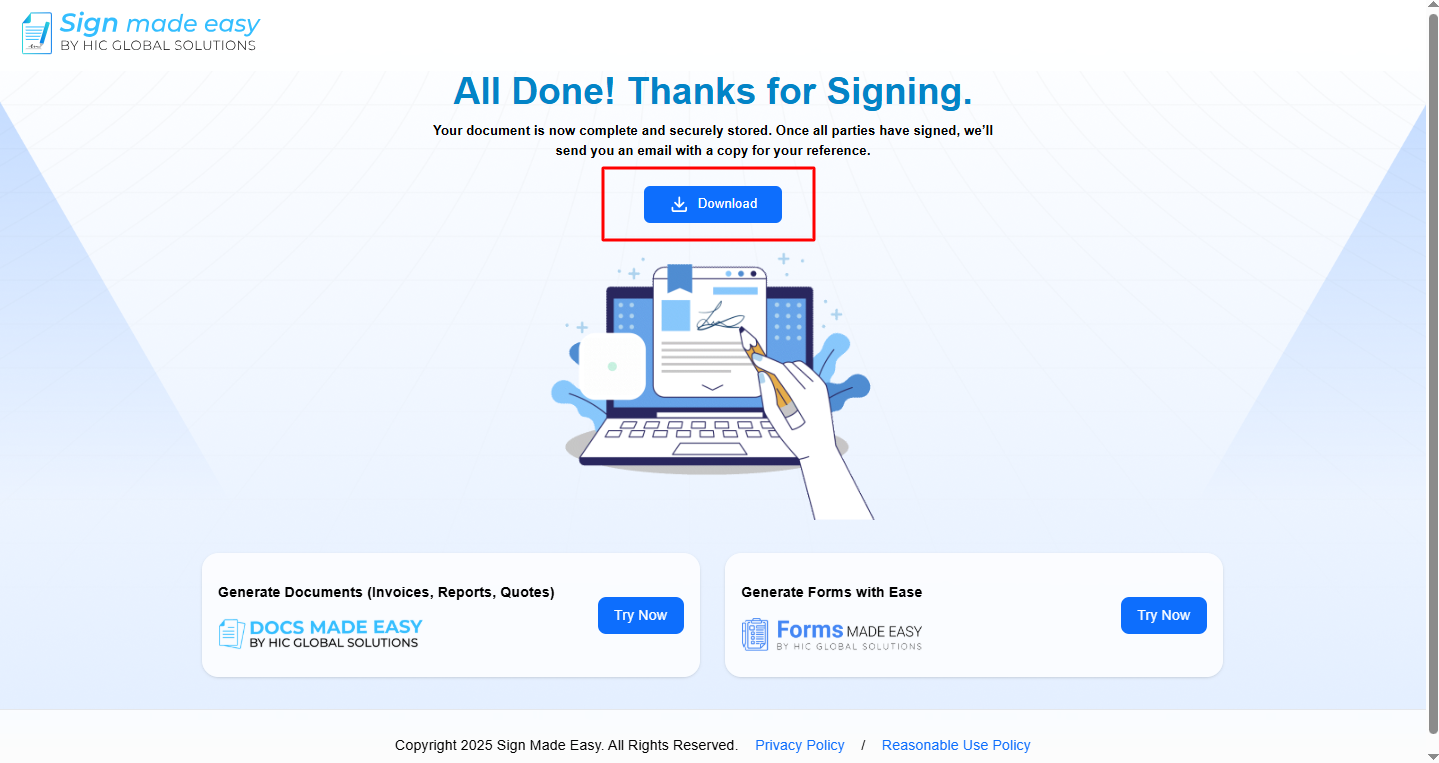
Step 8:- Click the Complete Sign button to finalize the signing process. Once completed, the document will be marked as fully signed. A confirmation email will be sent once all recipients have completed their signatures.
Was this article helpful?
That’s Great!
Thank you for your feedback
Sorry! We couldn't be helpful
Thank you for your feedback
Feedback sent
We appreciate your effort and will try to fix the article