Here are the steps you need to follow to complete the process of eSigning with the Form Field compatible feature.
Step 1:- Embed the form field into the PDF document.
Note: A form field in a PDF is a space that allows users to input information directly into the document.
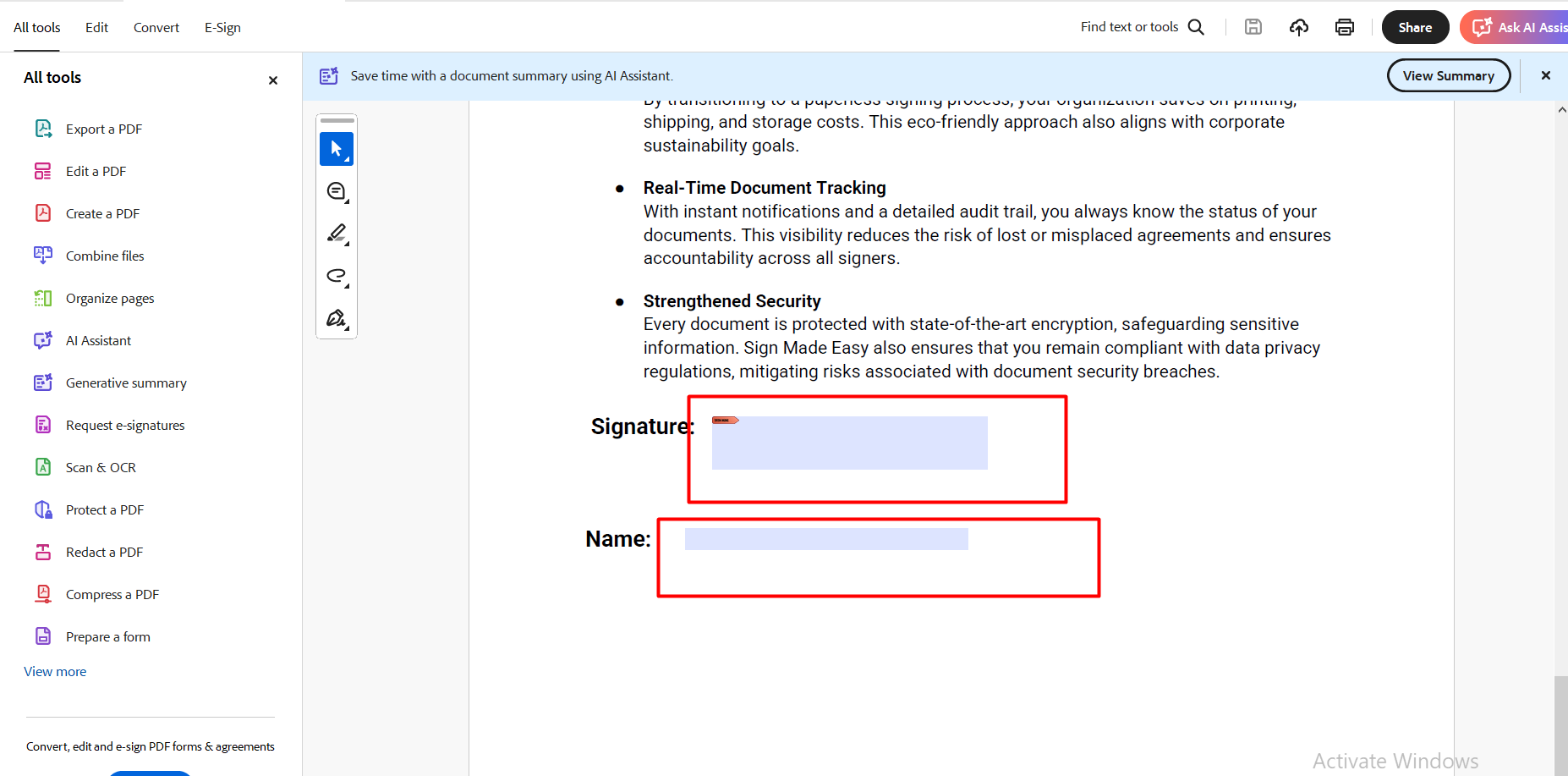
Note: In case the SME Button is not yet configured, navigate to the Button Configuration section of the Sign Setup page and create it prior to proceeding.
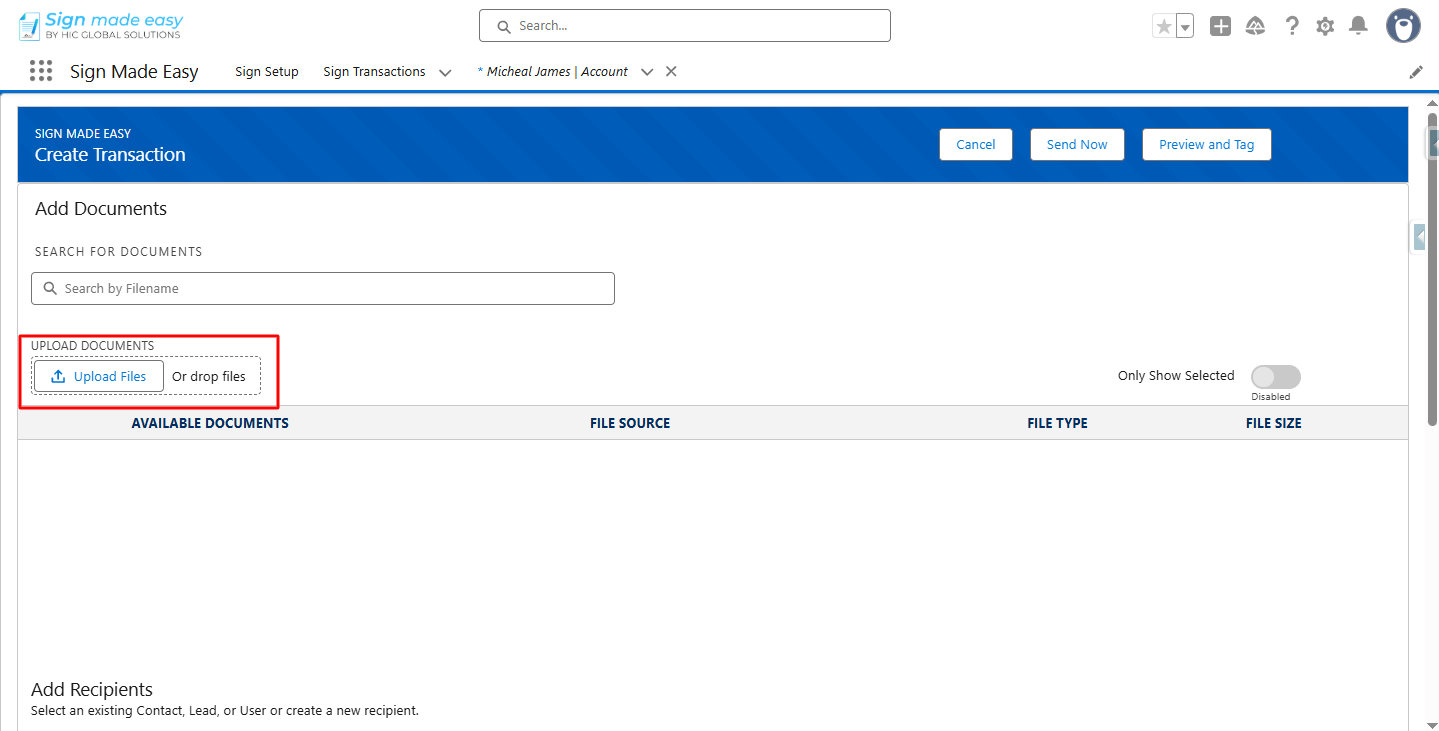
Step 2:- Next, you have to upload the files.
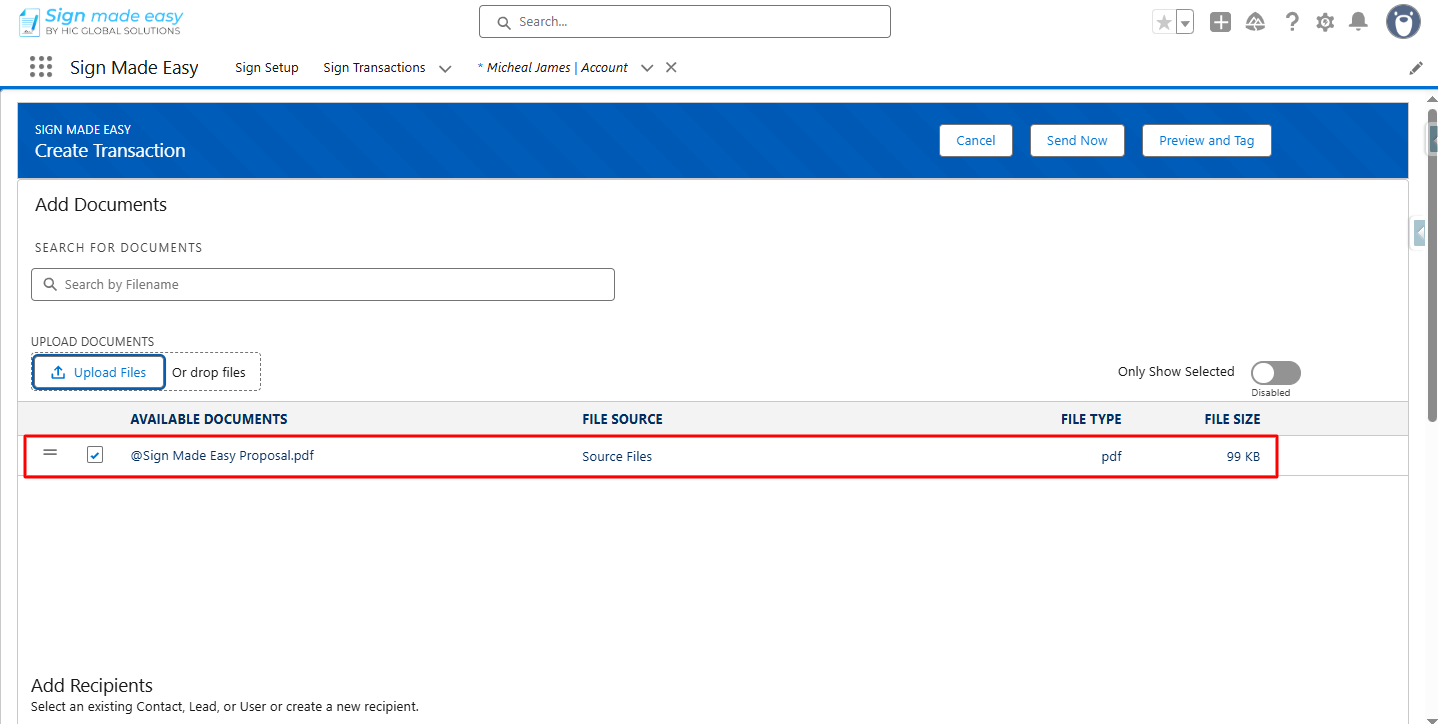
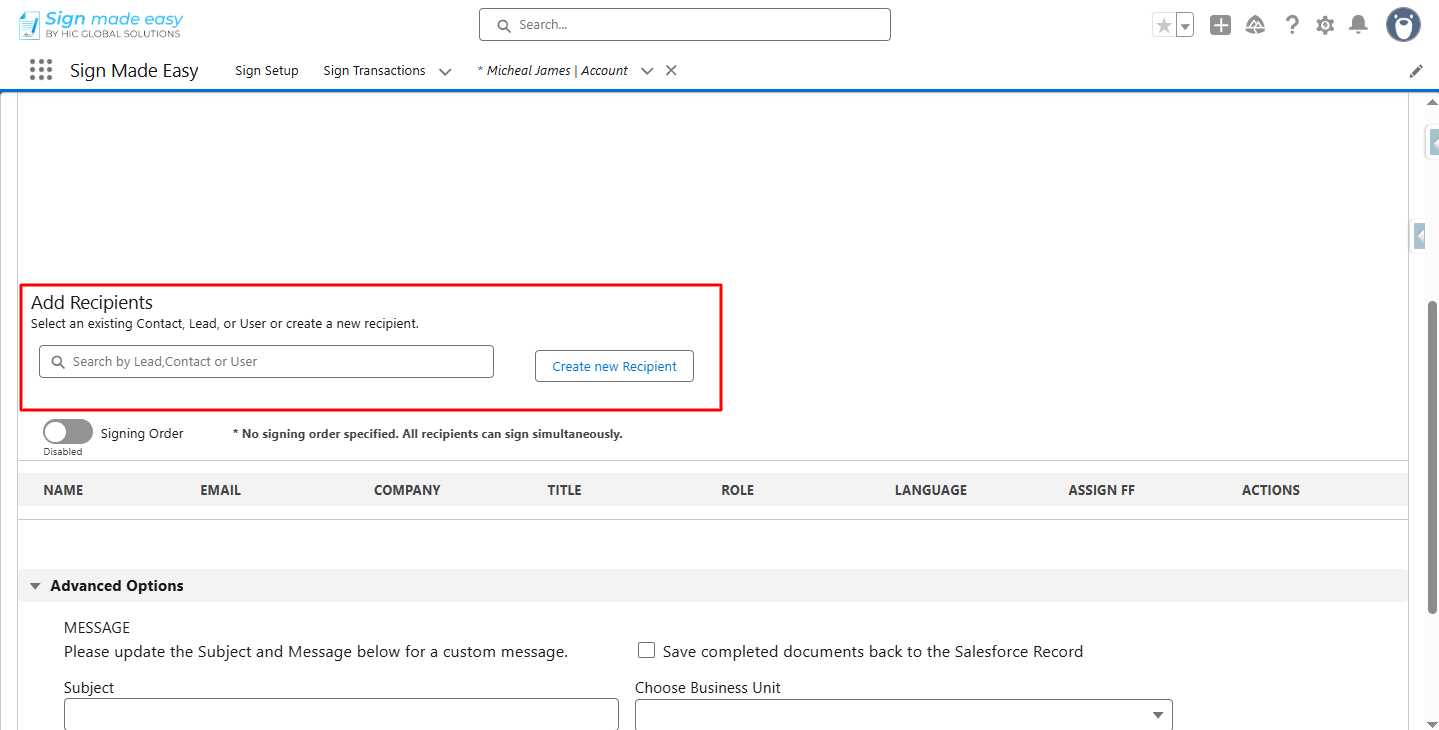
Step 3:- Add Recipient.
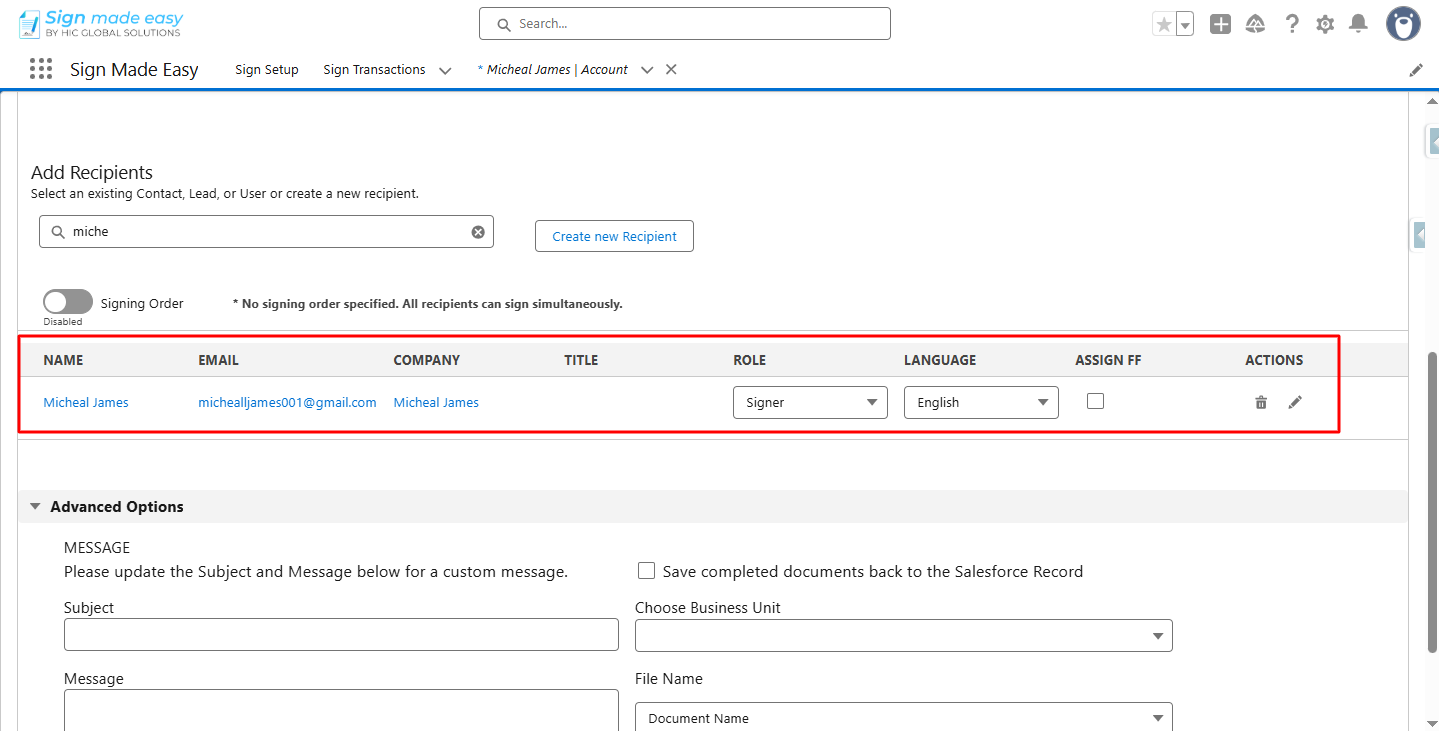
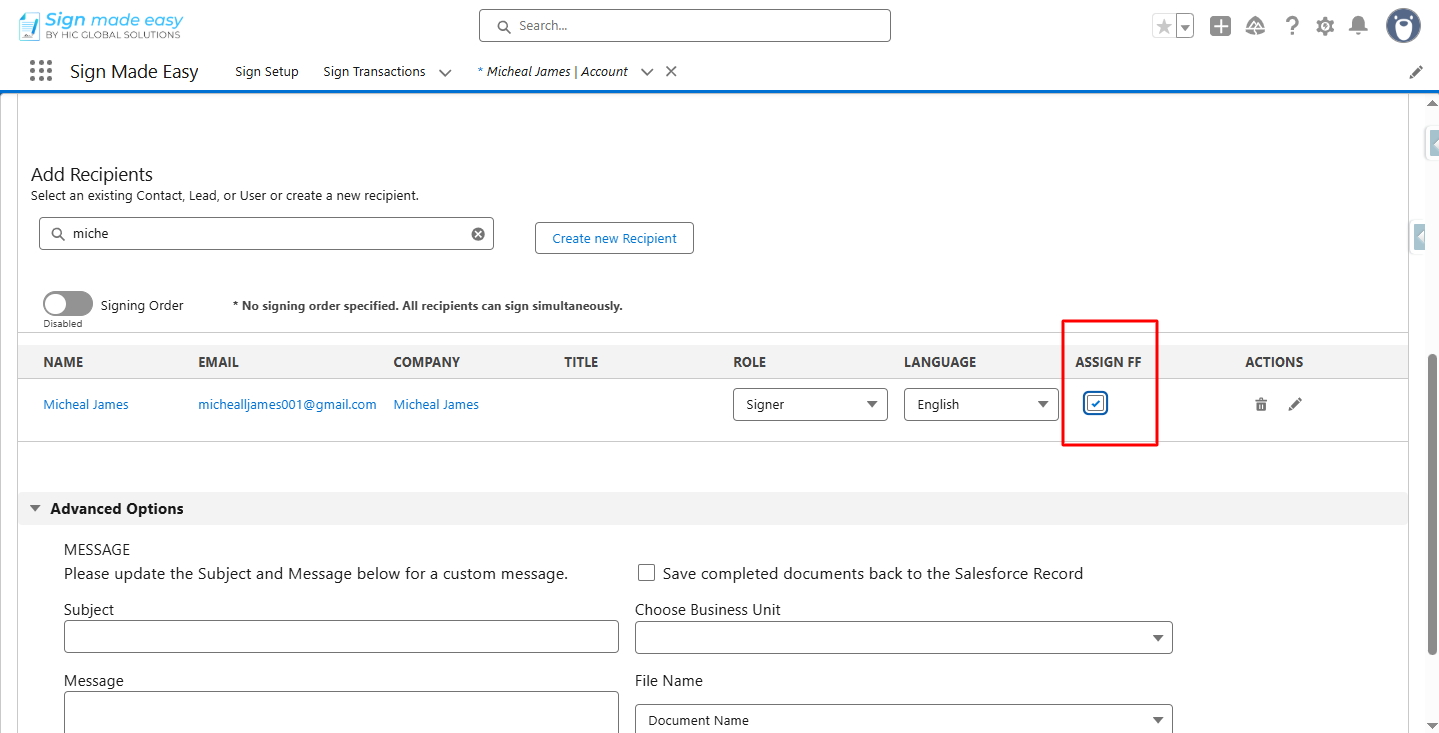
Step 4:- Check the ASSIGN FF checkbox.
Note:- If your PDF already contains form fields, they are automatically recognized and converted into SME tags, making the signing process seamless and efficient.
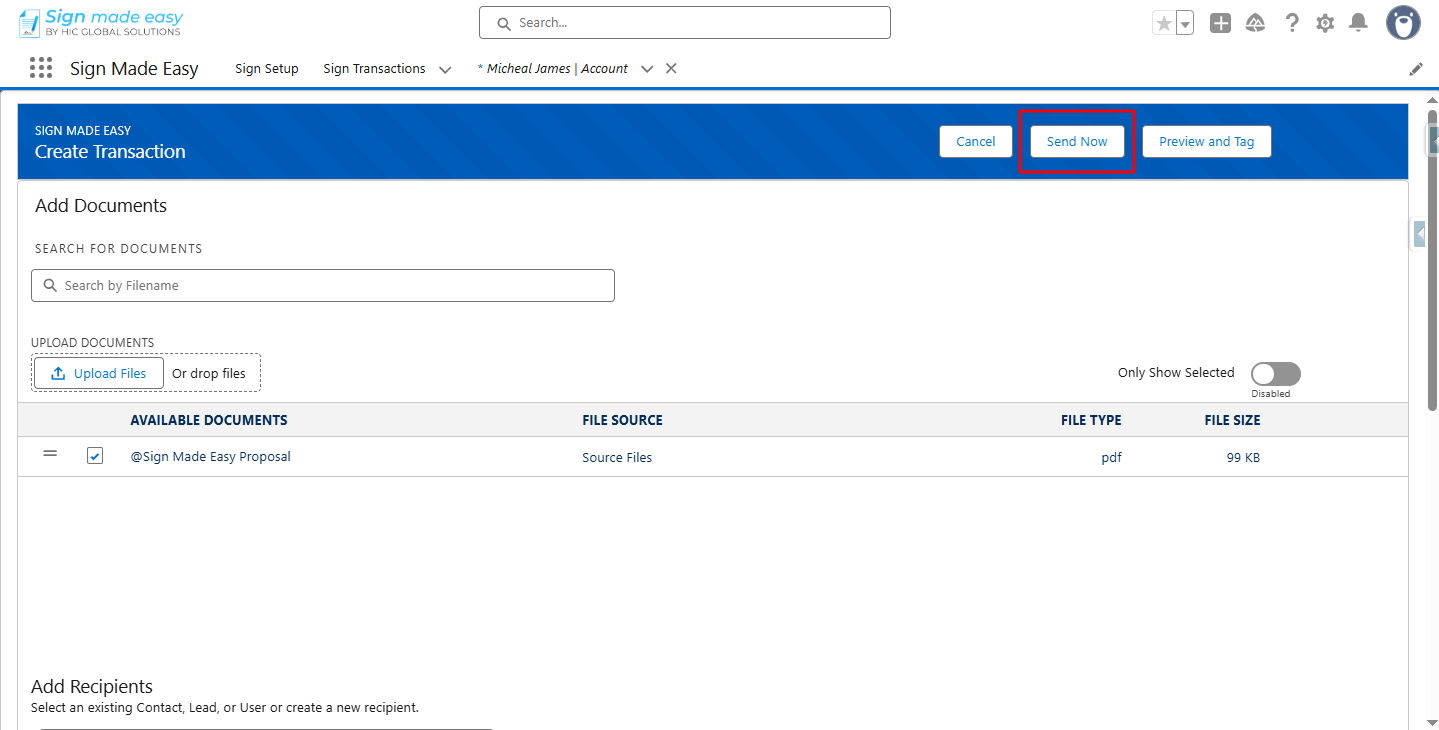
Step 5:- Click the Send Now button to send the email to the recipient.
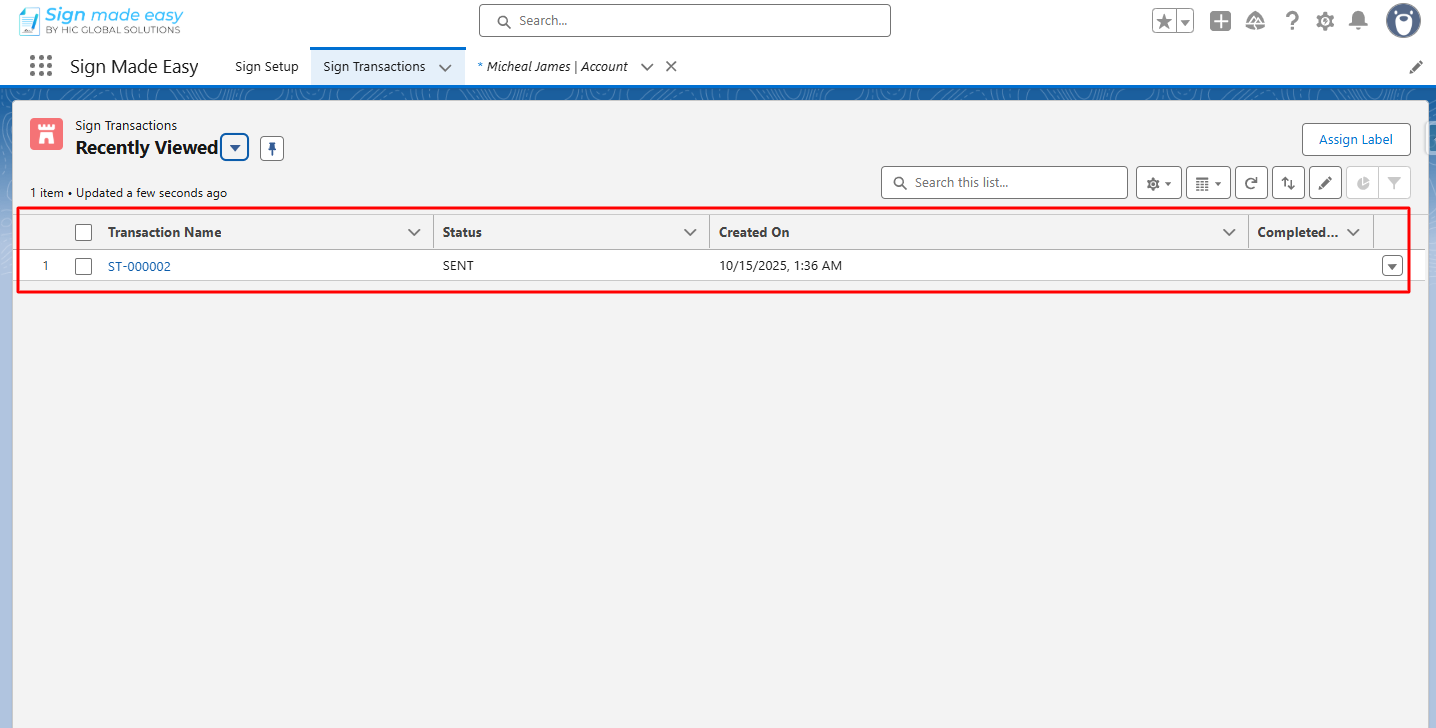
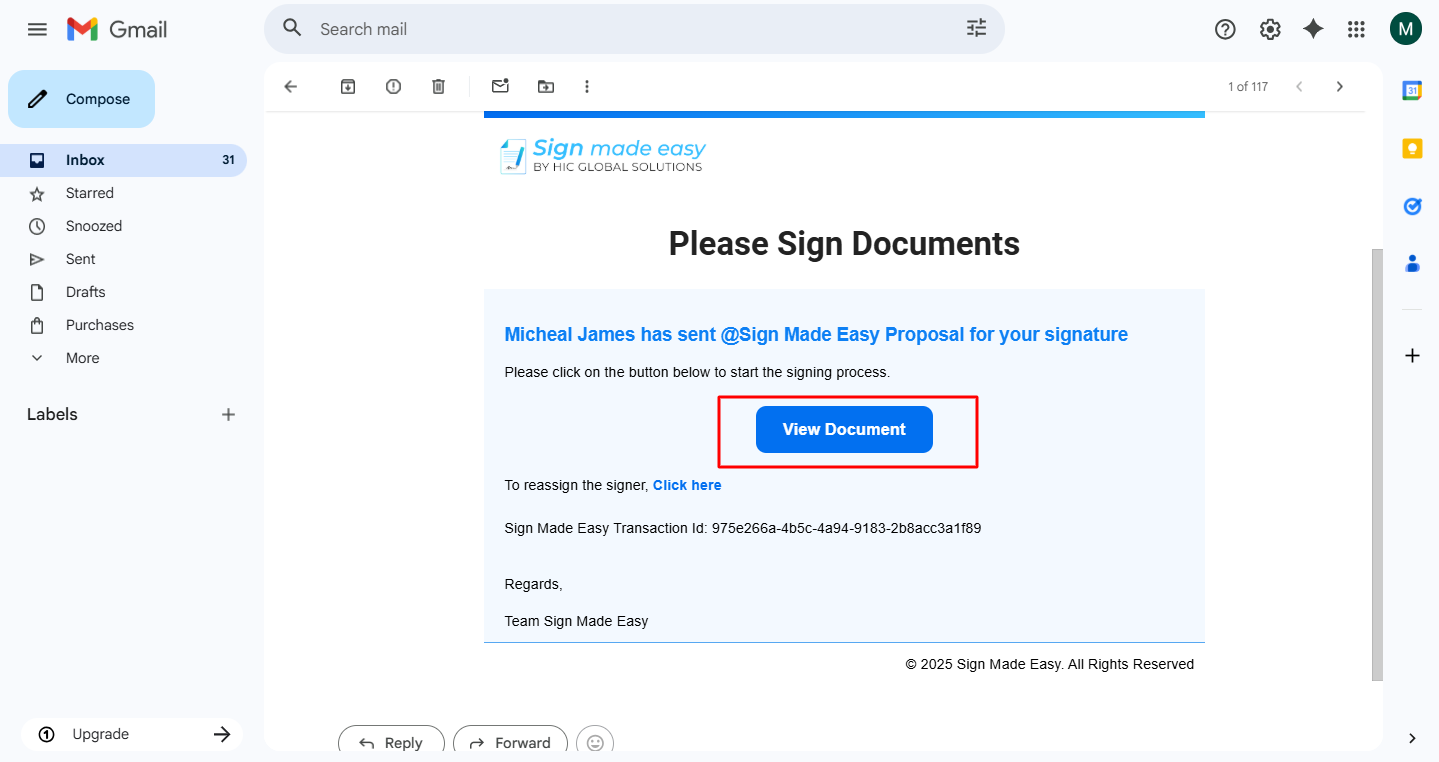
Step 6:- To complete the transaction, click on each tag and enter the required information to complete the transaction.
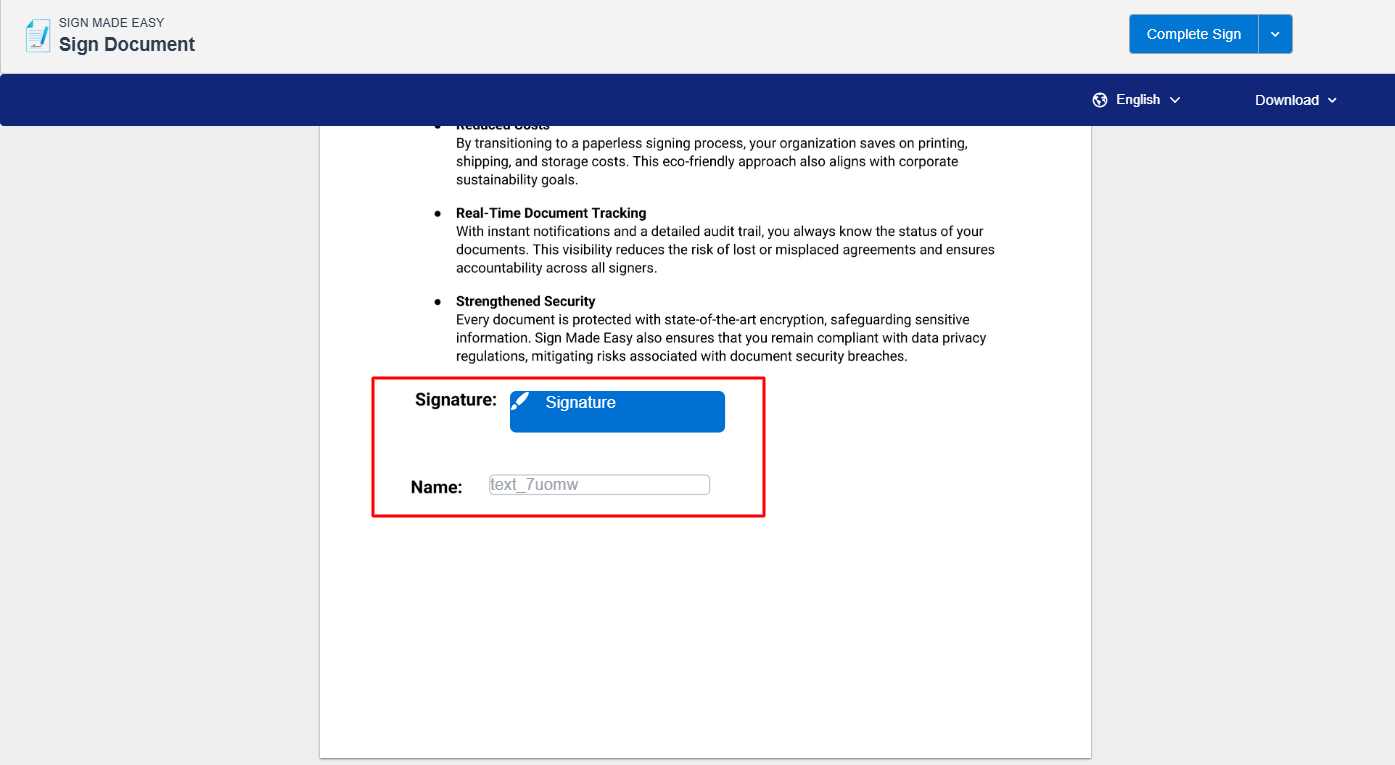
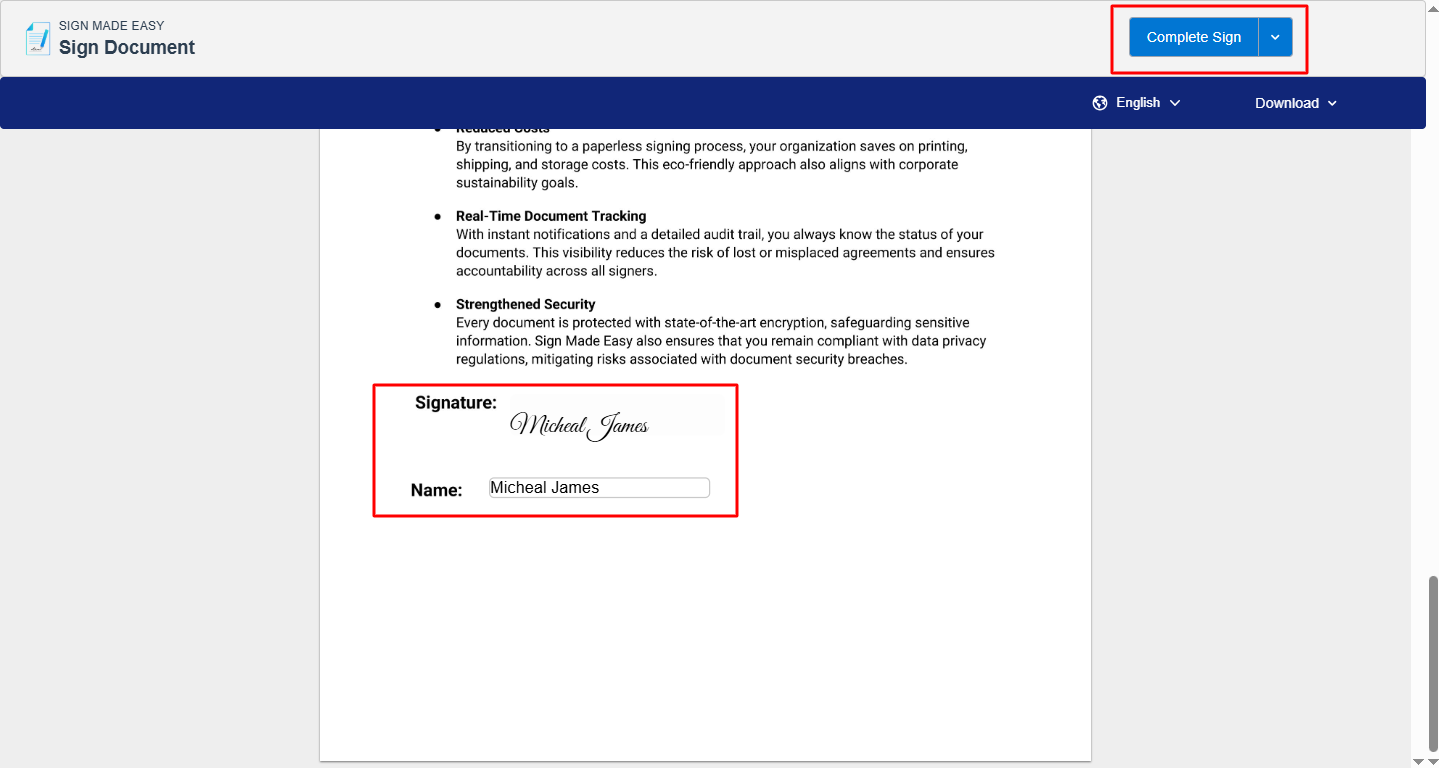
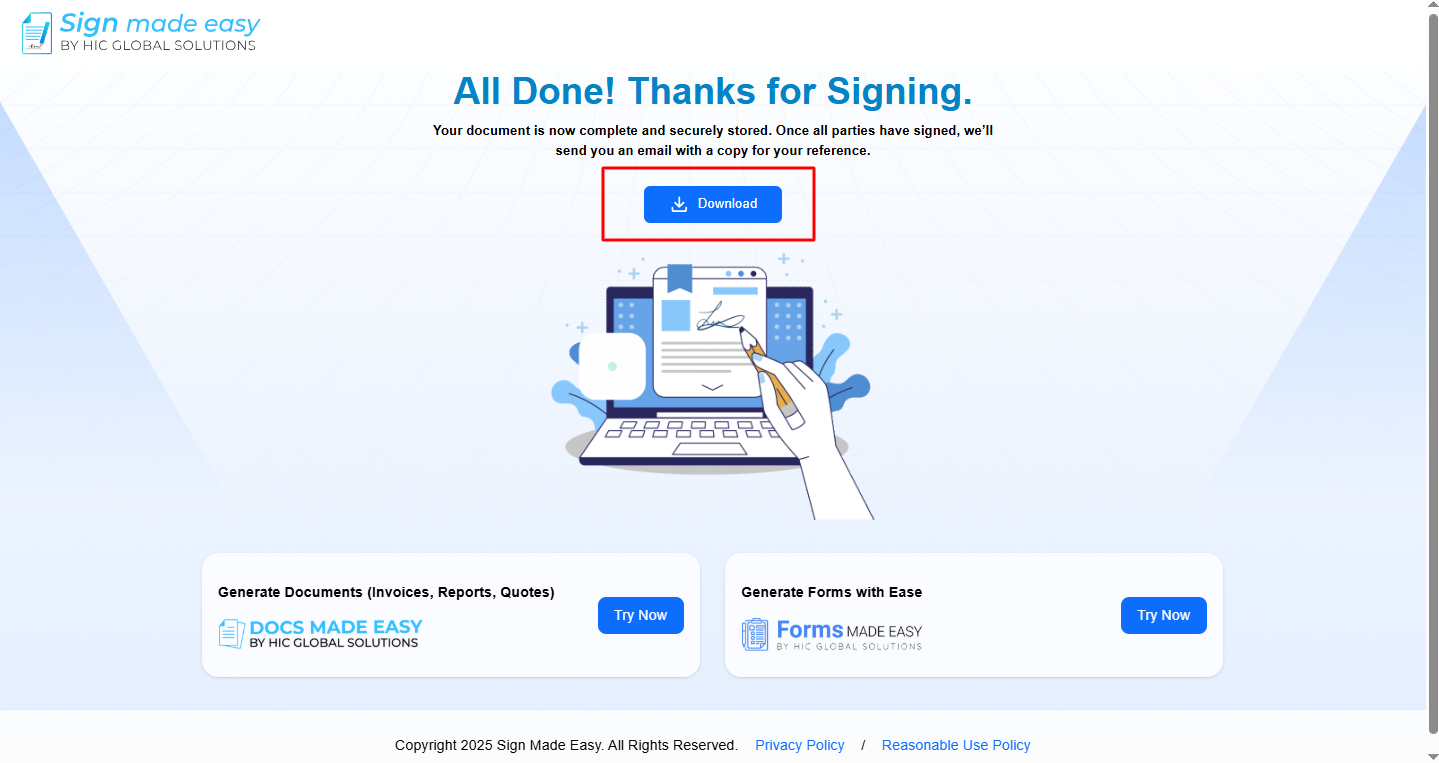
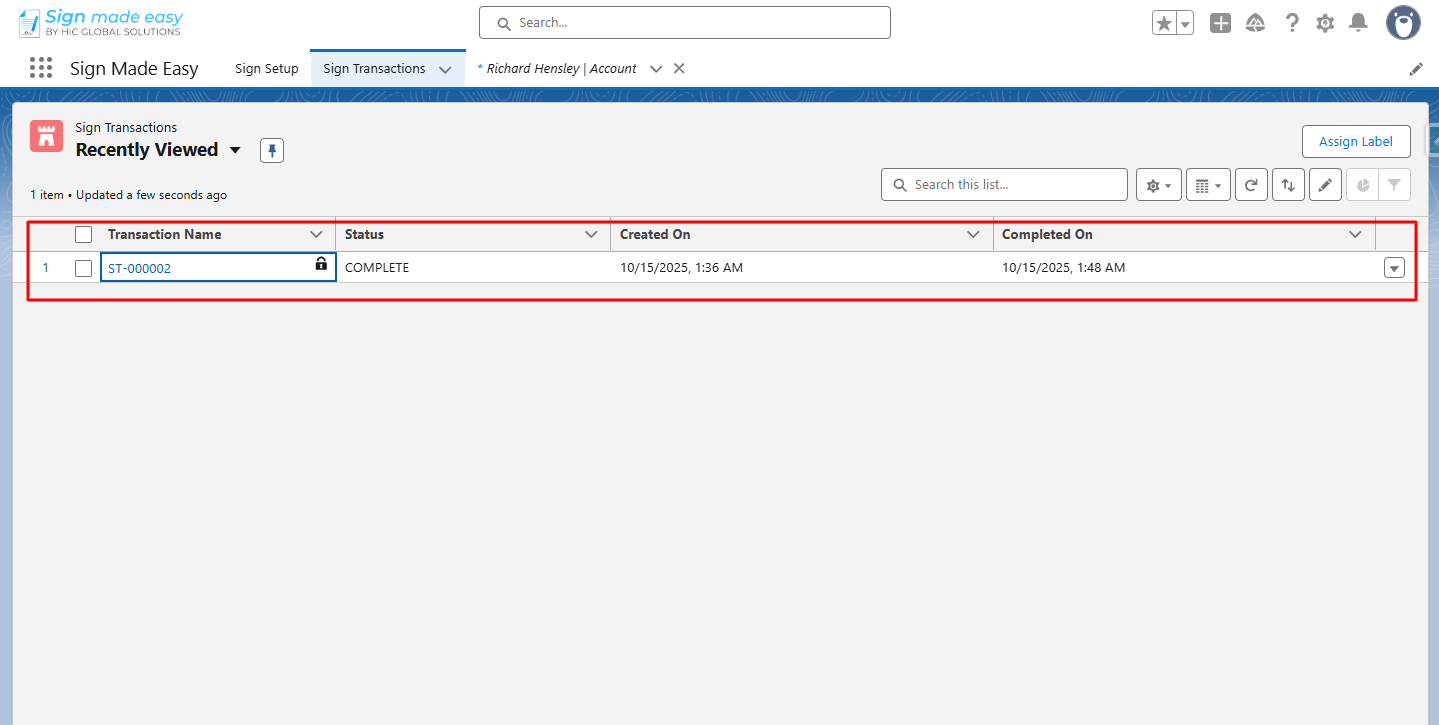
Step 7:- Thus, the eSignature for Salesforce is completed, and now you can download the document by clicking on the Download button
Was this article helpful?
That’s Great!
Thank you for your feedback
Sorry! We couldn't be helpful
Thank you for your feedback
Feedback sent
We appreciate your effort and will try to fix the article