Step 1:- Add Documents
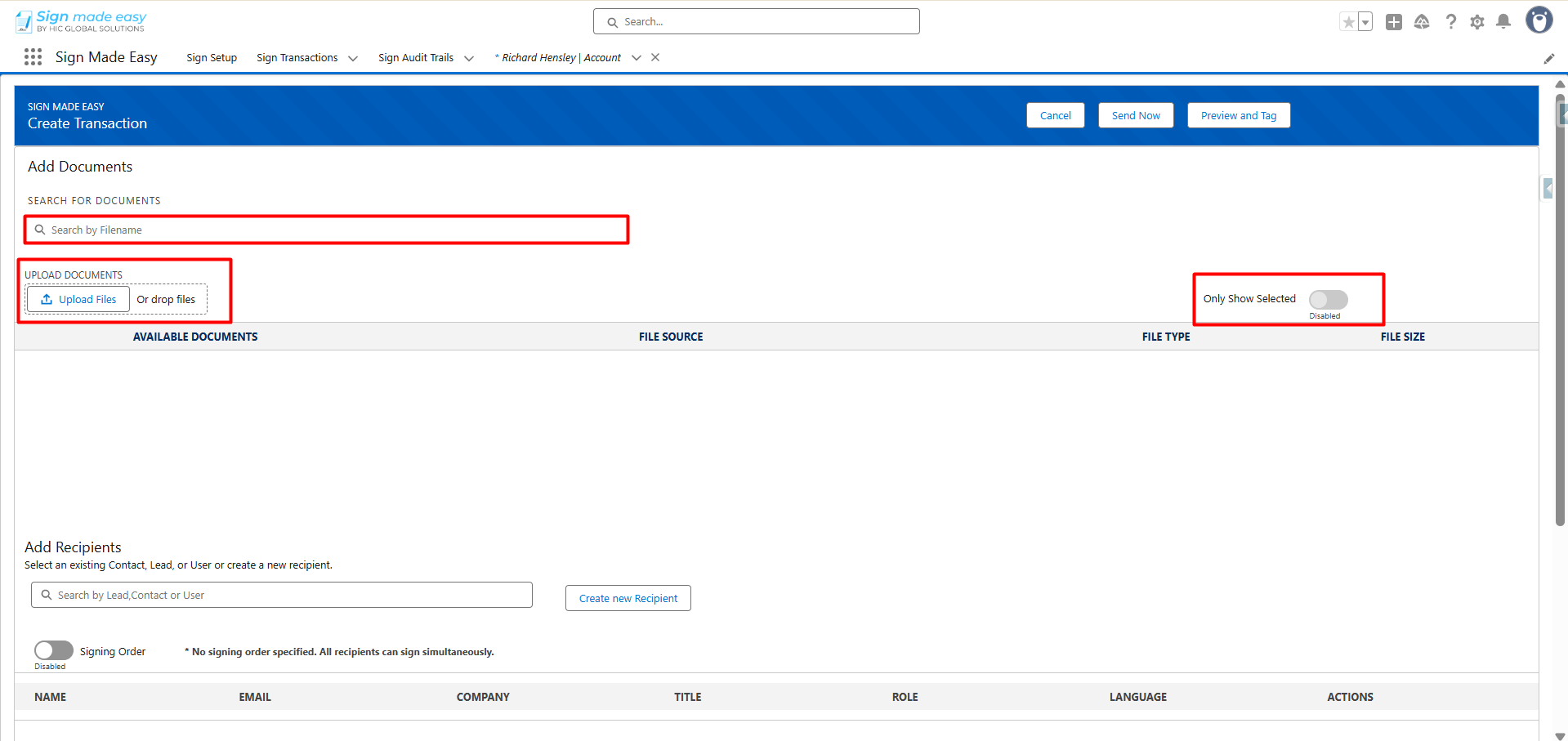
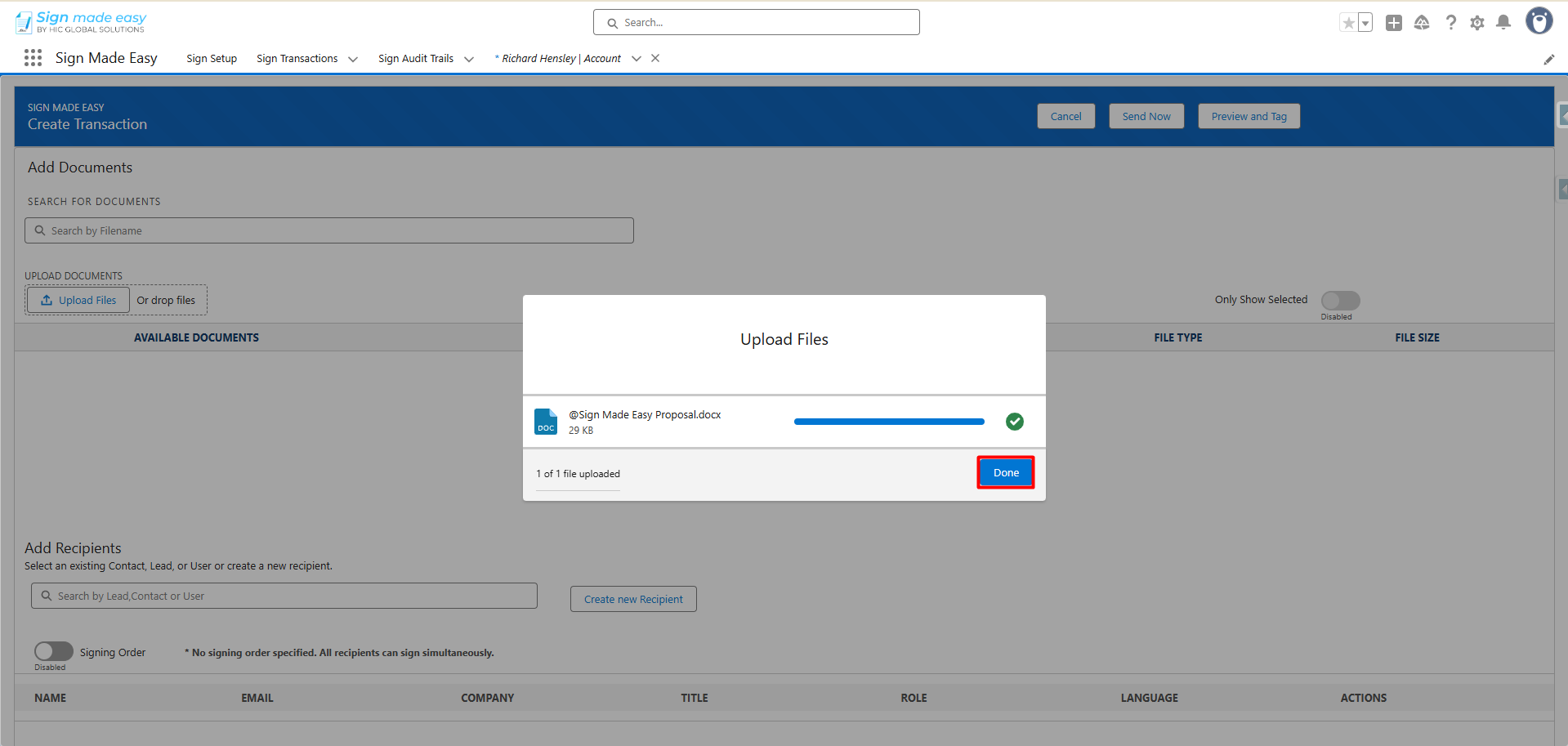
- You can upload a new document or select documents already associated with the parent record’s Notes and Attachments.
- You can search for a document by its name using the Add Documents search bar.
- Supported file formats include PDF, DOC, and DOCX.
- You may also add documents using the drag-and-drop functionality.
The maximum supported file size for each transaction record in Sign Made Easy is 15 MB.
To view only the selected documents, enable the Show Only Selected toggle.
Notes:
- You may select up to three documents per transaction.
- The total size of all documents within a transaction must not exceed 15 MB
Step 2:- Add Recipients
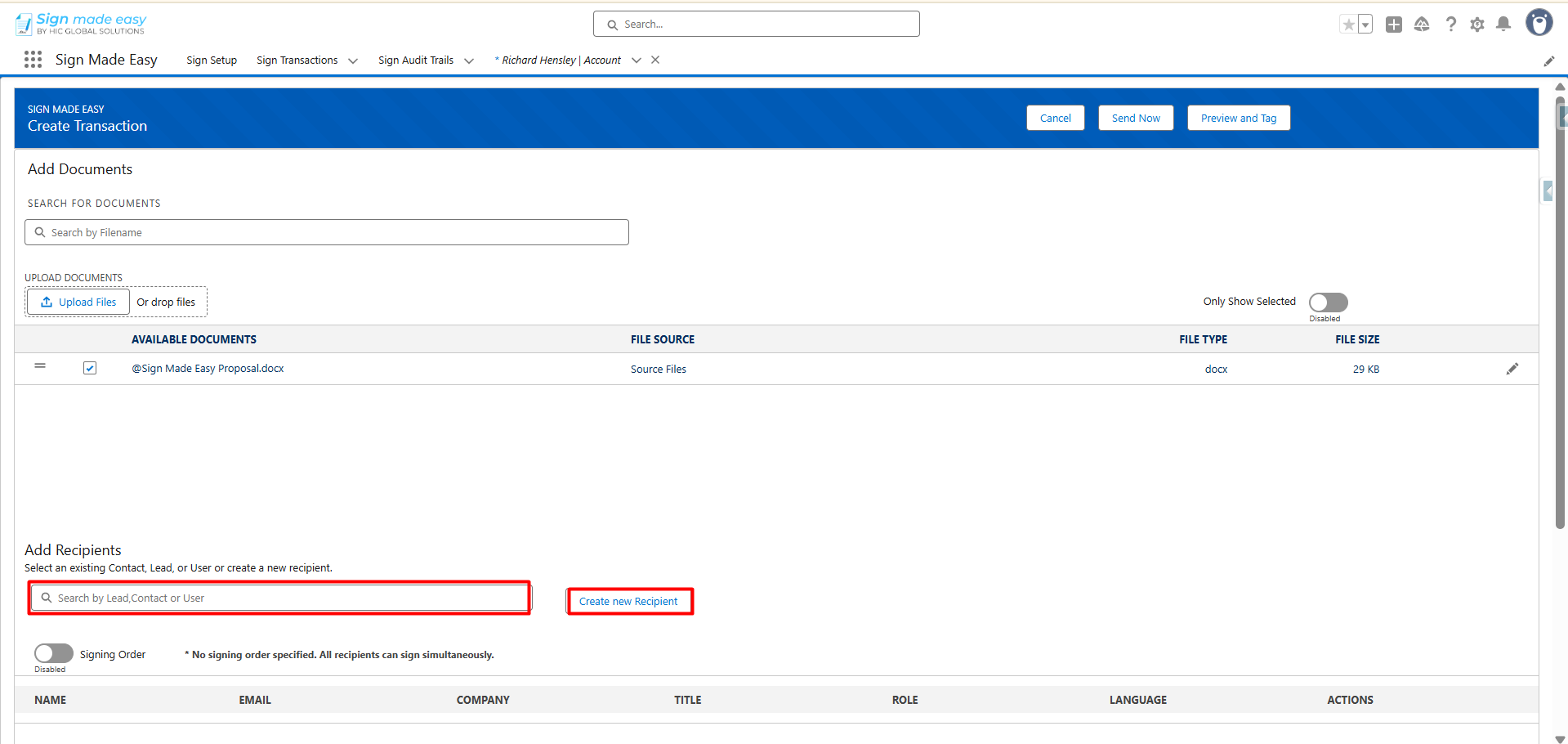
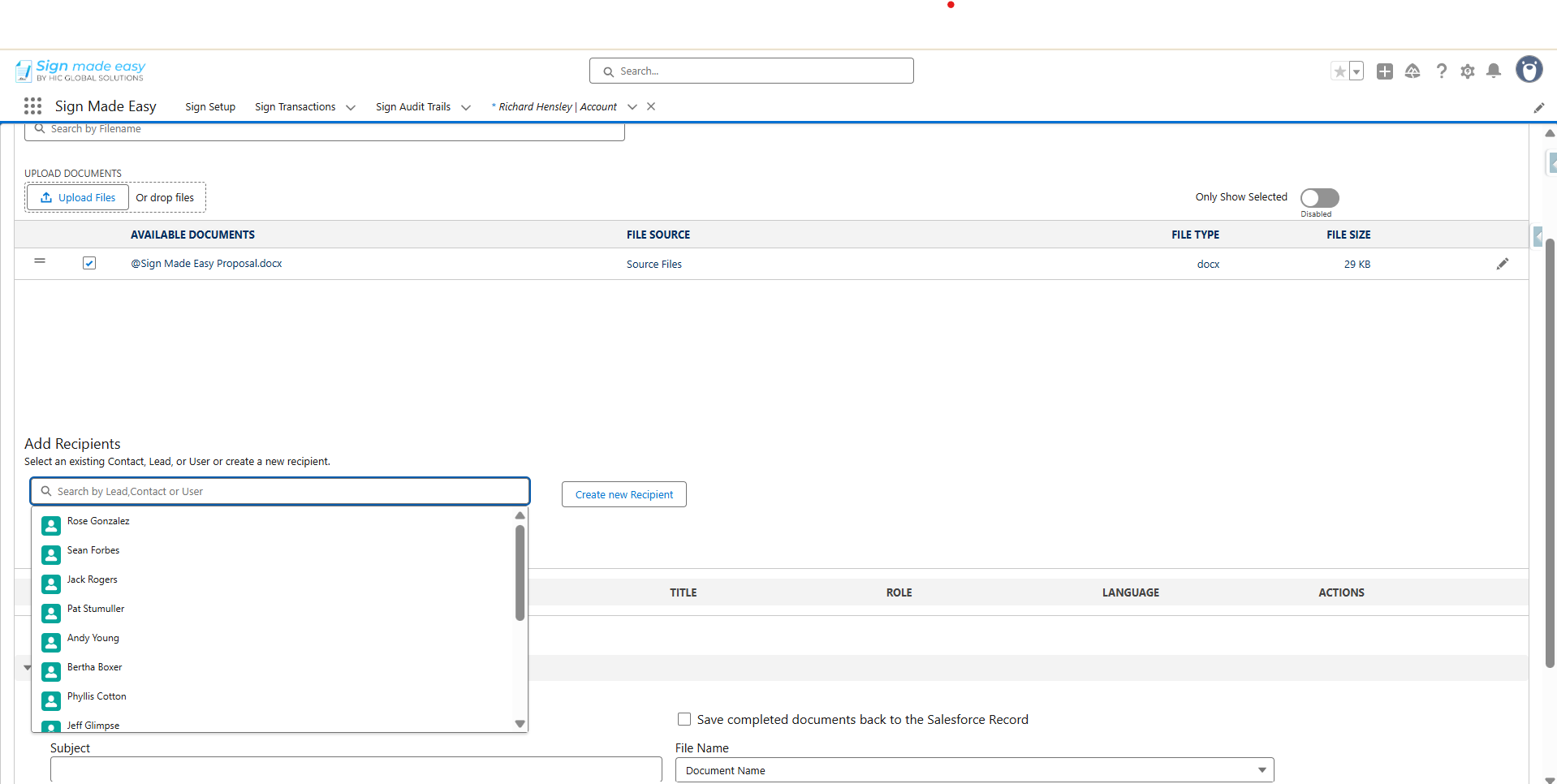
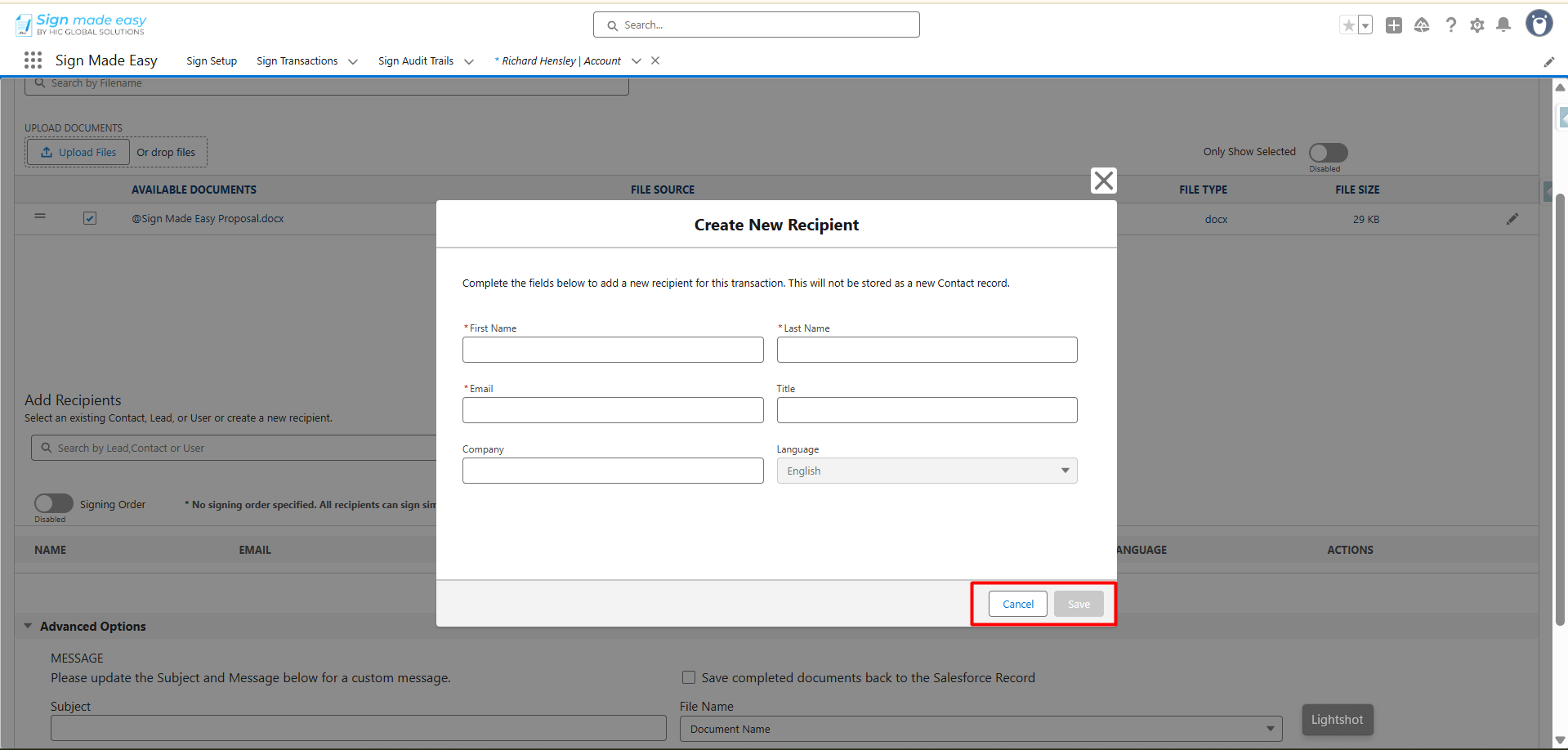
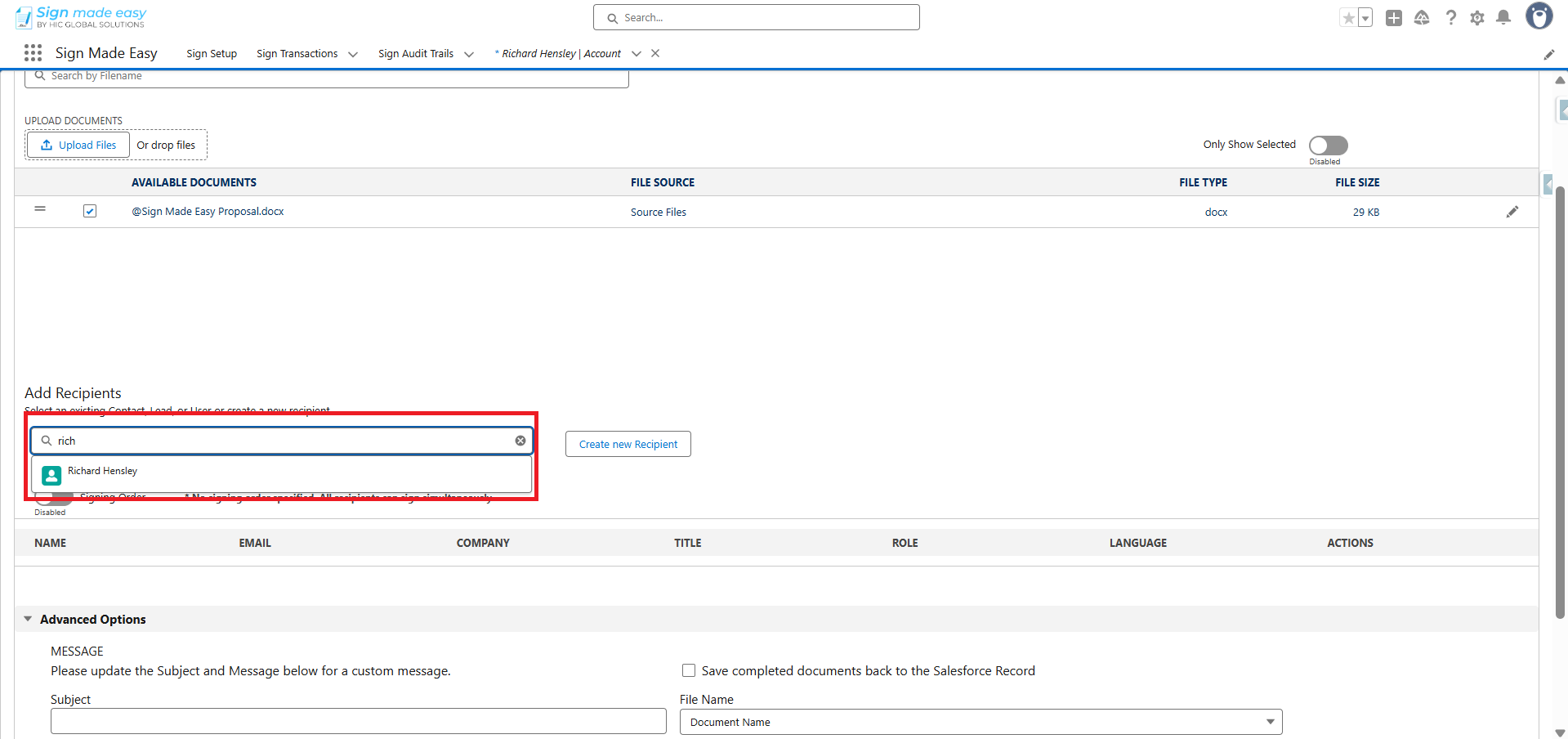
- You can add recipients by selecting existing Lead, Contact, or User records through the Add Recipient search bar. If the required recipient does not exist, you can create a new one using the Create New Recipient button.
- The Create New Recipient button does not create Contact, Lead, or User records in Salesforce; it only creates Sign Recipient records.
.
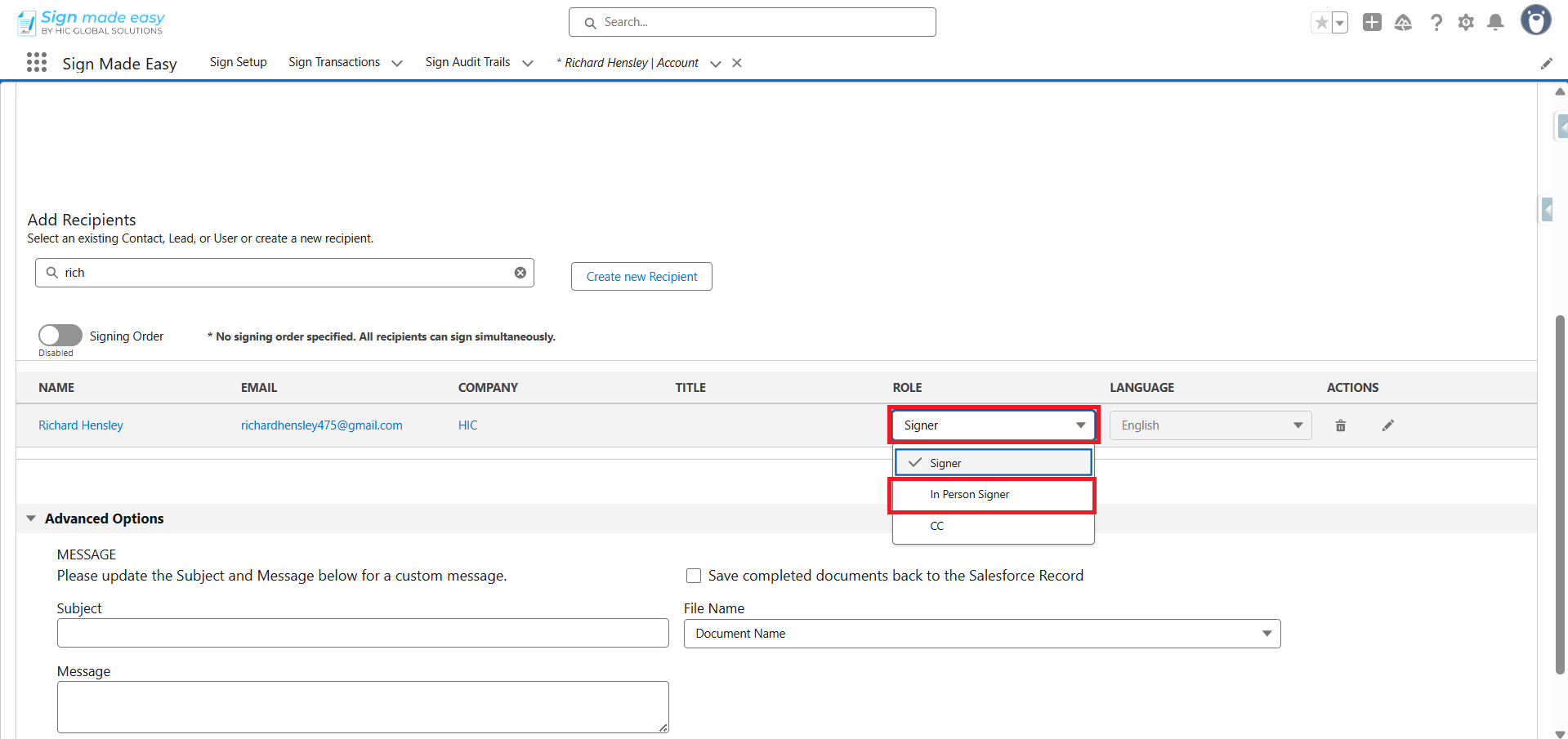
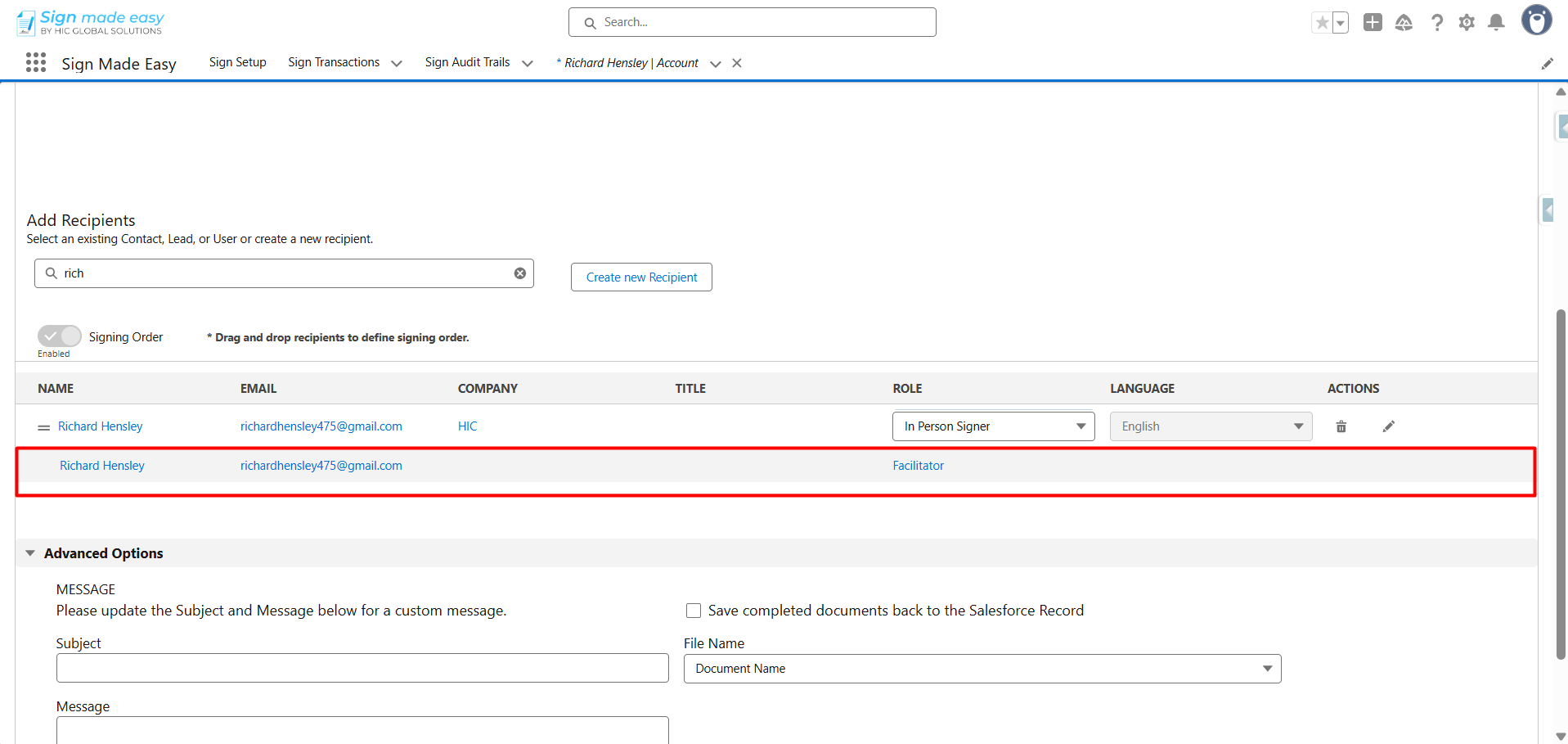
Step 3:- Ensure ‘In-Person Signer’ is selected from the recipient role picklist prior to continuing.
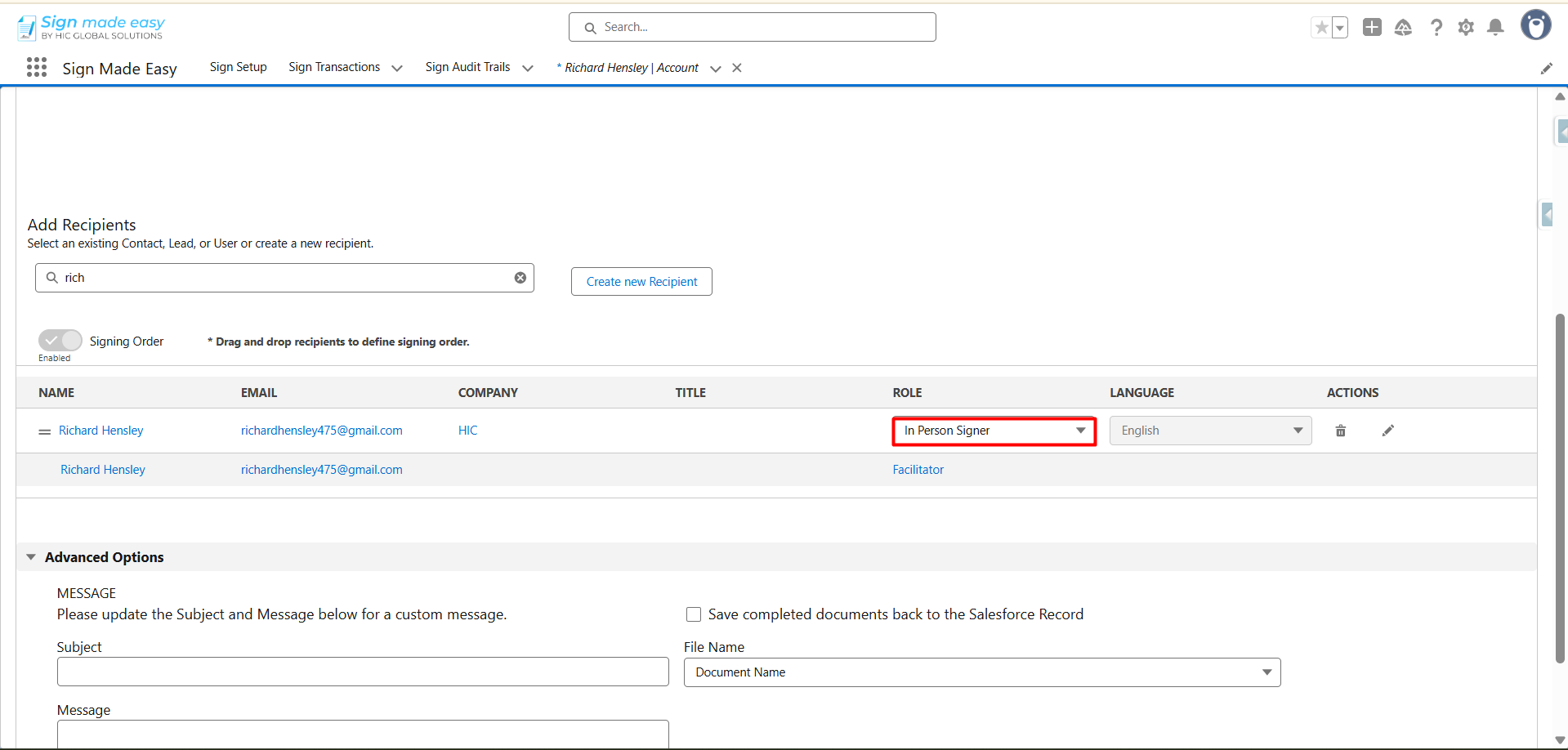
A facilitator refers to a user within the organization who is actively involved in the document workflow. Their role is primarily to manage, oversee, and guide the signing process rather than to provide an actual signature. The facilitator ensures that all required actions are completed by the designated signers, monitors progress, and may assist recipients in completing their tasks, but they do not hold signing authority themselves.
1) Acts as the current organization user overseeing the process.
2) Ensures smooth coordination and progress tracking.
3) Does not sign the document or provide approval.
4) Supports the signing process by guiding signers and addressing issues if needed.
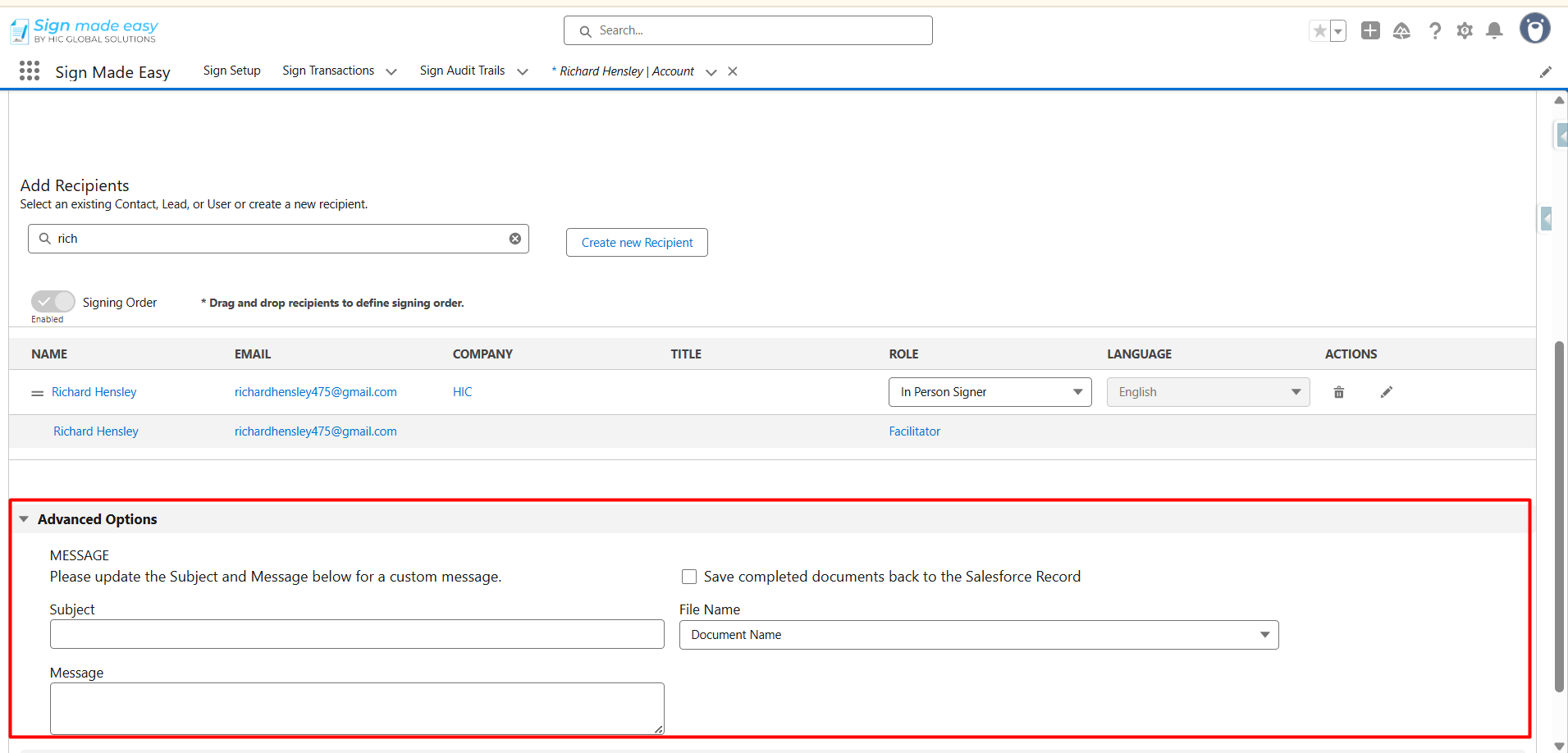
Step 4:- Advanced Options
- This section enables you to provide recipients with clear, customized communication while ensuring that completed documents are seamlessly stored in Salesforce for future reference.
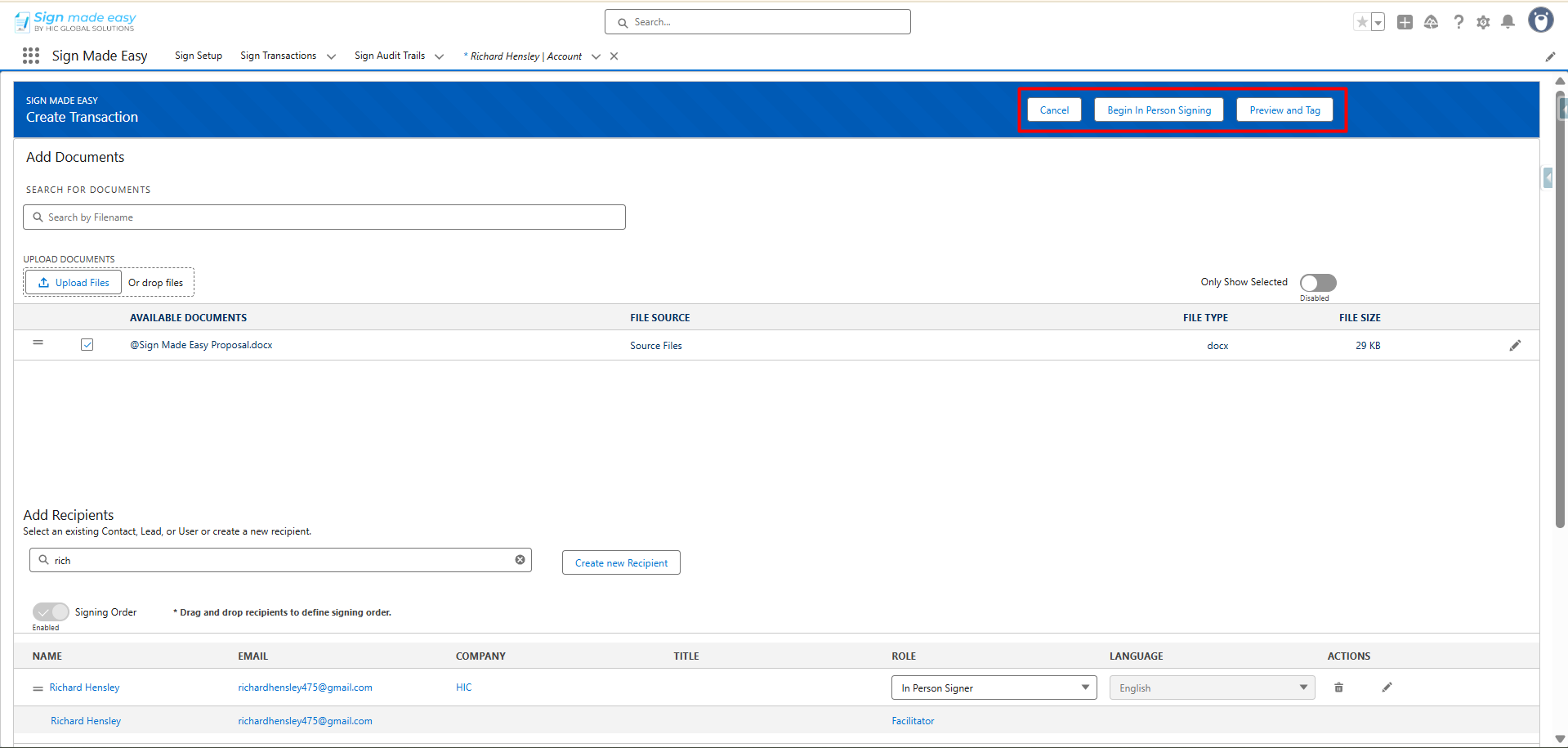
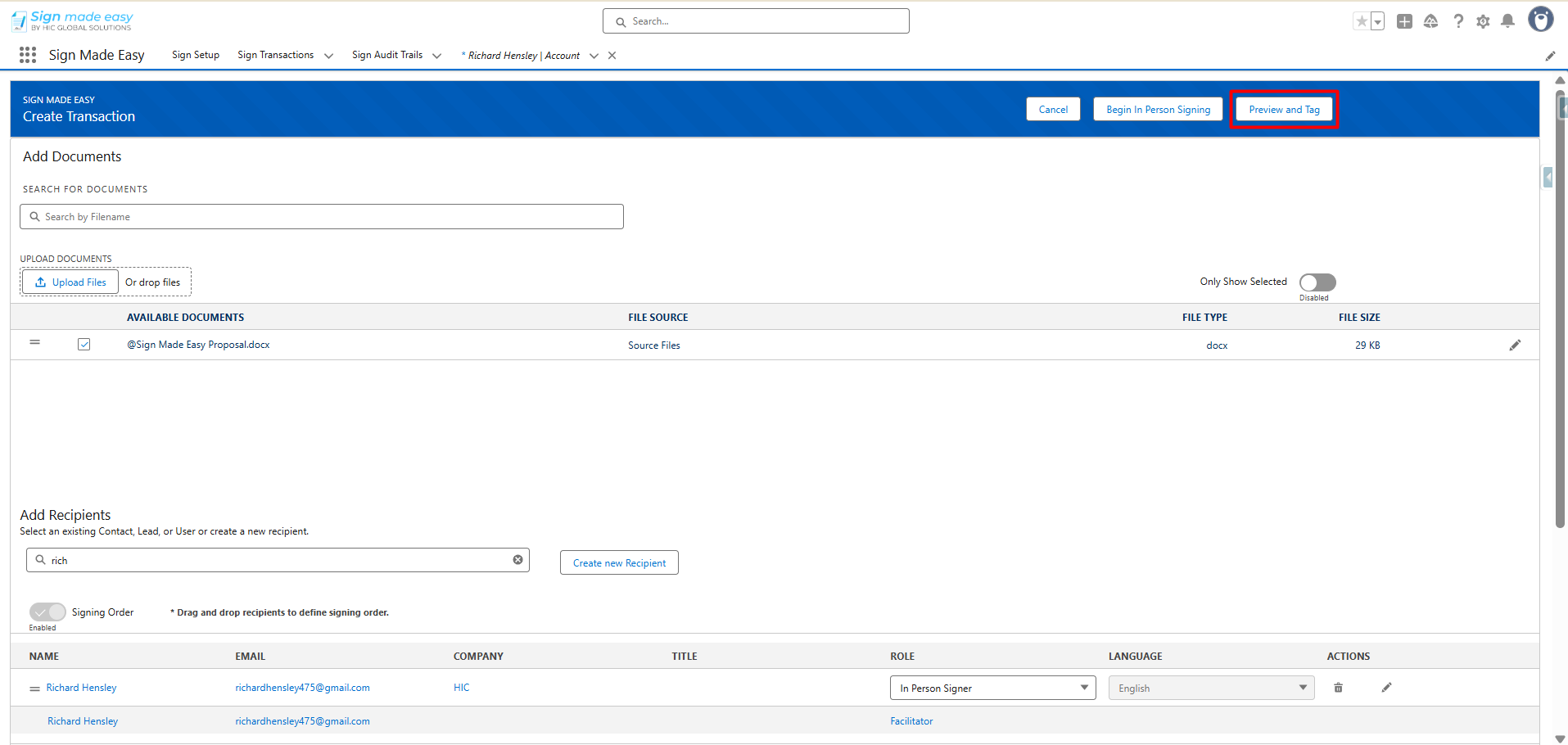
Step 5:- If the required tags have already been added to the document through the sign parameter, you can proceed directly with in-person signing by clicking the ‘Begin In-Person Signing’ button. Otherwise, click the ‘Preview and Tag‘ button to add the necessary tags to the document before proceeding.
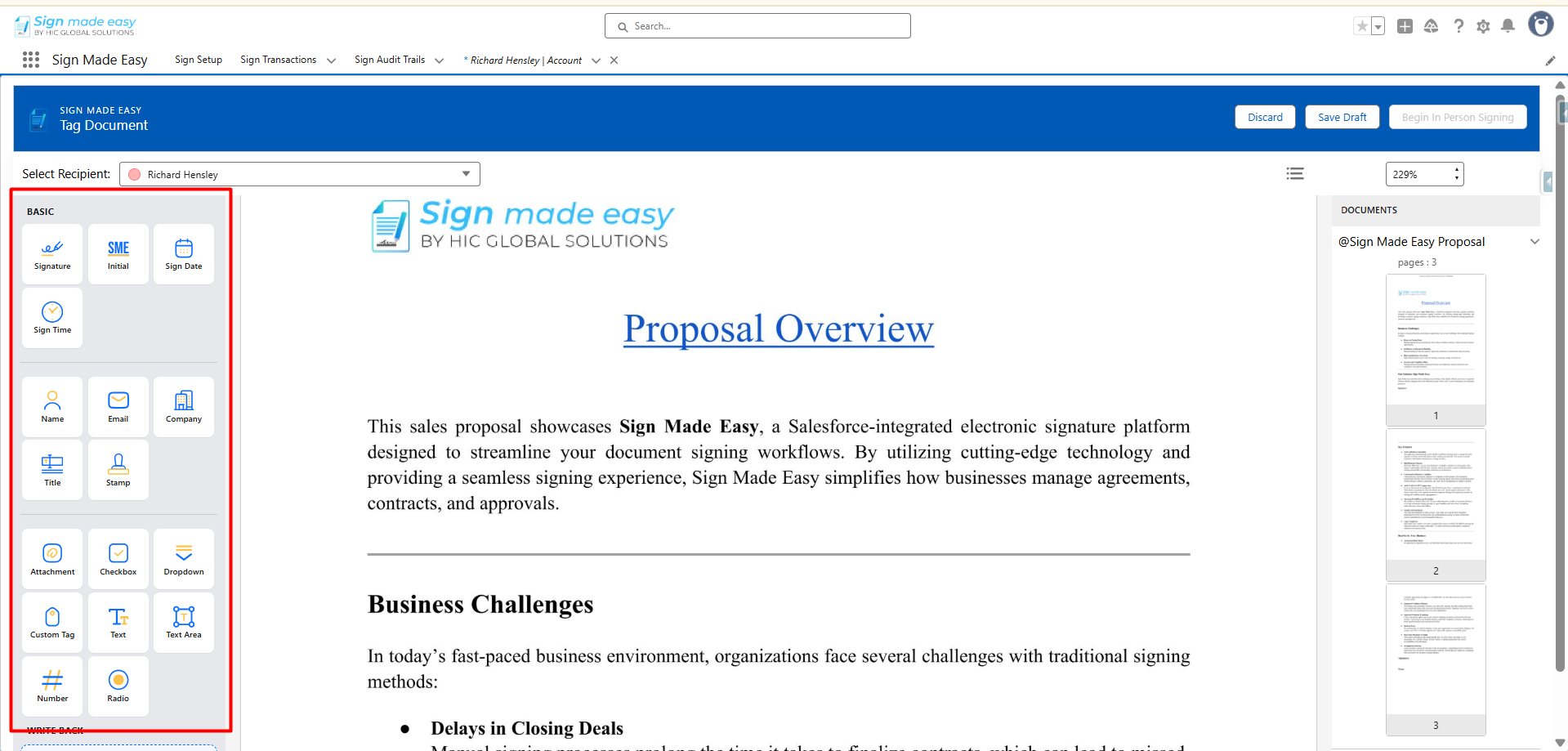
Step 6:- Next, drag and drop the required tags onto the document at the appropriate locations.
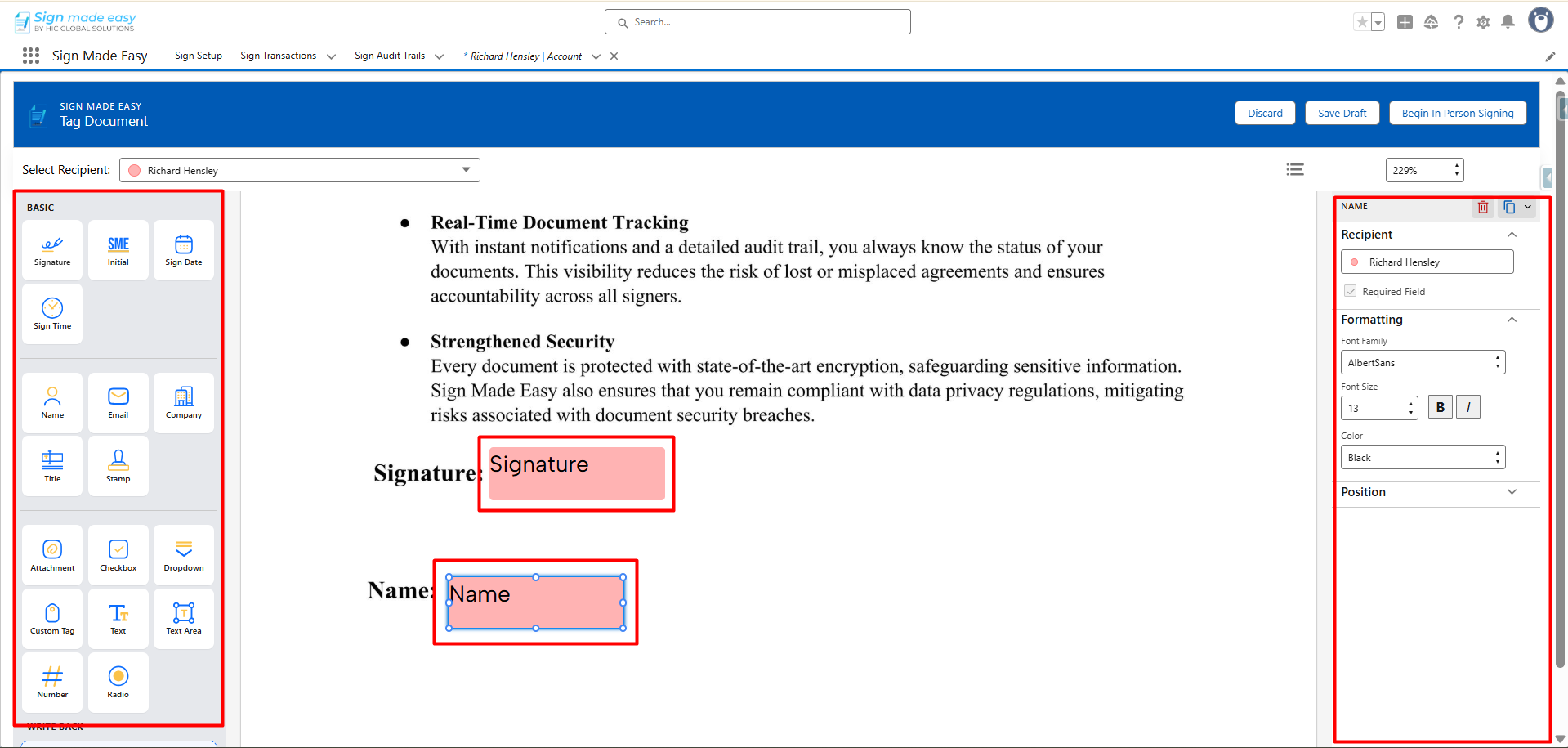
Note:- If you have added more than one recipient, you must add tags for all recipients before proceeding. You can switch the selected recipient to add tags for each one.
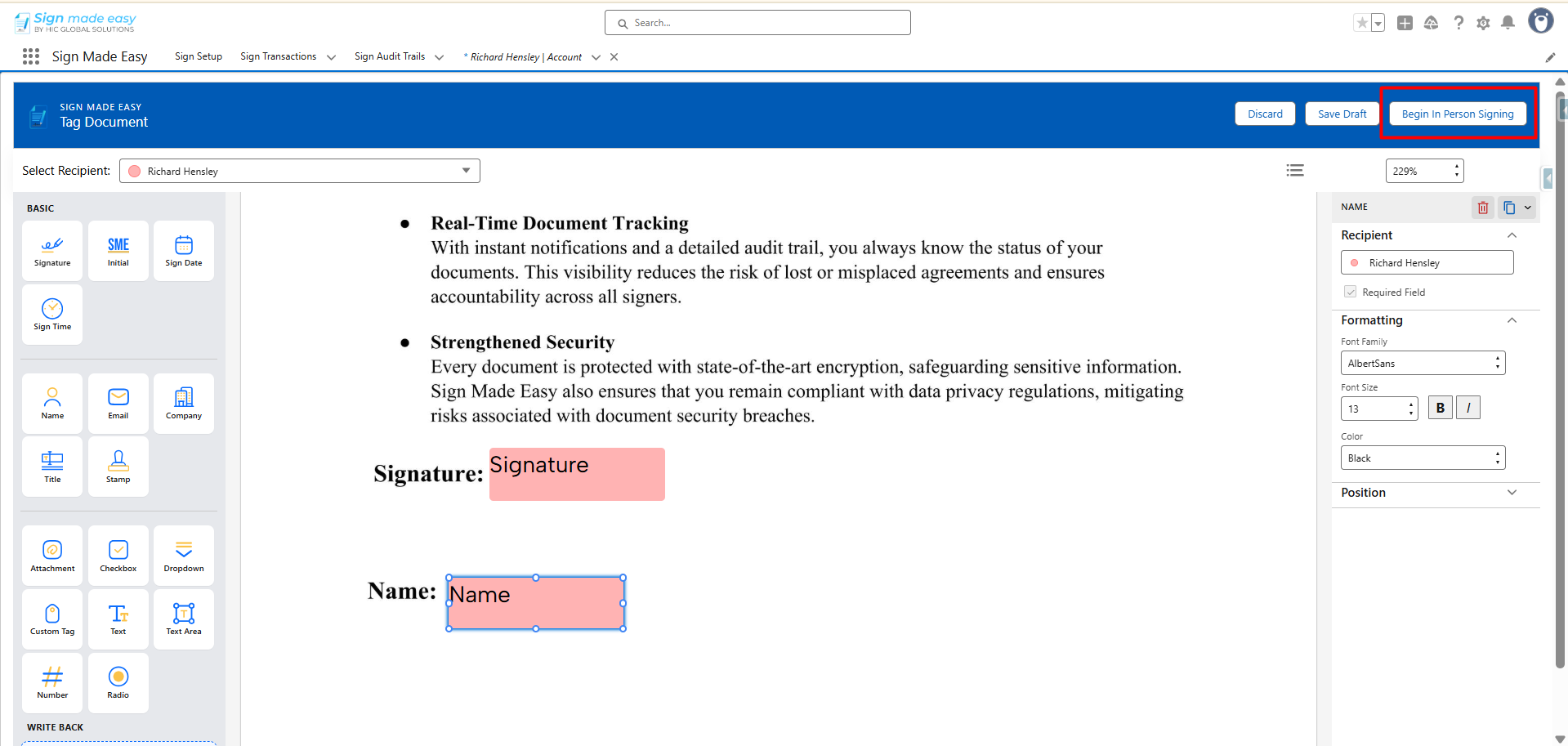
Step 7:- Click ‘Begin In-Person Signing‘ to proceed with the e-signature process for in-person signing.
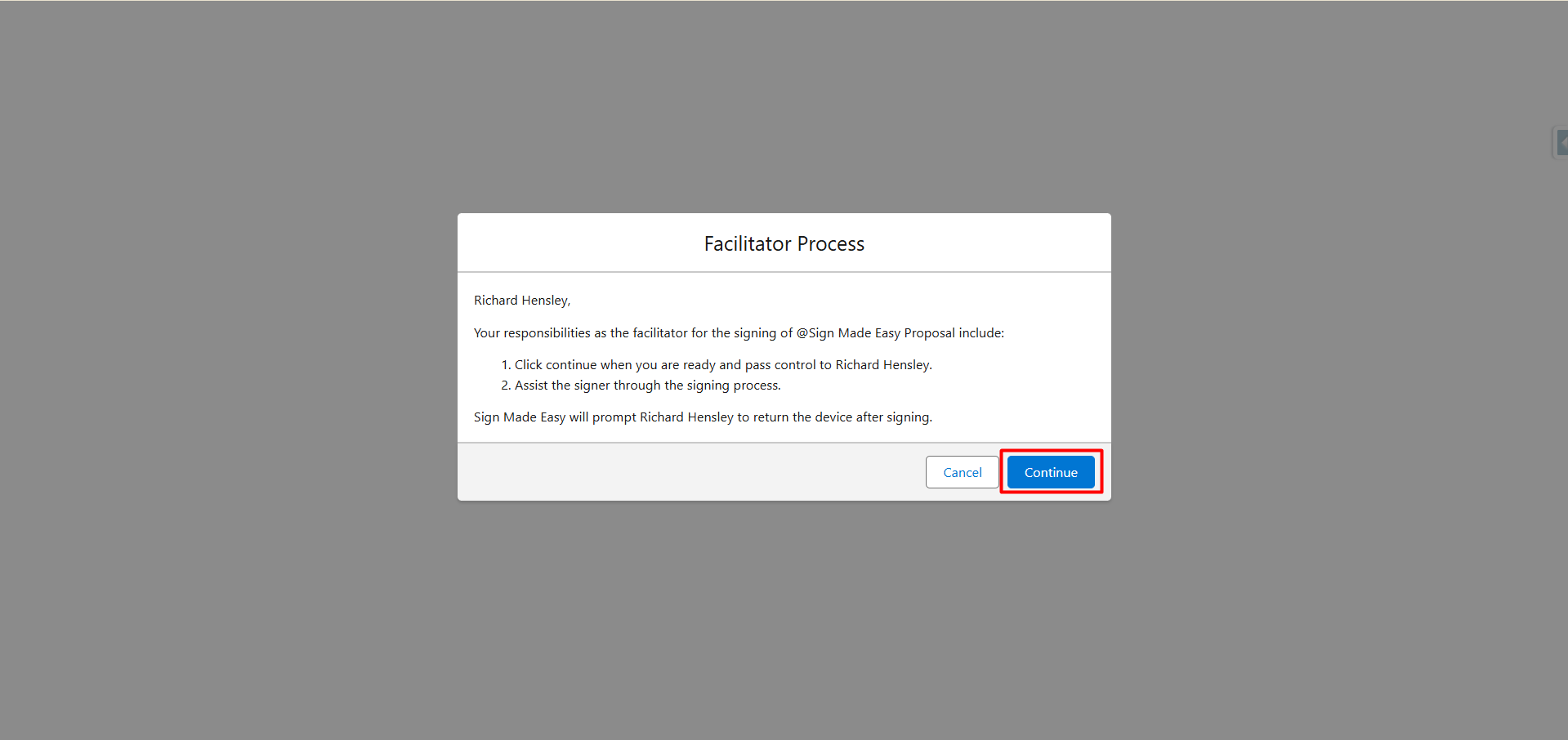
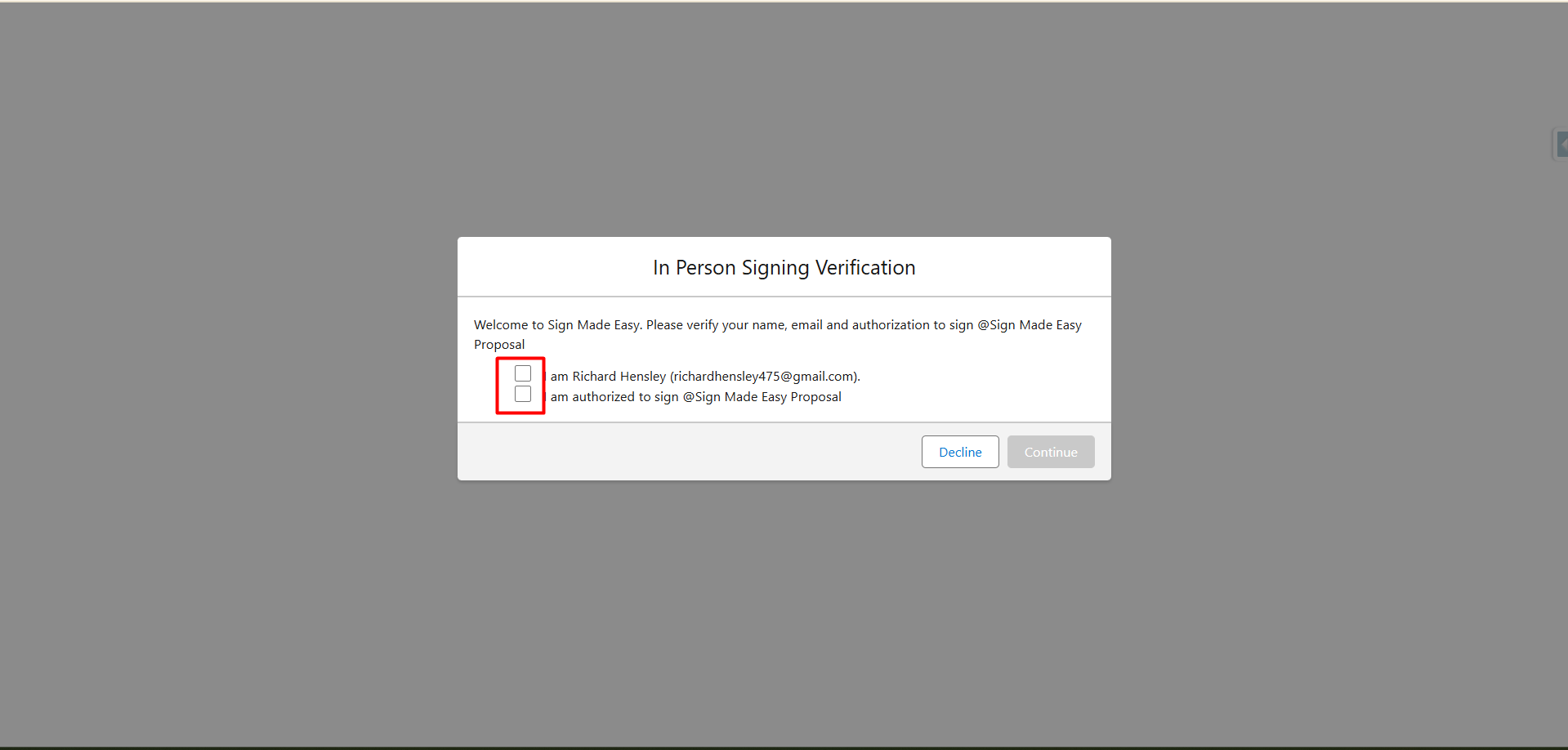
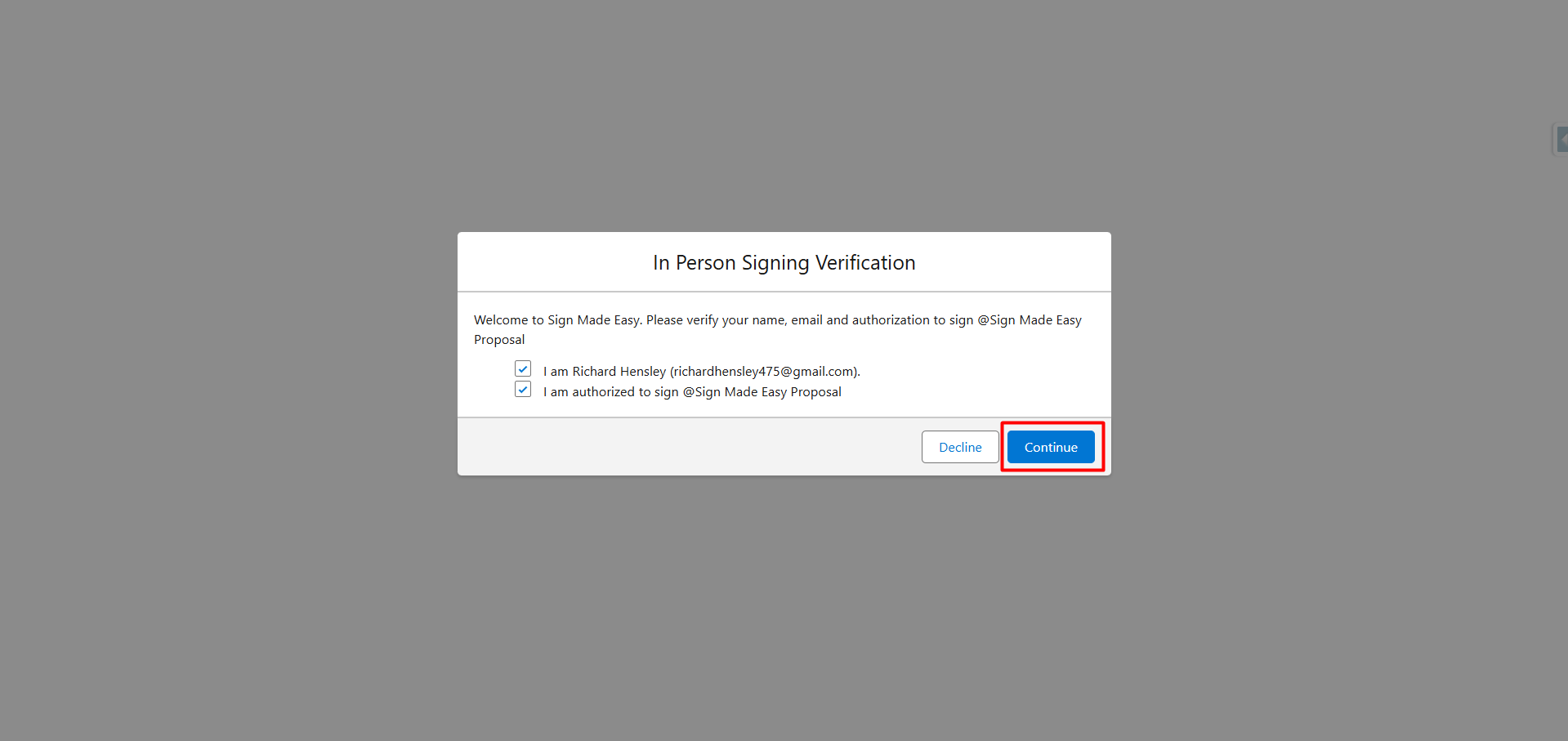
Step 8 :- Click the ‘Continue’ button to hand over the e-signature process to the recipients for signing the document.
Affirmation, Not Just Consent: This is a positive declaration of identity and authority, which is legally stronger than passively proceeding.
Non-Repudiation: This step helps prevent a signer from later claiming they were not the person who executed the document.
Clear Option to Decline: The “Decline” button provides an unambiguous way to halt the process if the information is incorrect or the signatory lacks authority, safeguarding against erroneous signings.
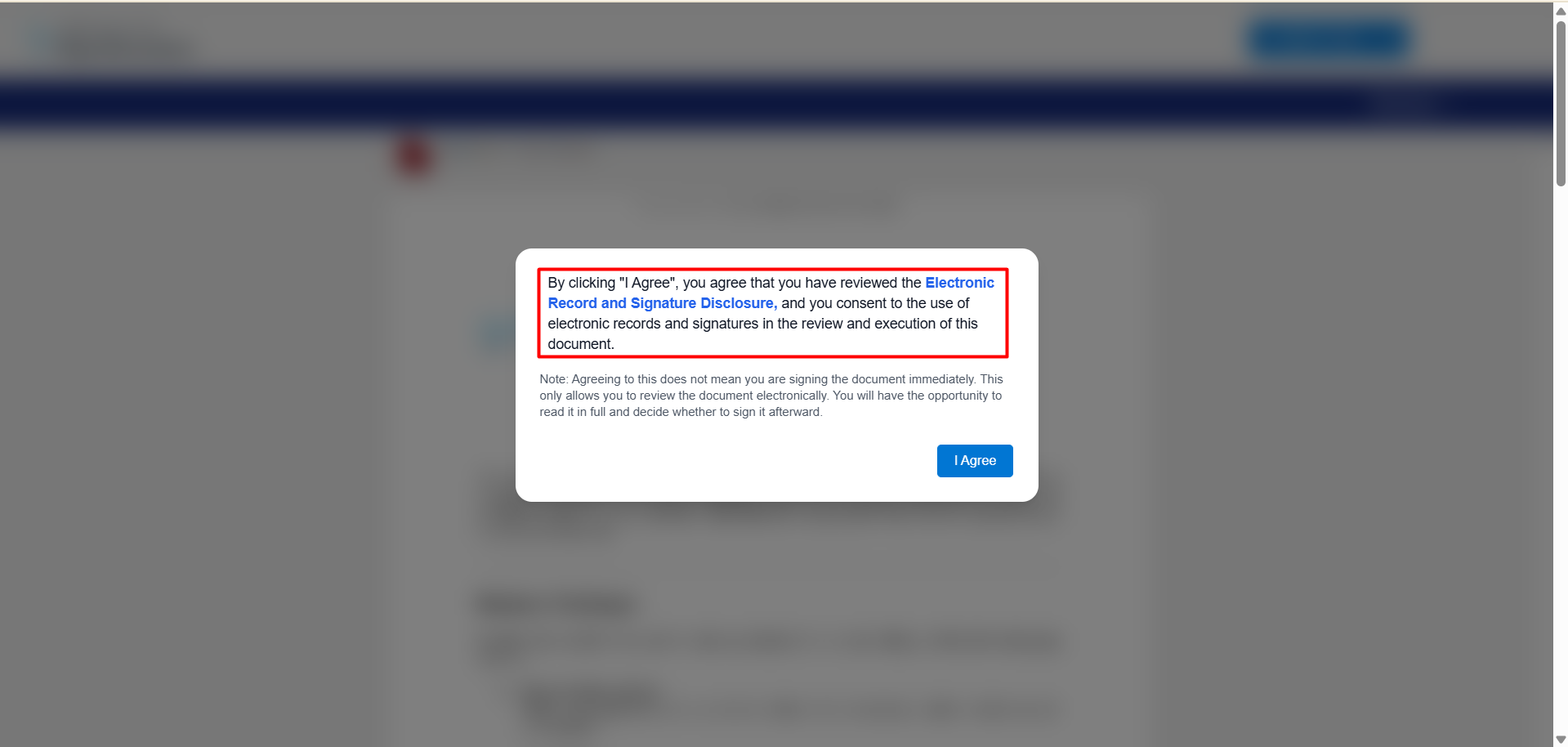
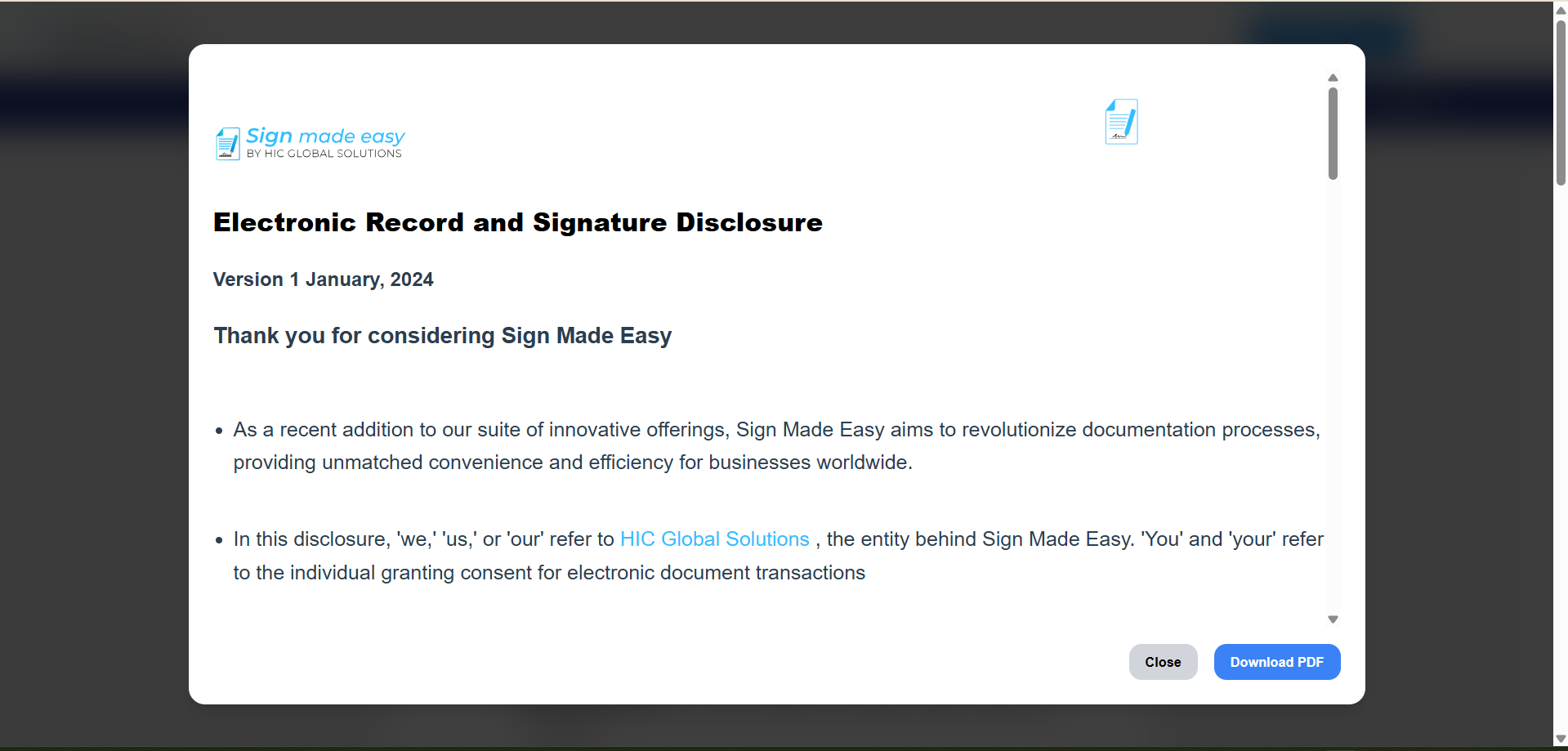
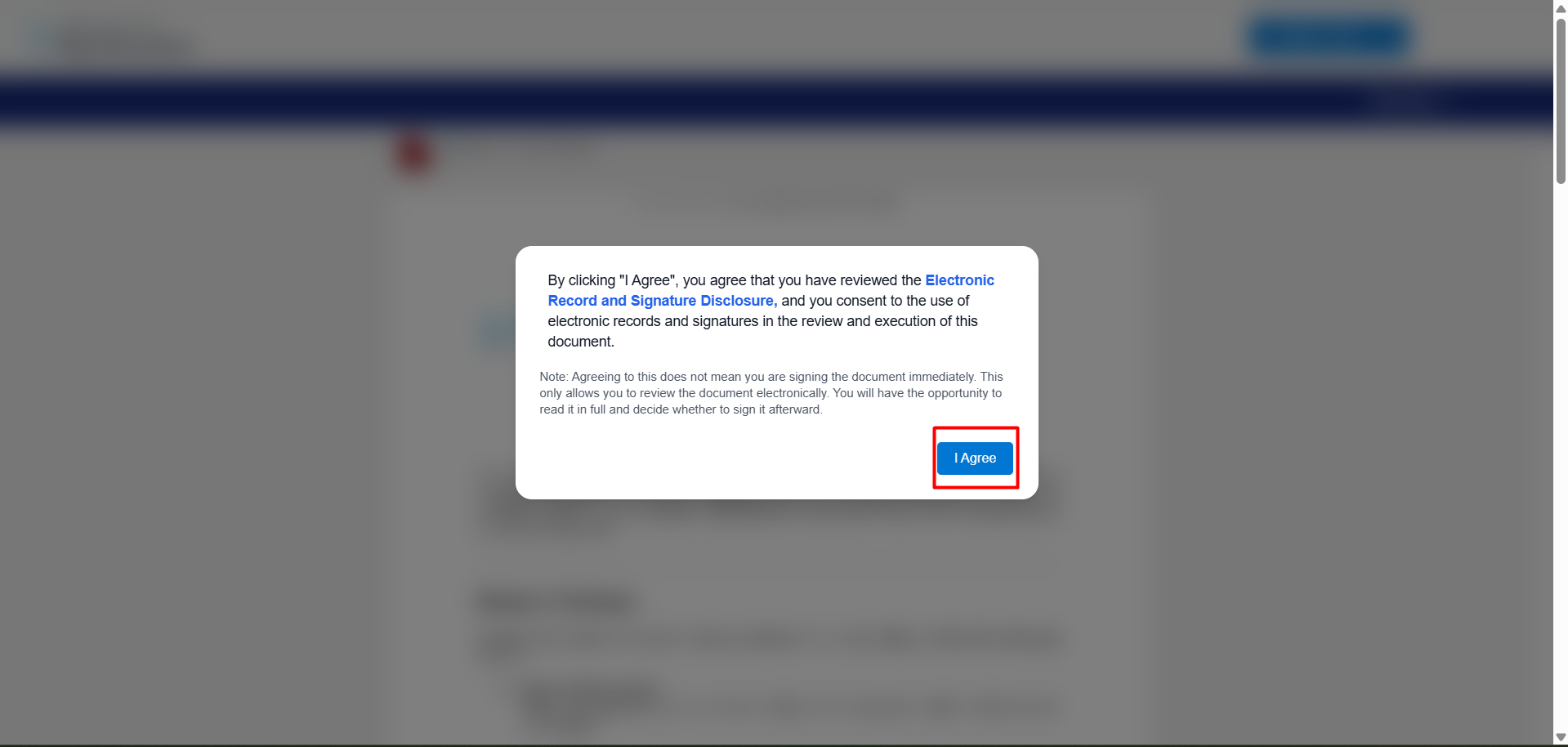
Step 9 :- By clicking “I Agree,” you confirm that you have read and reviewed the terms and conditions of Sign Made Easy through the Electronic Record and Signature Disclosure. You also consent to the use of electronic records and signatures for reviewing and executing this document.
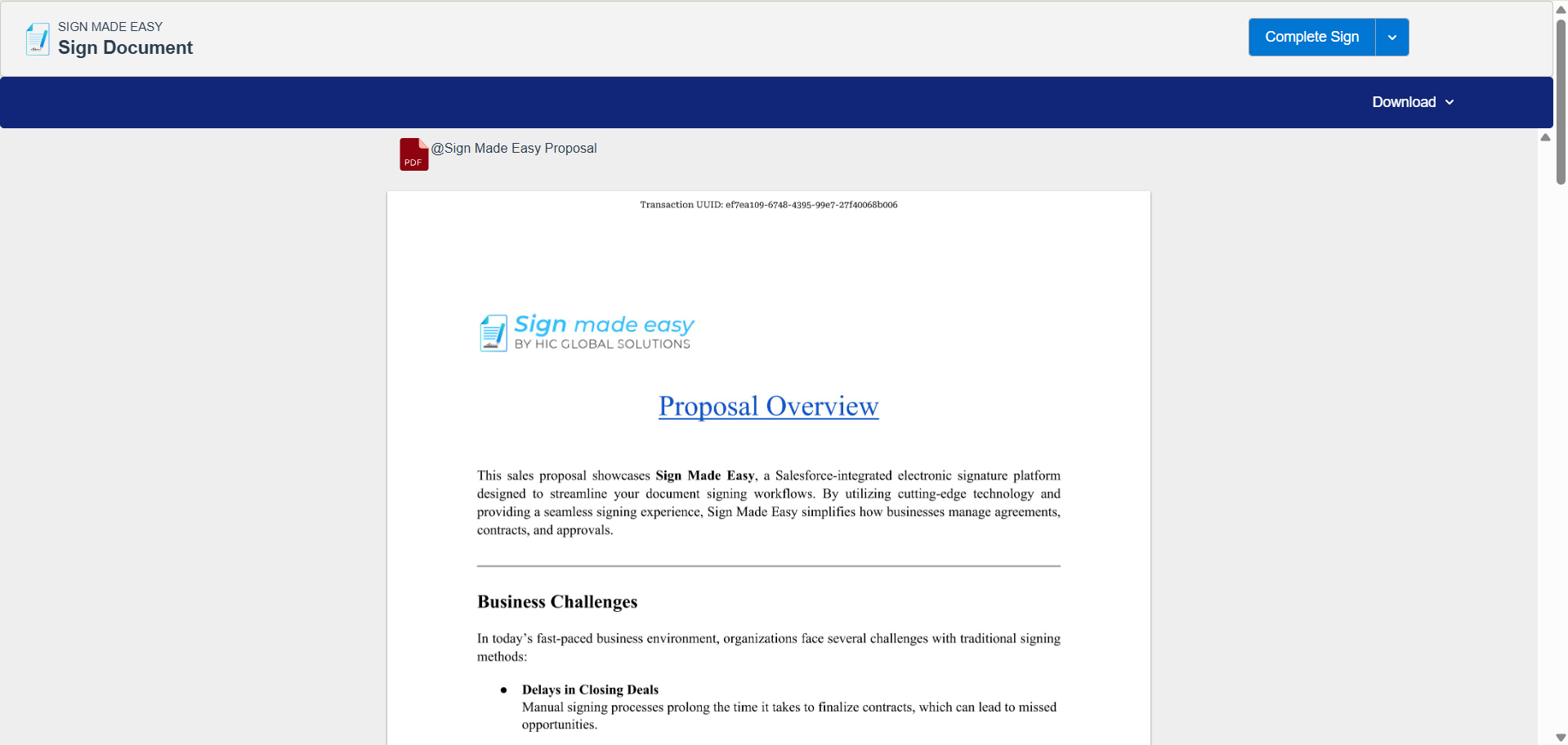
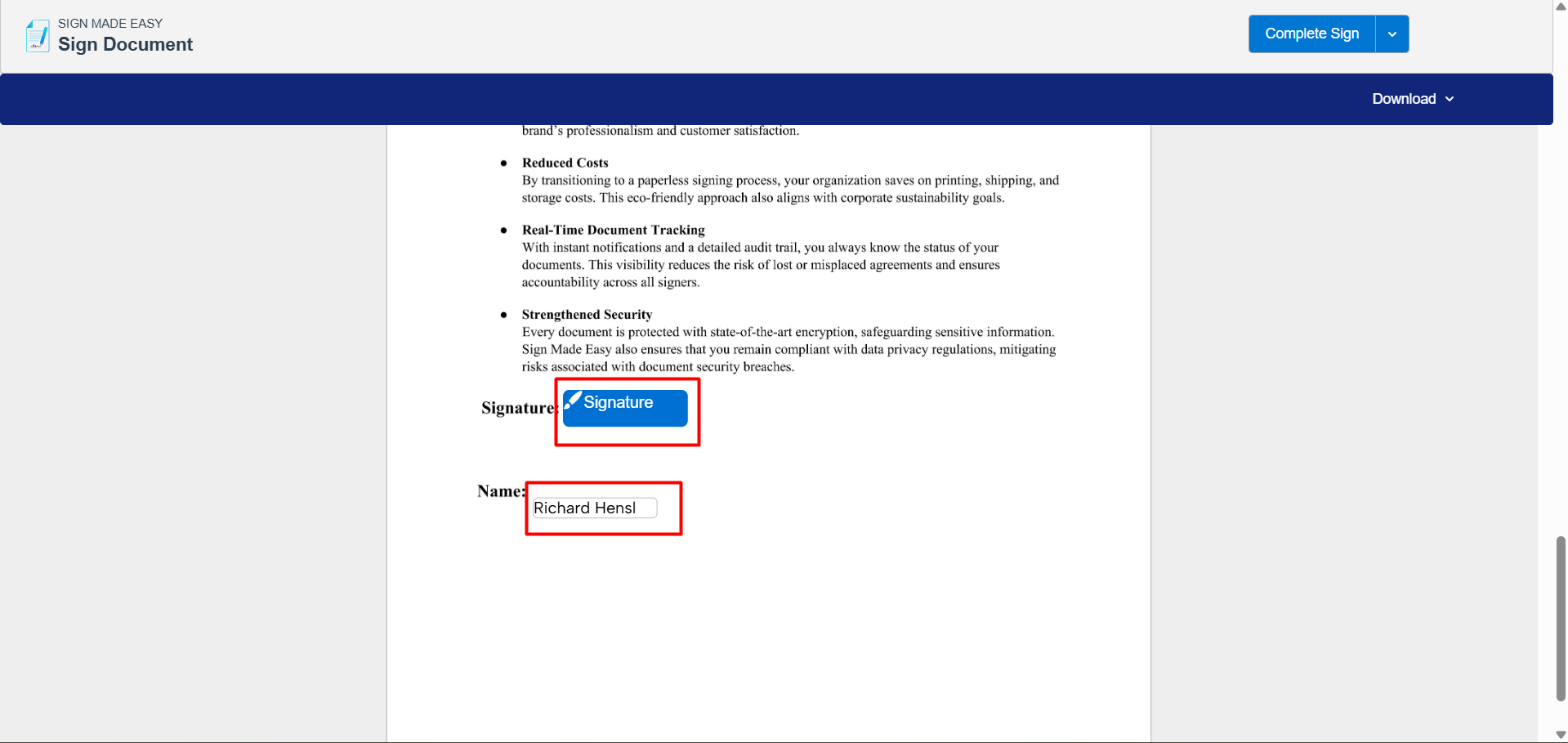
Step 10 :- To complete the transaction record, enter the required values in the tags. This can be done by clicking on each tag and providing the necessary input.
Signature Style Selection :- This window allows you to confirm your identity and select a preferred signature style for signing the document.
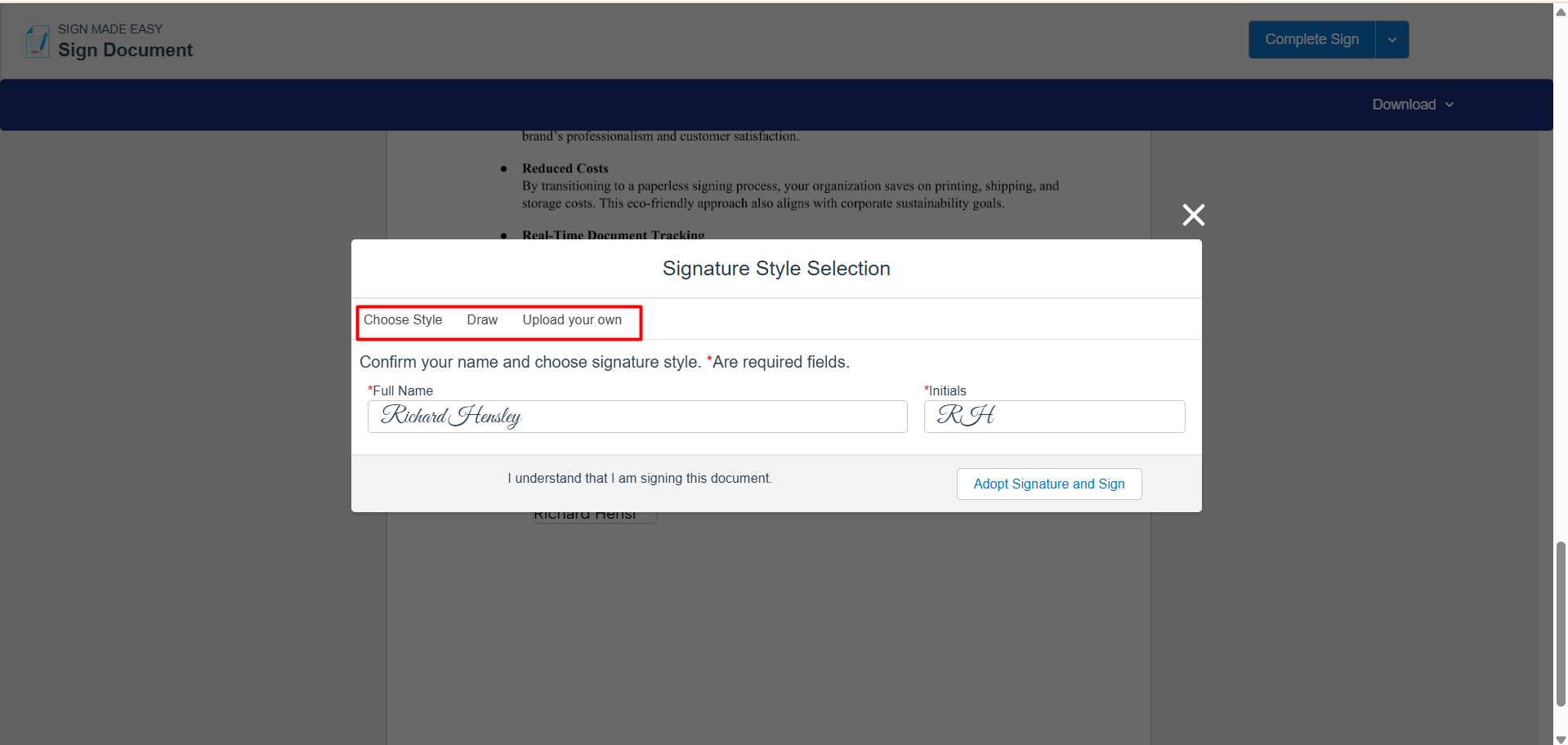
Step 11 :- After completing the required fields, click the Adopt Signature and Sign button to apply the chosen style and proceed with signing the document.
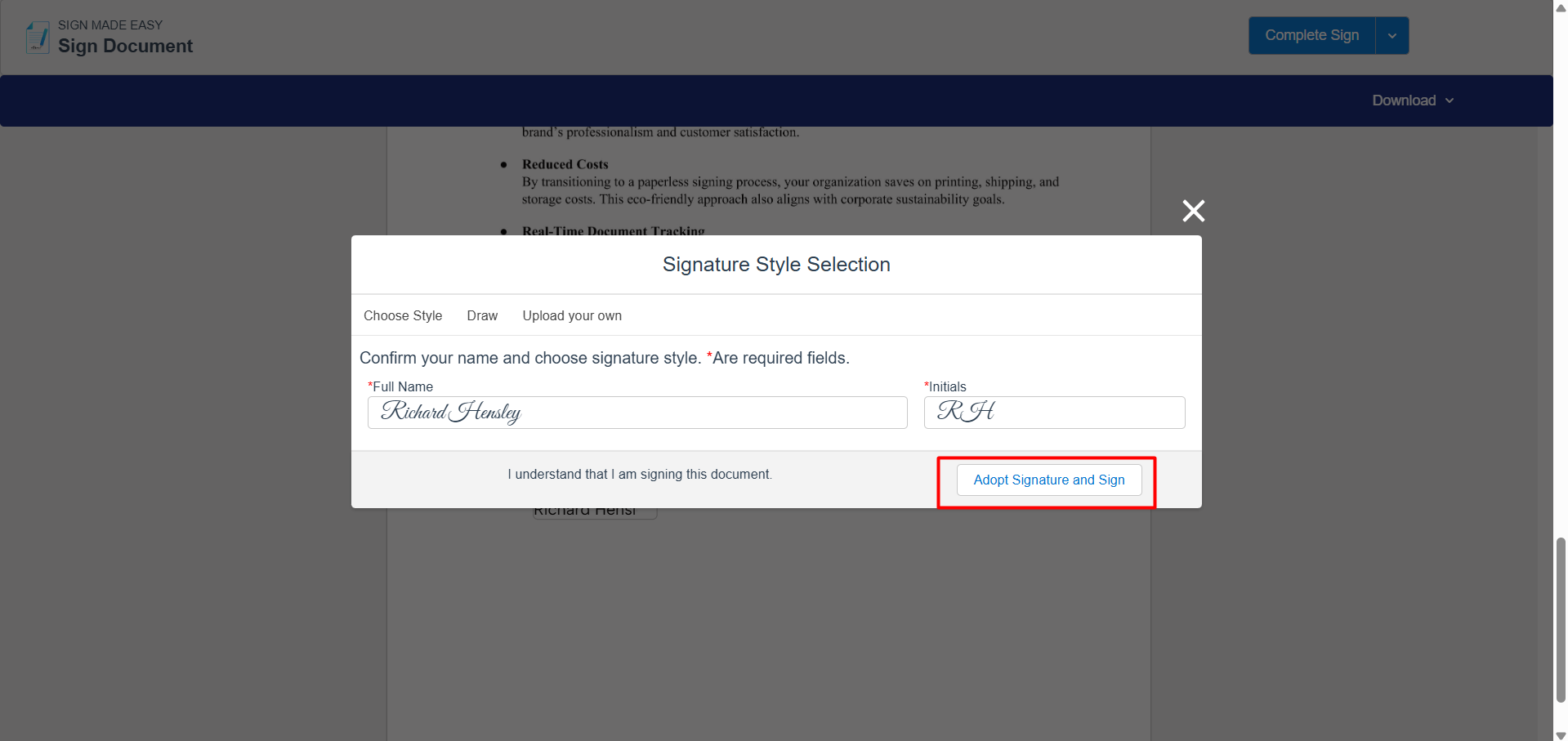
Note:- By adopting a signature, you acknowledge and agree that your electronic signature is legally binding.
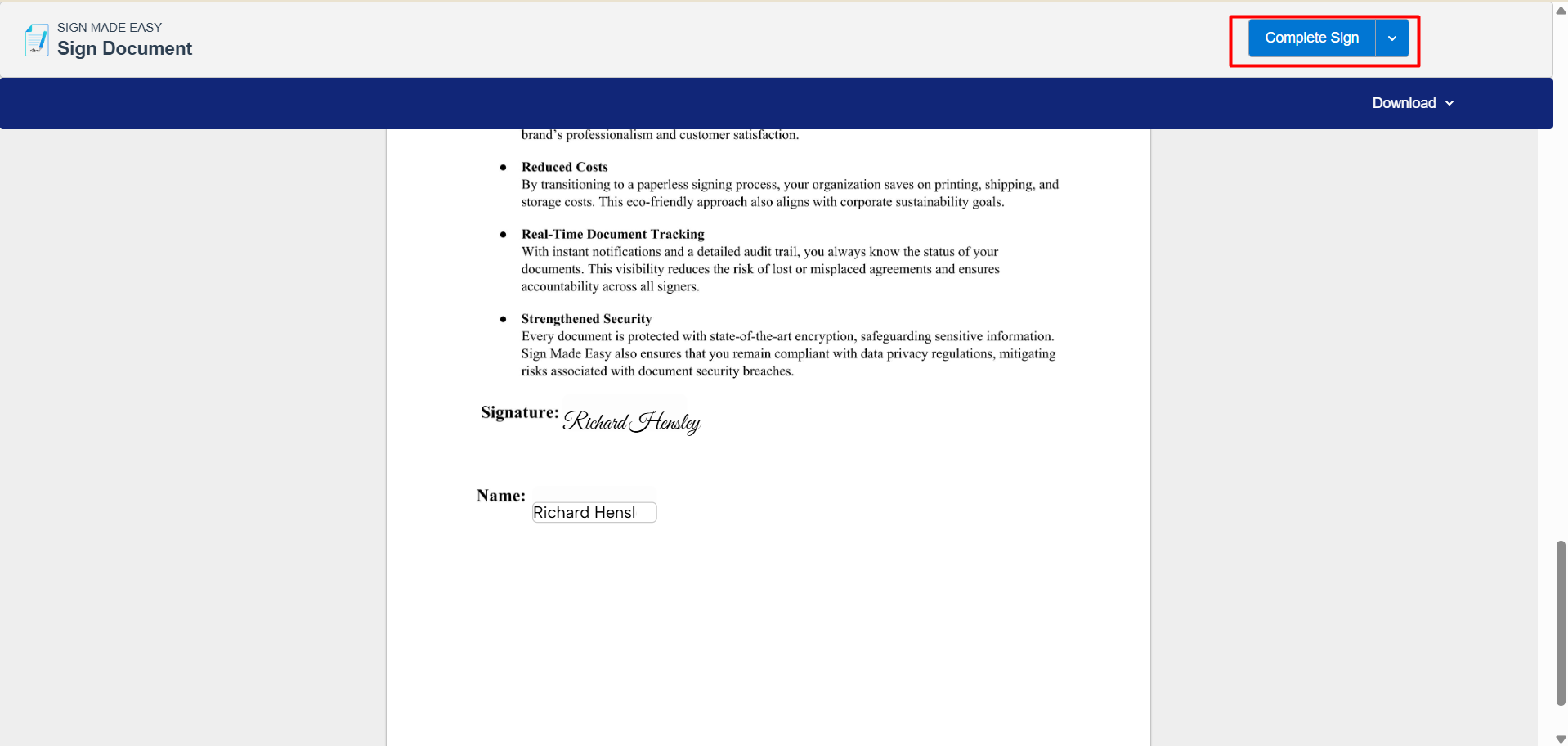
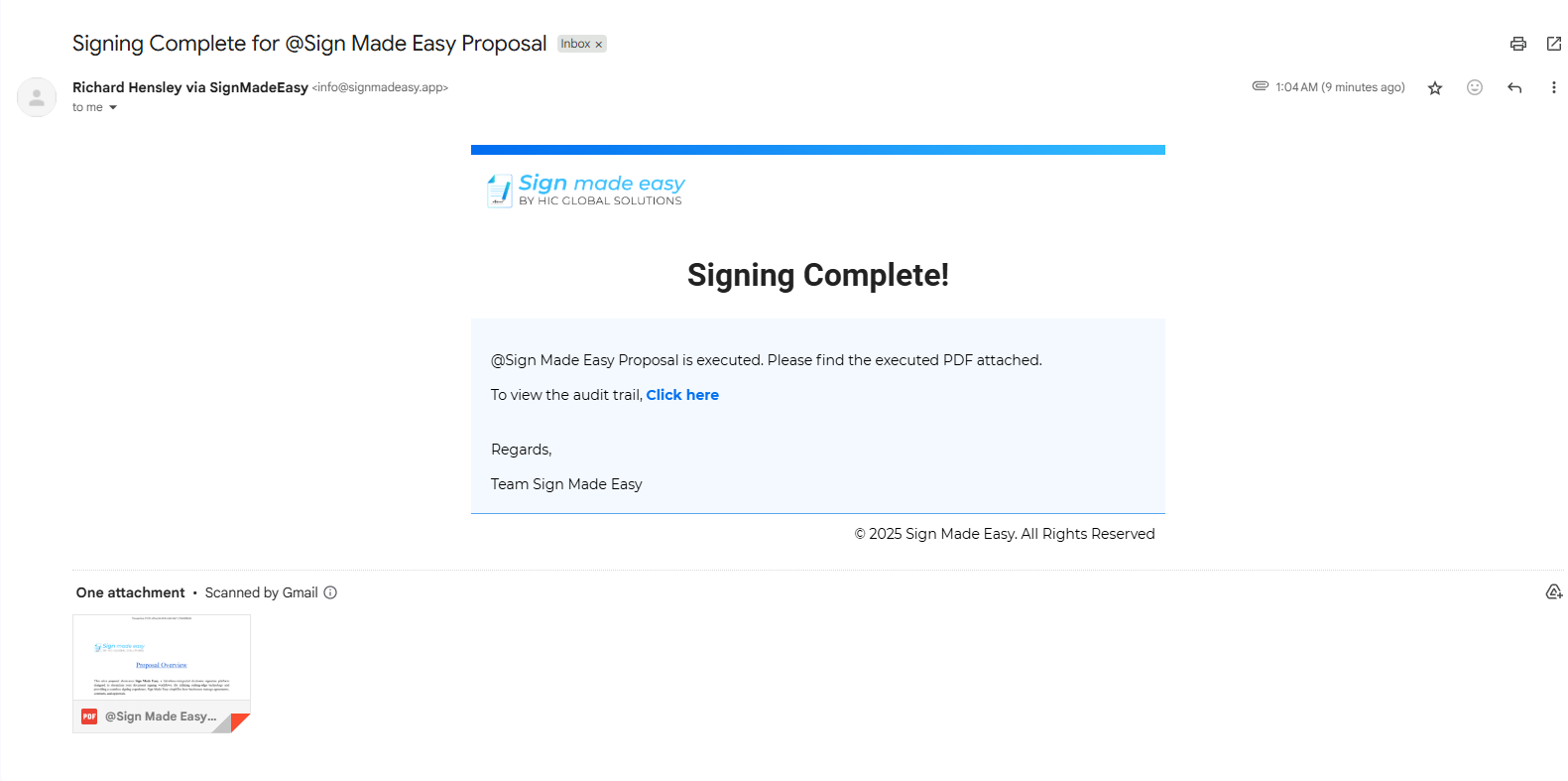
Step 12 :- Click the Complete Sign button to finalize the signing process. Once completed, the document will be marked as fully signed. A confirmation email will be sent once all recipients have completed their signatures.
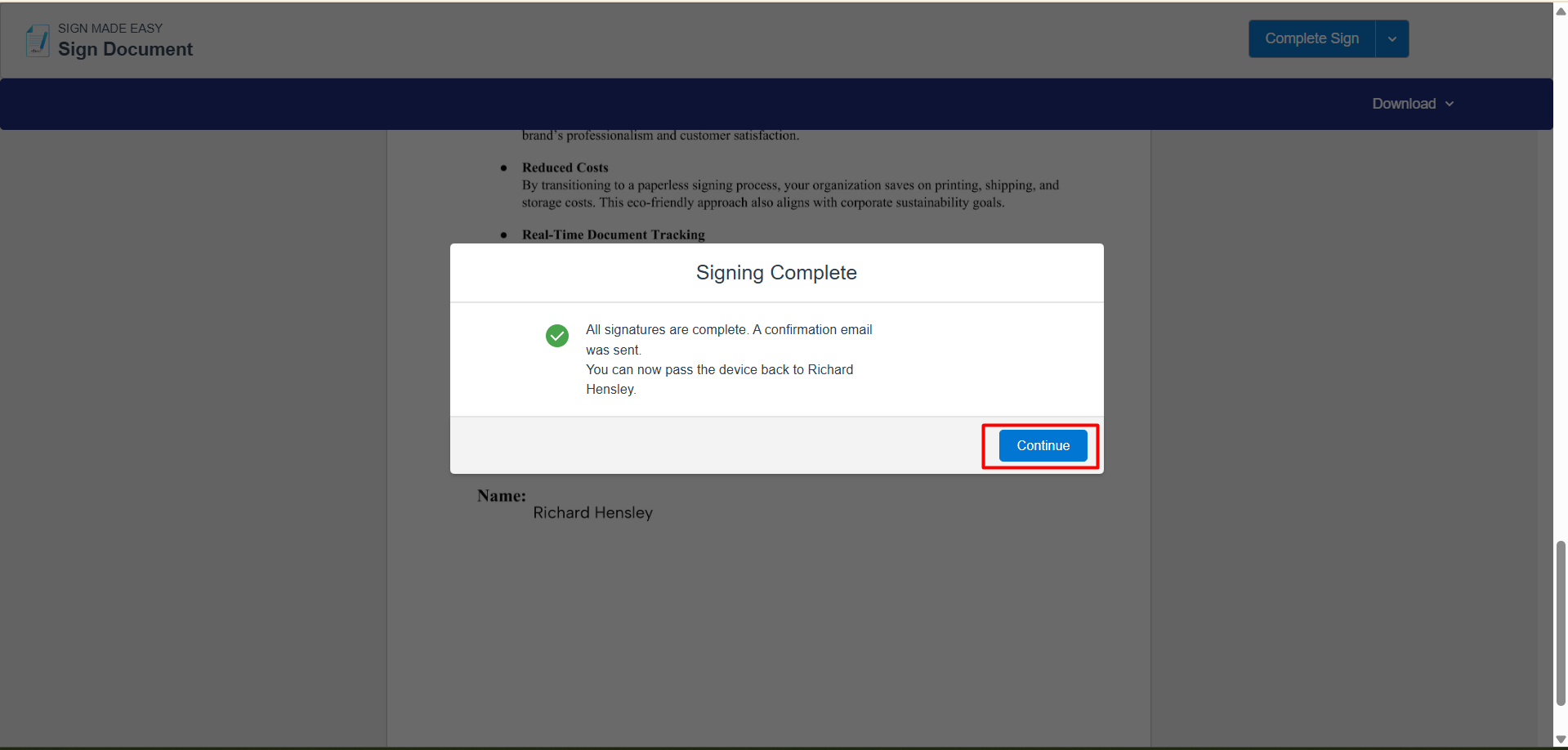
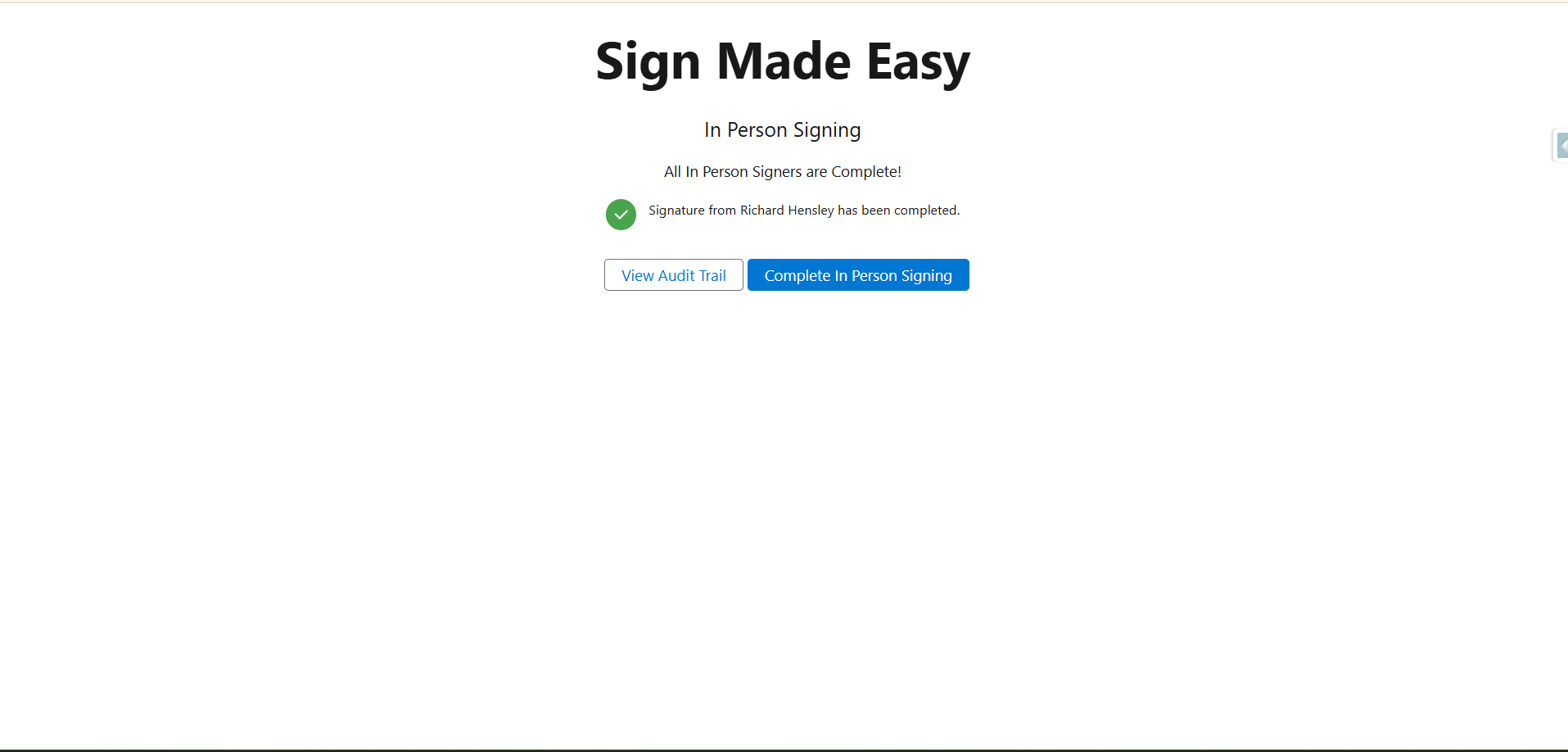
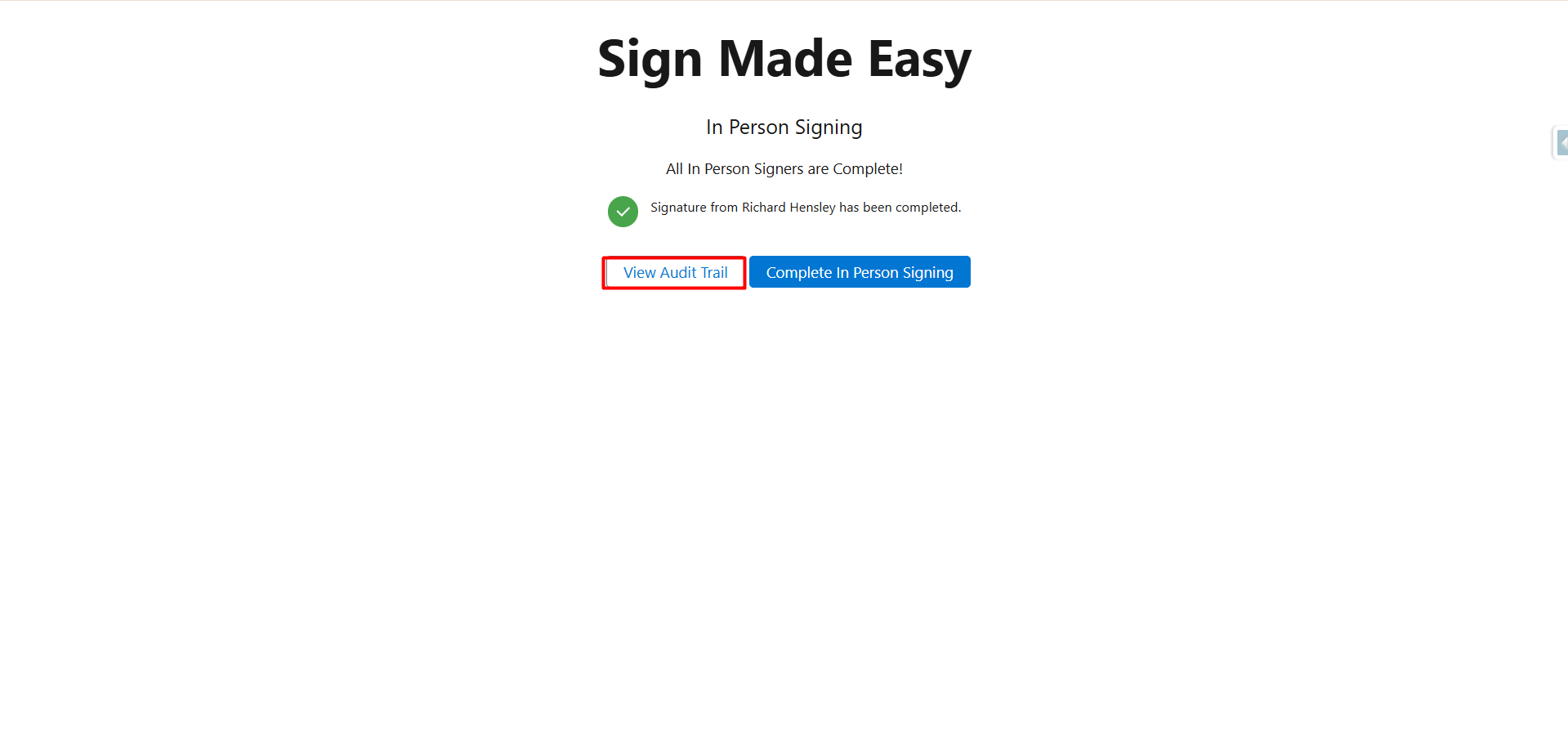
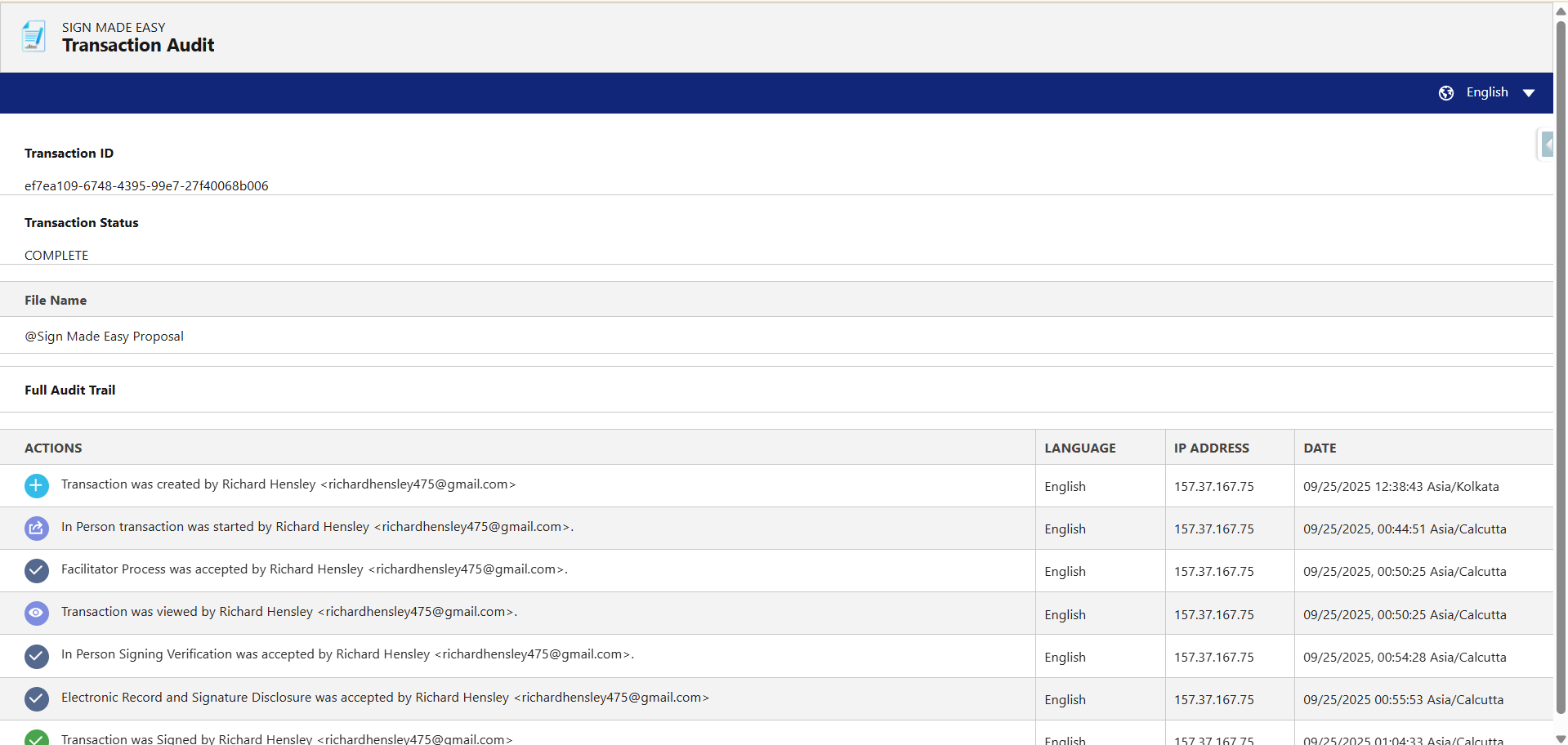
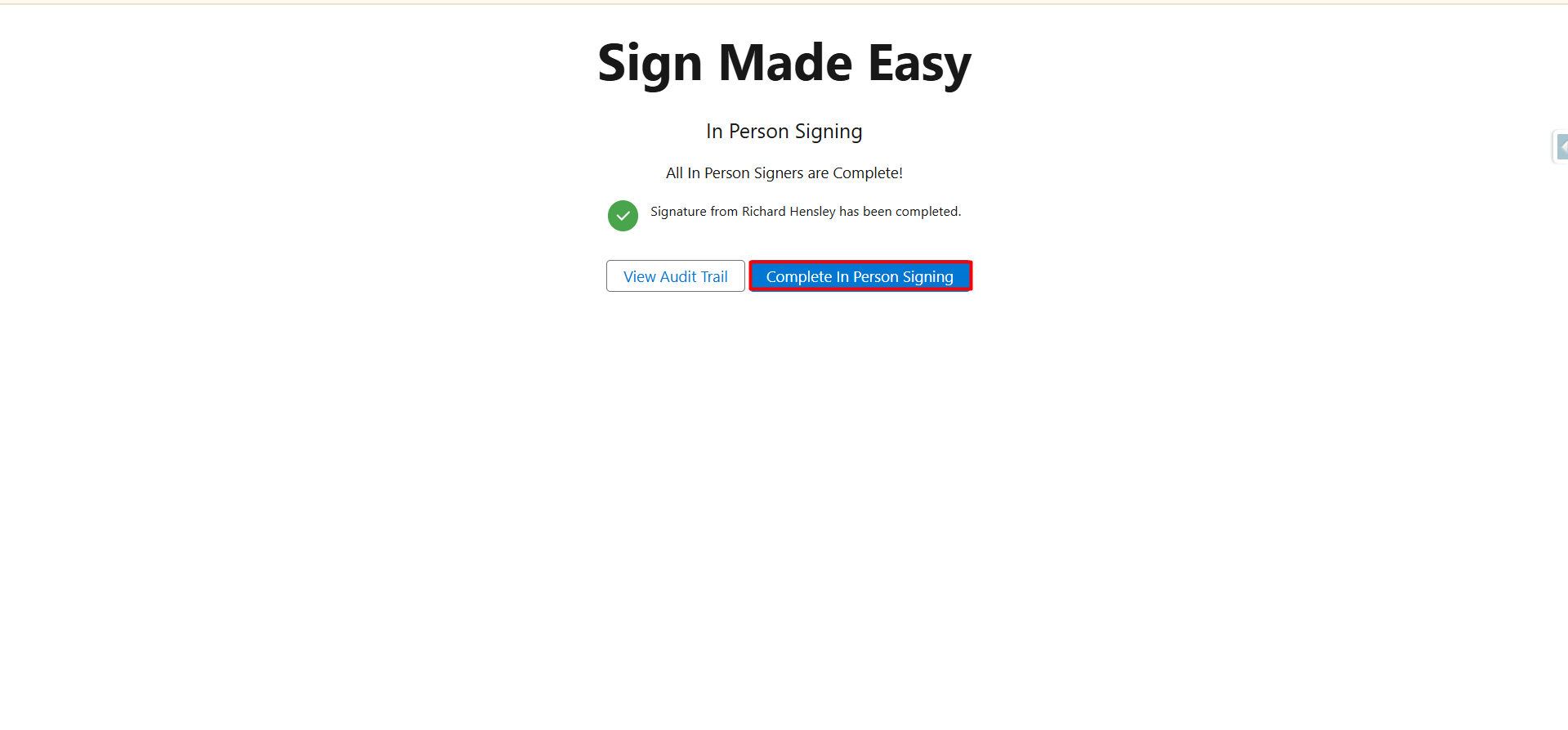
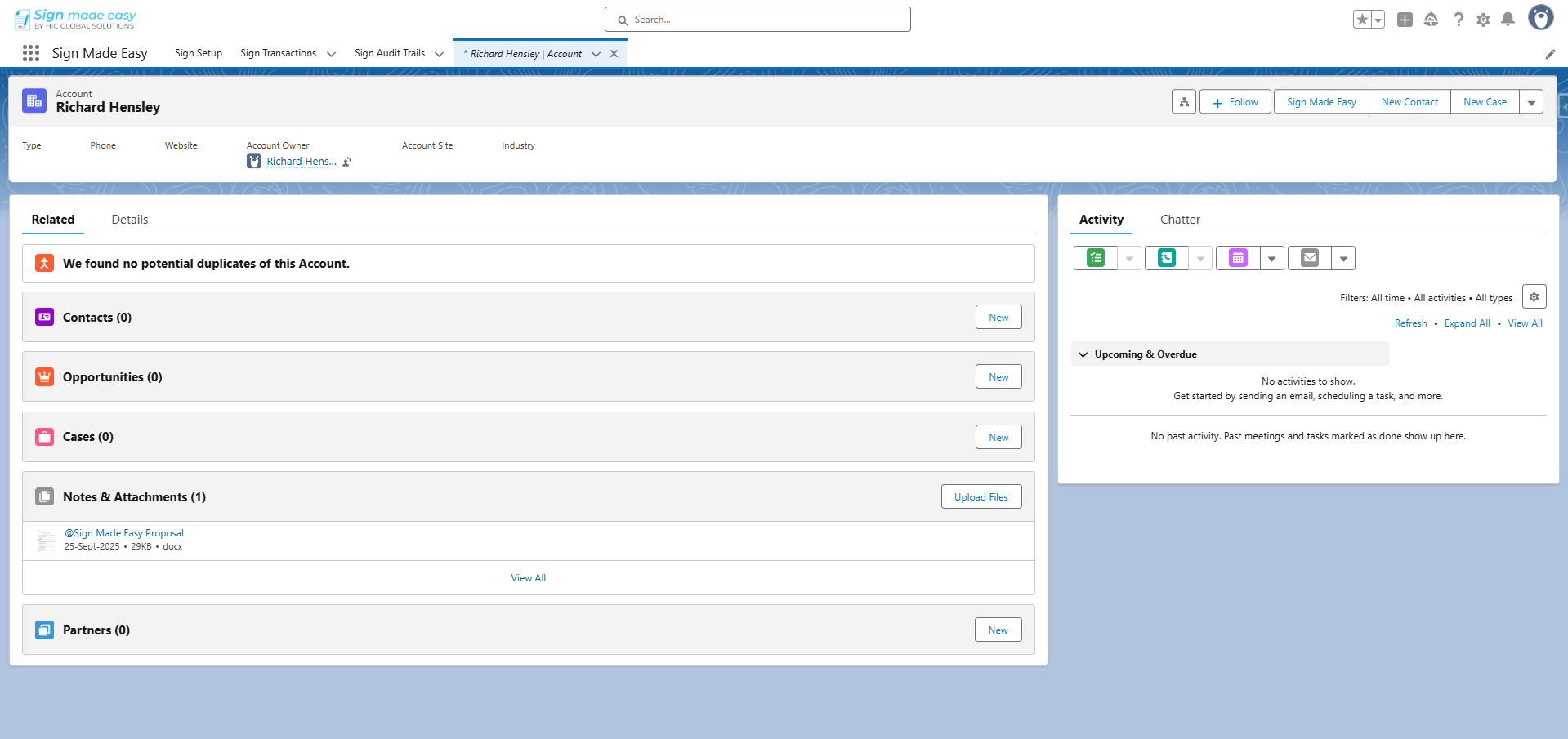
Step 13 :- The e-signature has been successfully completed. Click the ‘Continue’ button to proceed.
Was this article helpful?
That’s Great!
Thank you for your feedback
Sorry! We couldn't be helpful
Thank you for your feedback
Feedback sent
We appreciate your effort and will try to fix the article