Note:- Available in Sign Made Easy PRO
Unlock advanced features and enhance your productivity by upgrading to Sign Made Easy PRO. Please contact our Support Team to access the advanced features of the SME PRO package.
Unlock advanced features and enhance your productivity by upgrading to Sign Made Easy PRO. Please contact our Support Team to access the advanced features of the SME PRO package.
The Email Customization option is available within the Business Unit , For more details to Create Buiness Unit , please Click Here.
In-depth Guidance on Customization E-Mail Template
The Email Customization allows you to personalize the email template sent to signers when requesting document signatures. By customizing the email design, you can match your organization's branding and provide recipients with a more professional experience.
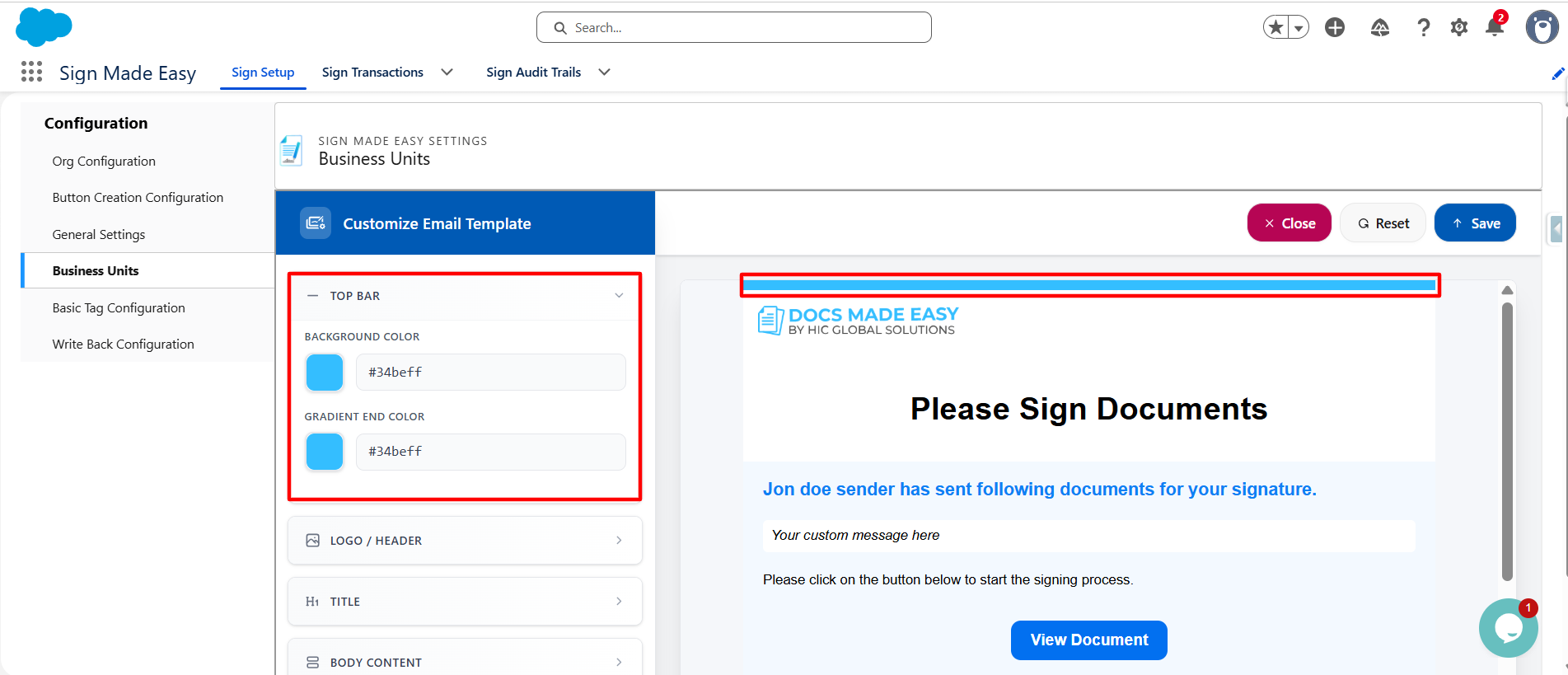
- Top Bar – Customize the Top Bar by changing its background color and gradient color.
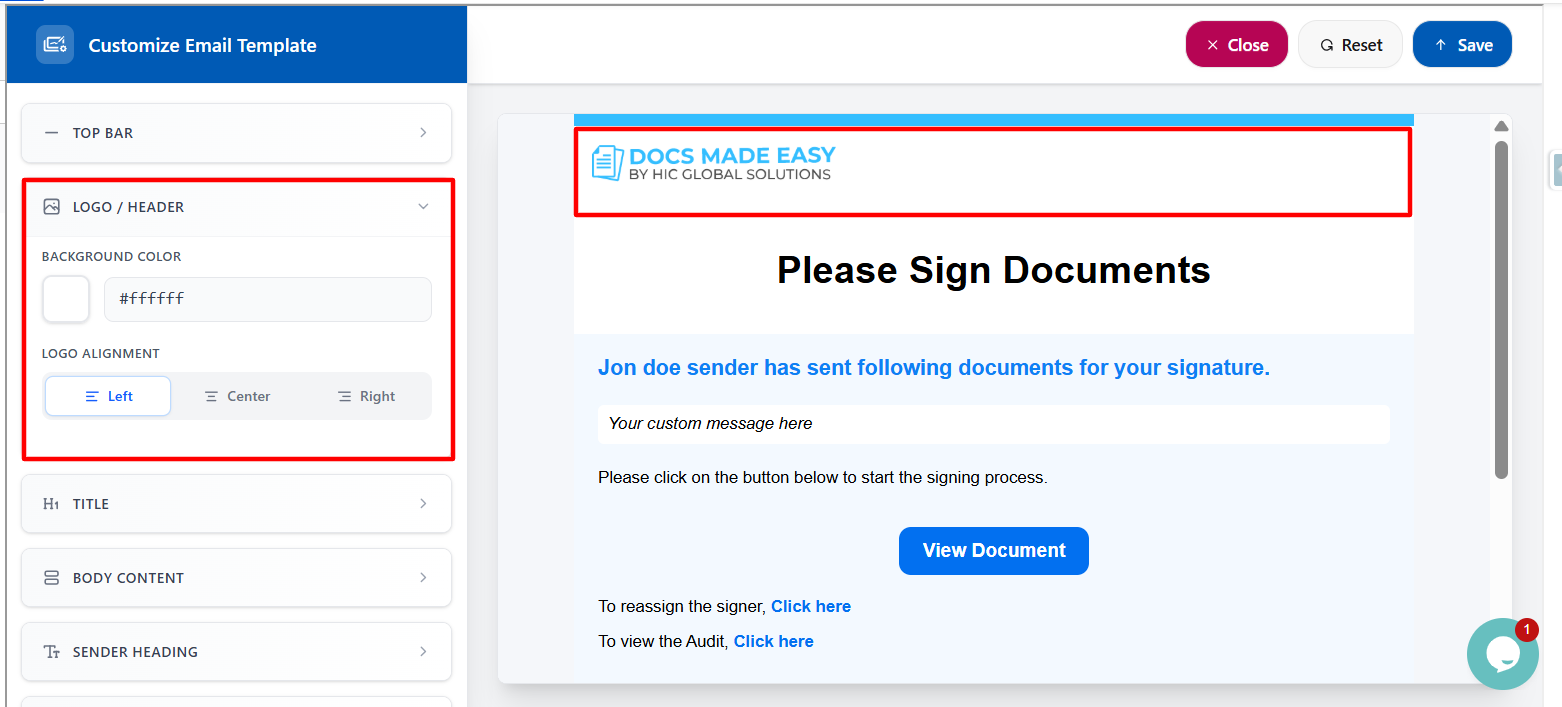
- Logo / Header – Customize the Logo/Header section by changing the background color, and setting the logo alignment (Left, Center, or Right).
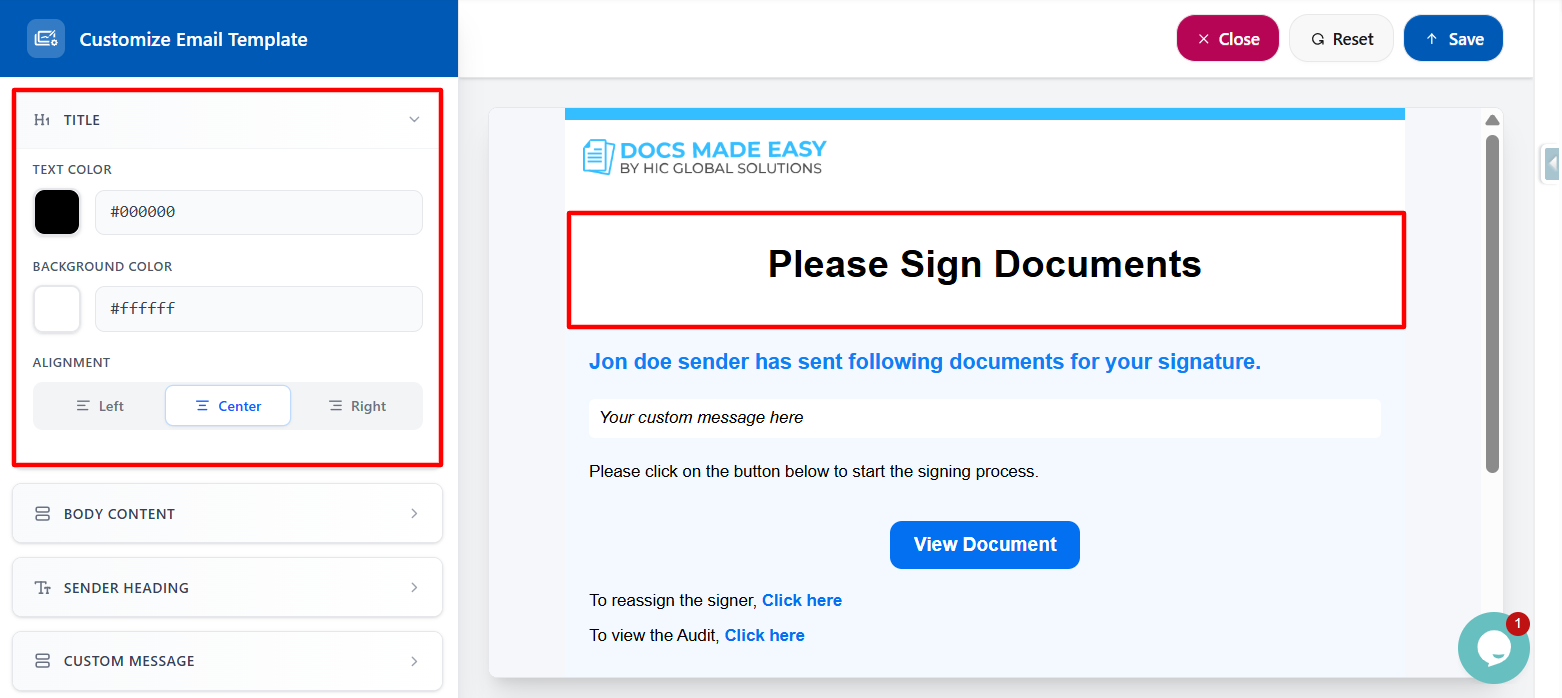
- Title – Customize the Title by modifying the text color, background color, and title alignment (Left, Center, or Right).
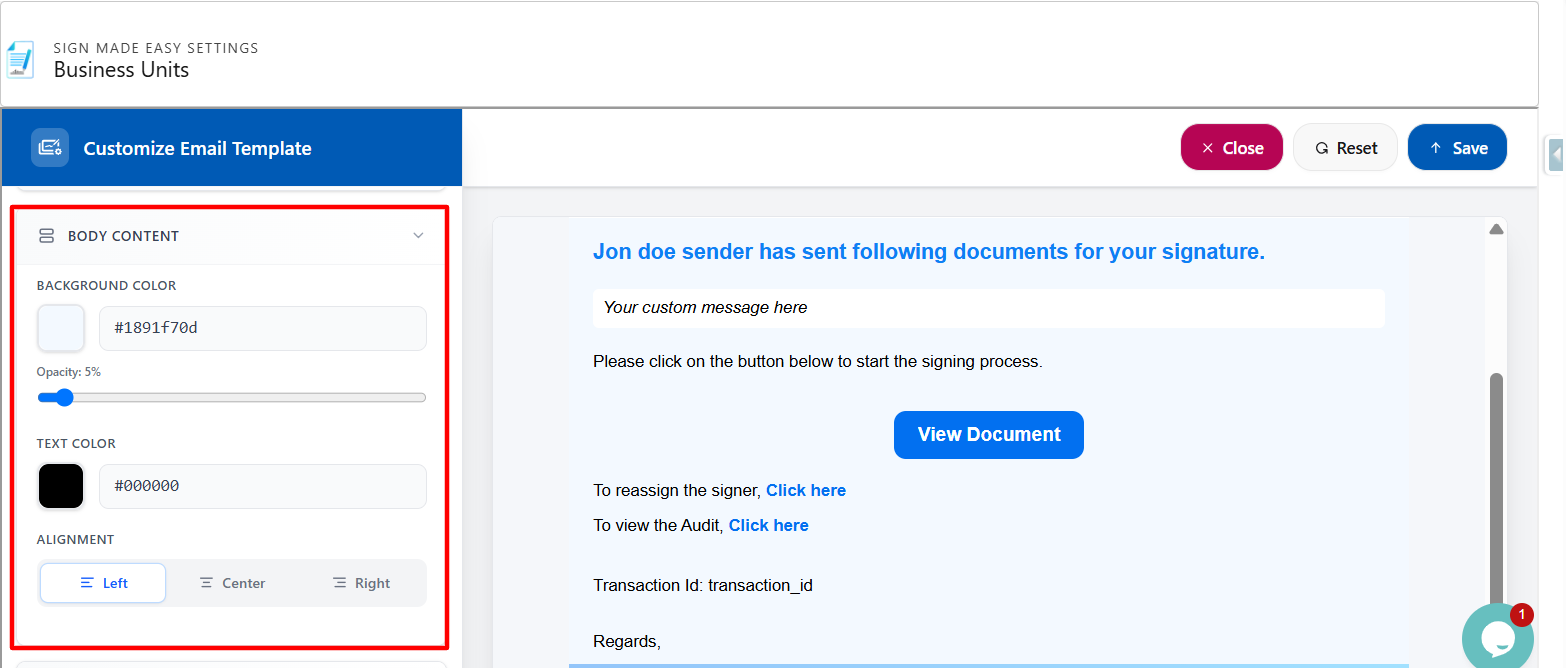
- Body Content – Customize the Body Content by modifying the text color, background color, and text alignment (Left, Center, or Right).
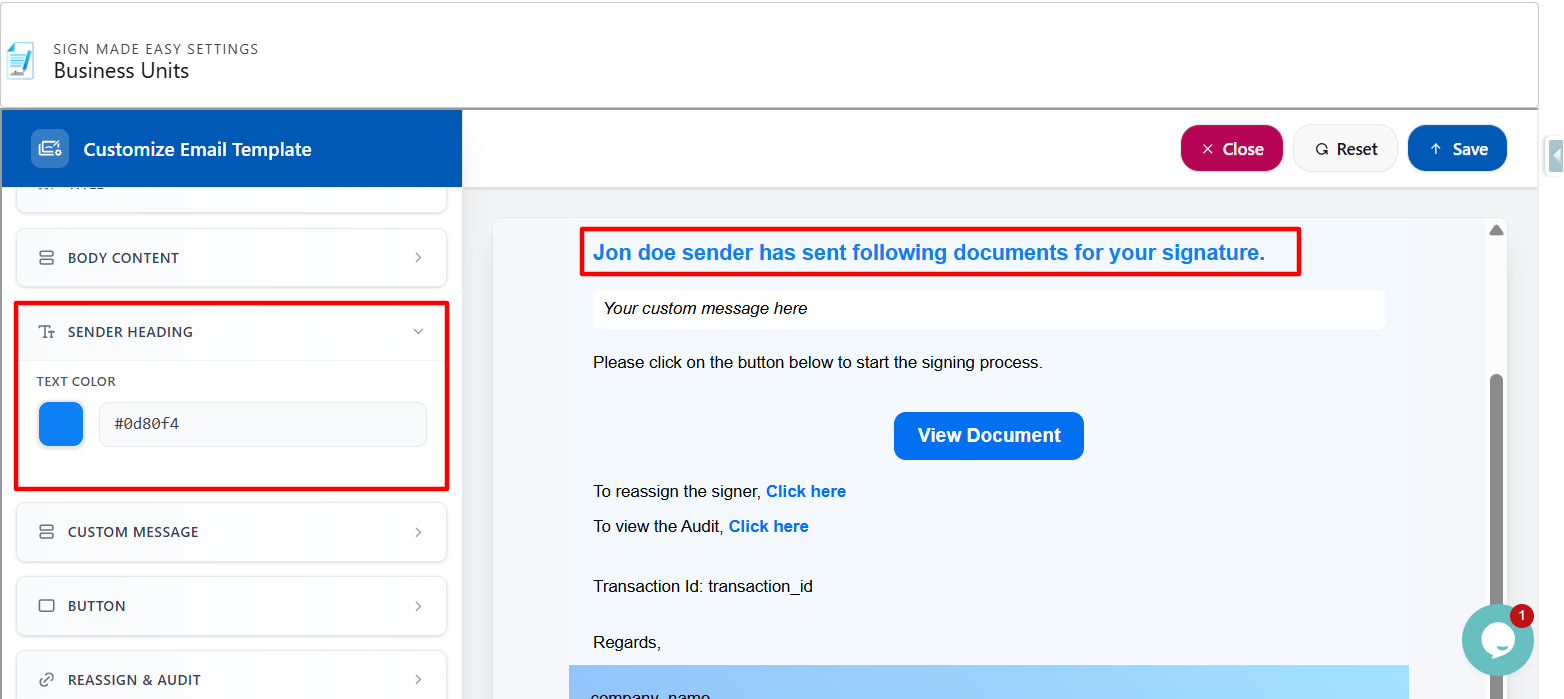
- Sender Heading – Customize the Sender Heading by modifying the text color.
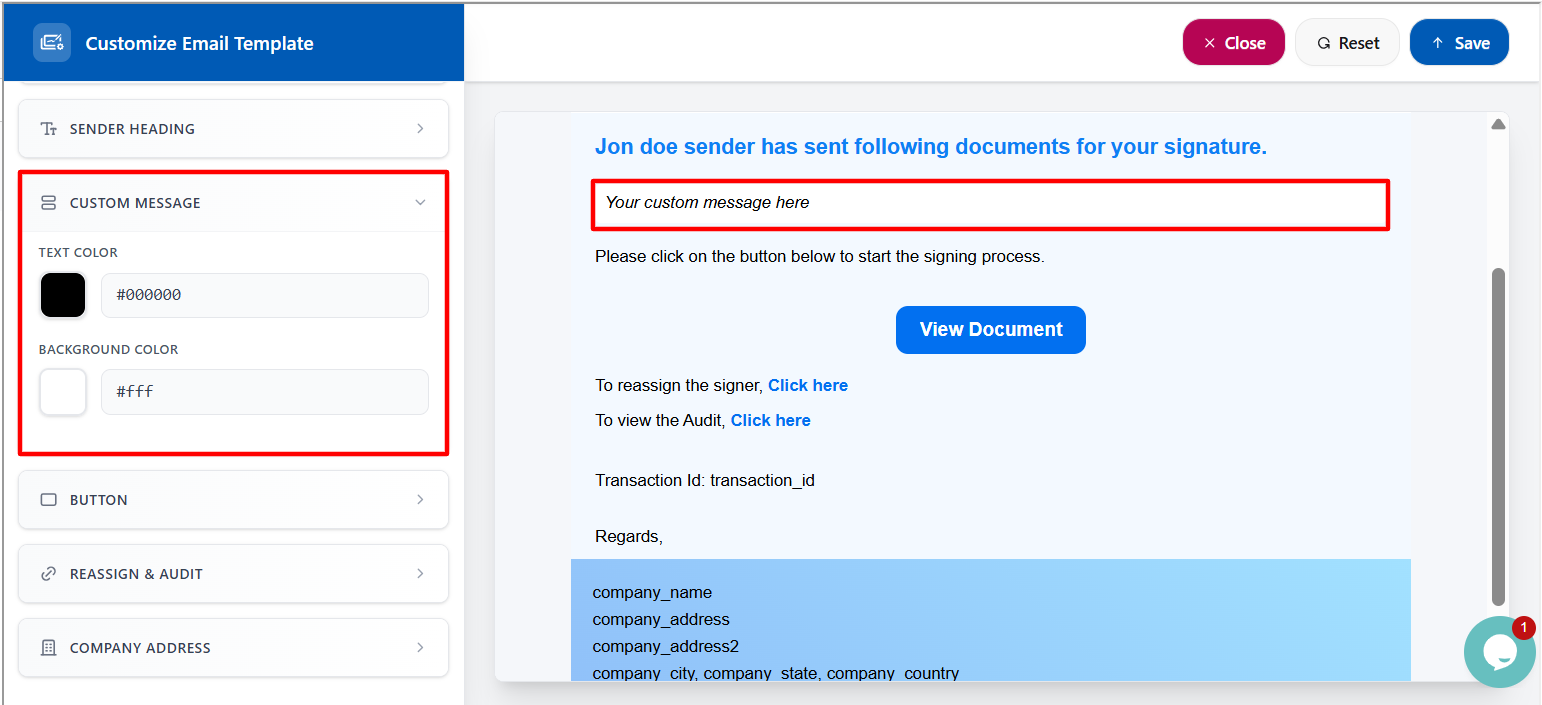
- Custom Message – Customize the Custom Message by modifying the text color, background color.
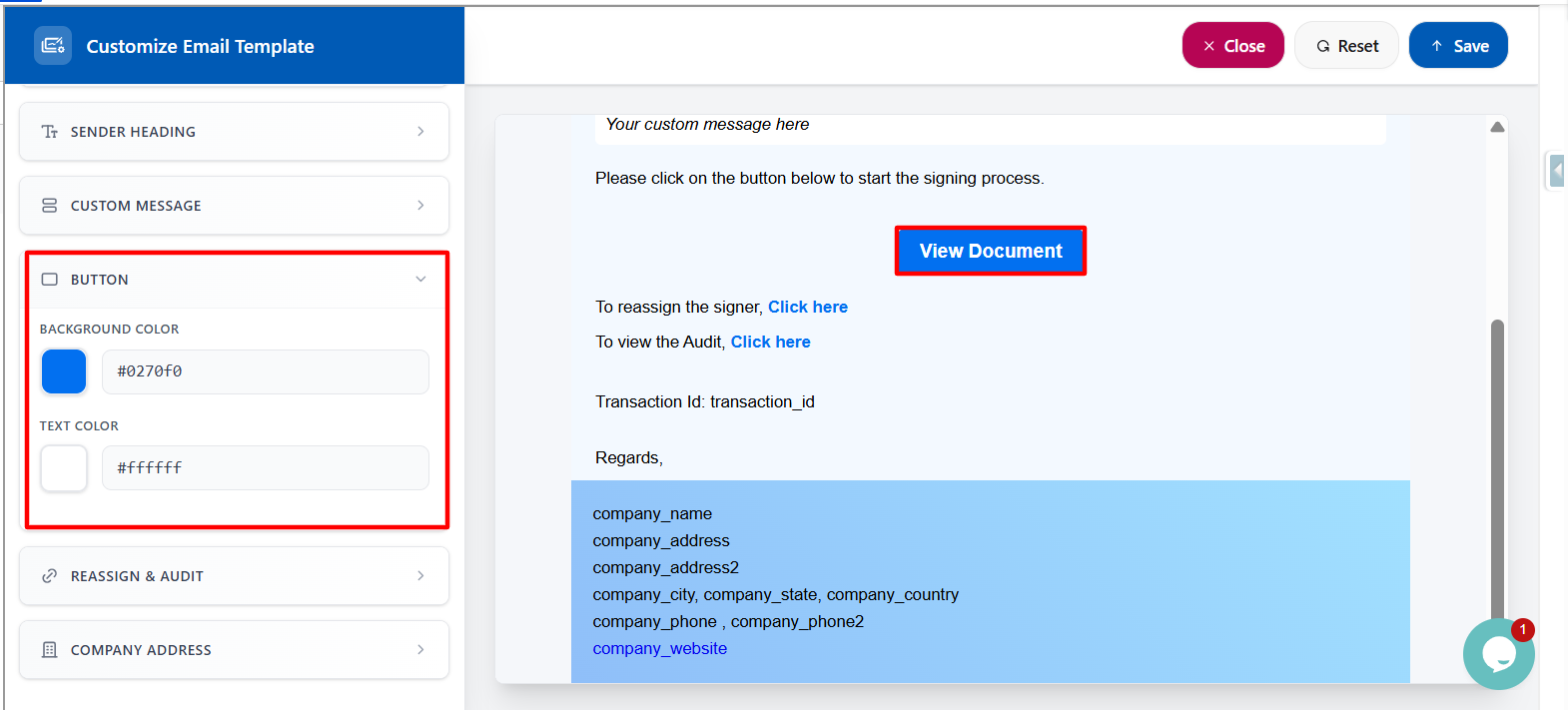
- Button – Customize the Button by modifying the button text color, button background color, and button text alignment (Left, Center, or Right).
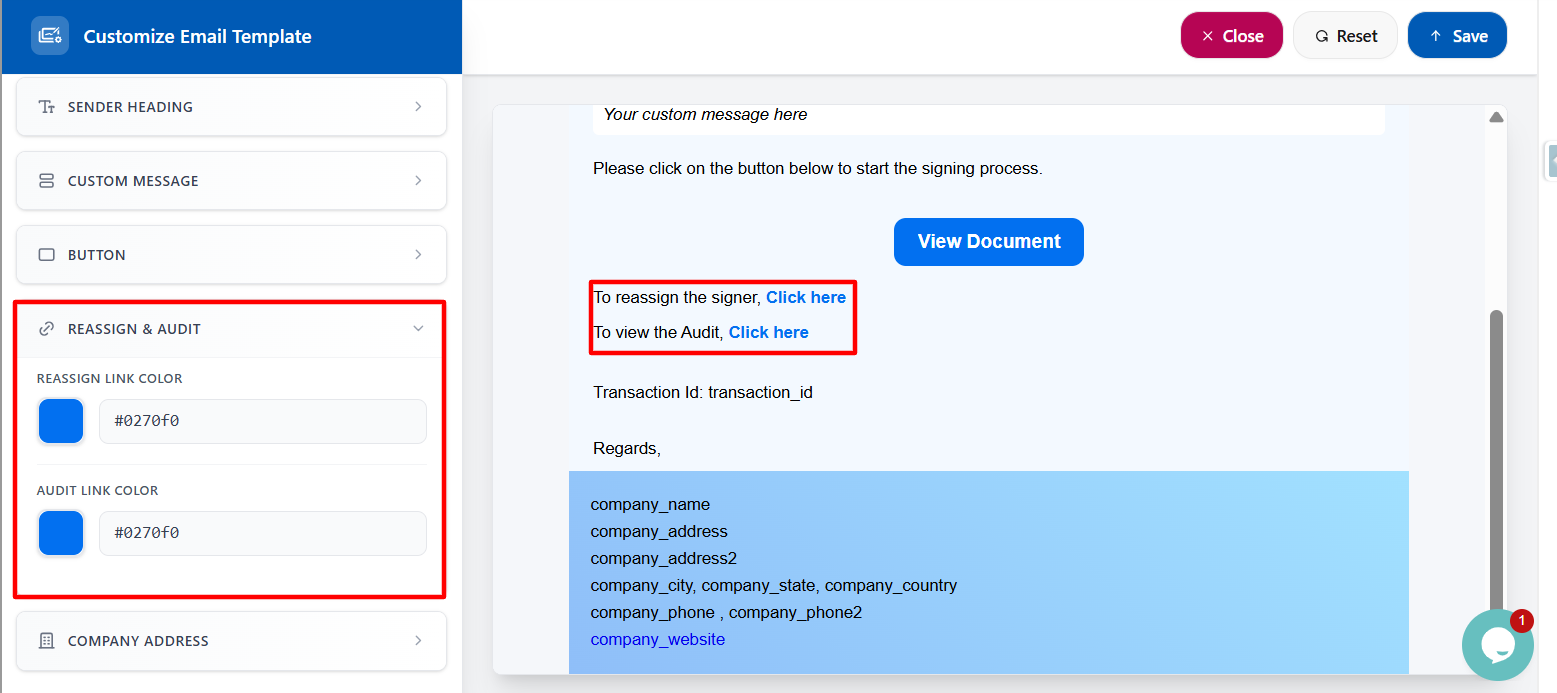
- Reassign & Audit – Customize the Reassign & Audit section by modifying the text color, background color, and text alignment (Left, Center, or Right).
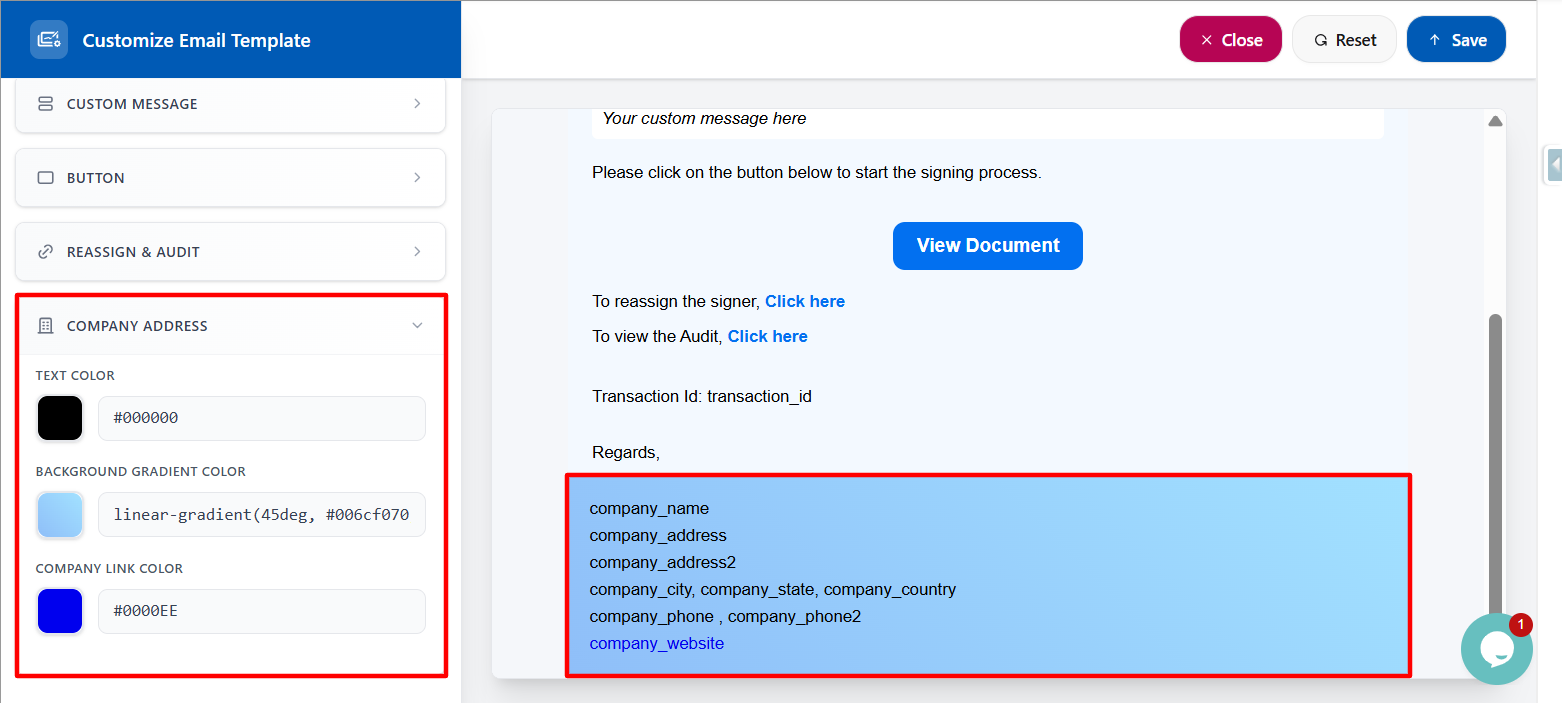
- Company Address – Customize the Company Address section by modifying the text color, background color, and Company link color.
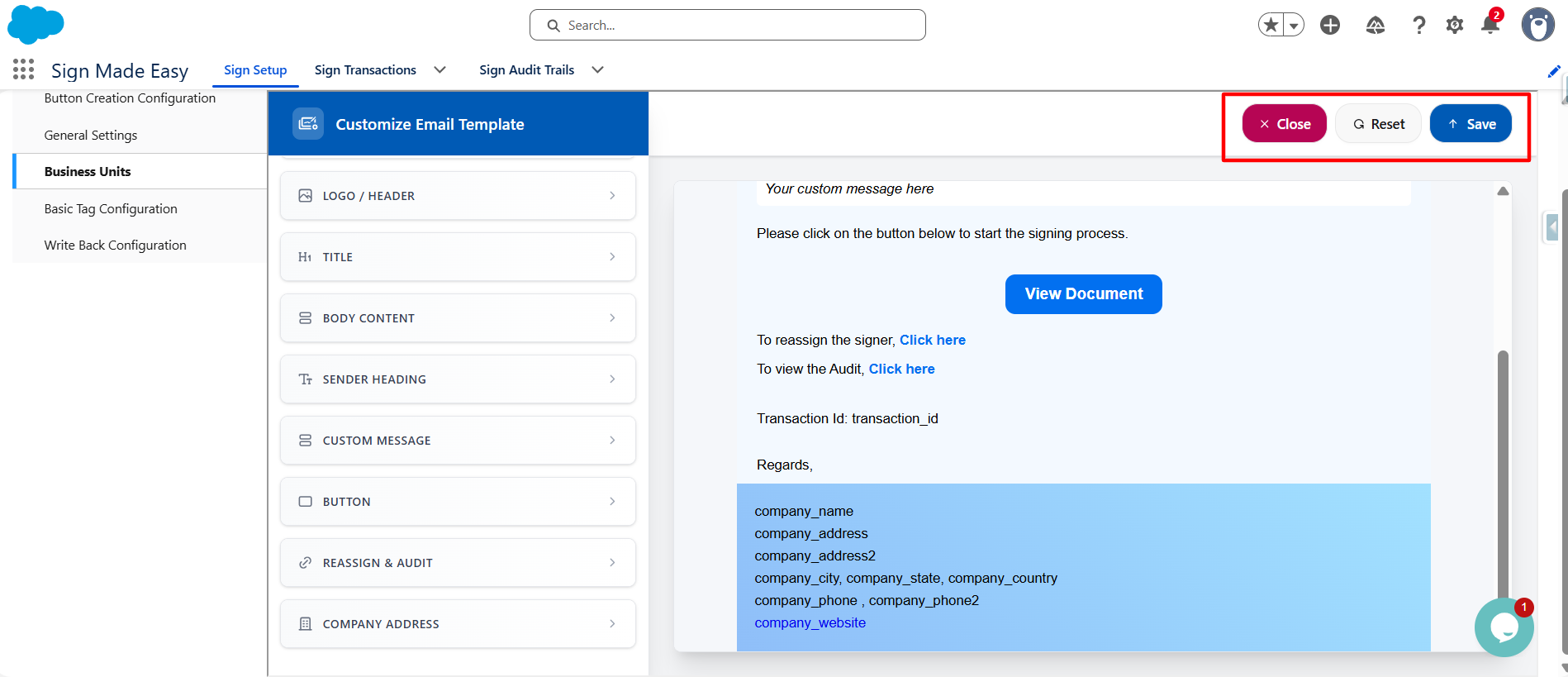
The E-Mail Template Customization provides three action buttons, each serving the functions described below:
- Close Button: Closes the Email Template Customization page without saving any unsaved changes and returns to the previous screen.
- Reset Button: Reverts all unsaved changes made during the current customization session, restoring the email template to its last saved state.
- Save Button: Saves the customized email template and applies the changes to the selected Business Unit.
Was this article helpful?
That’s Great!
Thank you for your feedback
Sorry! We couldn't be helpful
Thank you for your feedback
Feedback sent
We appreciate your effort and will try to fix the article