Step 1:- Open the Sign Made Easy app, navigate to the Sign Templates , and click on the New button to create a new template.
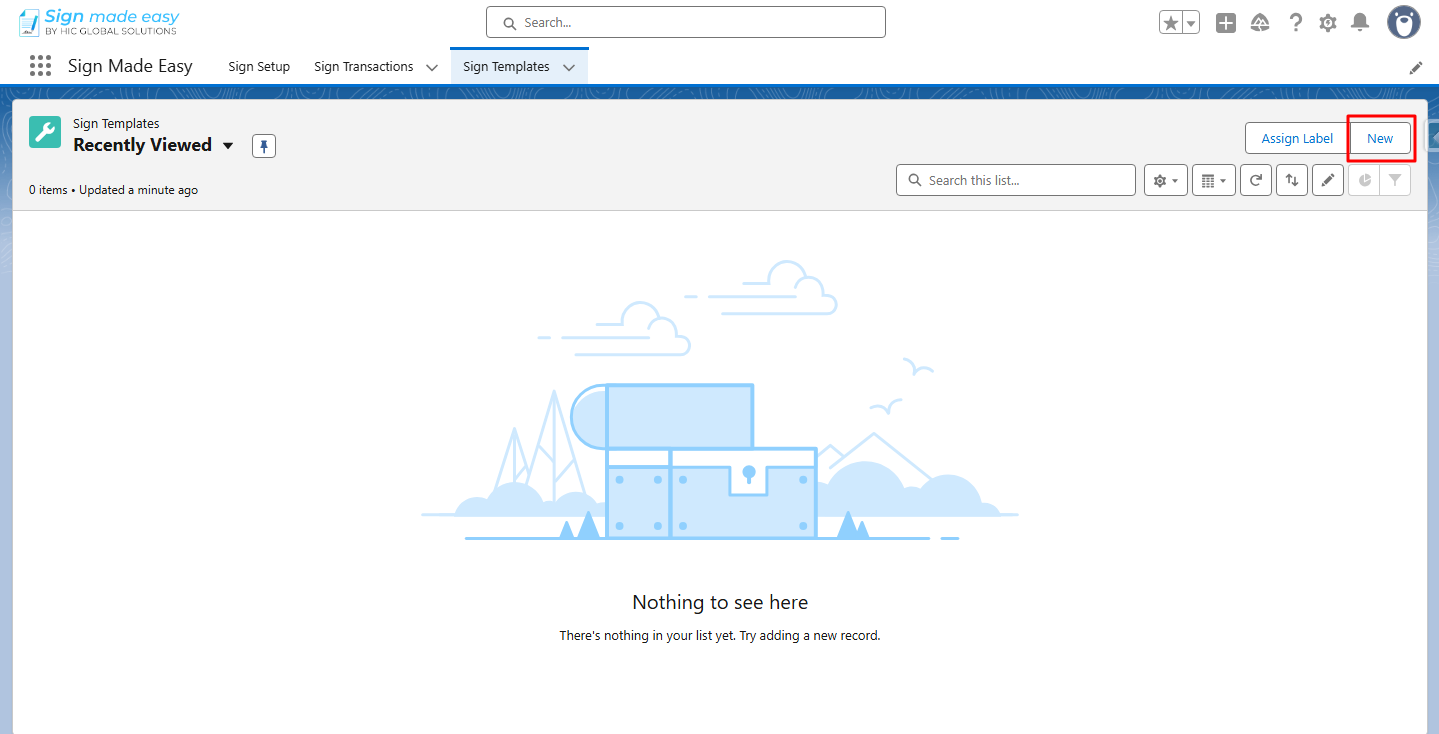
Step 2:- Create Template modal is opened, enter the Name and Select Data Source.
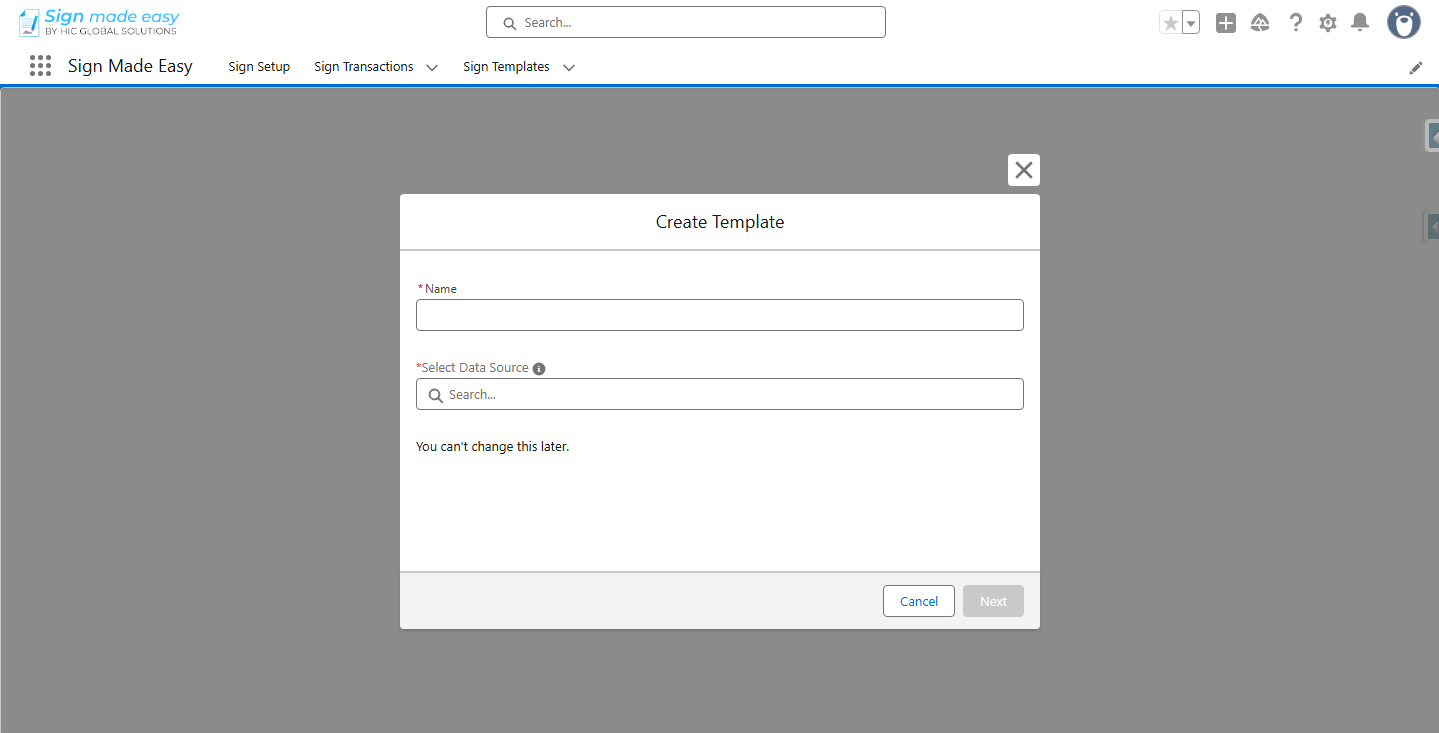
Step 3:- Click the Next button.
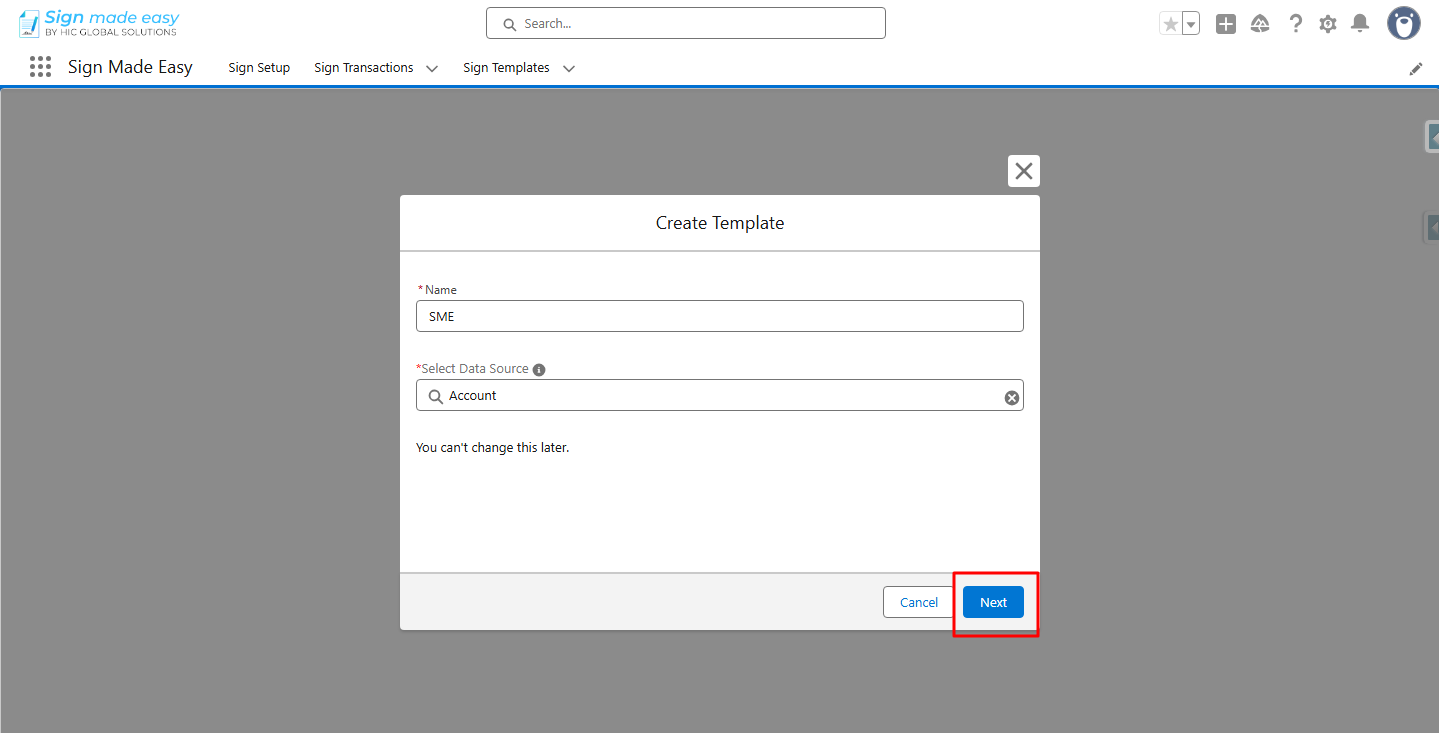
Now, the Sign Template Interface is opened.
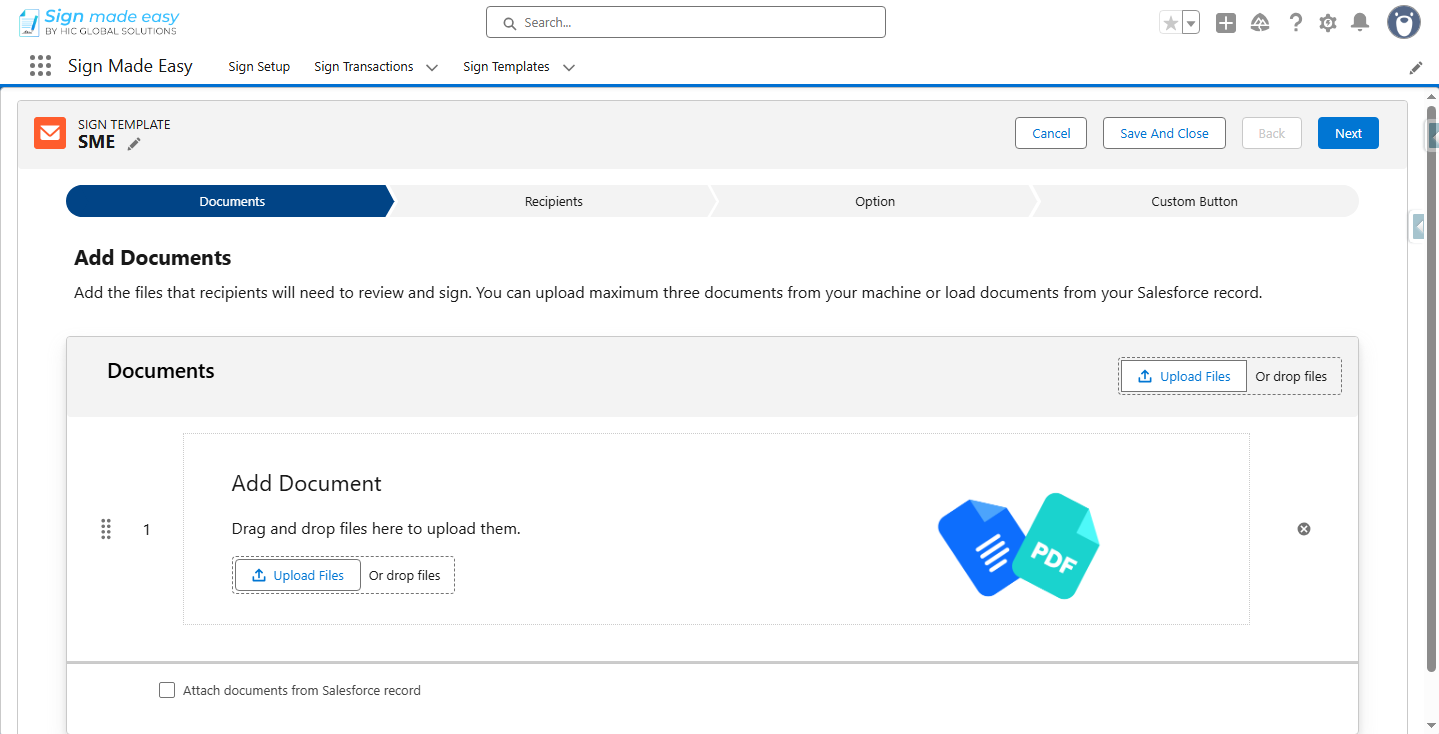
Step 4:- Add Documents and click Next.
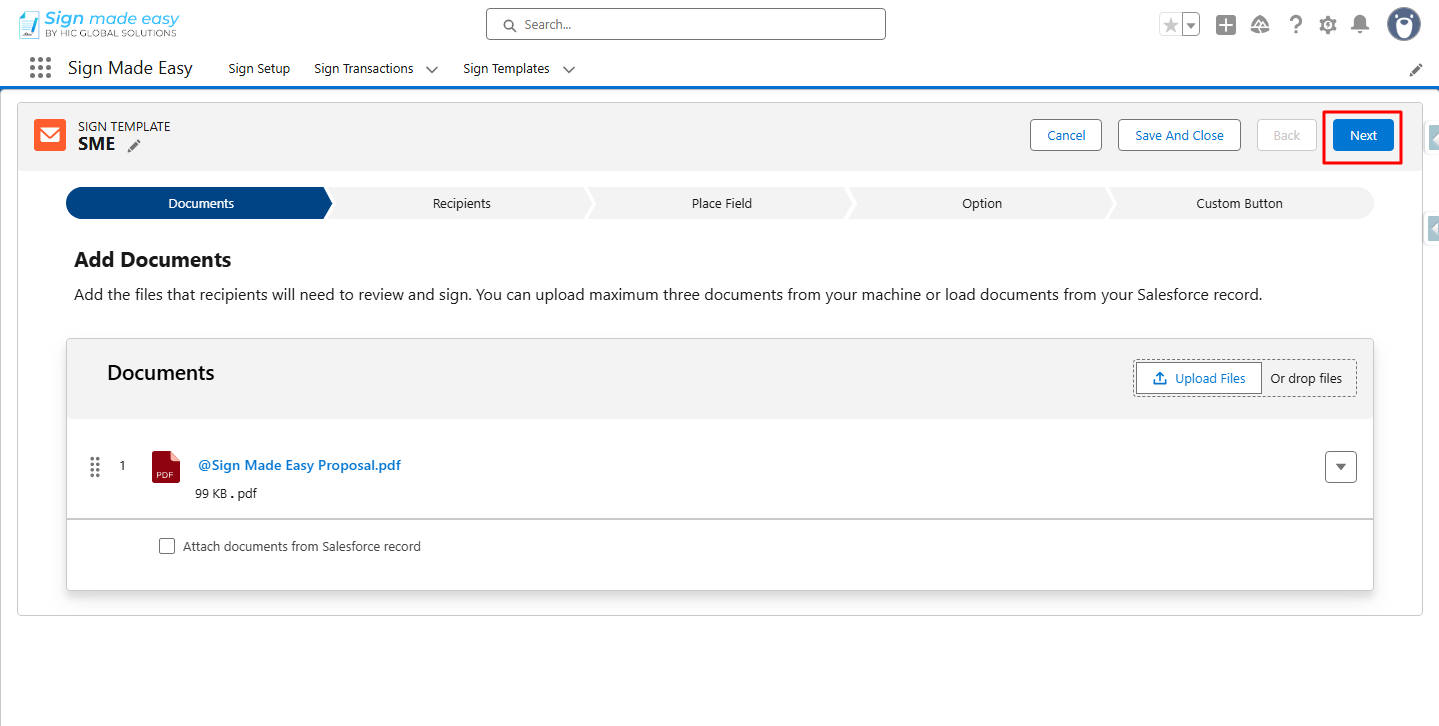
Step 5:- Click Add Recipient to add the recipient.
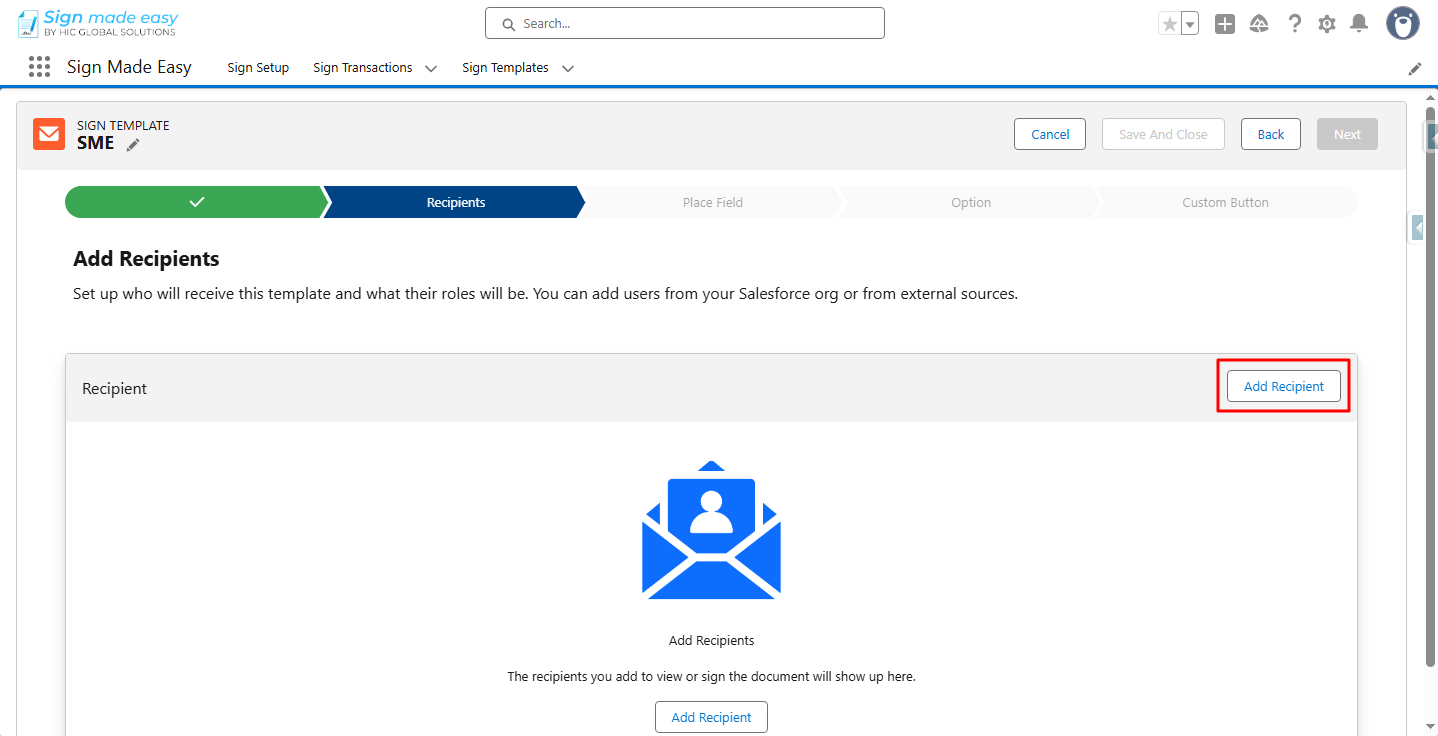
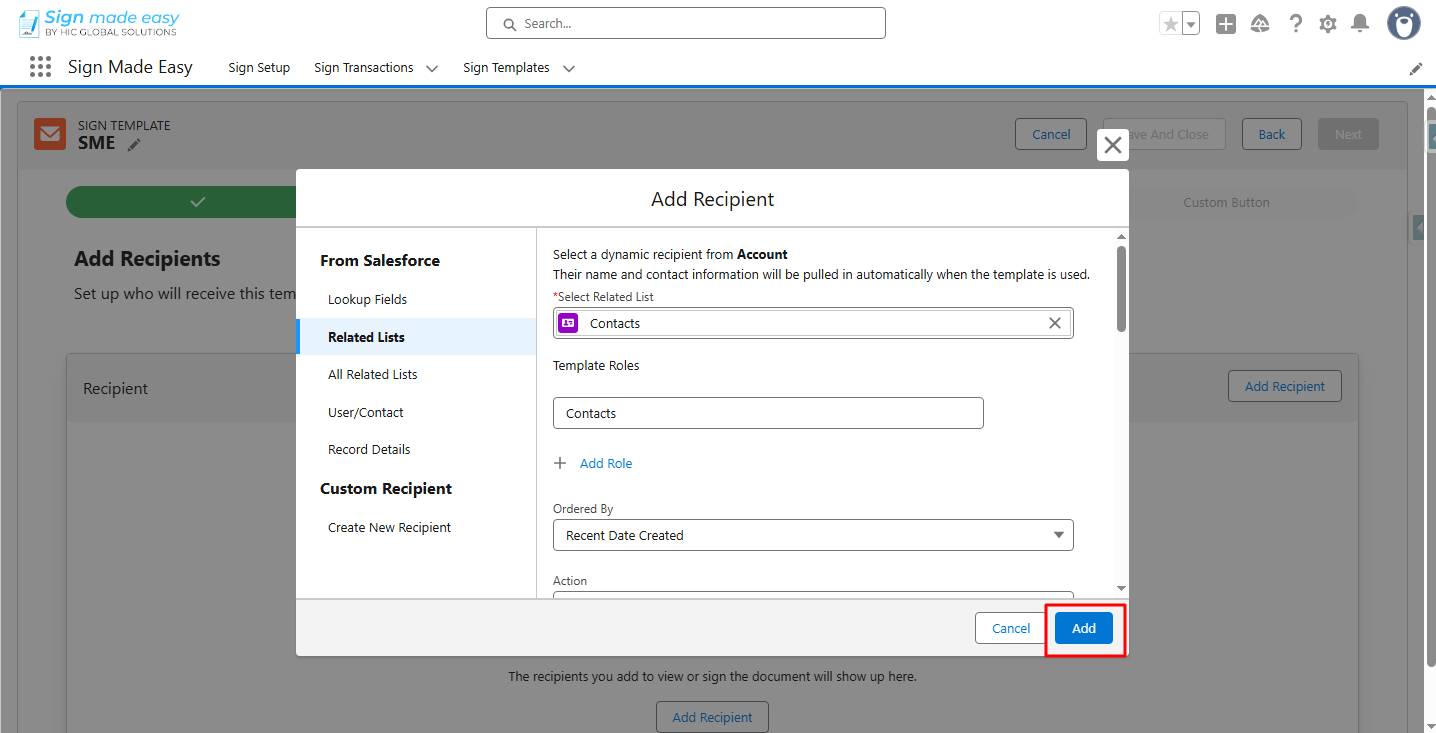
Add Recipient modal is now open.
Step 6:- Select the Related Lists option.
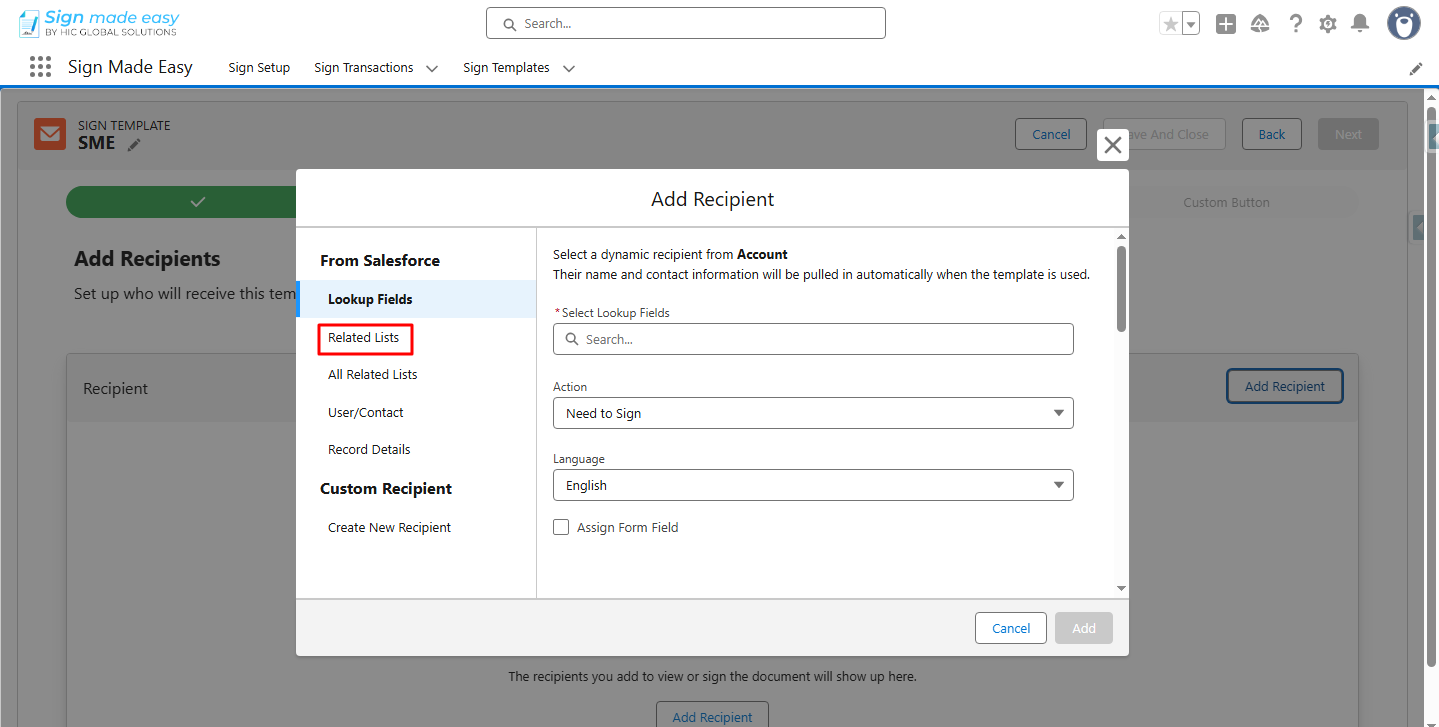
Step 7:- From the search input’s select box, click on Related Lists.
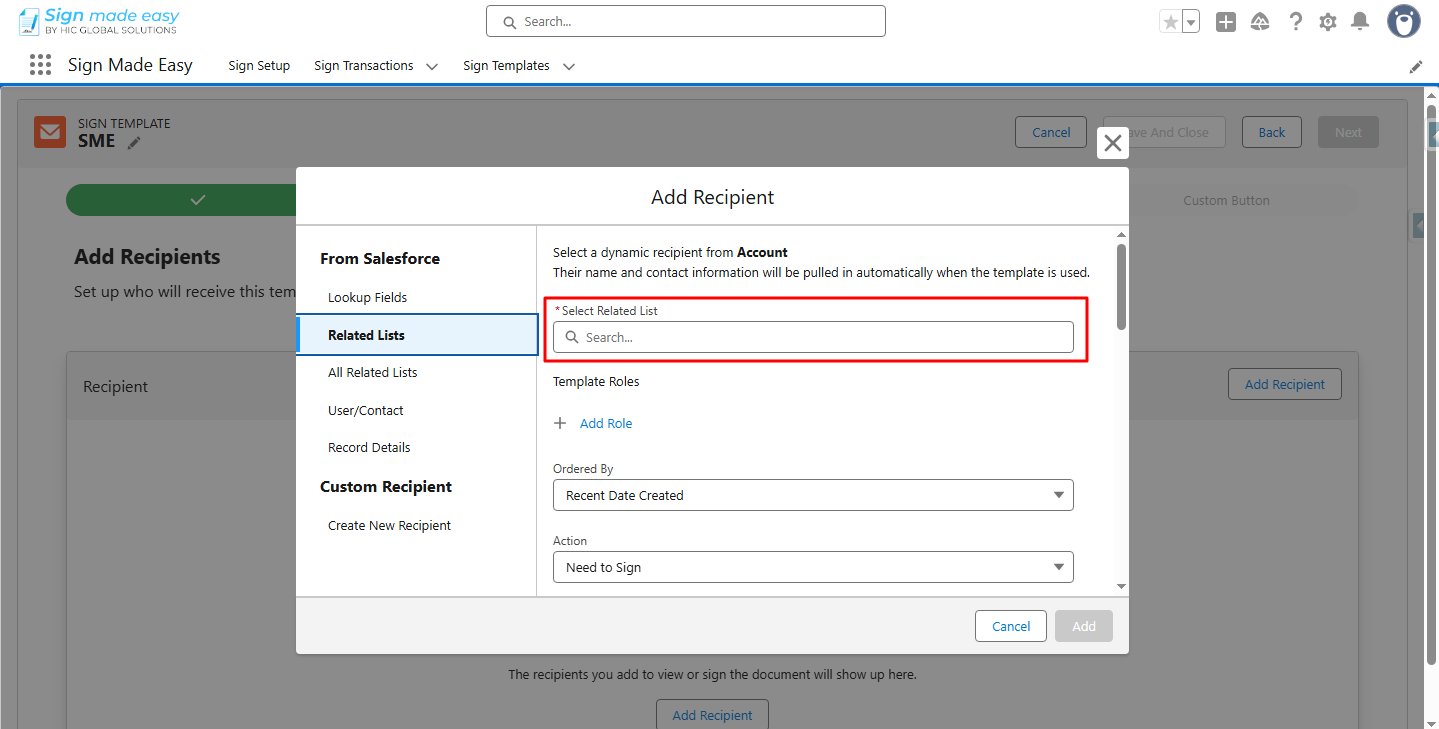
Step 8:- Then, click Add.
Step 9:- Click the Custom Button Option.
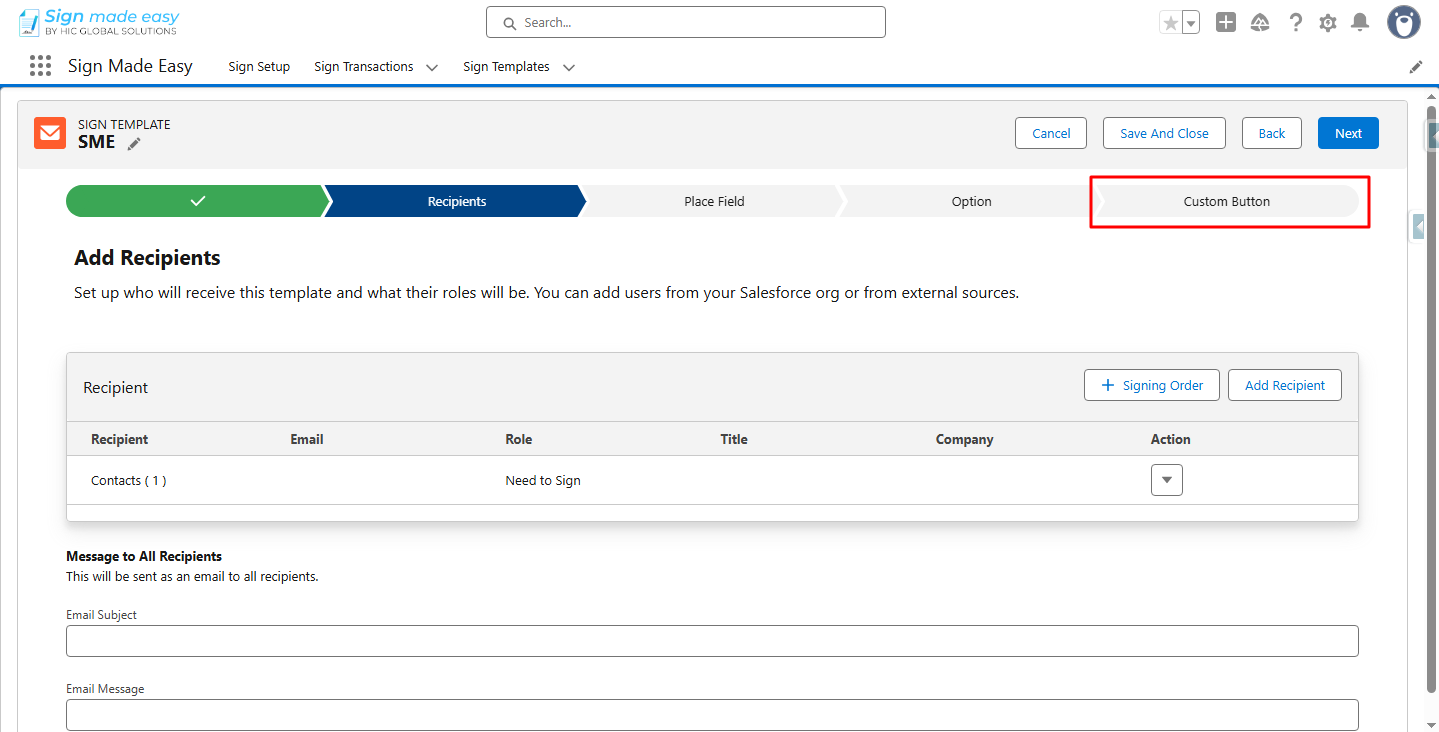
So, the Sign Template name is automatically populated in the Button Label Field.
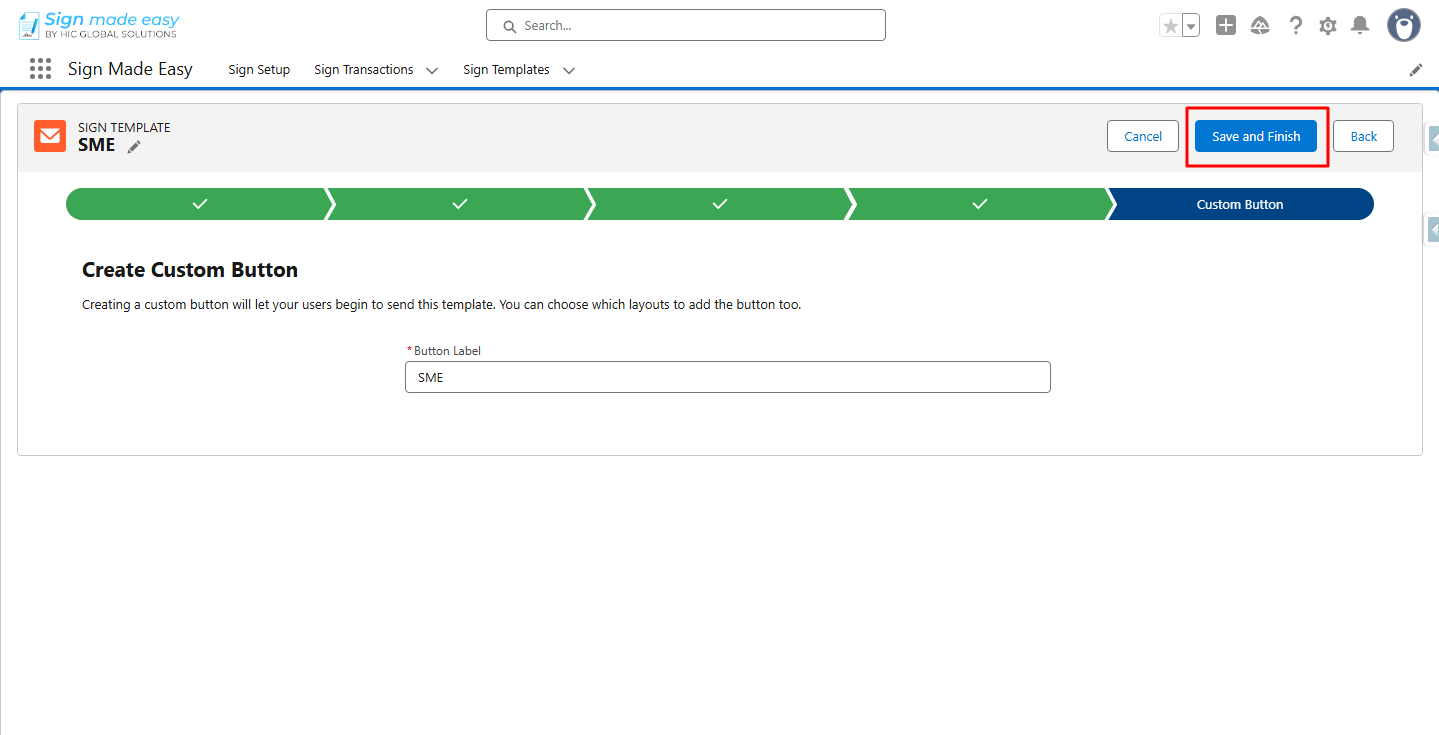
Step 10:- Click Save And Finish.
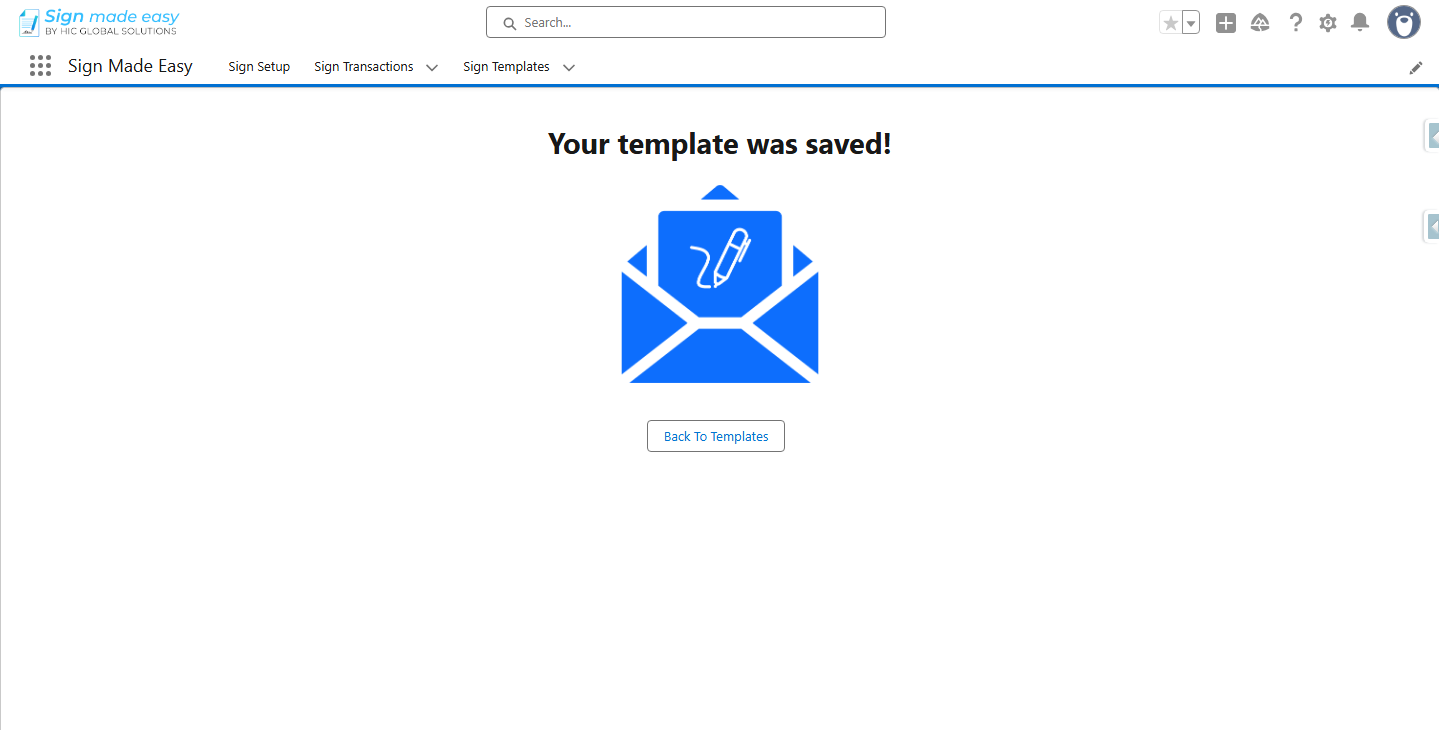
Sign Template is Created.
Step 11:- Navigate to the Page Layout of the Data Source selected in the Sign Template, and add the custom button created in the Sign Template to the record page of that object.
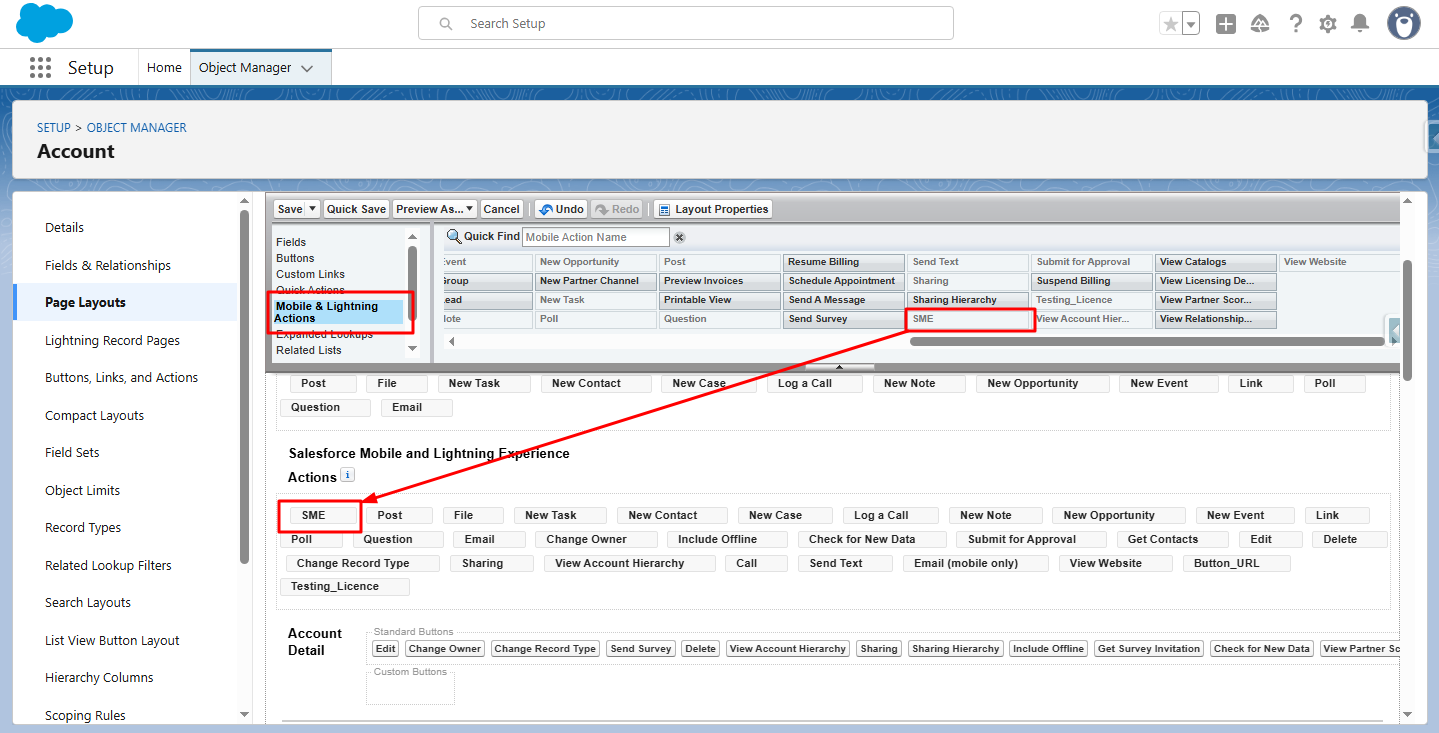
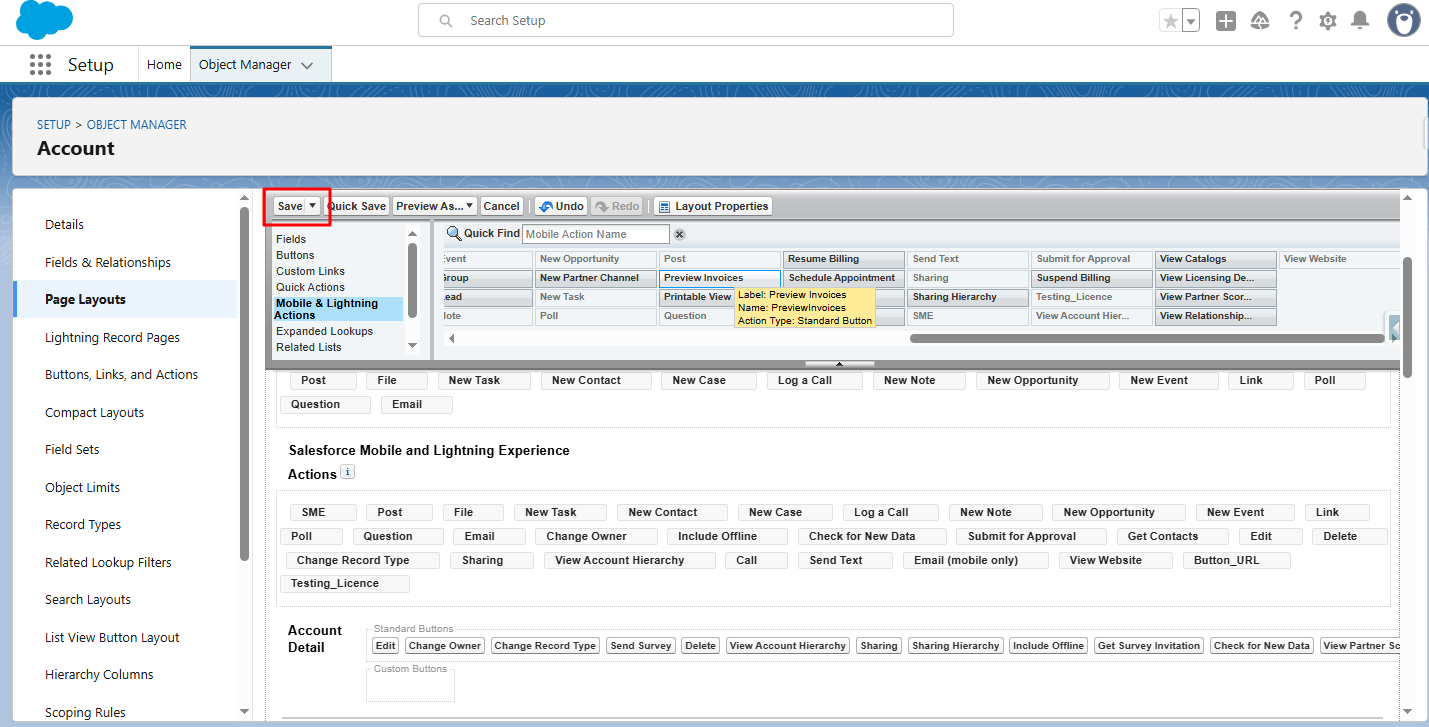
Step 12:- Click Save or Quick Save.
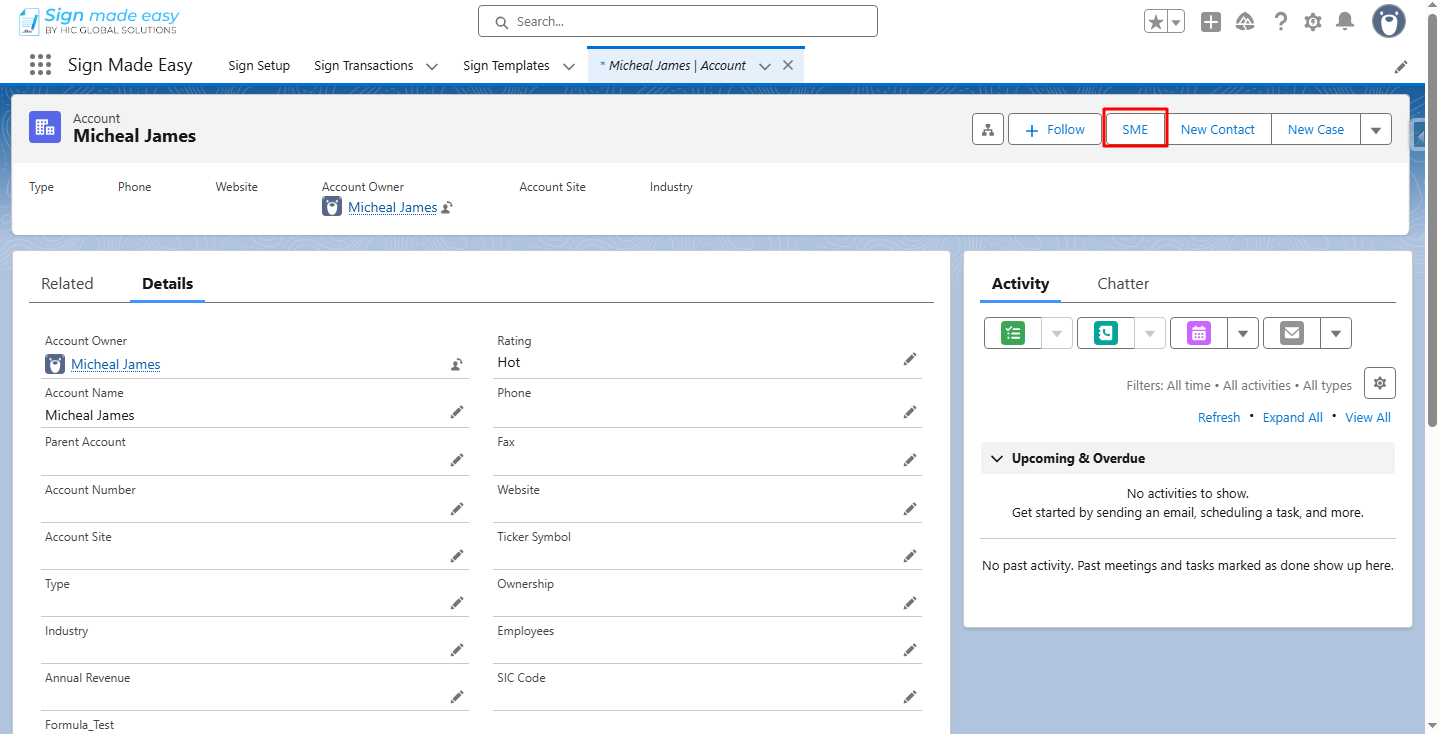
Step 13:- Navigate to the Record Detail Page of the Object for which the Sign Template is created and click the SME (or any other name you have given) button.
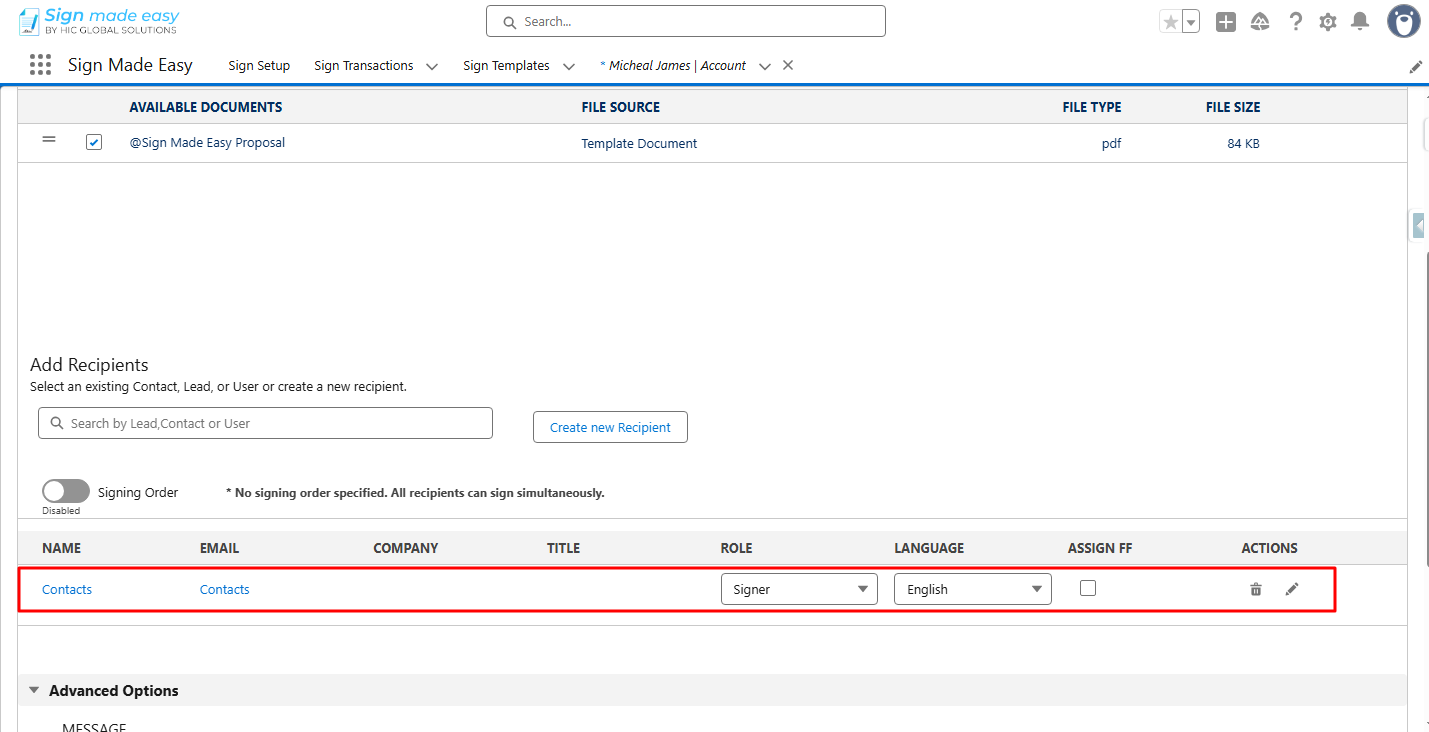
The Create Transaction interface is opened with the Related Recipient selected in Sign Template.
Was this article helpful?
That’s Great!
Thank you for your feedback
Sorry! We couldn't be helpful
Thank you for your feedback
Feedback sent
We appreciate your effort and will try to fix the article