Unlock advanced features and enhance your productivity by upgrading to Sign Made Easy PRO. Please contact our Support Team to access the advanced features of the SME PRO package.
The WhatsApp integration feature enables users to securely deliver documents for electronic signature through WhatsApp. Recipients receive a WhatsApp notification containing the document details and a secure signing link, allowing them to review and sign the document.
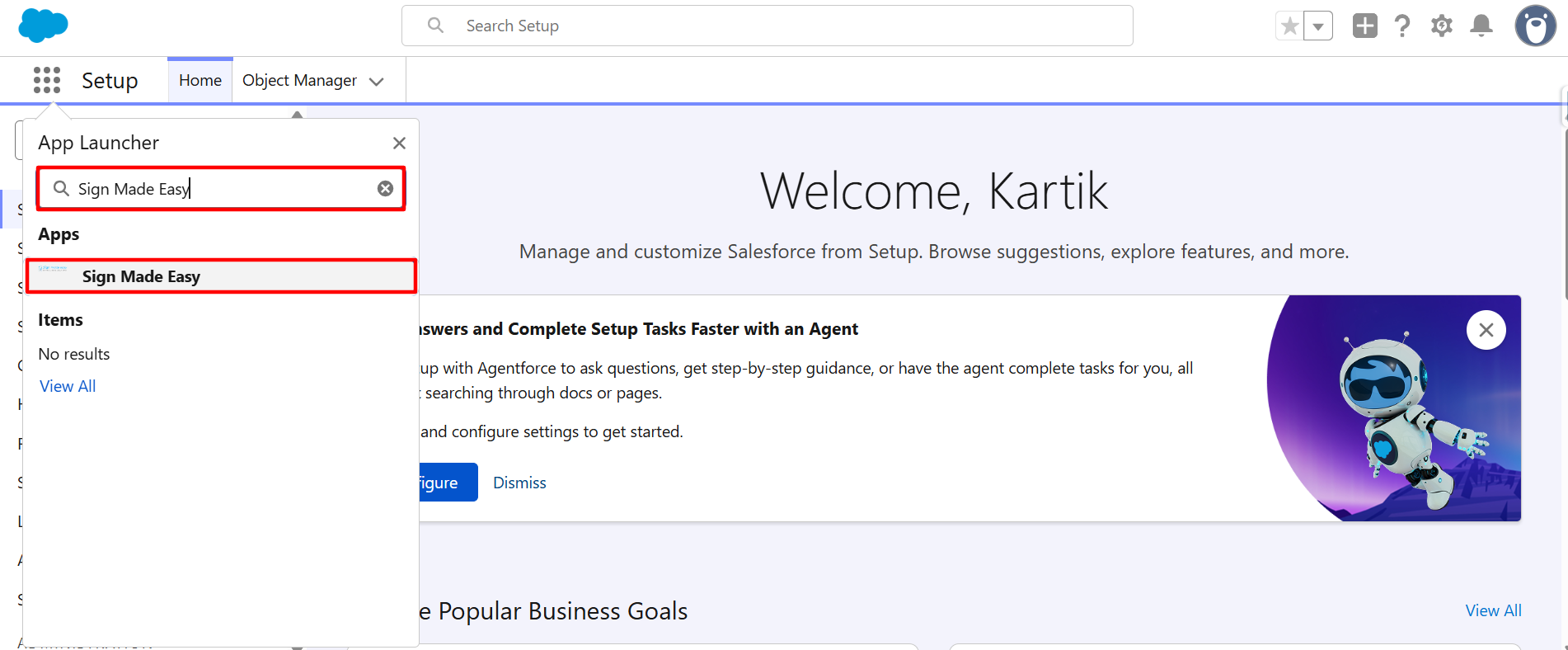
Step 1:- To configure WhatsApp Integration, open the App Launcher, search for Sign Made Easy, and launch the application.
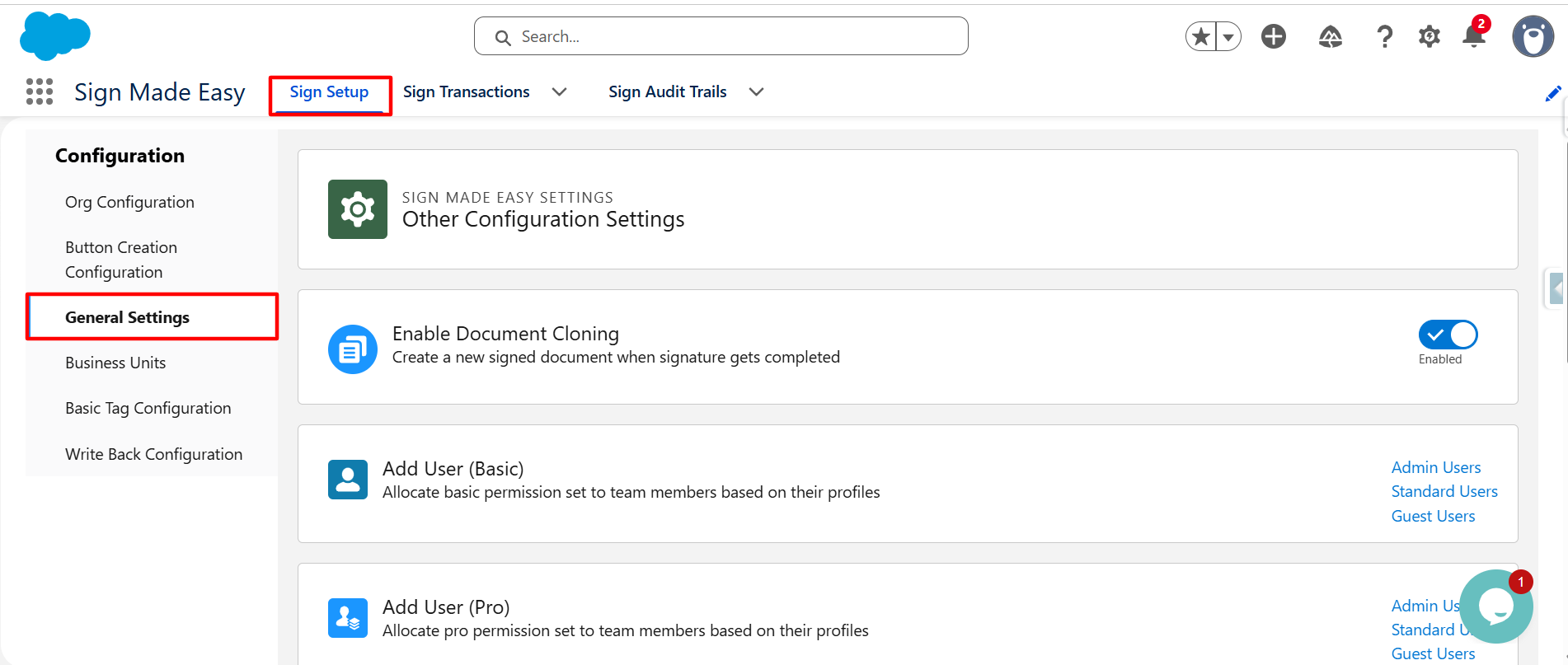
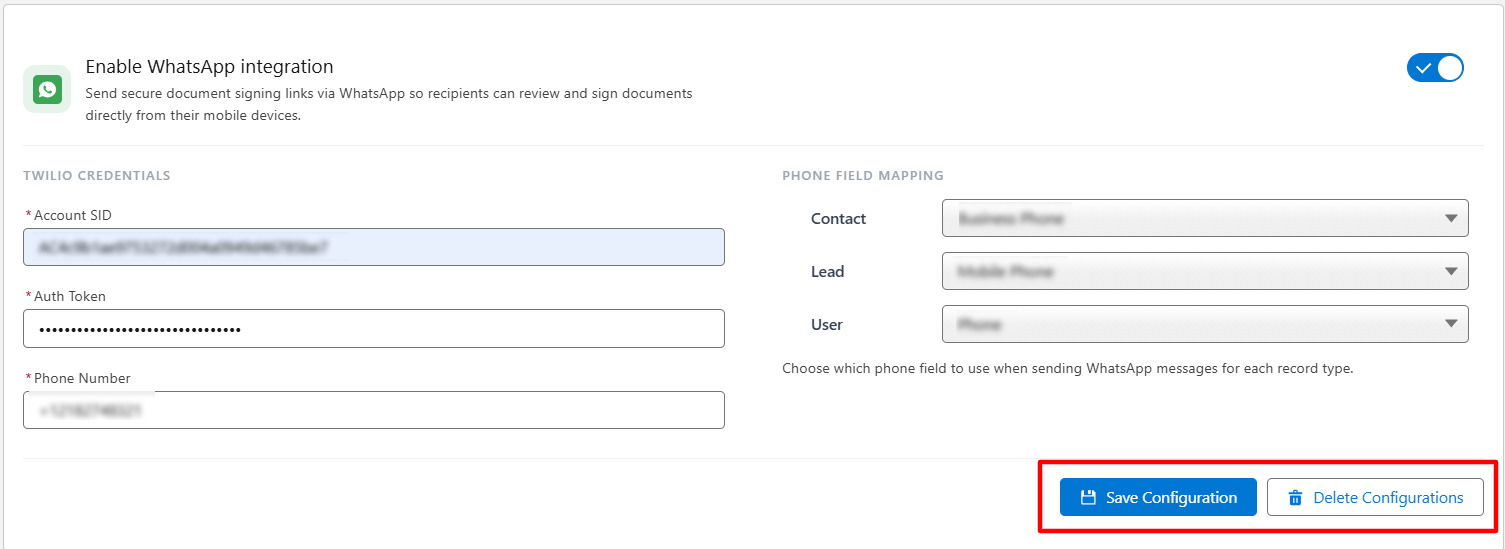
Step 2:- Navigate to Sign Setup > General Settings, then enable the WhatsApp Integration toggle to configure WhatsApp notifications using your Twilio account credentials.
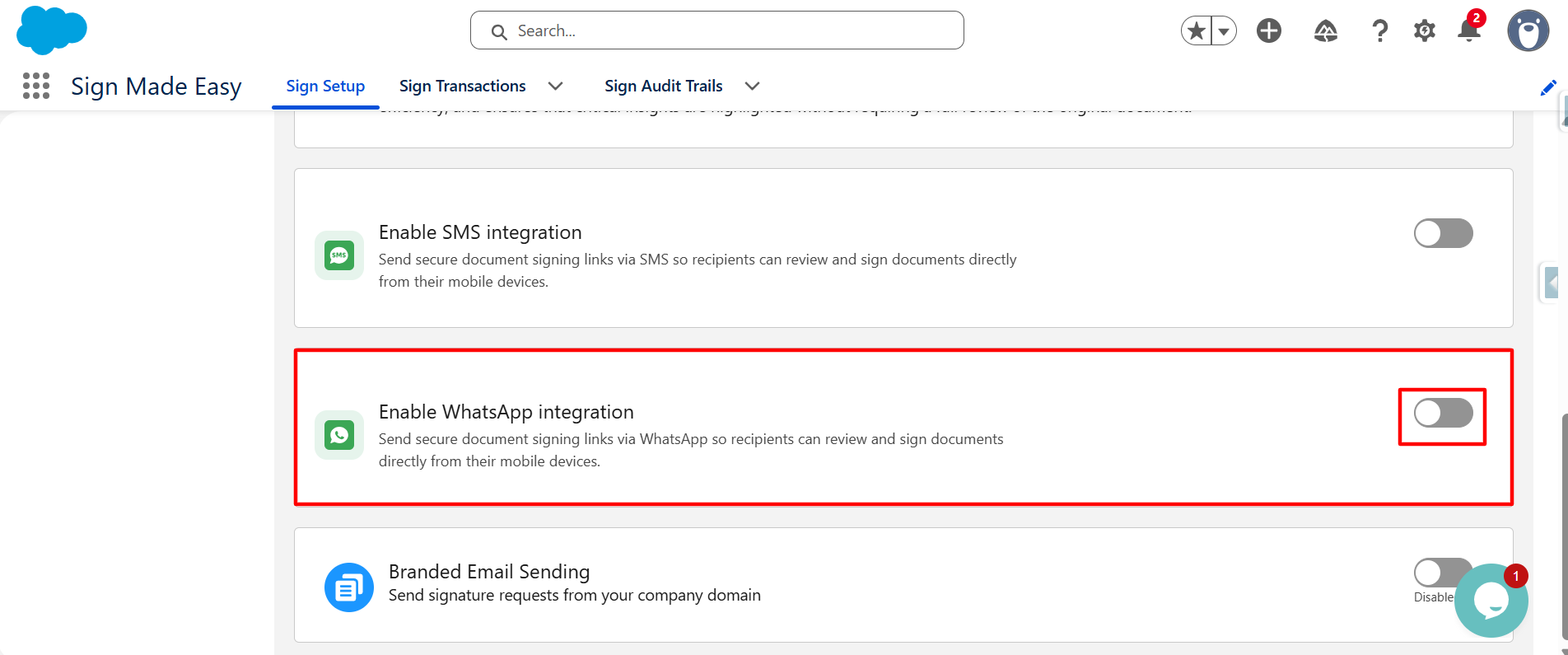
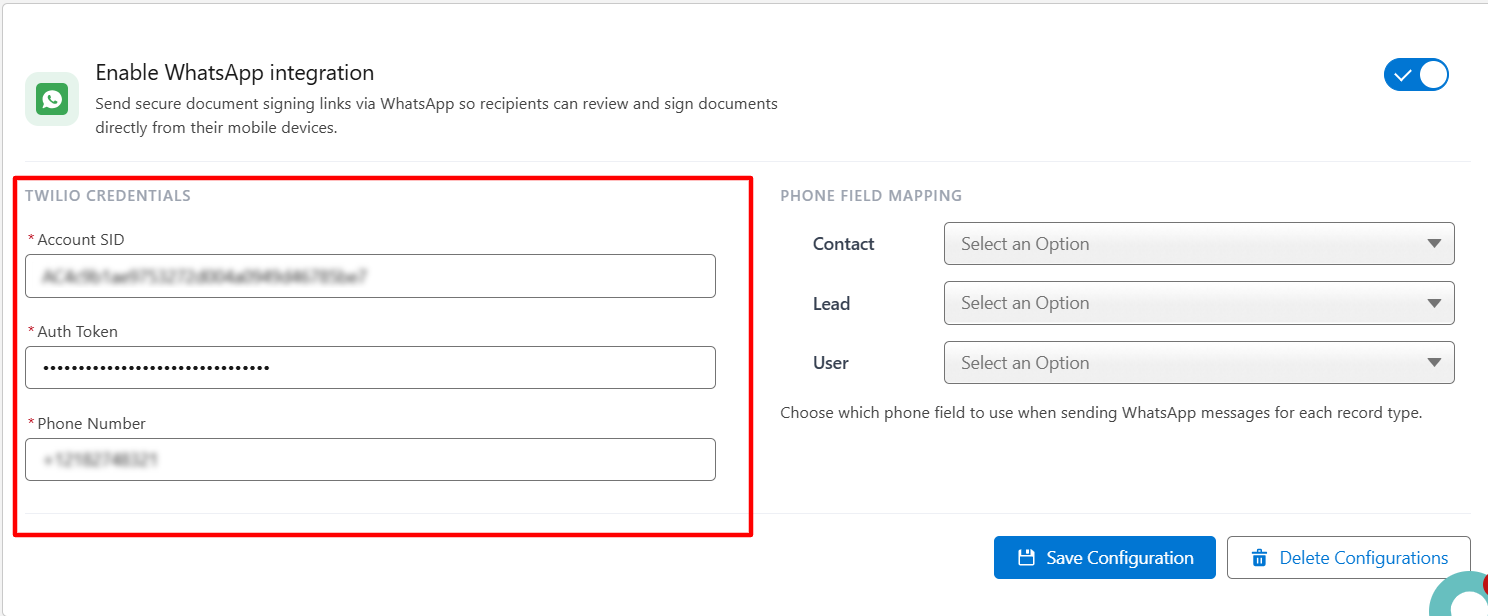
Step 3:- To Send WhatsApp notifications in Sign Made Easy, enter your Twilio credentials in the WhatsApp Integration settings. These credentials allow Sign Made Easy to securely send document signing requests and notifications through WhatsApp.
Account SID
The Account SID is a unique identifier assigned to your Twilio account. It is used to authenticate and associate your WhatsApp integration with the correct Twilio account.
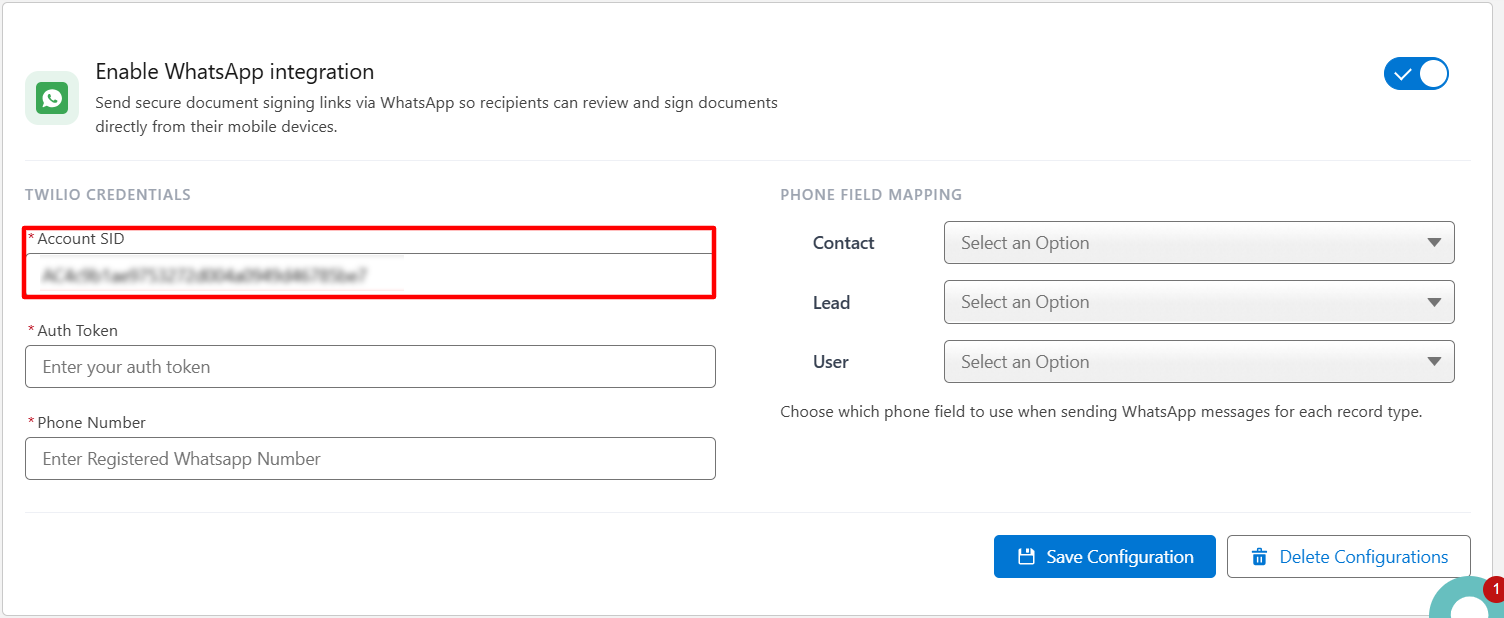
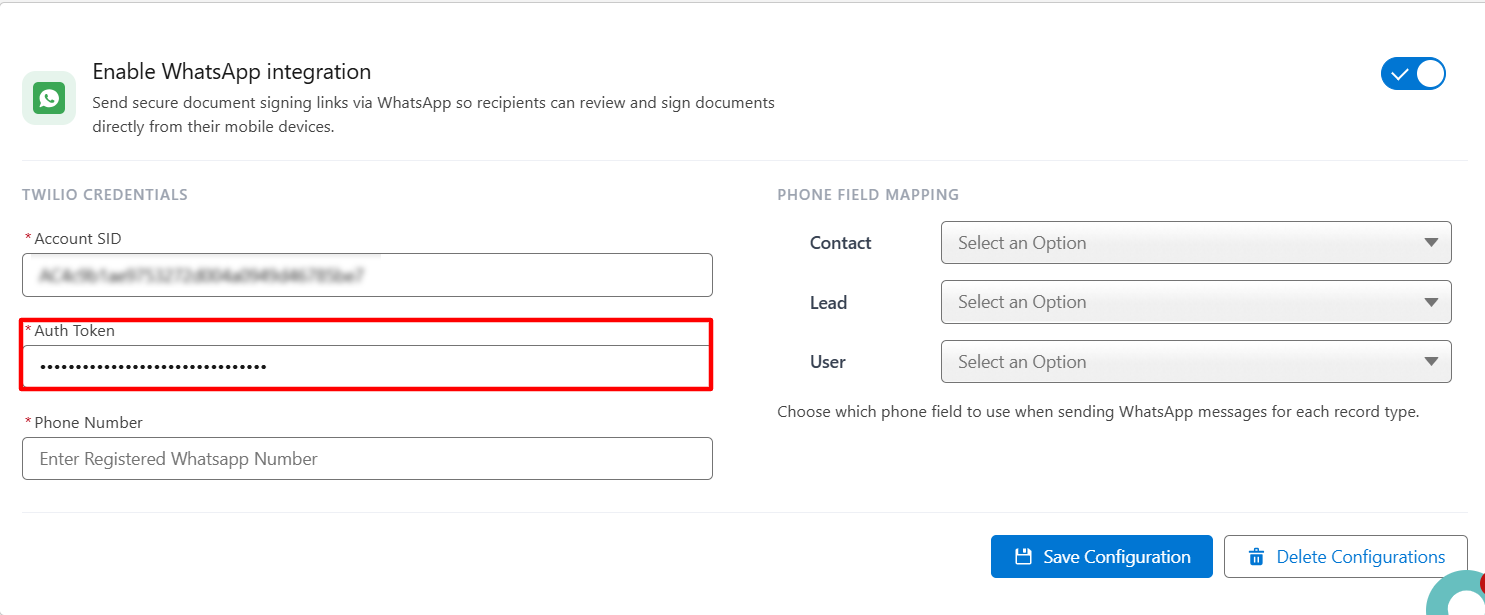
Auth Token
The Auth Token is a secure authentication key generated by Twilio. It works together with the Account SID to verify your account
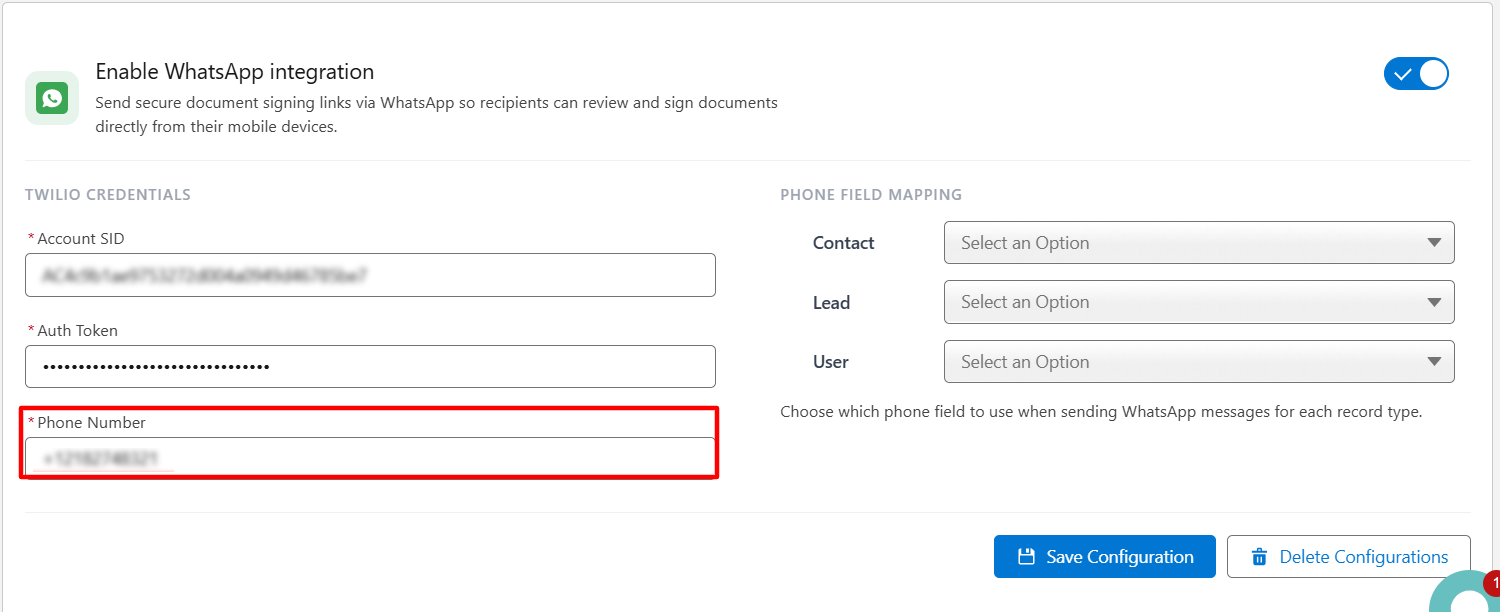
 Phone Number
Enter your Twilio WhatsApp-enabled phone number to enable WhatsApp notifications
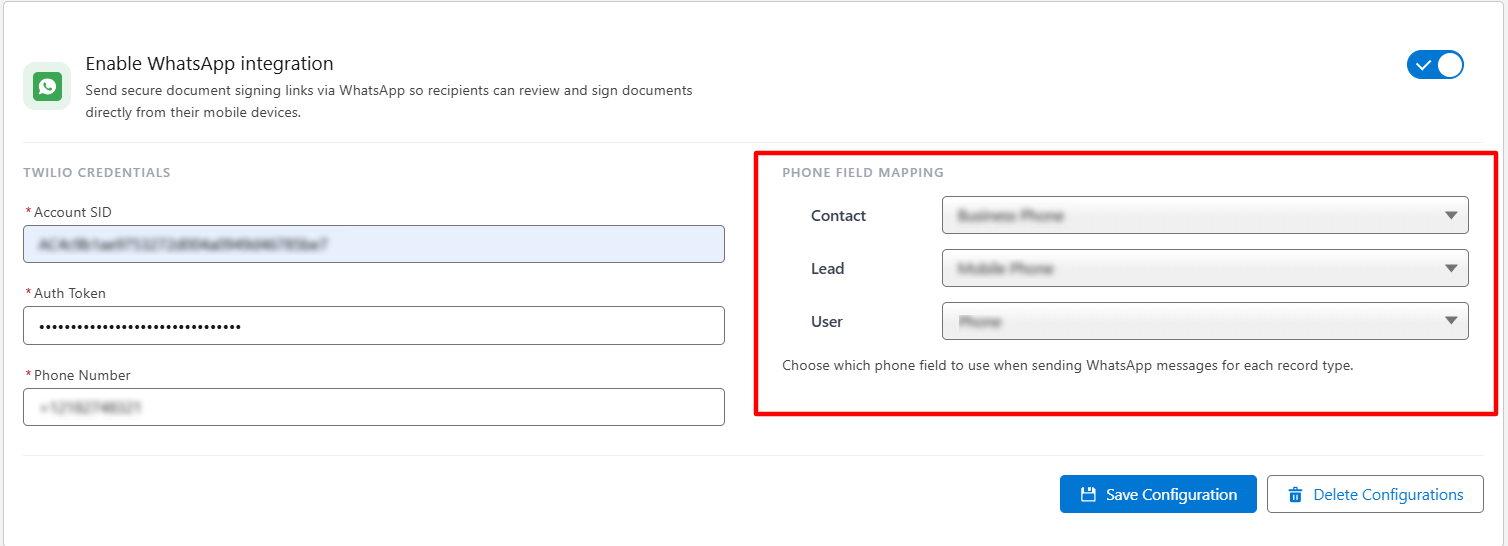
Configure WhatsApp Field Mapping
The WhatsApp Field Mapping section allows you to specify which Salesforce phone field Sign Made Easy should use when sending WhatsApp notifications to recipients. This ensures that WhatsApp messages are delivered to the correct phone number based on the Salesforce record type.
- Contact: The Contact field mapping determines which phone field from the Contact object will be used when sending WhatsApp notifications.
- Lead: The Lead field mapping specifies which phone field from the Lead object should be used for WhatsApp communication.
- User: The User field mapping allows you to choose the phone field from the User object that will be used when sending WhatsApp notifications.
The WhatsApp Integration provides three action buttons, each serving the functions described below:
- Save Configuration Button: Saves the entered Twilio credentials and phone field mappings, enabling WhatsApp Integration with the configured settings.
- Delete Configurations Button: Removes the saved Twilio credentials and phone field mappings, disabling the existing WhatsApp Integration configuration.
Sending Transaction
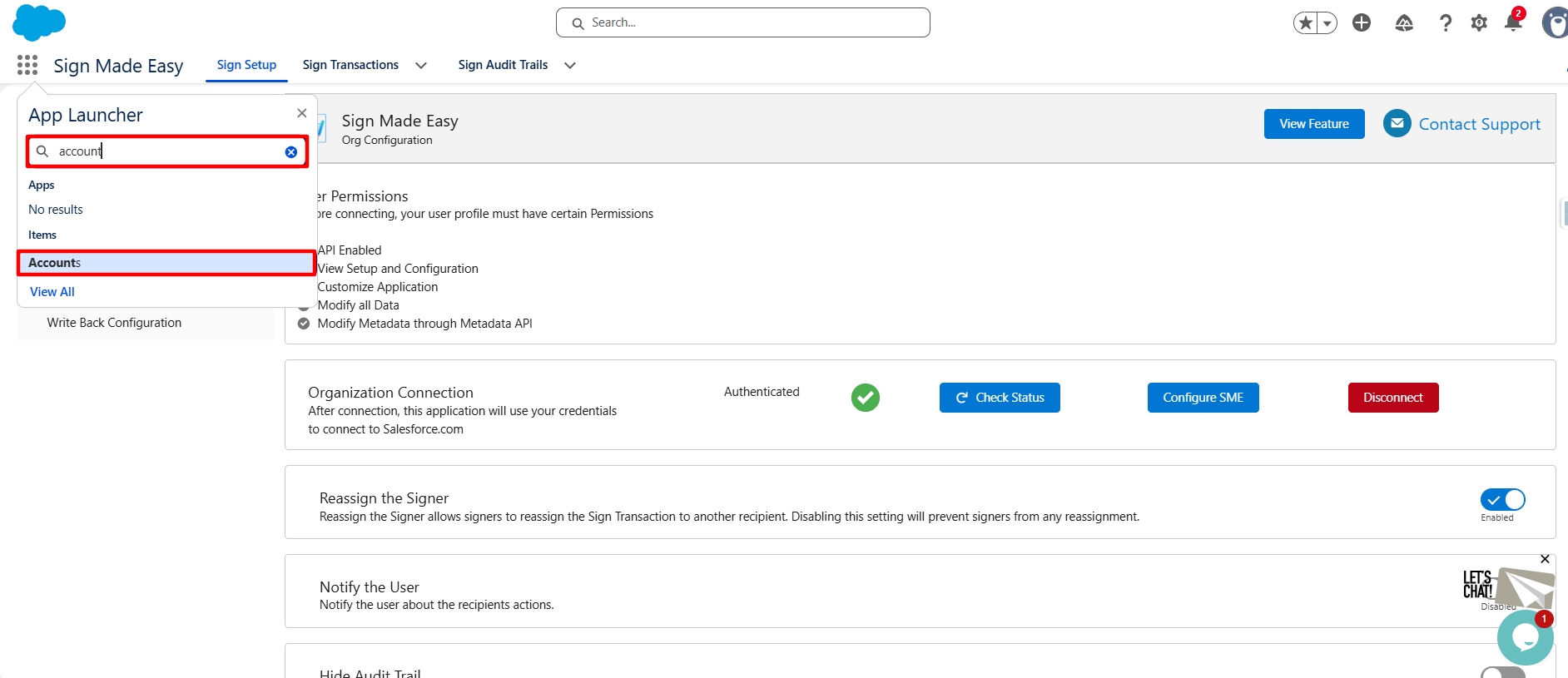
Step 1:- Open the App Launcher, search for the object where the SME button was created, and select it to proceed. Click to create a custom Sign Made Easy Button.
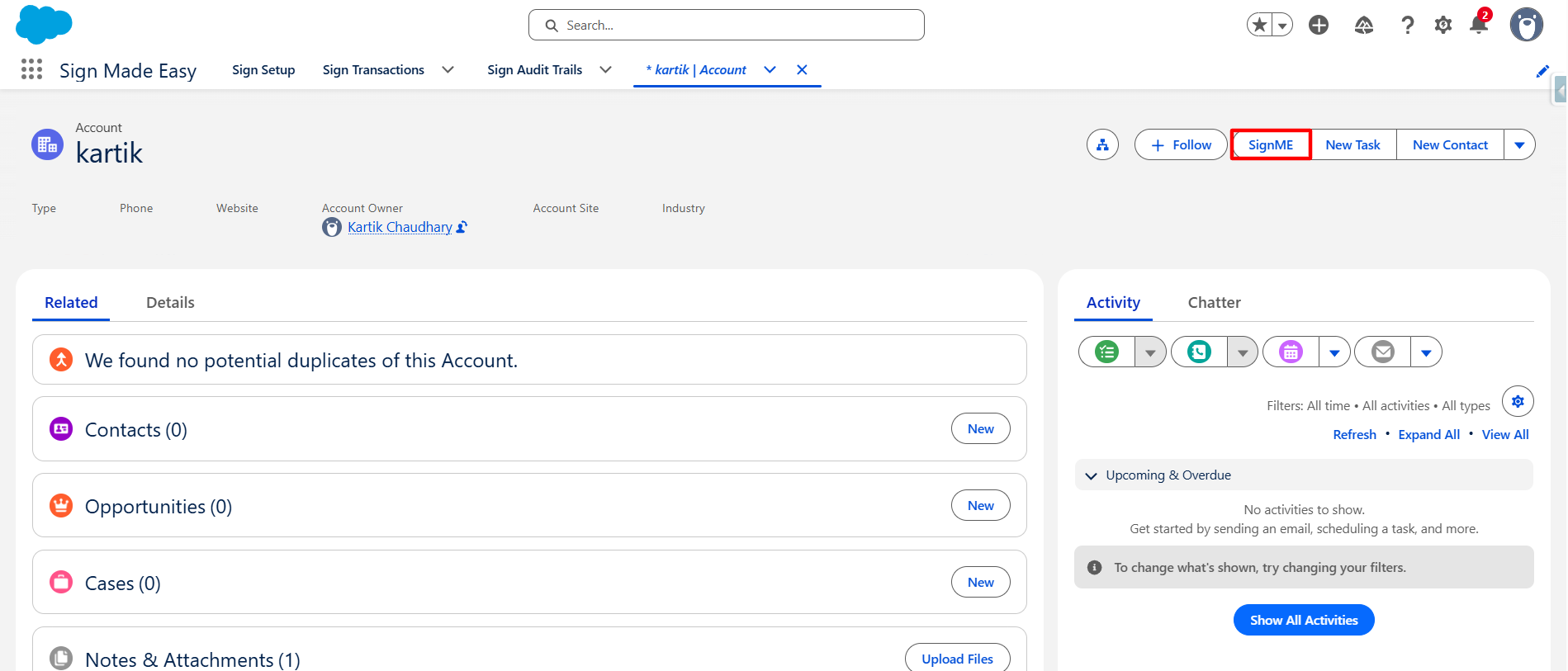
Step 2:- Open the Salesforce record and click the Sign Made Easy button to create a signing transaction.
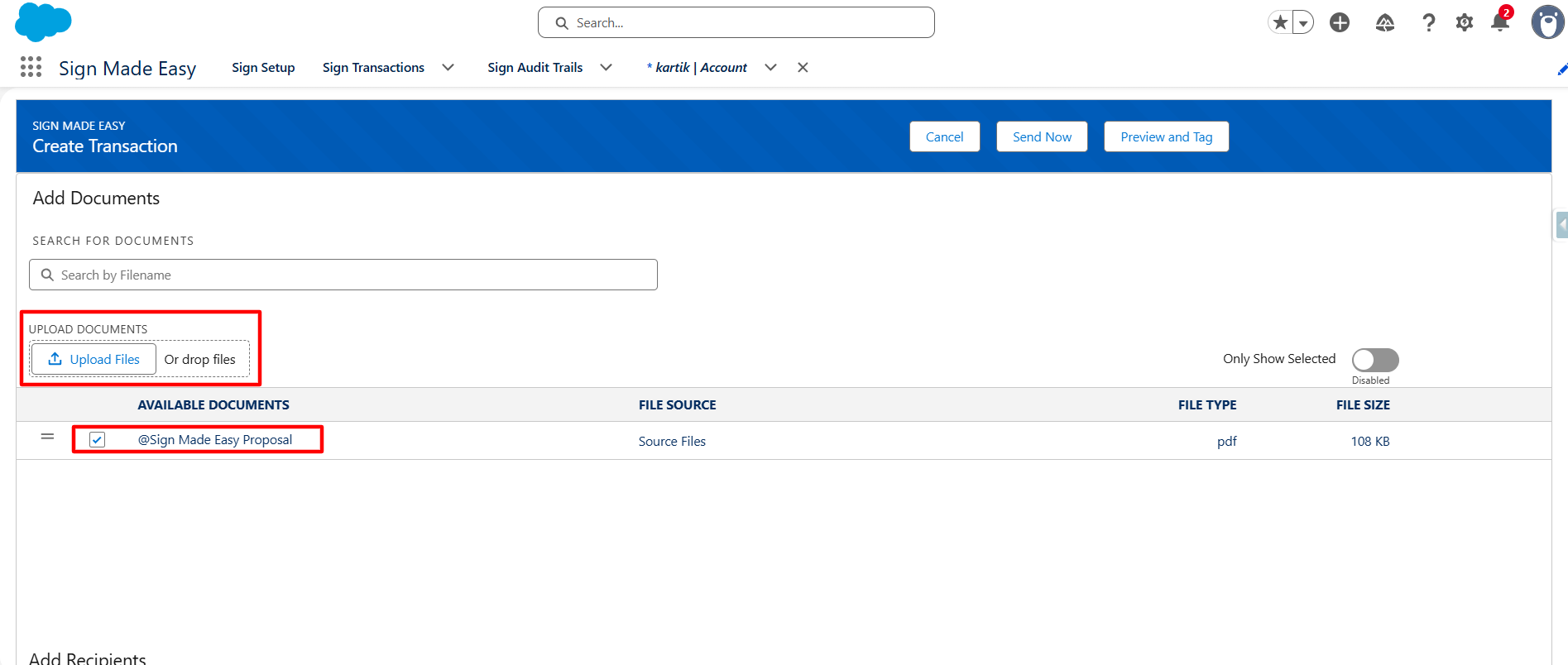
Step 3:- You can upload a new document or select documents already associated with the parent record’s Notes and Attachments.
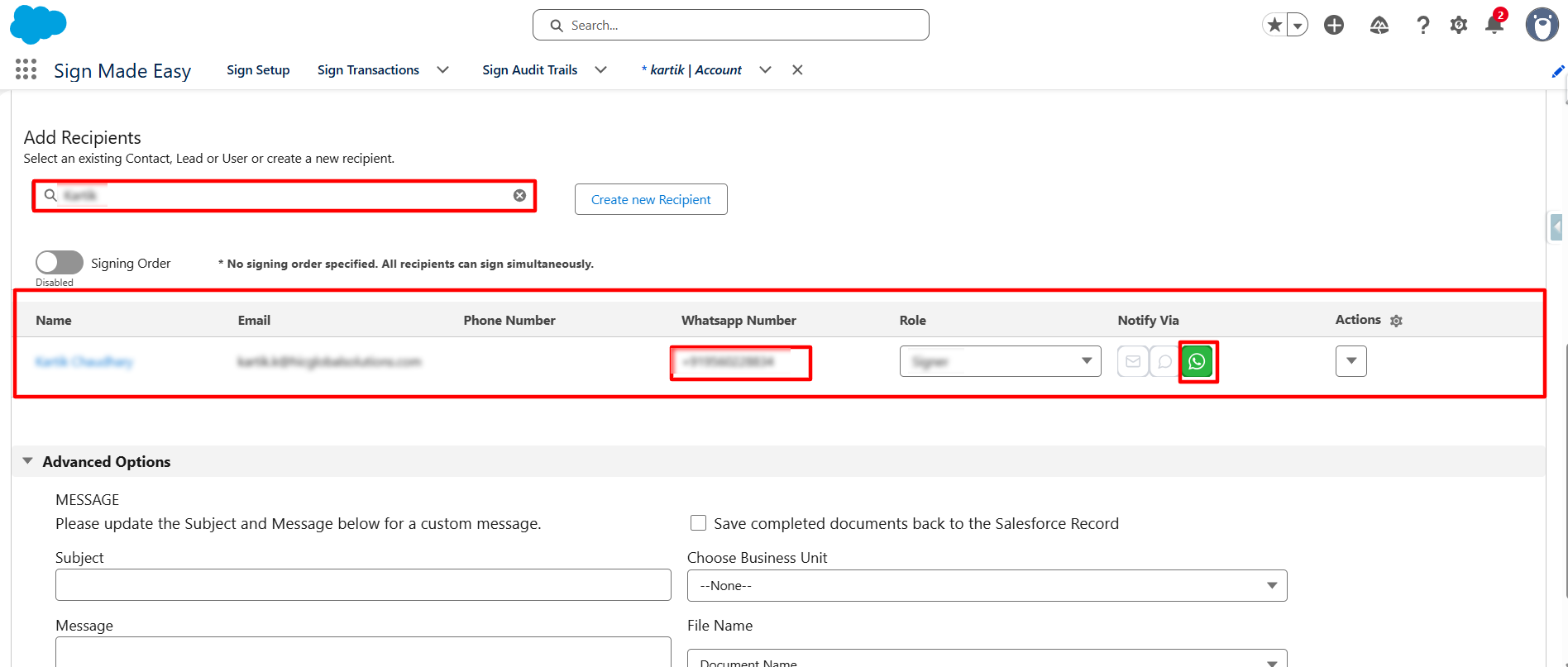
Step 4:- Search for the recipient from the Salesforce objects (Contact, Lead, or User). Once a recipient is selected, the WhatsApp Number field is automatically populated based on the configured phone field mapping. To send the document signing request via WhatsApp, click the WhatsApp icon under the Notify Via column and Click the Send button to send directly or you can preview and tag button to configure the tag on document and Send it.
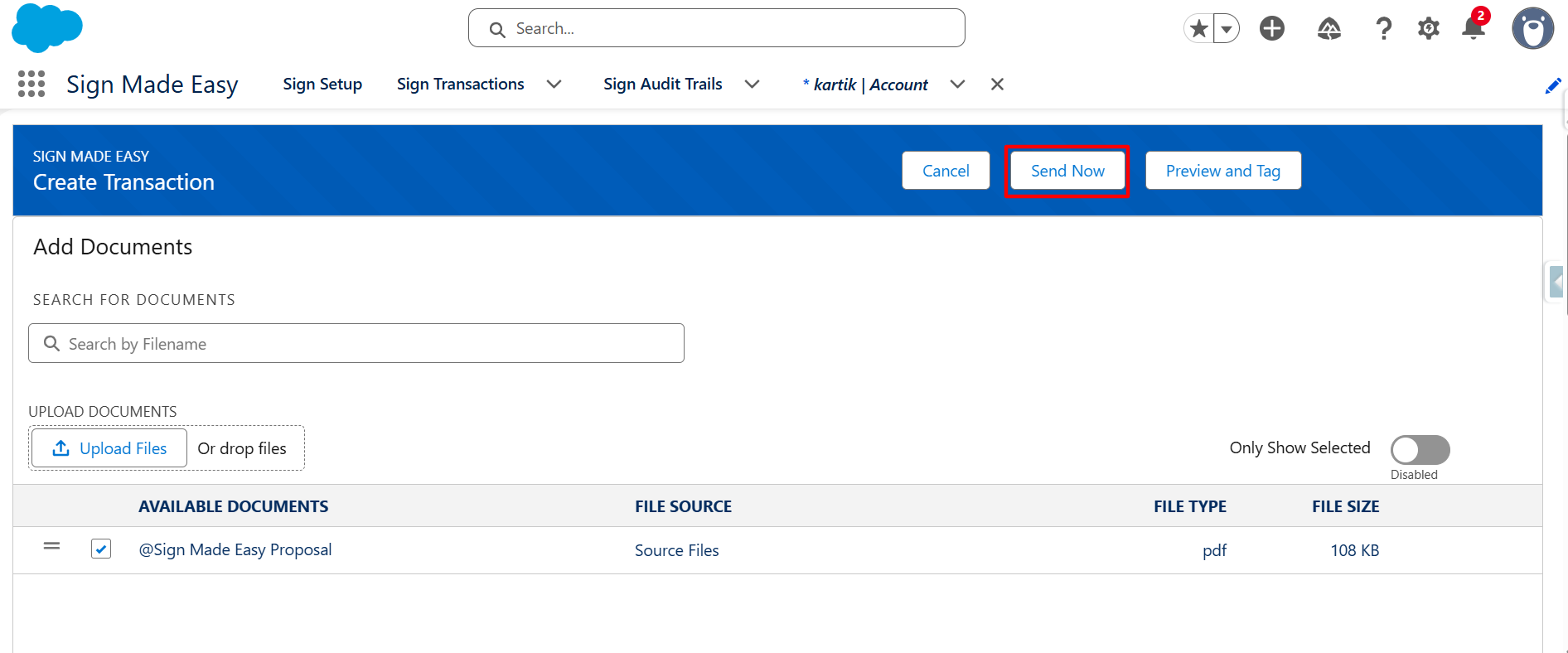
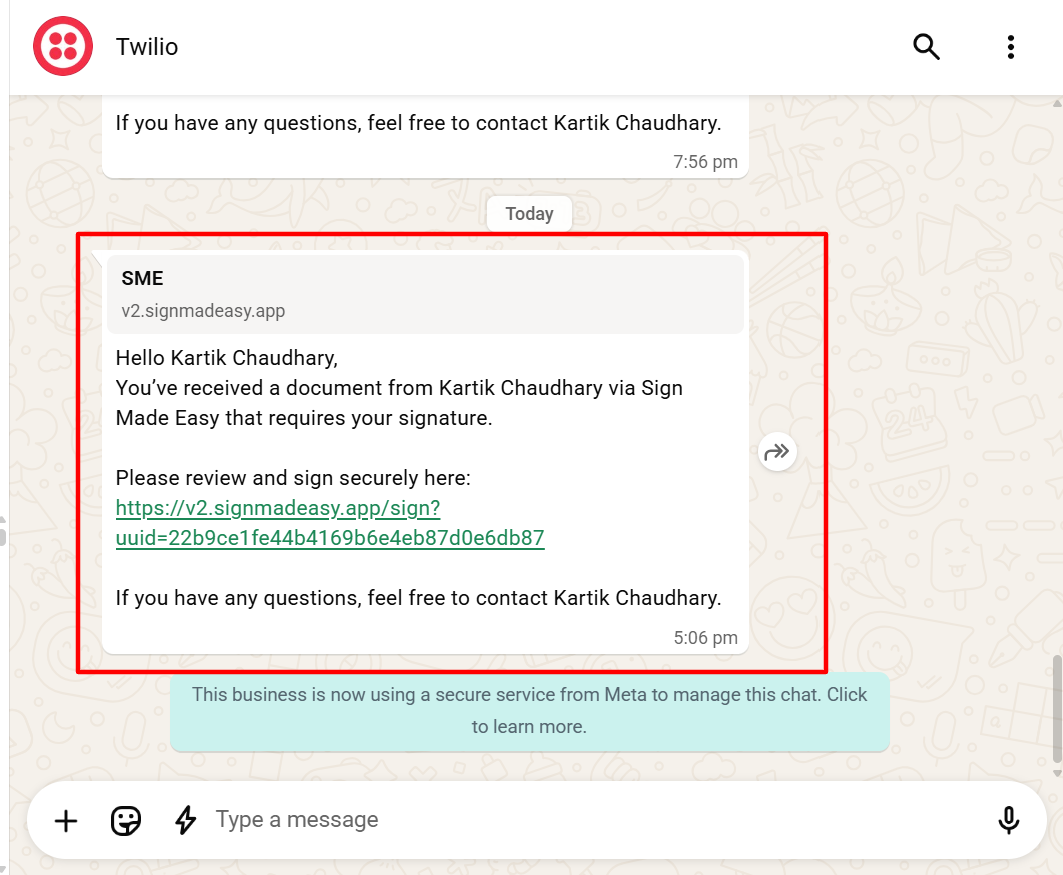
Once the document is sent, the signer receives a secure WhatsApp notification containing the document details and a secure signing link. The signer can open the link directly from WhatsApp to review and sign the document.
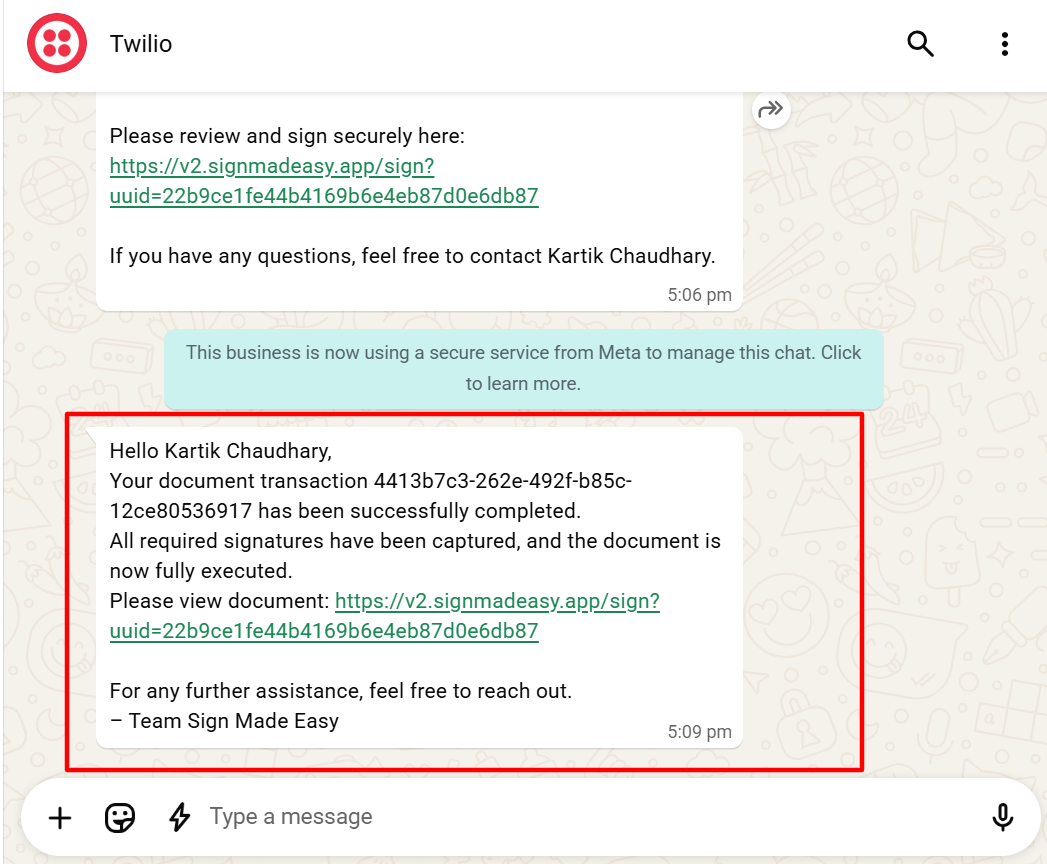
Once the signer successfully completes the signing process, a WhatsApp notification is sent confirming that the document has been signed successfully.
Was this article helpful?
That’s Great!
Thank you for your feedback
Sorry! We couldn't be helpful
Thank you for your feedback
Feedback sent
We appreciate your effort and will try to fix the article