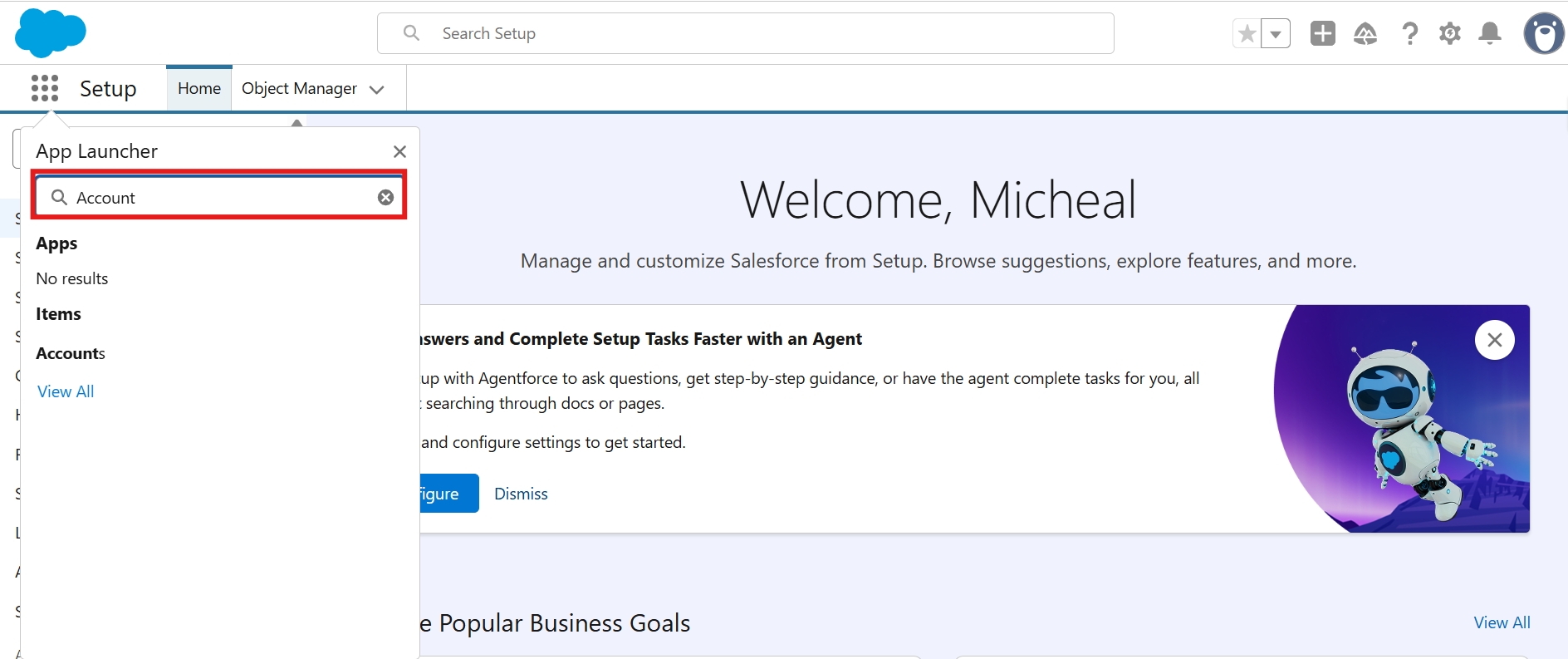
Step 1: Open the App Launcher, search for the object where the SME button was created, and select it to proceed.
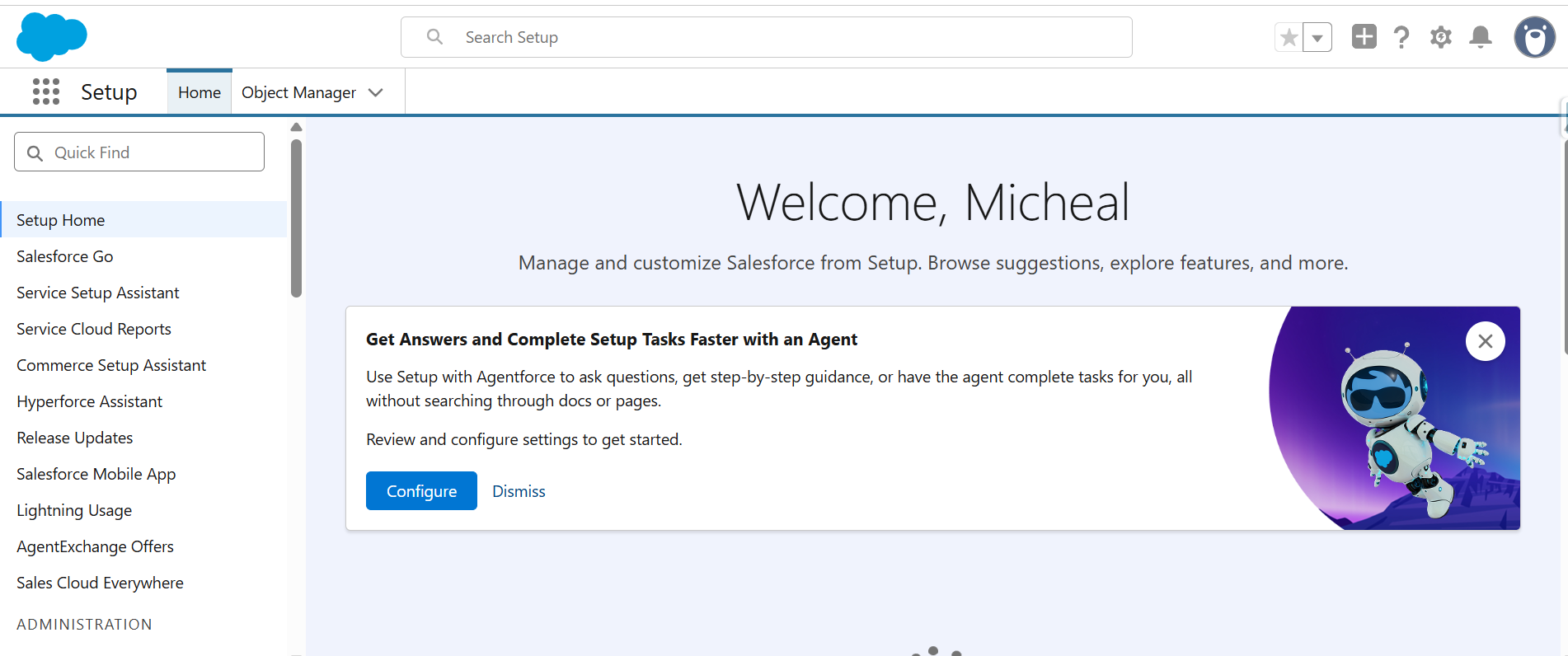
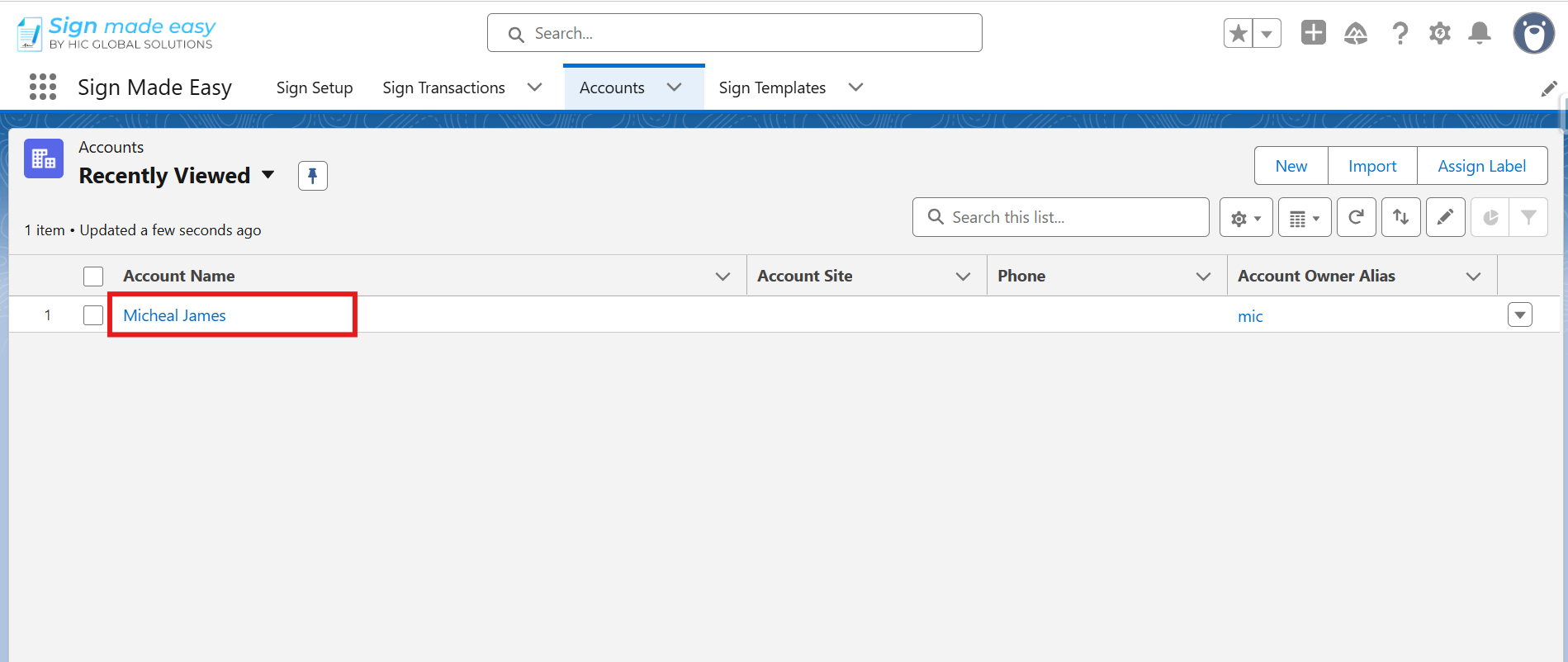
Step 2: Navigate to the Record Page of the selected object from which you intend to initiate the SME process. If no record exists, create a new one by clicking the New button before proceeding.
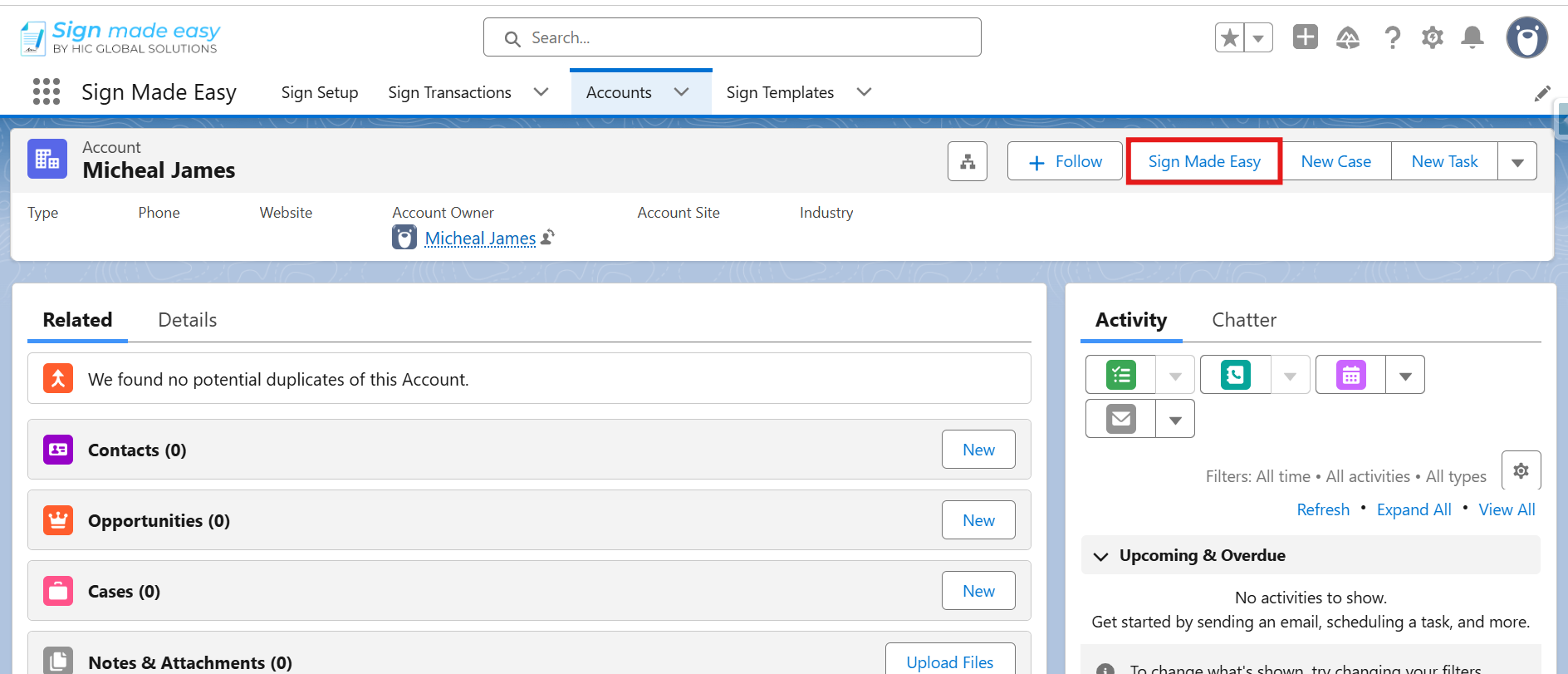
Step 3: Click the Sign Made Easy button available on the record to initiate a new signature request.
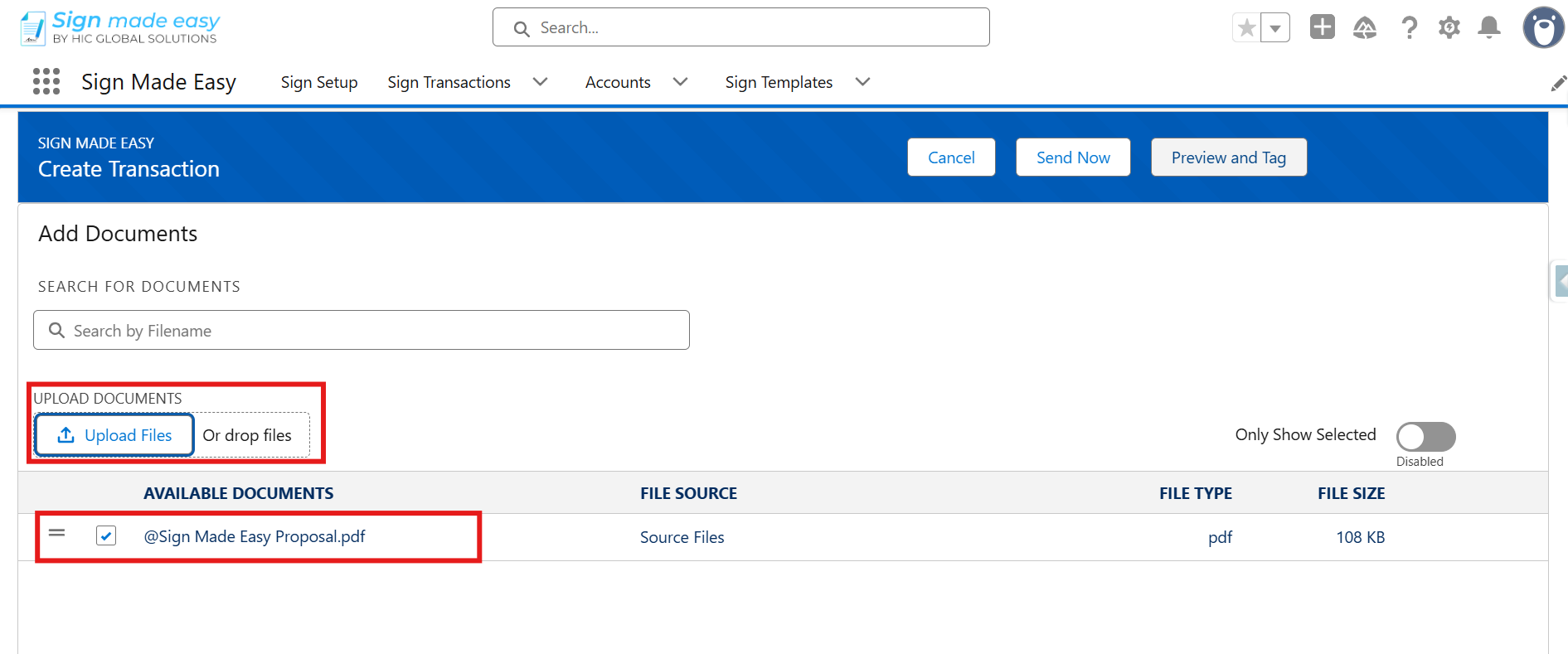
Step 4: Add Documents
- You can upload a new document or select documents already associated with the parent record’s Notes and Attachments.
- You can search for a document by its name using the Add Documents search bar.
- Supported file formats include PDF, DOC, and DOCX.
- You may also add documents using the drag-and-drop functionality.
The maximum supported file size for each transaction record in Sign Made Easy is 15 MB. - To view only the selected documents, enable the Show Only Selected toggle.
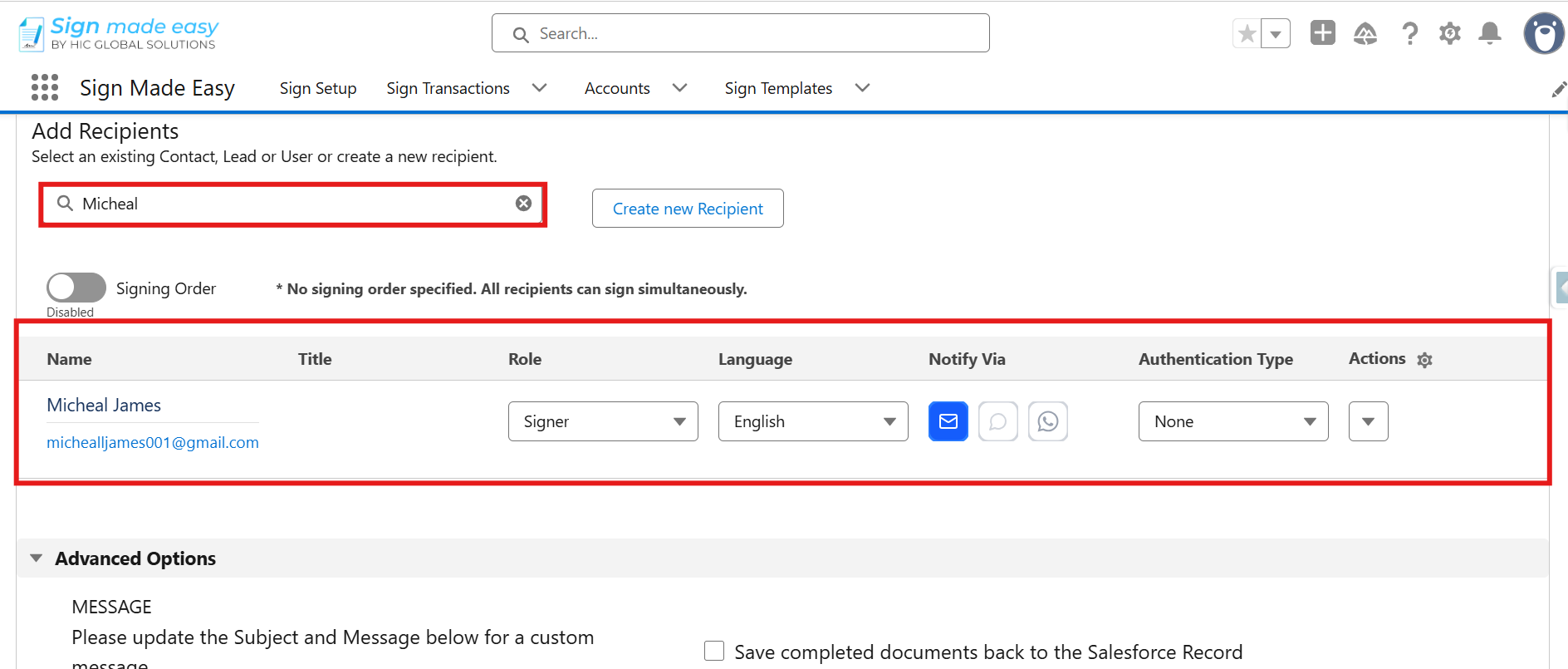
Step 5: Add Recipients
- You can add recipients by selecting existing Lead, Contact, or User records through the Add Recipient search bar. If the required recipient does not exist, you can create a new one using the Create New Recipient button.
- The Create New Recipient button does not create Contact, Lead, or User records in Salesforce; it only creates Sign Recipient records.
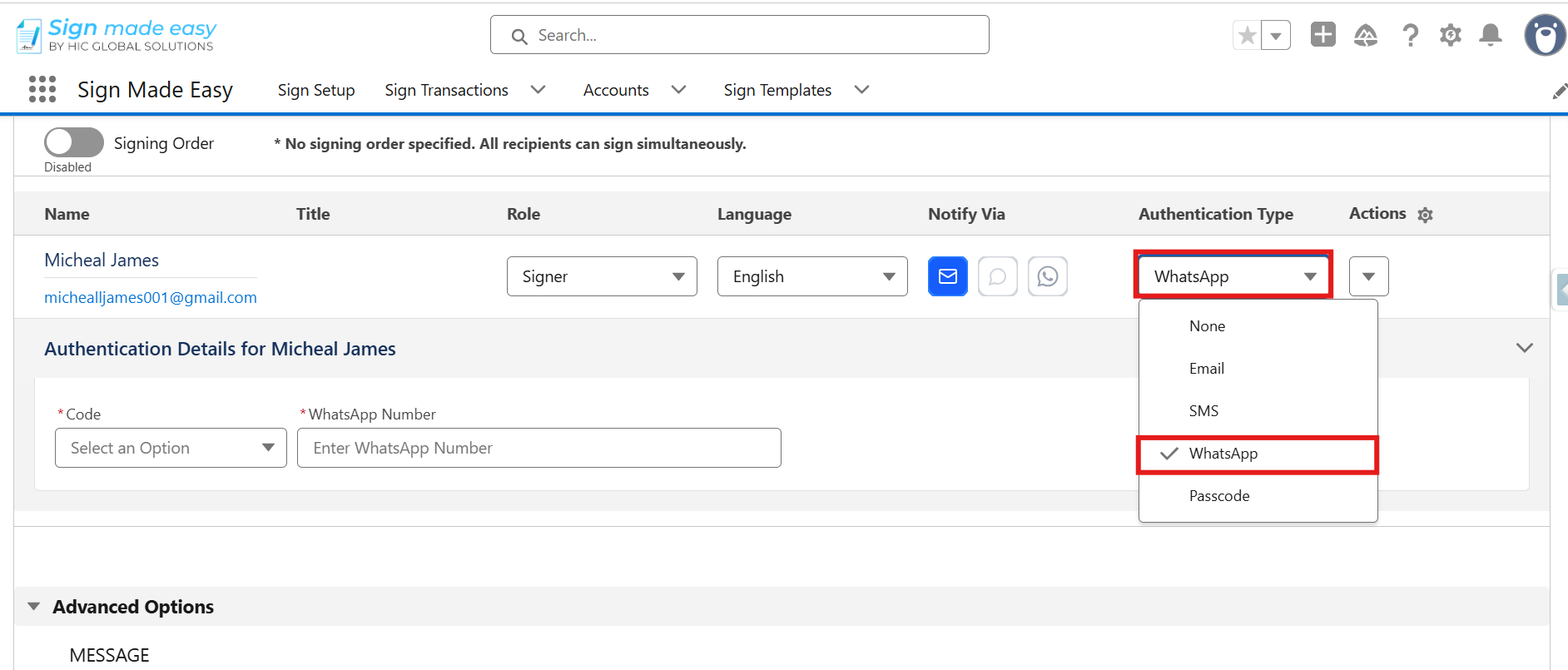
Step 6: From the Authentication Type dropdown, select WhatsApp to enable WhatsApp-based recipient verification.
Step 7: Select the appropriate Country Code and enter the recipient’s phone number in the WhatsApp Number field. The OTP will be sent to this number for recipient authentication before they can access and complete the signing process.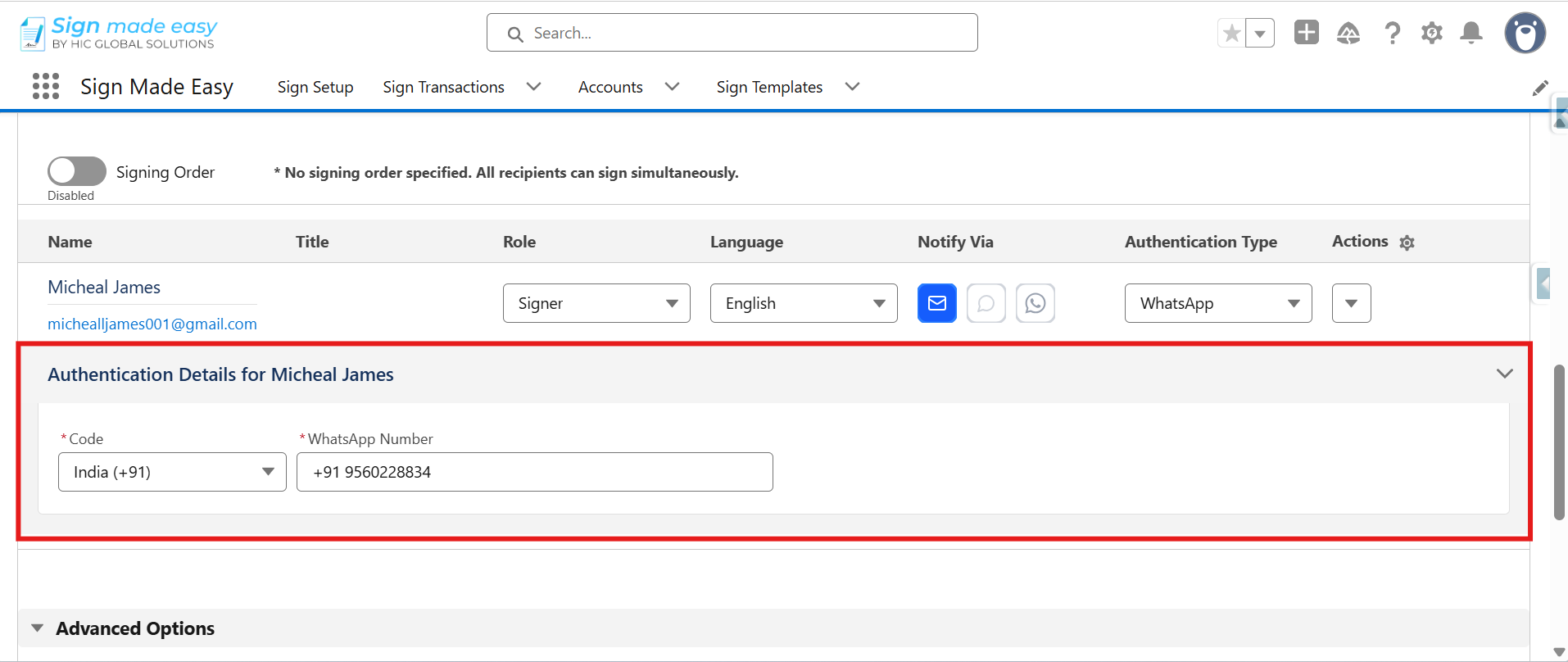
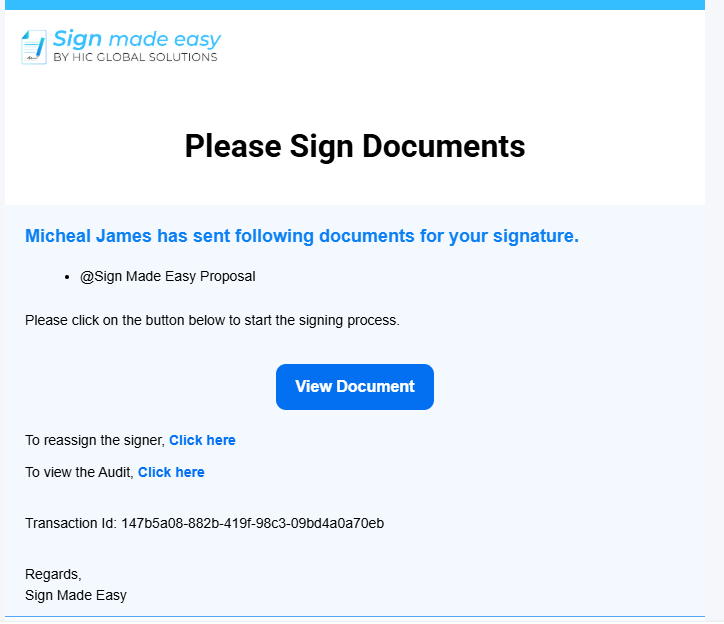
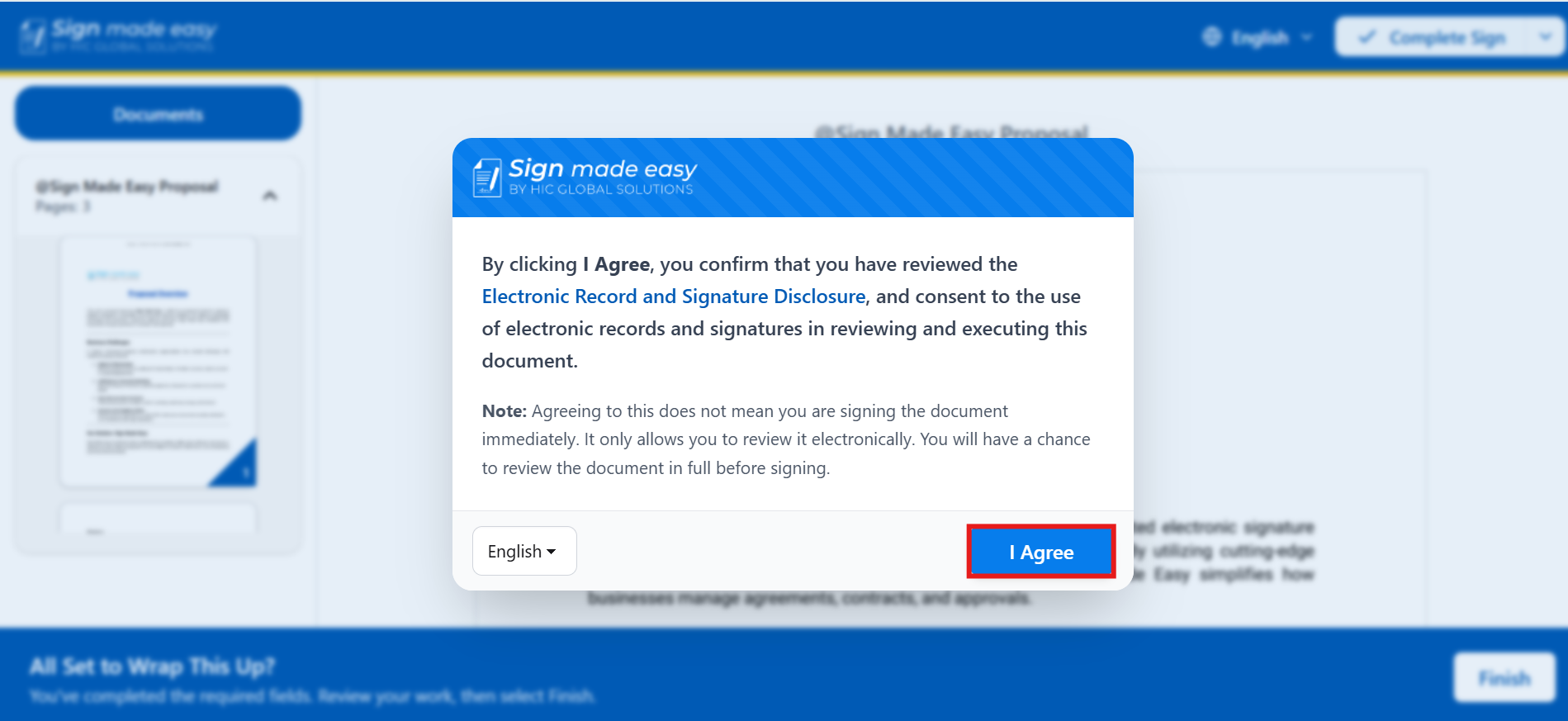
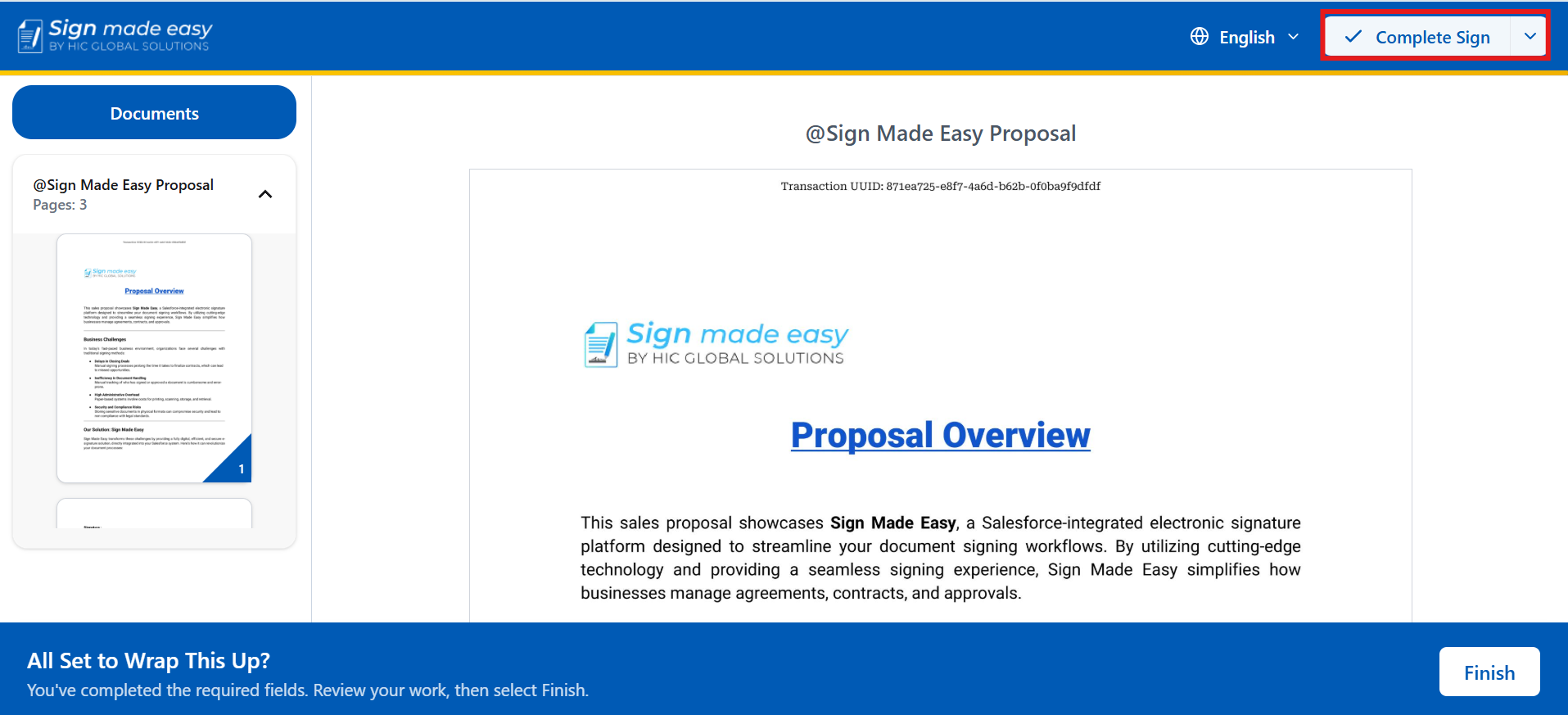
Step 8: After the document is sent, recipients will receive an email notification. To complete the eSignature process, they must open the email and click the View Document button.
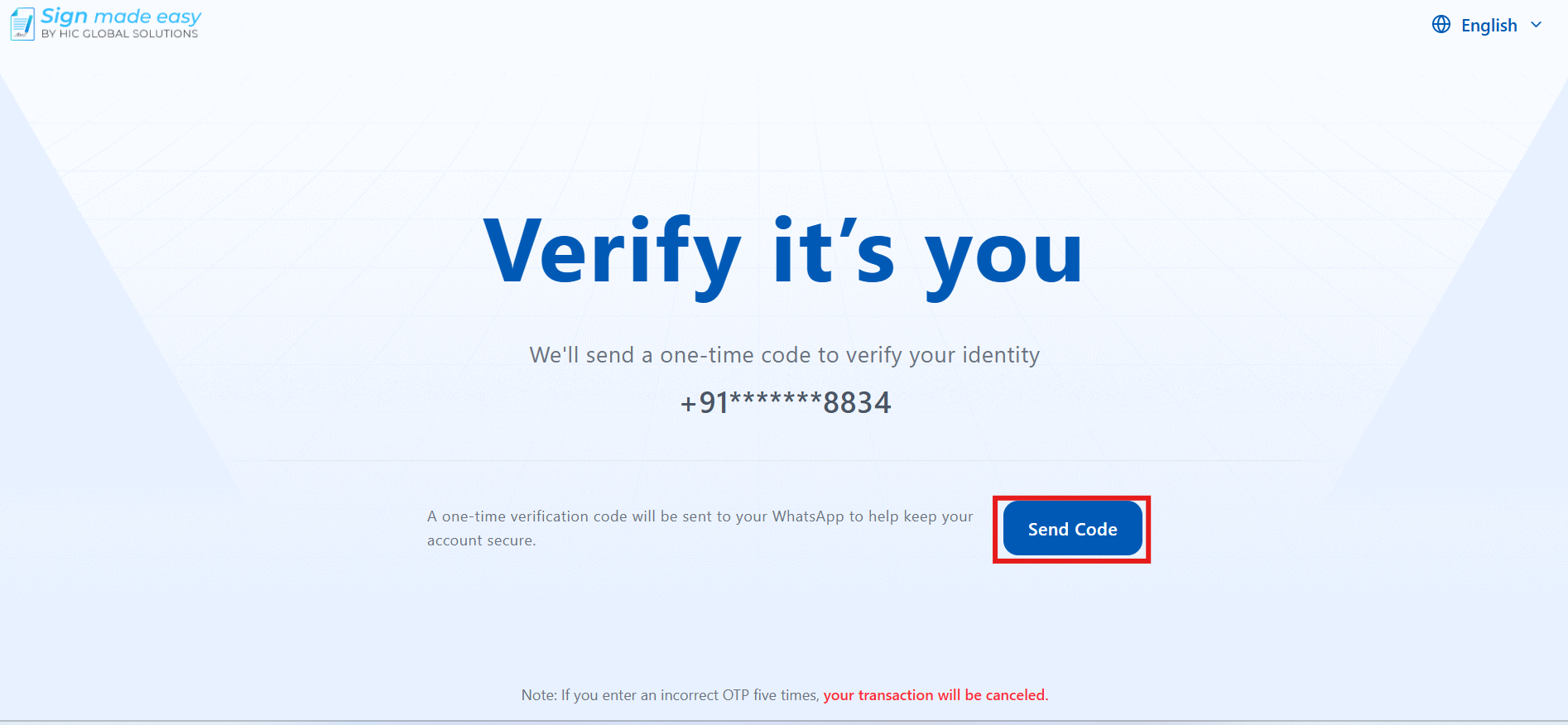
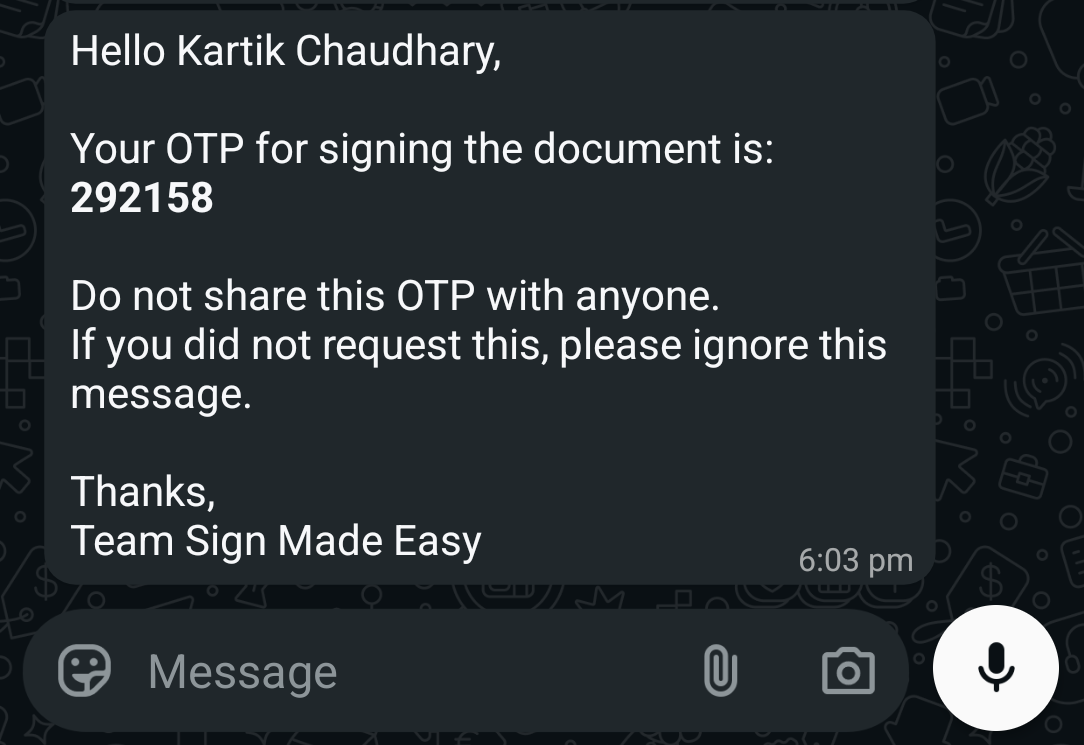
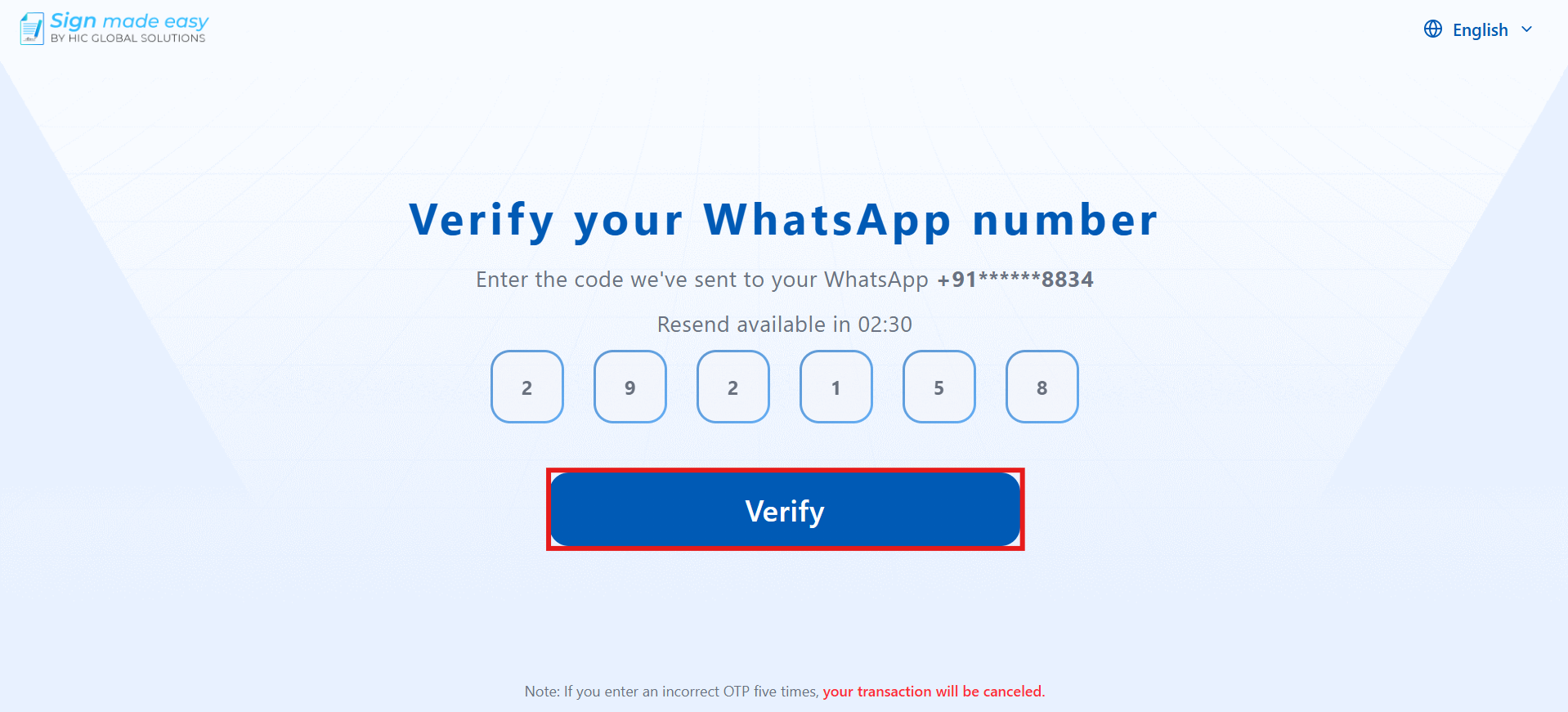
Step 9: Click the Send Code button to generate and send a One-Time Password (OTP) to the recipient’s registered phone number. The recipient will receive an sms containing the OTP required for authentication.
Was this article helpful?
That’s Great!
Thank you for your feedback
Sorry! We couldn't be helpful
Thank you for your feedback
Feedback sent
We appreciate your effort and will try to fix the article