Note:- A document can be reassigned only if the recipient’s status is Sent or Viewed.
Step 1:- Navigate to the Sign Transactions object and open the sign transaction record.

Step 2:- Navigate to the Related section.
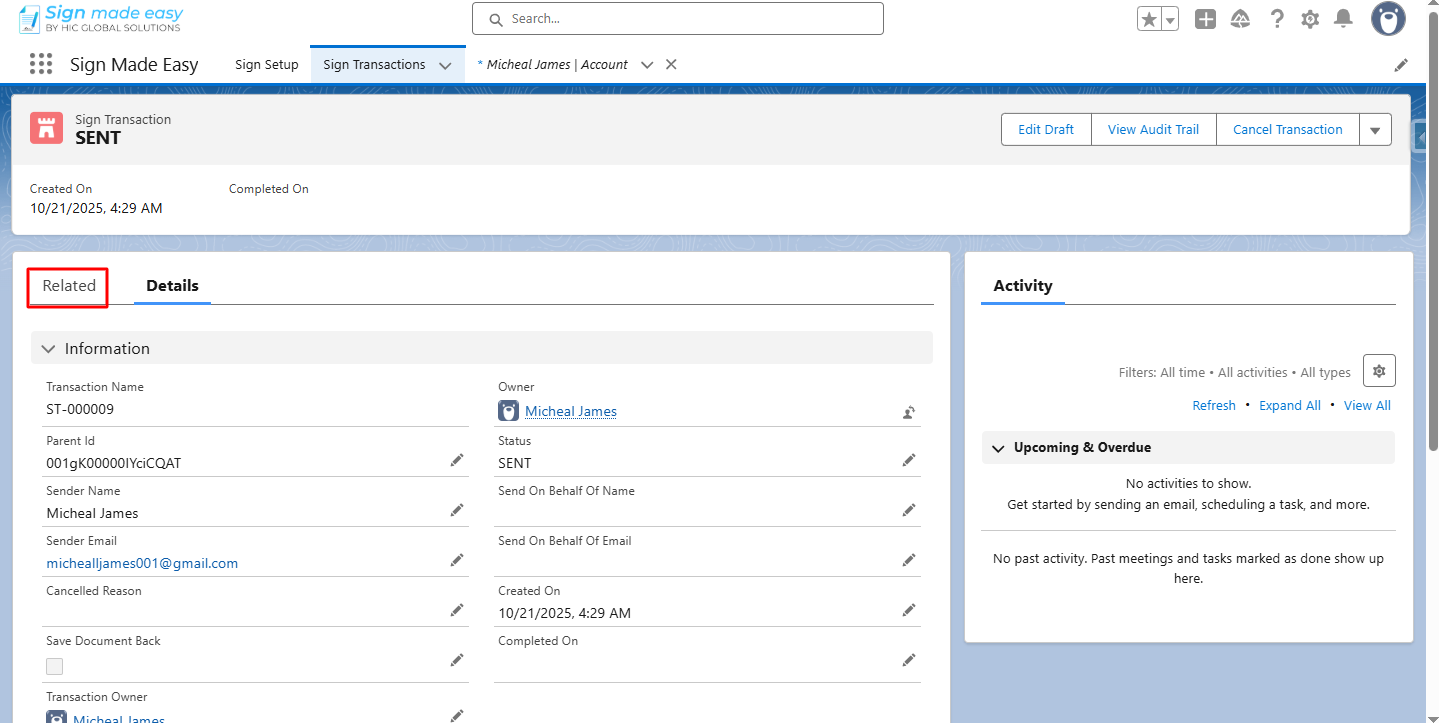
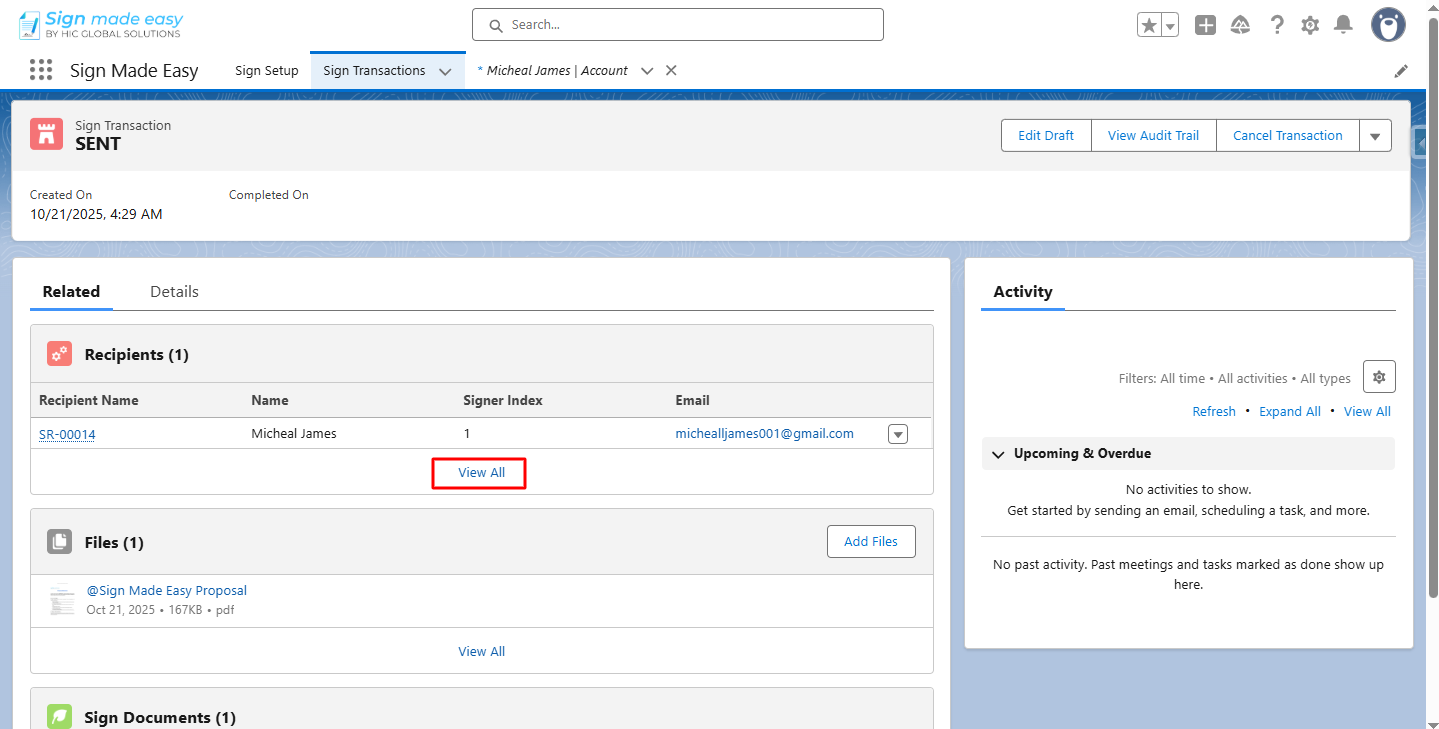
Step 3:- Click View All.
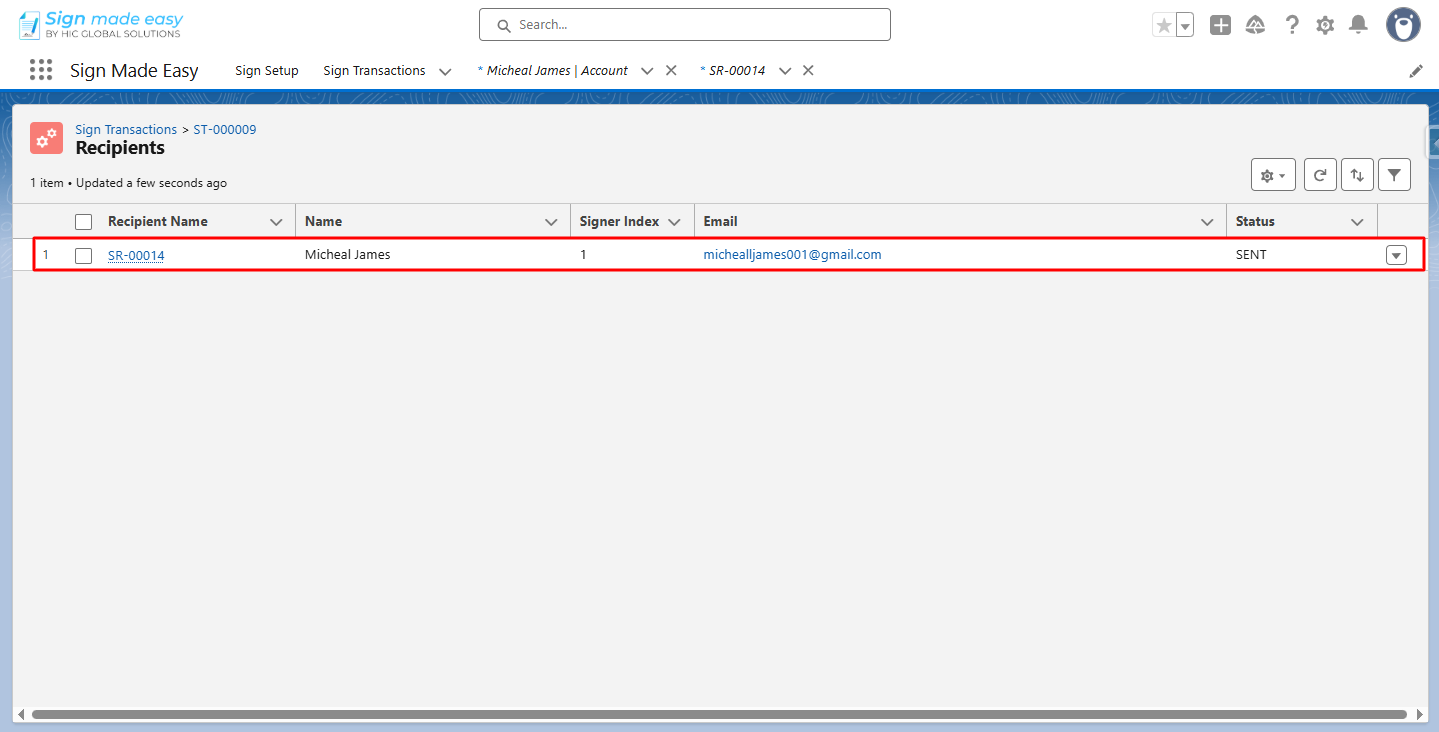
Step 4:- Open the recipient record for whom you want to Reassign Signer.
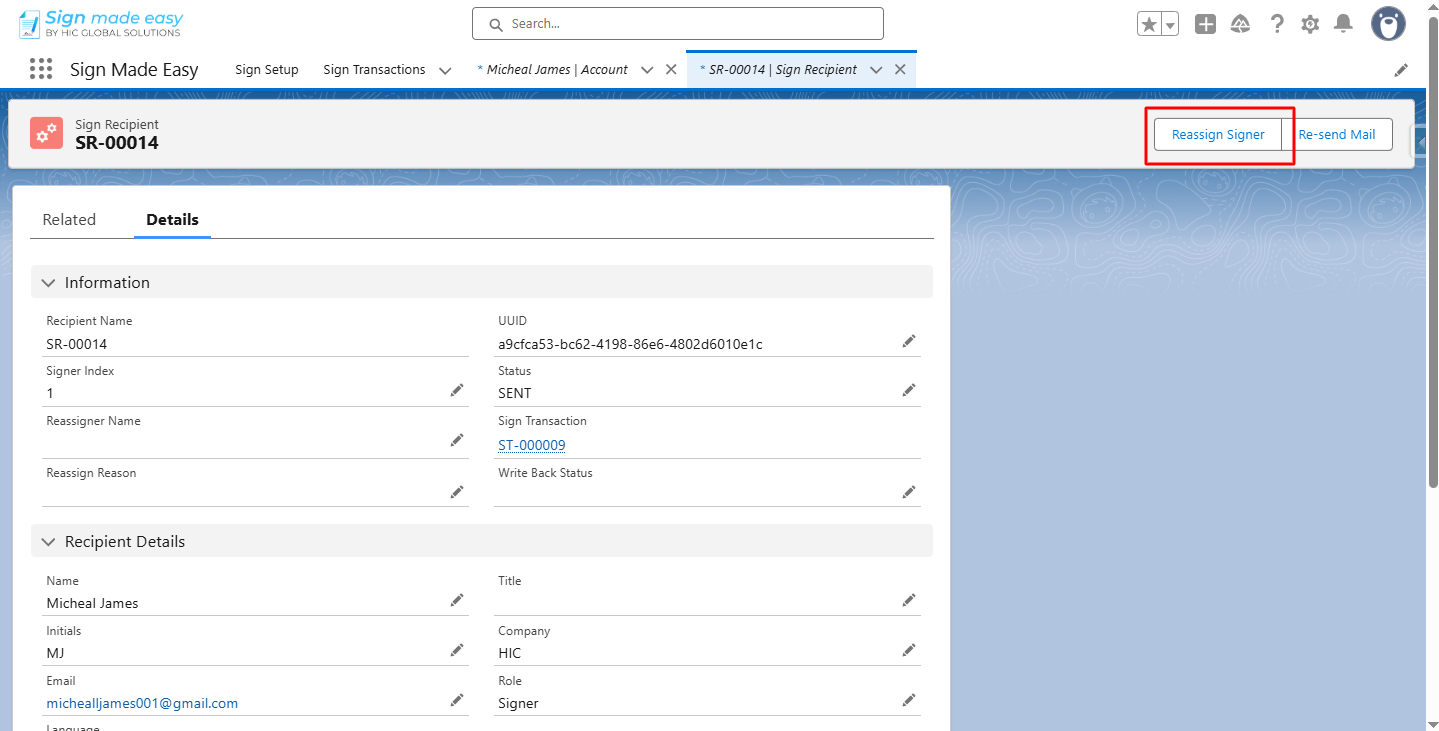
Step 5:- Click the Reassign Signer button.
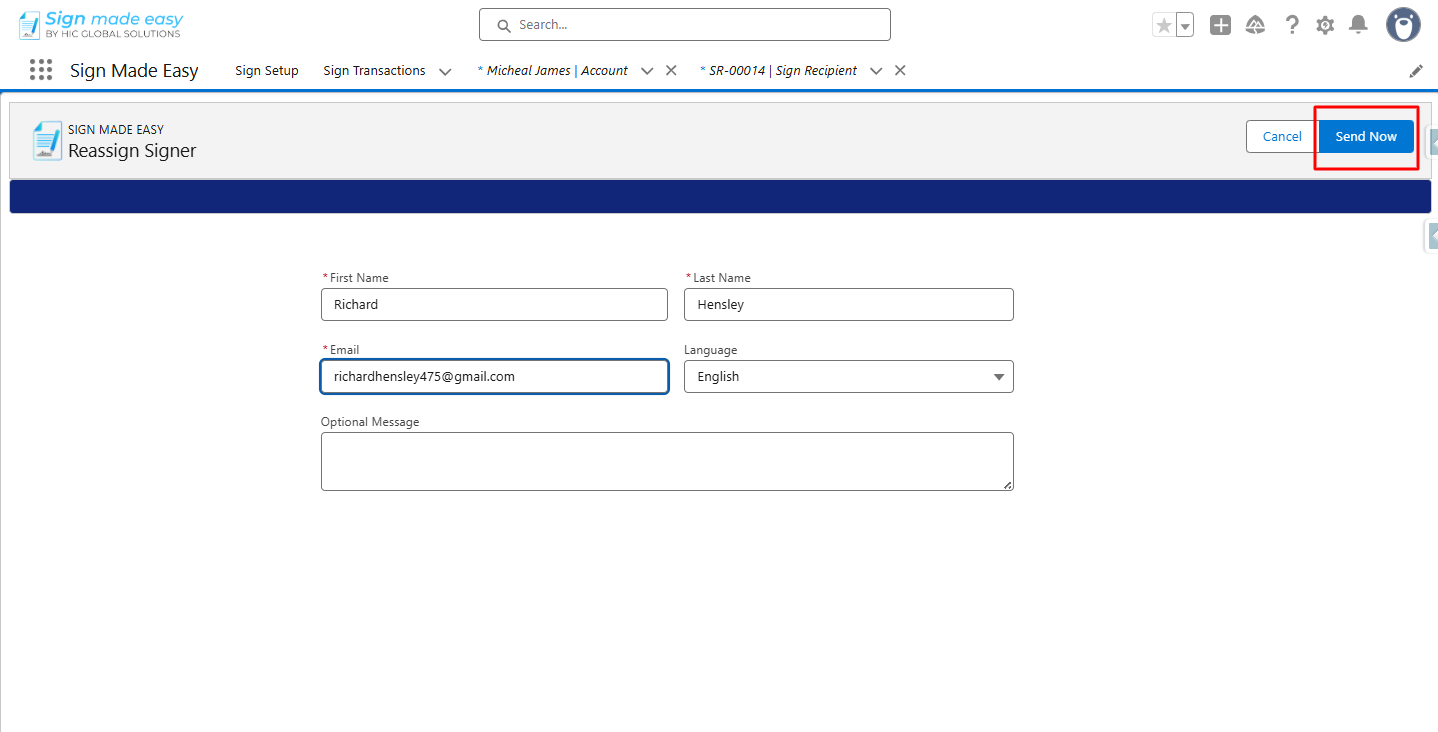
Step 6:- Enter the required information in the fields below.

Step 7:- Click Send Now.
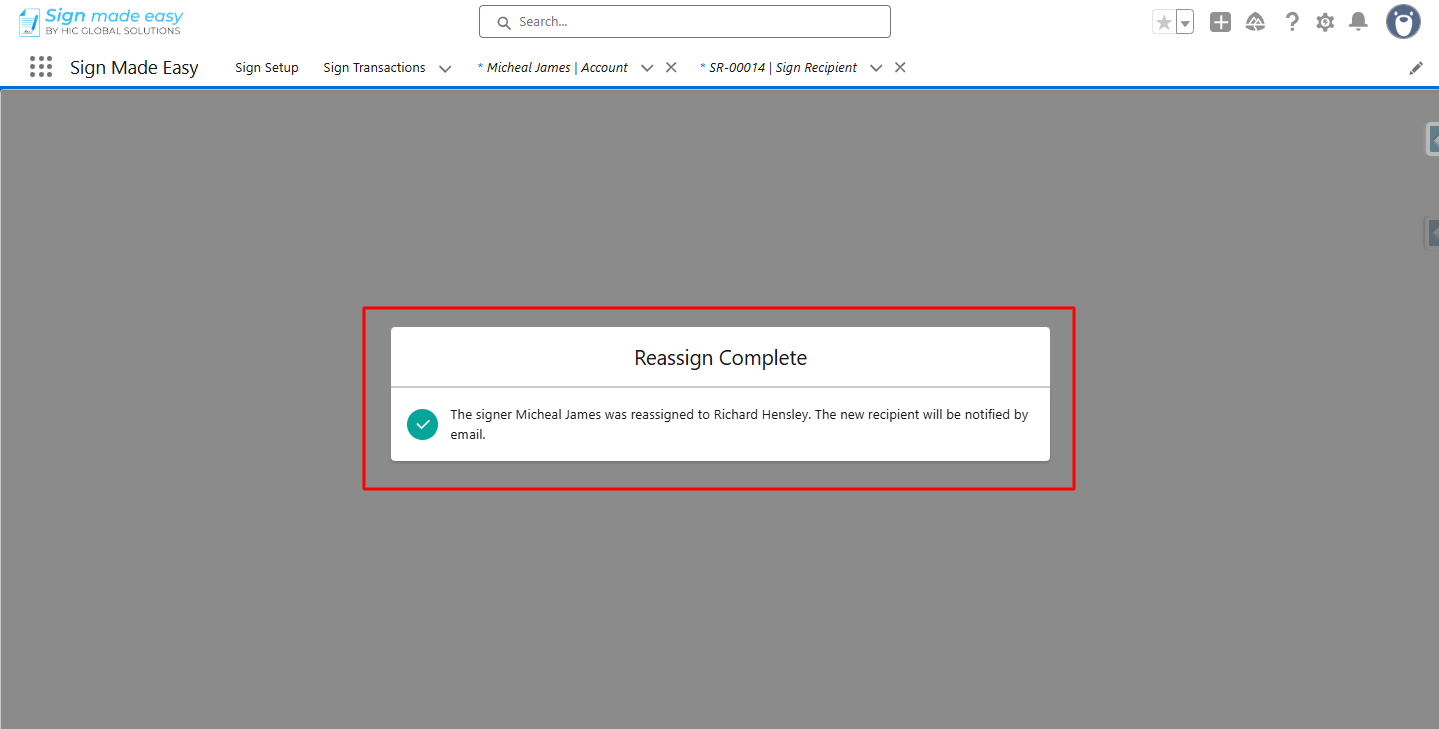
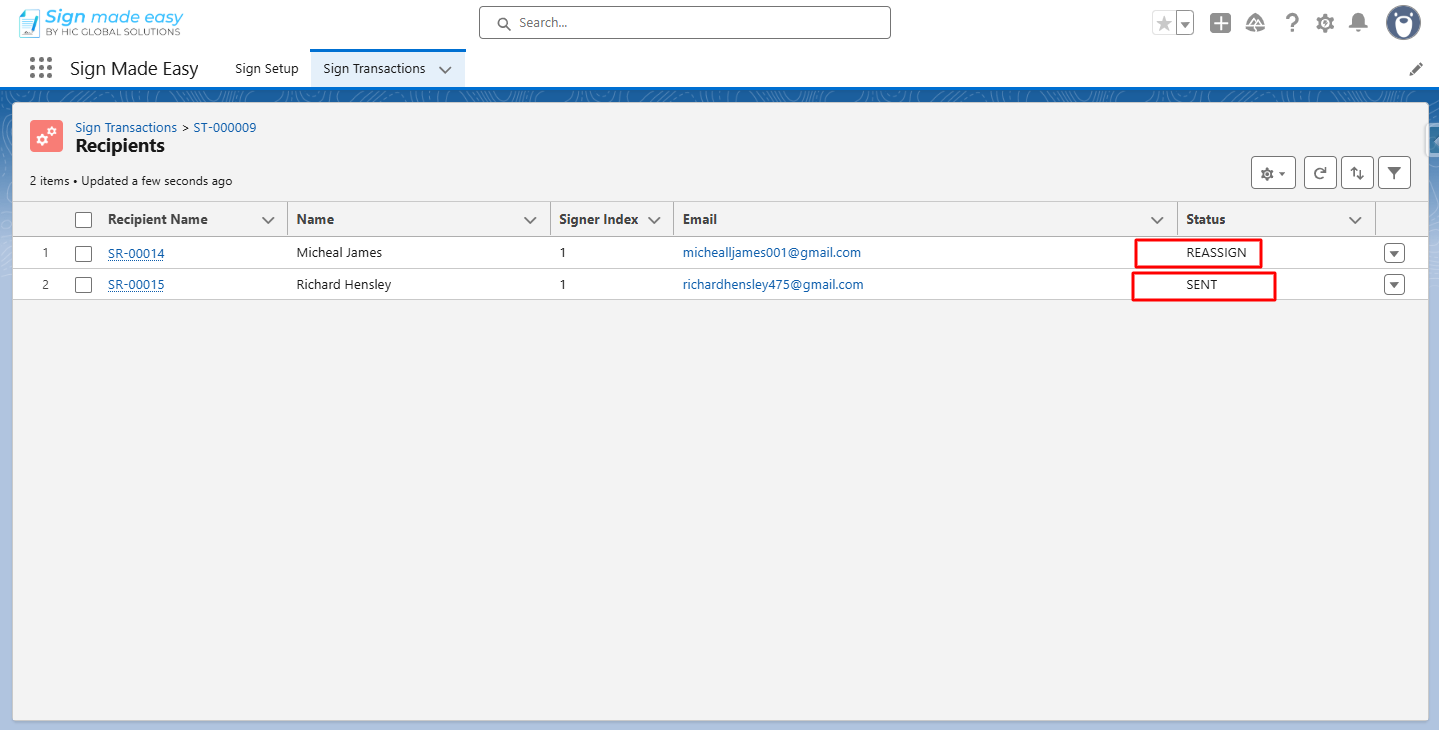
Step 8:- When a signer is reassigned, the status of the recipients is updated accordingly.
Step 9:- The recipient has been notified that the document has been reassigned to a new signer.
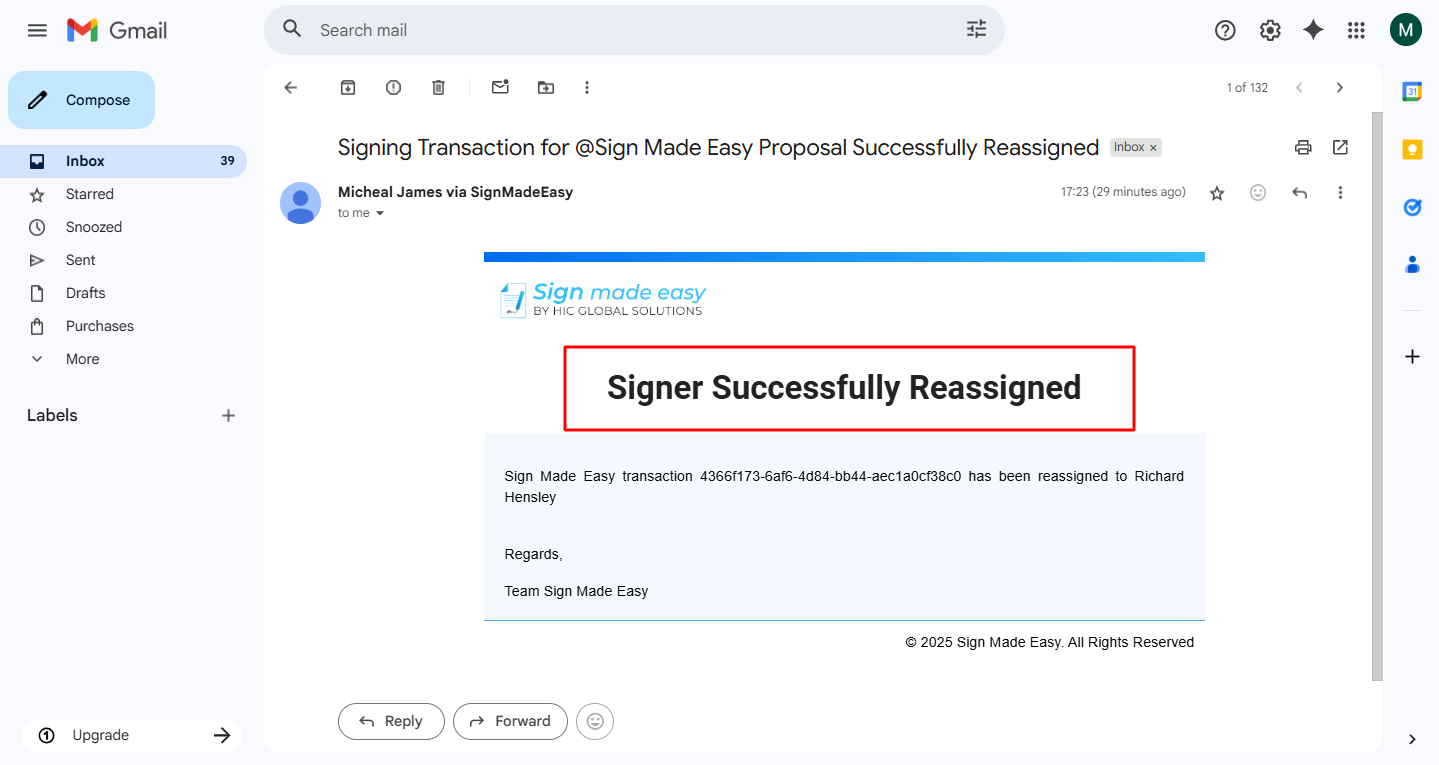
Step 10:- The reassigned document has been sent to the new recipient for signature.

Was this article helpful?
That’s Great!
Thank you for your feedback
Sorry! We couldn't be helpful
Thank you for your feedback
Feedback sent
We appreciate your effort and will try to fix the article