Pre-requisites
- For a complete guide to integrating Sign Made Easy with Docs Made Easy, Click here.
Step 1:- Open the created solution and copy the Solution ID.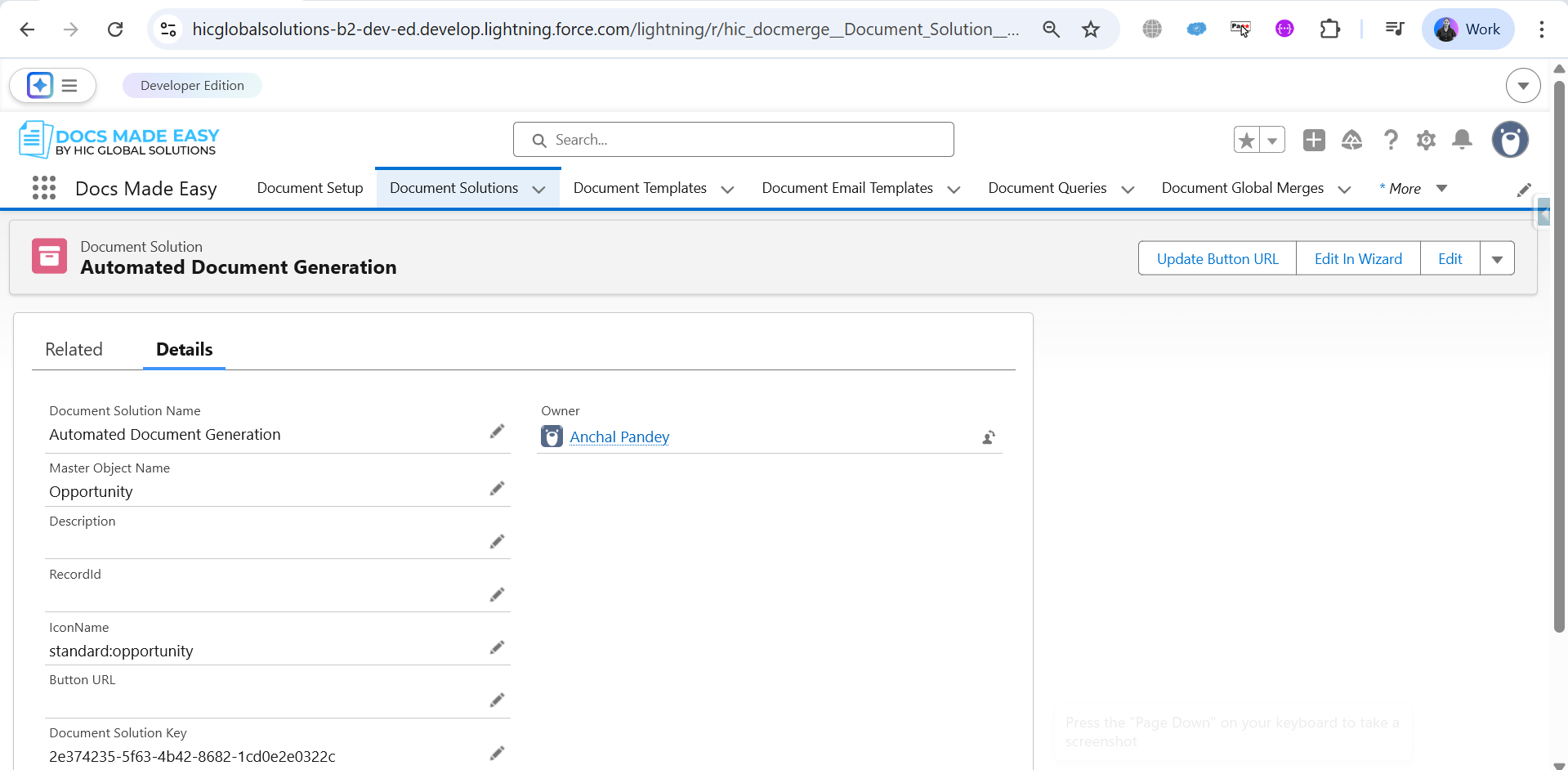
Step 2: Go to Home, search for Flows in the Quick Find box, and click on Flows under Process Automation.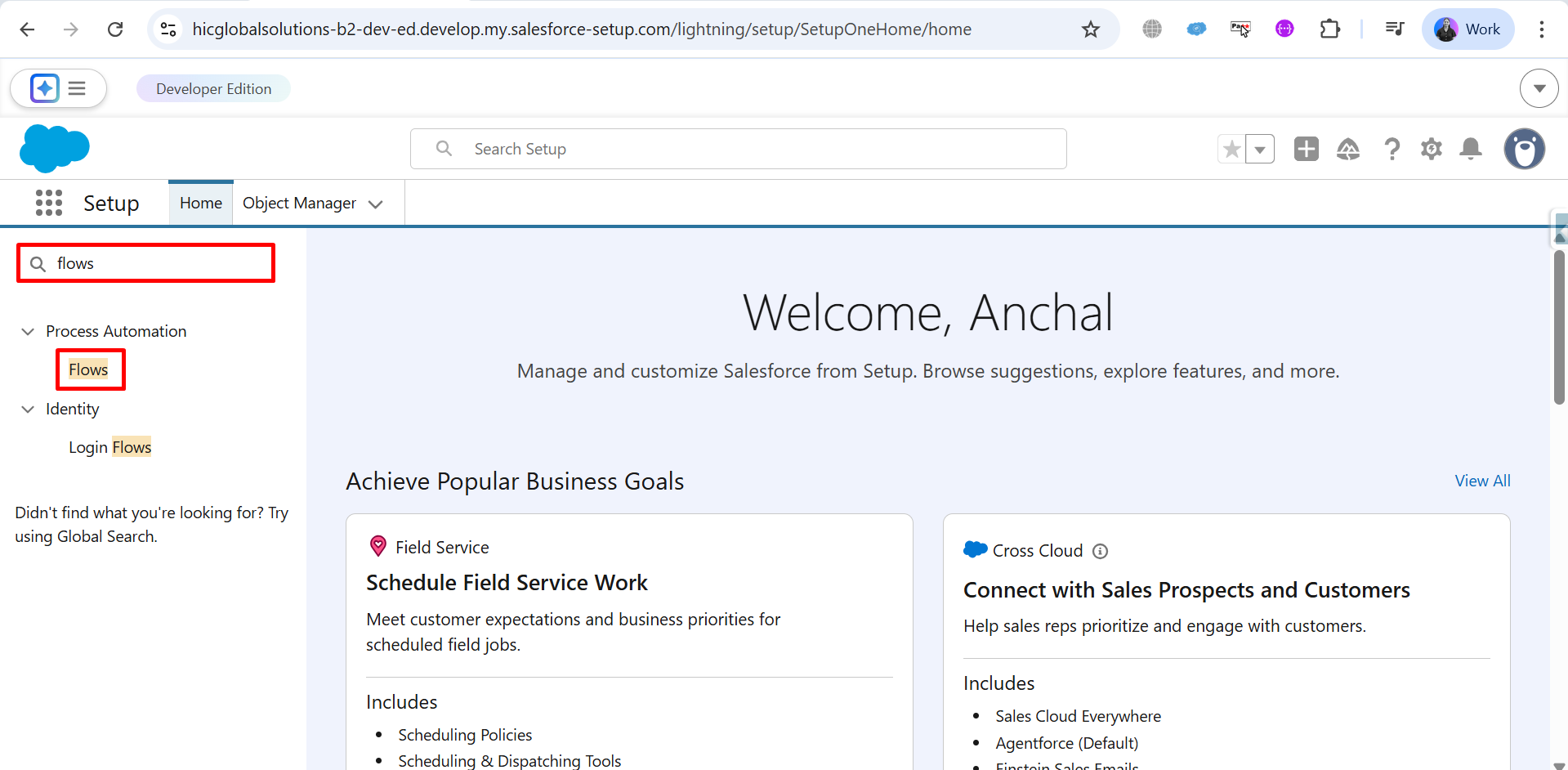
Step 3:-: Click on New Flow to create a new automation.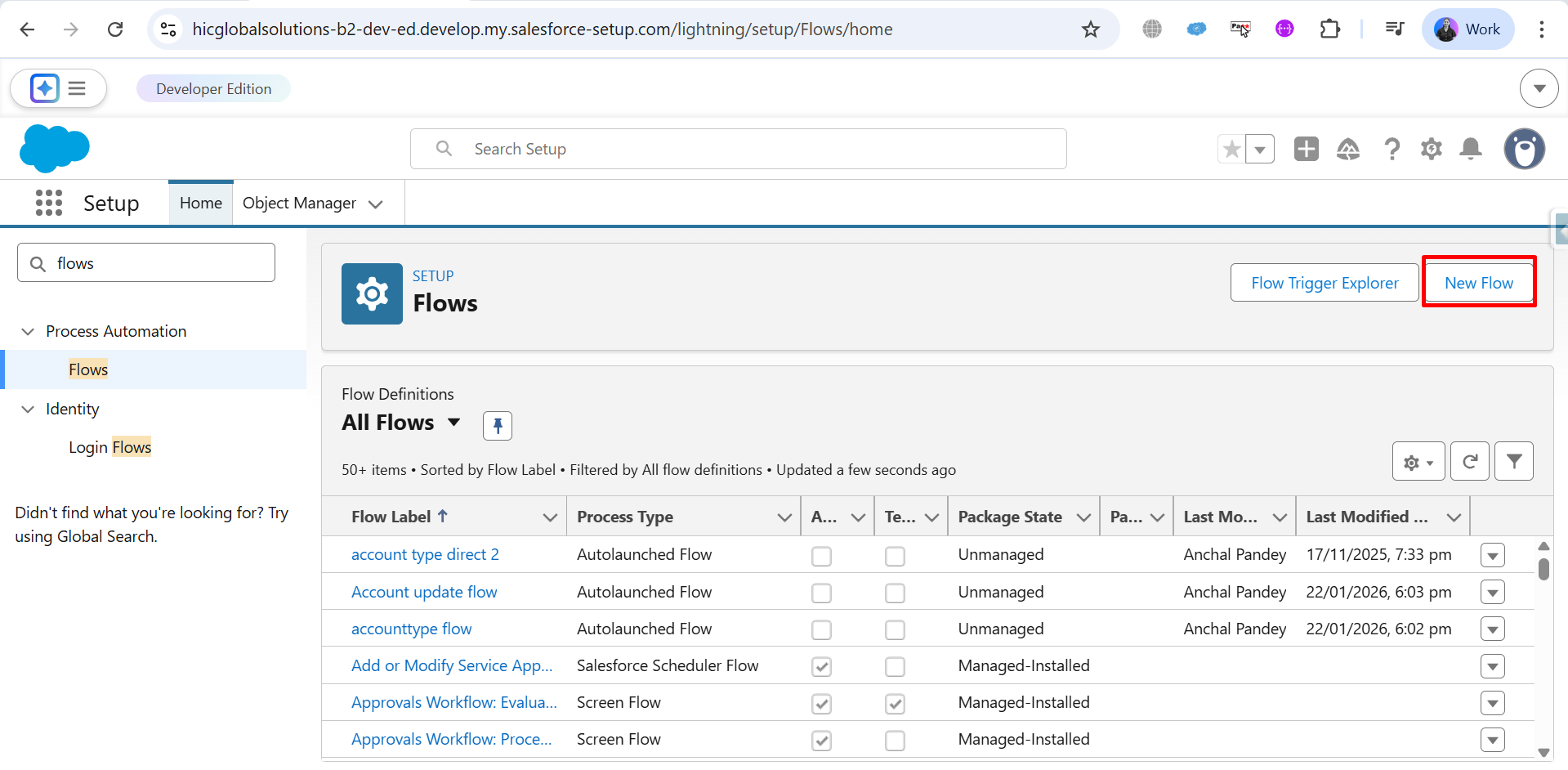
Step 4: Choose the category Triggered Automations.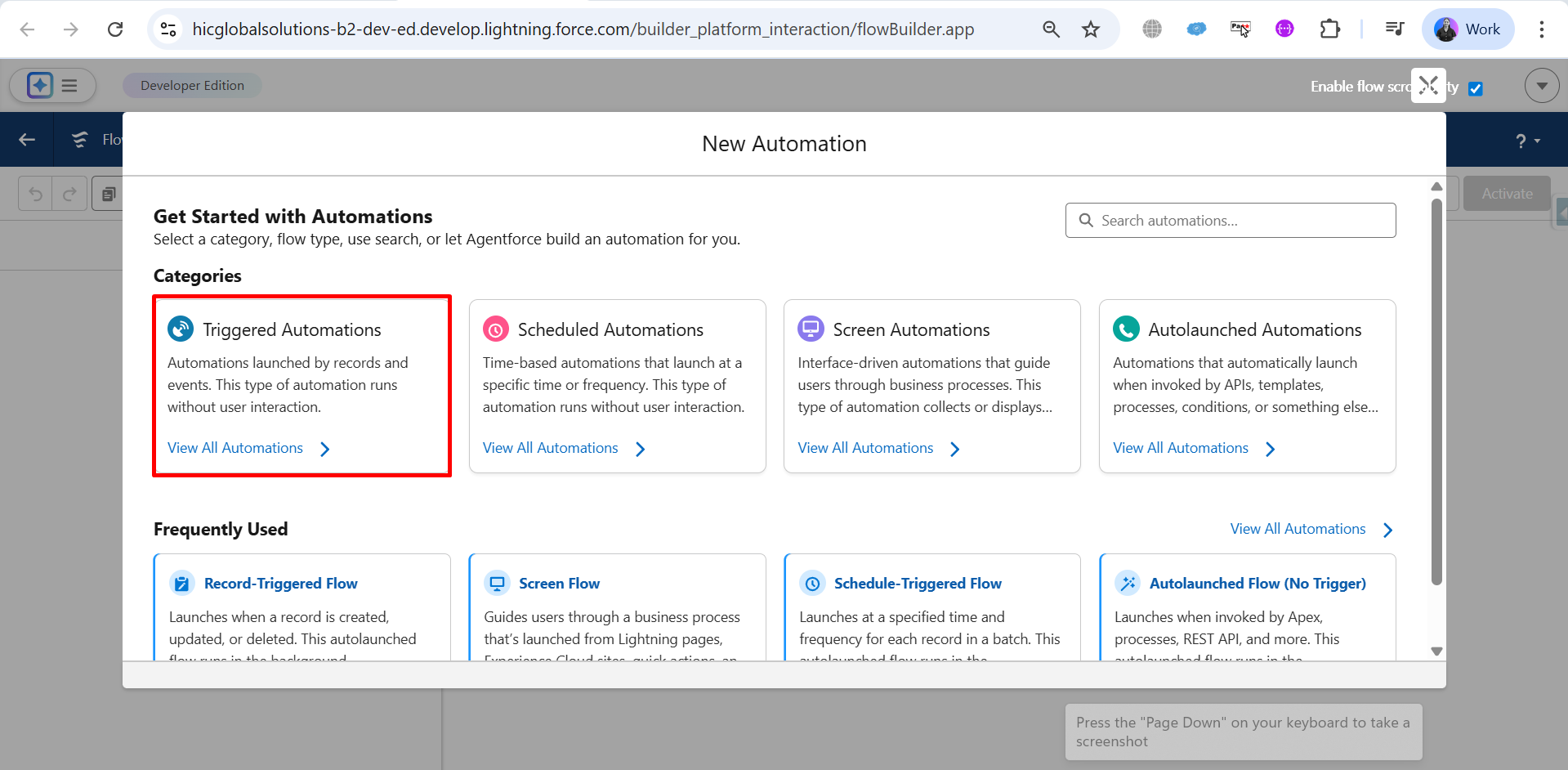
Step 5: Select Record-Triggered Flow as the flow type.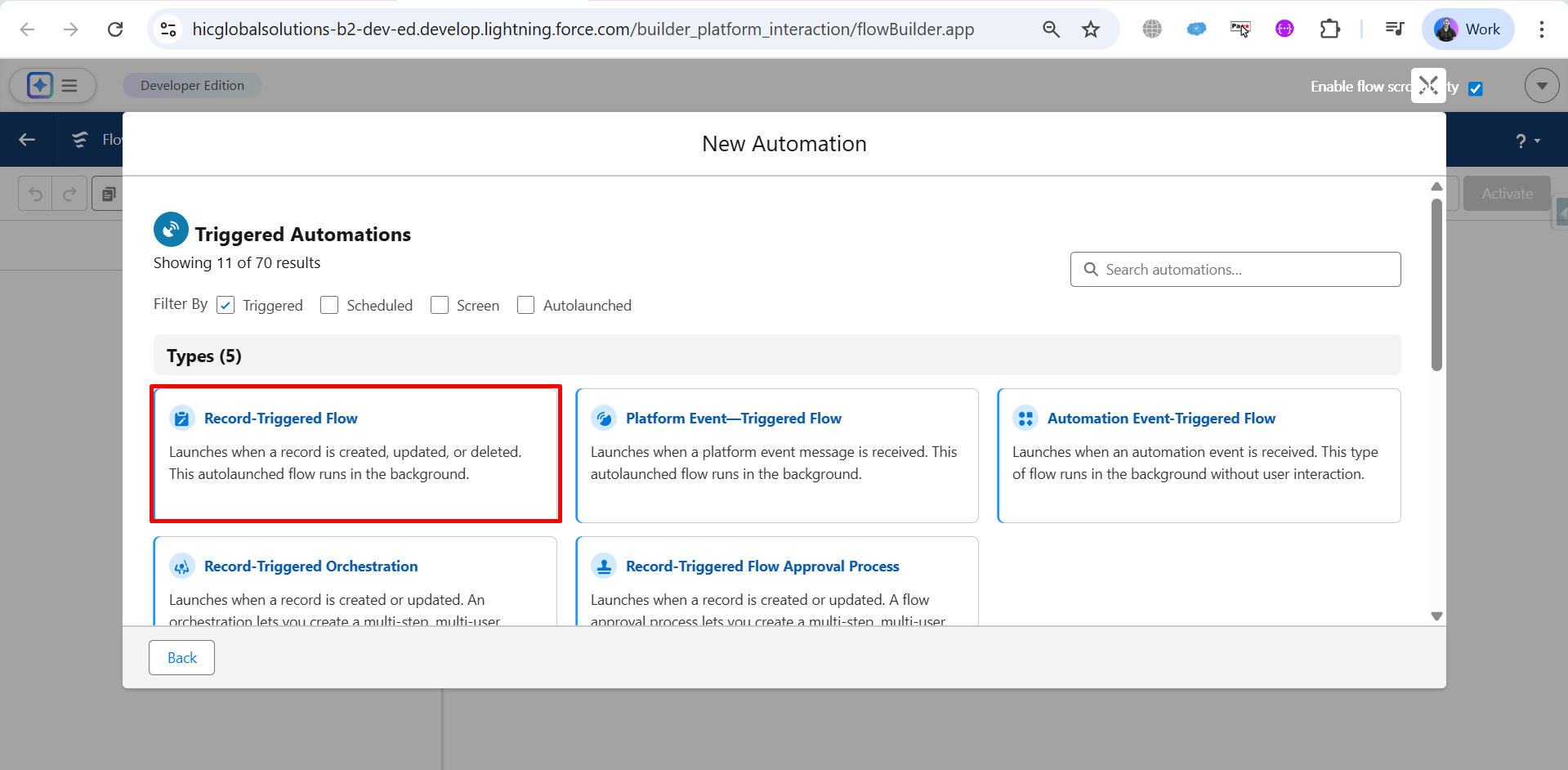
Step 6: Select the Salesforce object (Opportunity) and configure a trigger to trigger the flow when a specific event occurs (like A record is updated).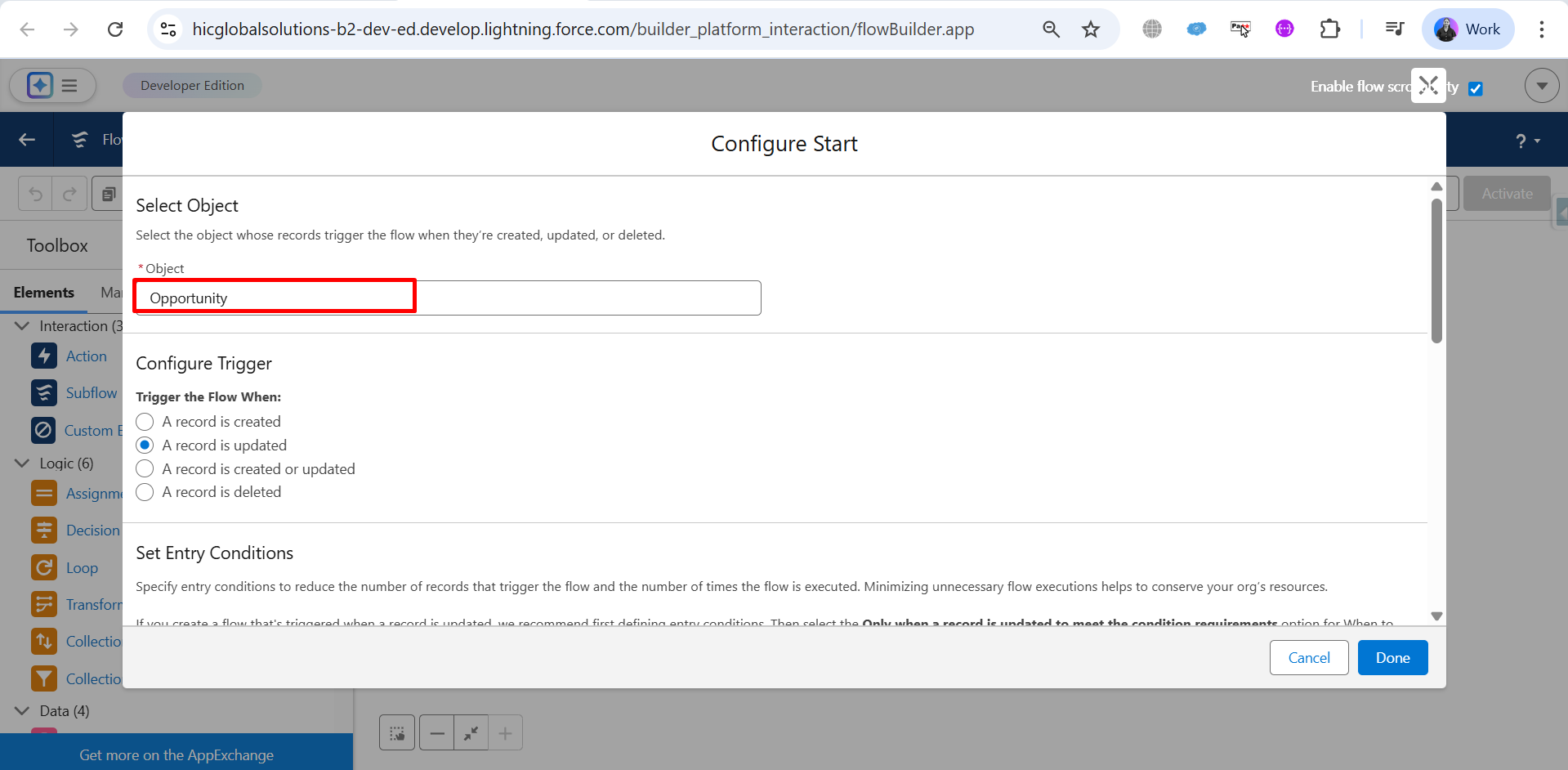
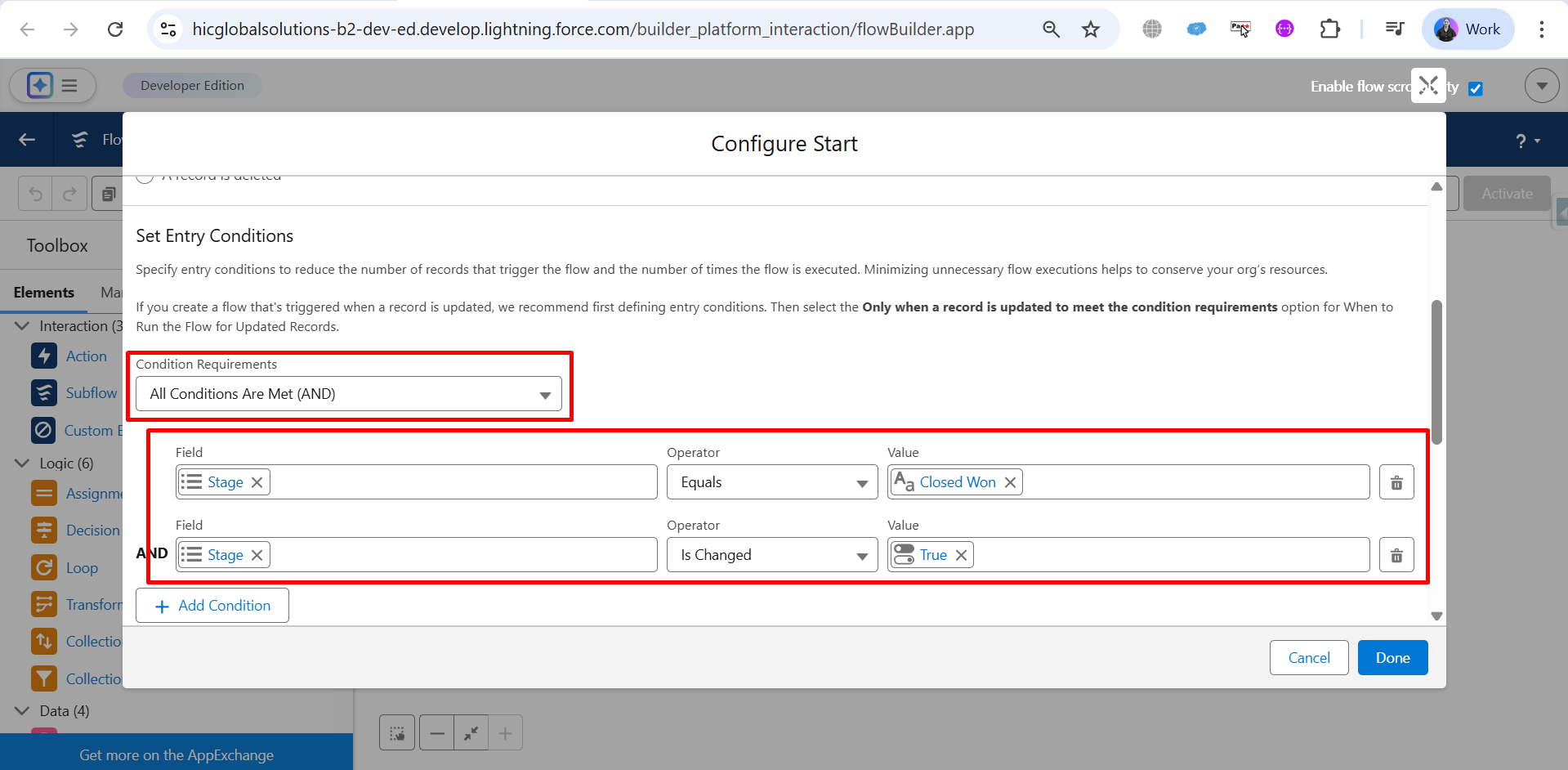
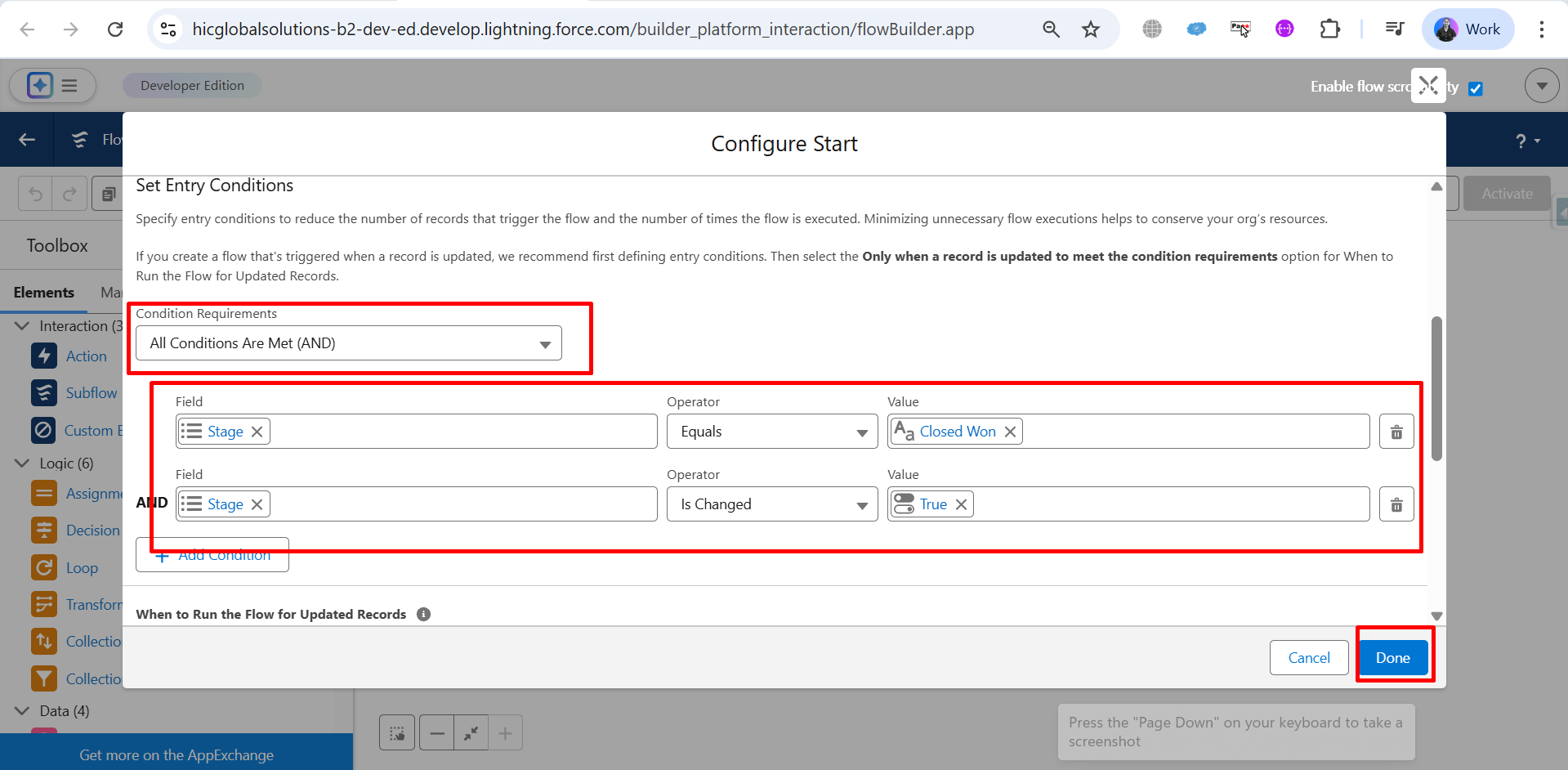
Step 7: Under Condition Requirements, select All Conditions Are Met (AND).
Add the first condition:
- Field: Stage
- Operator: Equals
- Value: Closed Won
Add the second condition:
- Field: Stage
- Operator: Is Changed
- Value: True
Step 8: Now, Optimize the Flow by selecting Actions and Related Records, then click on Done.
Step 9: Next, drag and drop the Action element from the Toolbox.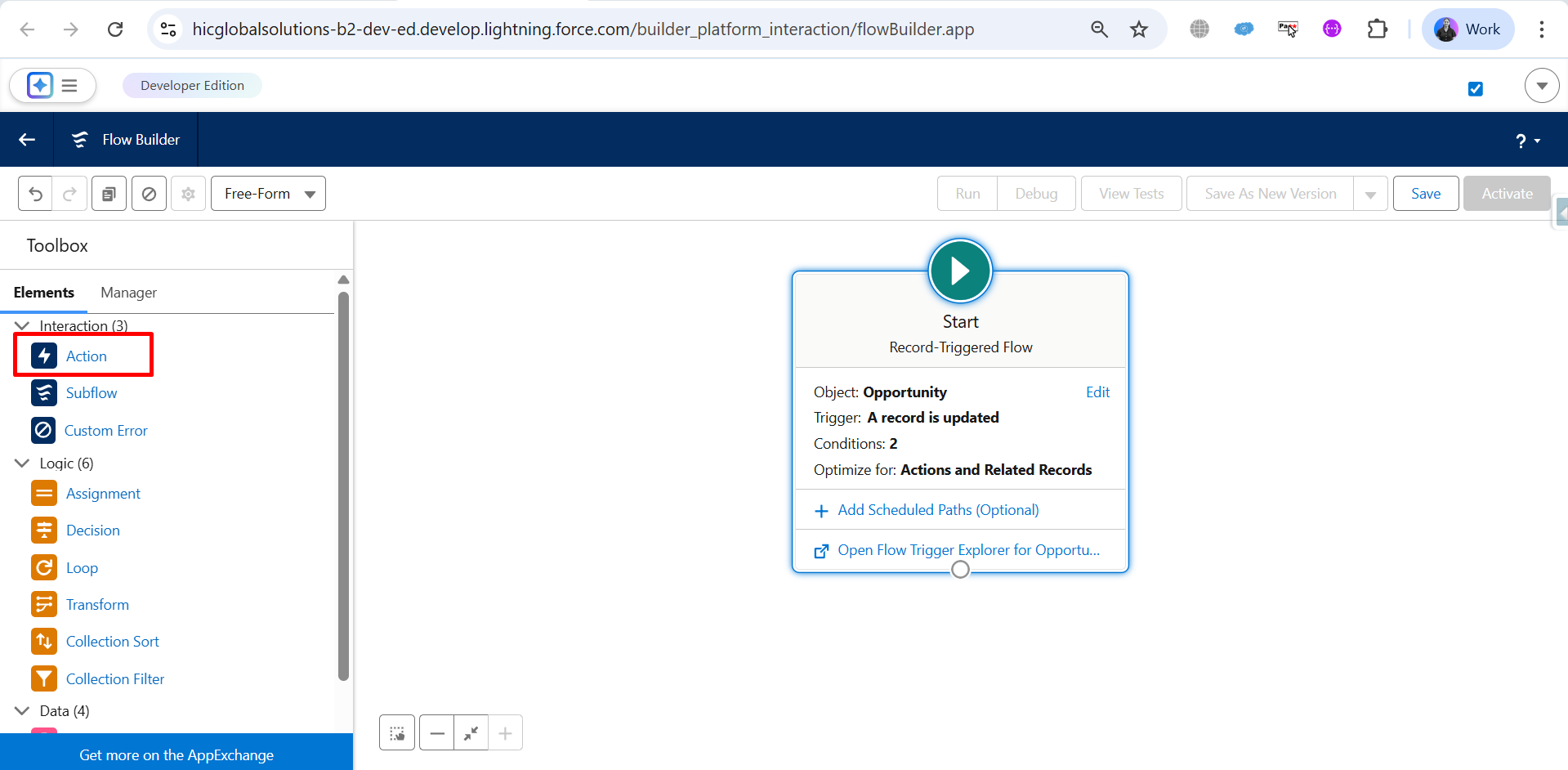
Step 10: Here, choose the required action and click on Done.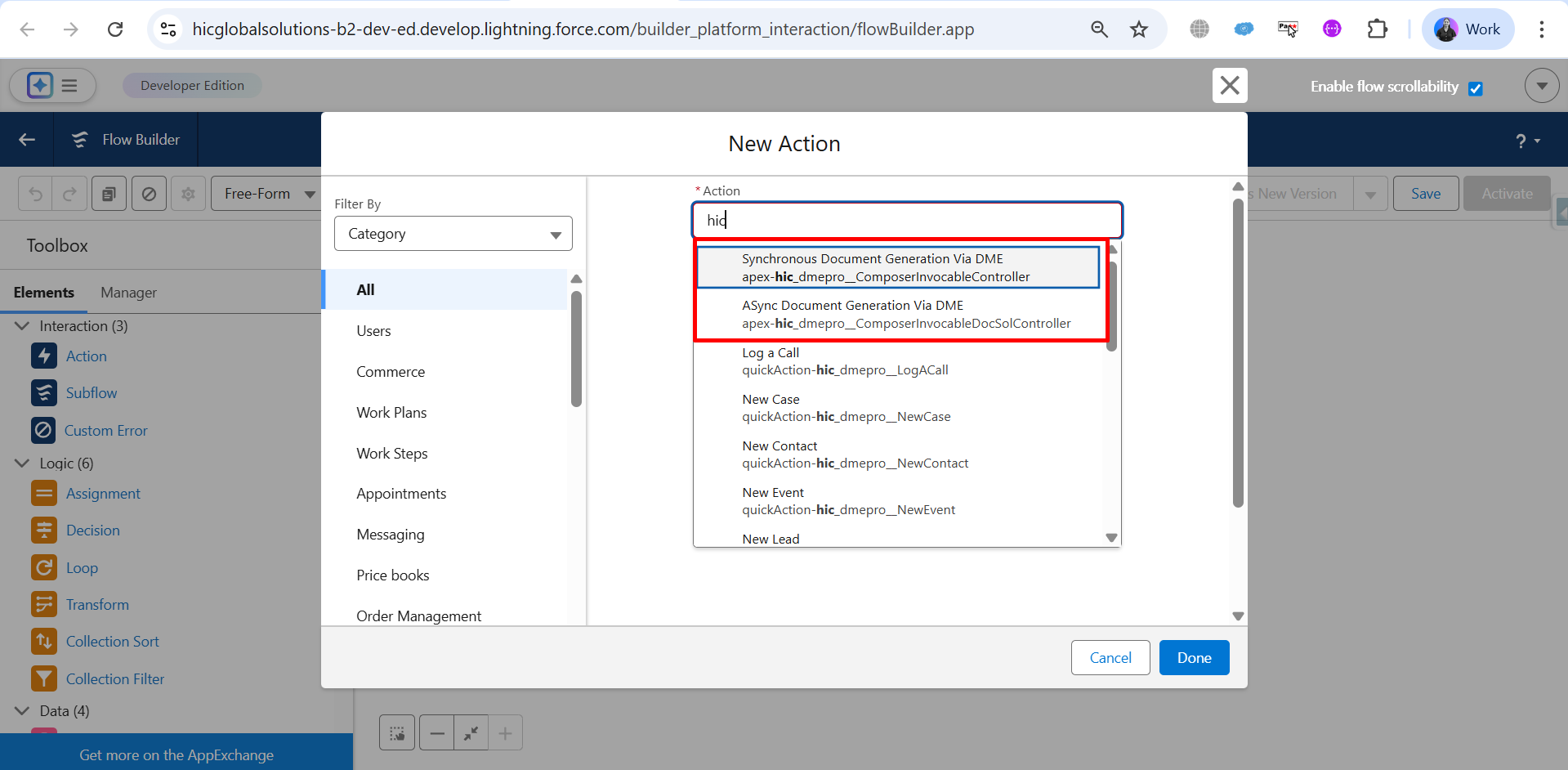
Step 11: After that, enable these options.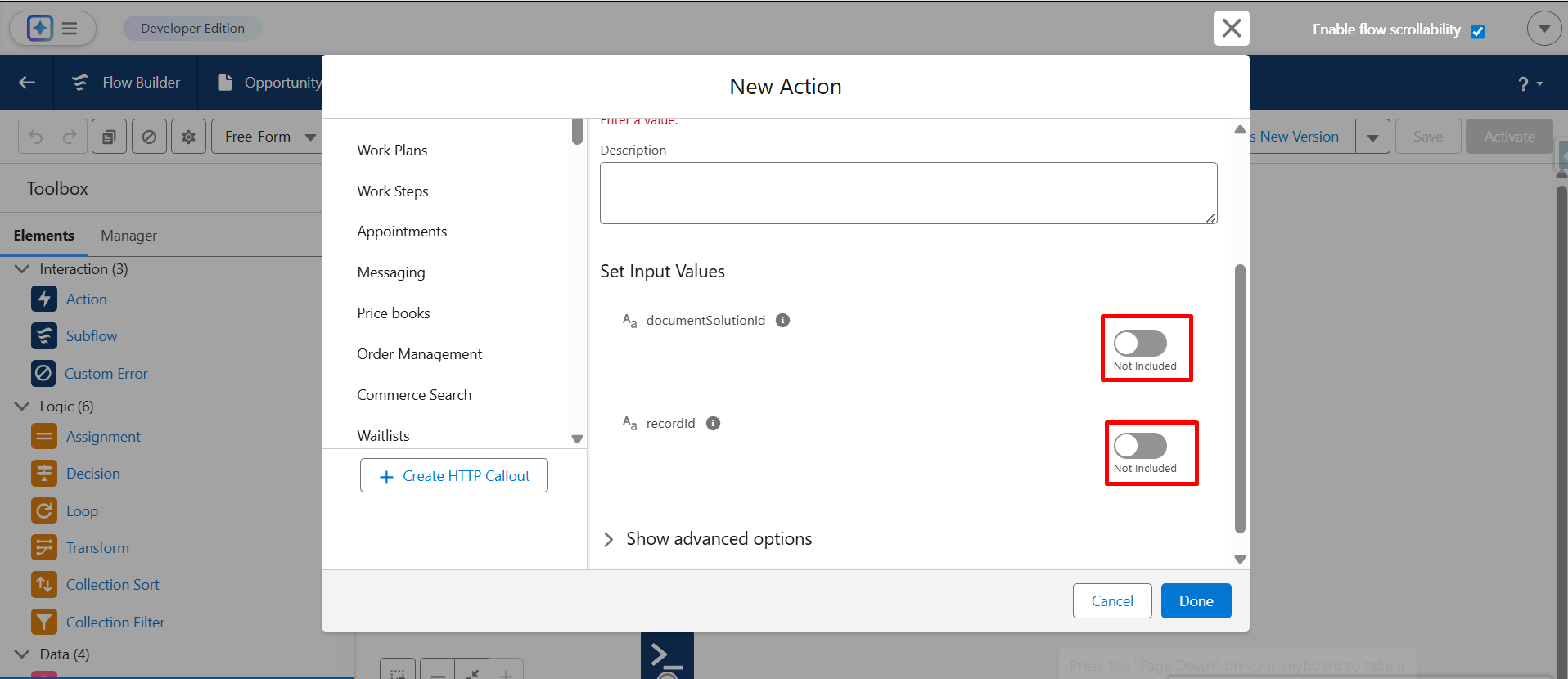
Step 12: Enter the Document Solution ID and the Record ID so the system knows which record to generate the document for.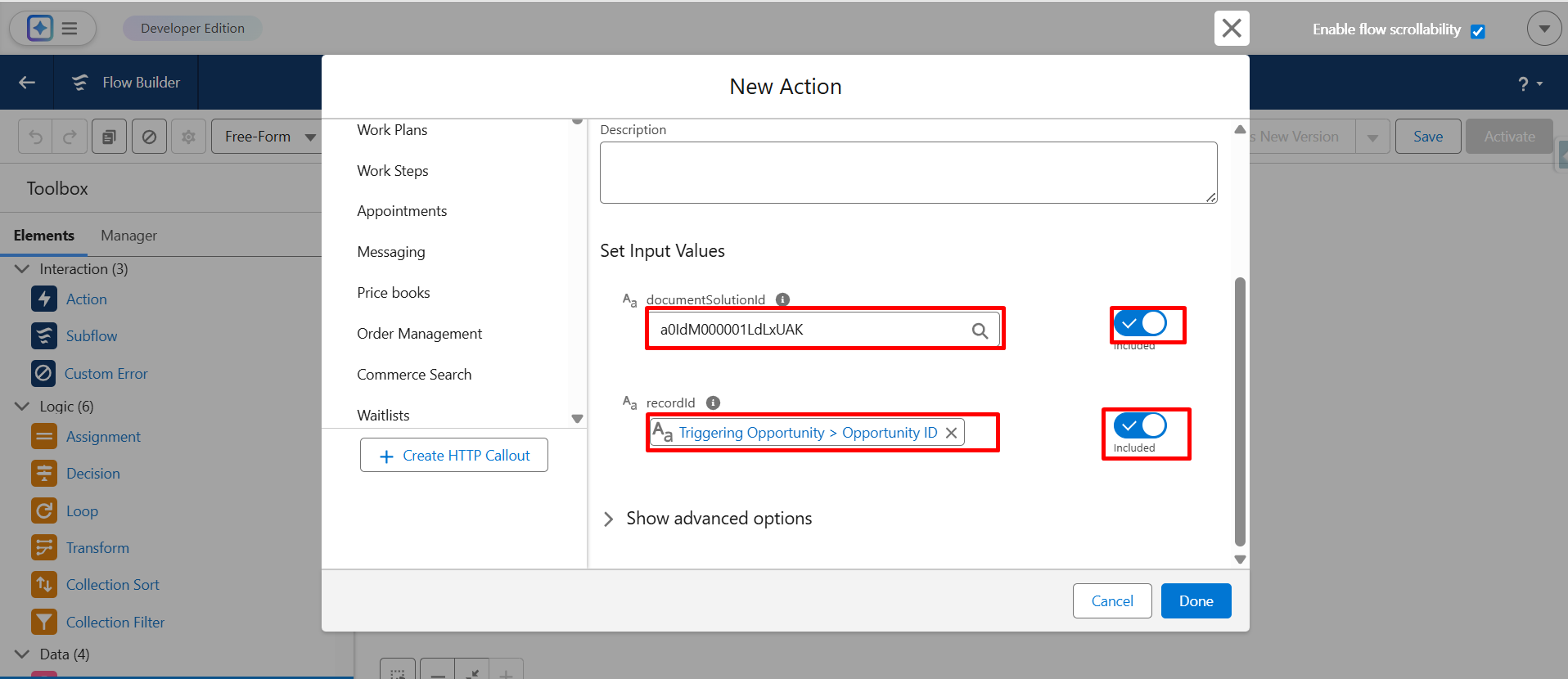
Step 13: Click on Done to save the action configuration.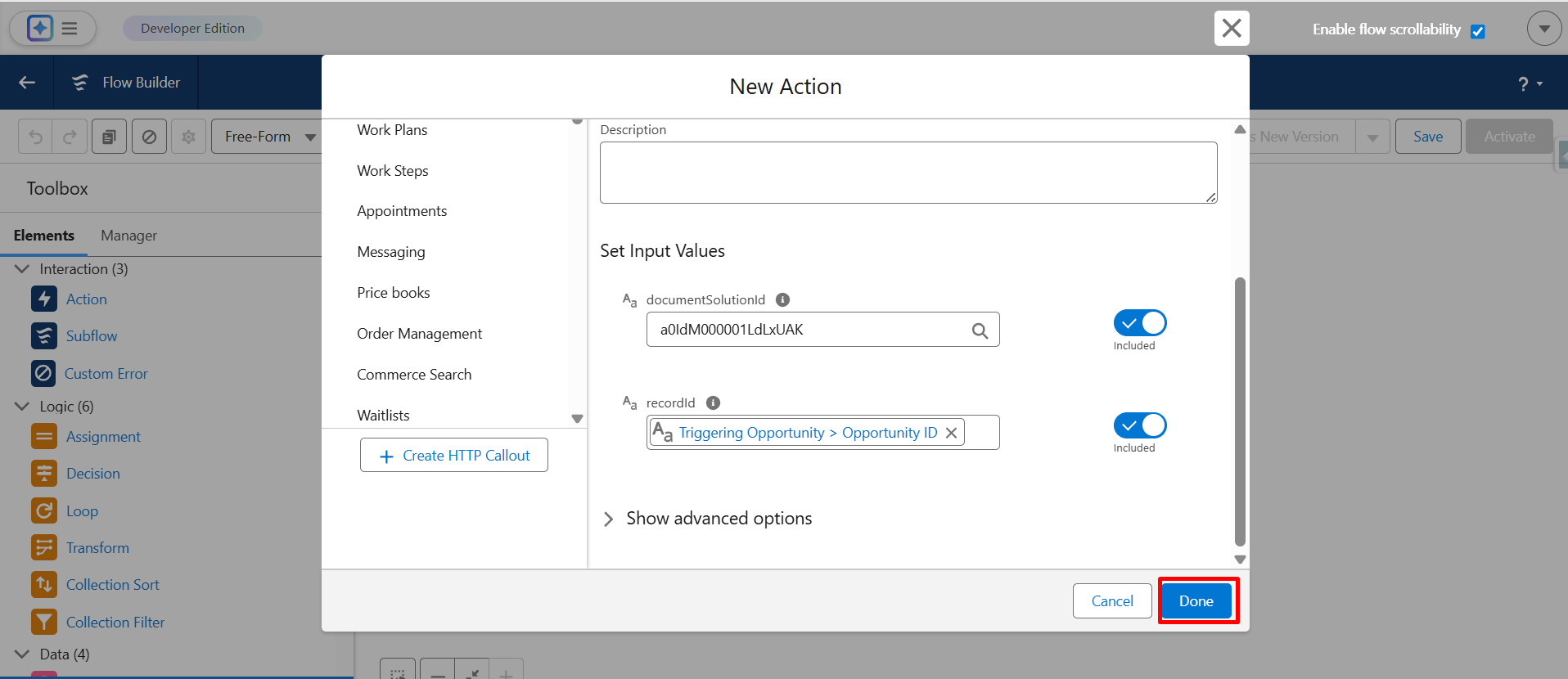
Step 14: Connect the flow and Apex Action properly, and then click on Save.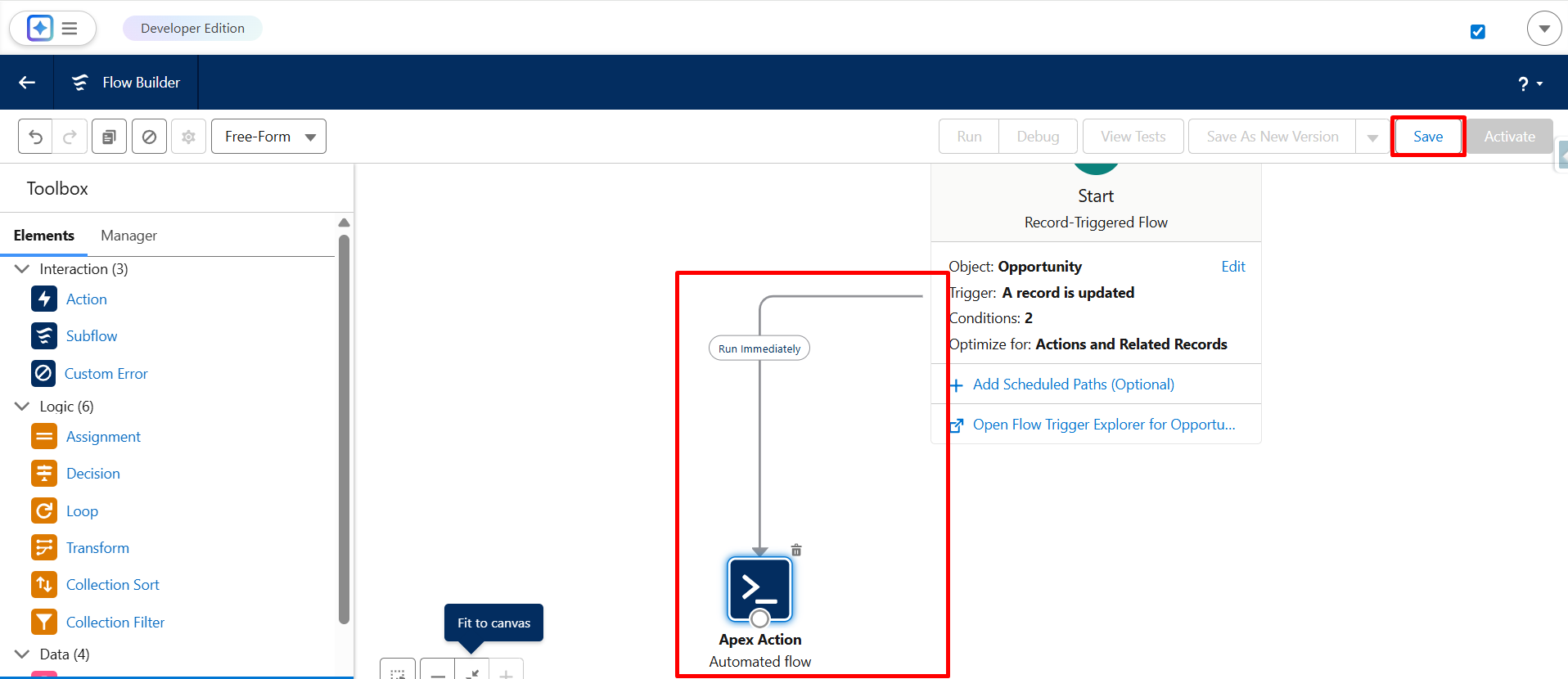
Step 15: Enter the Flow Label name and click on Save again.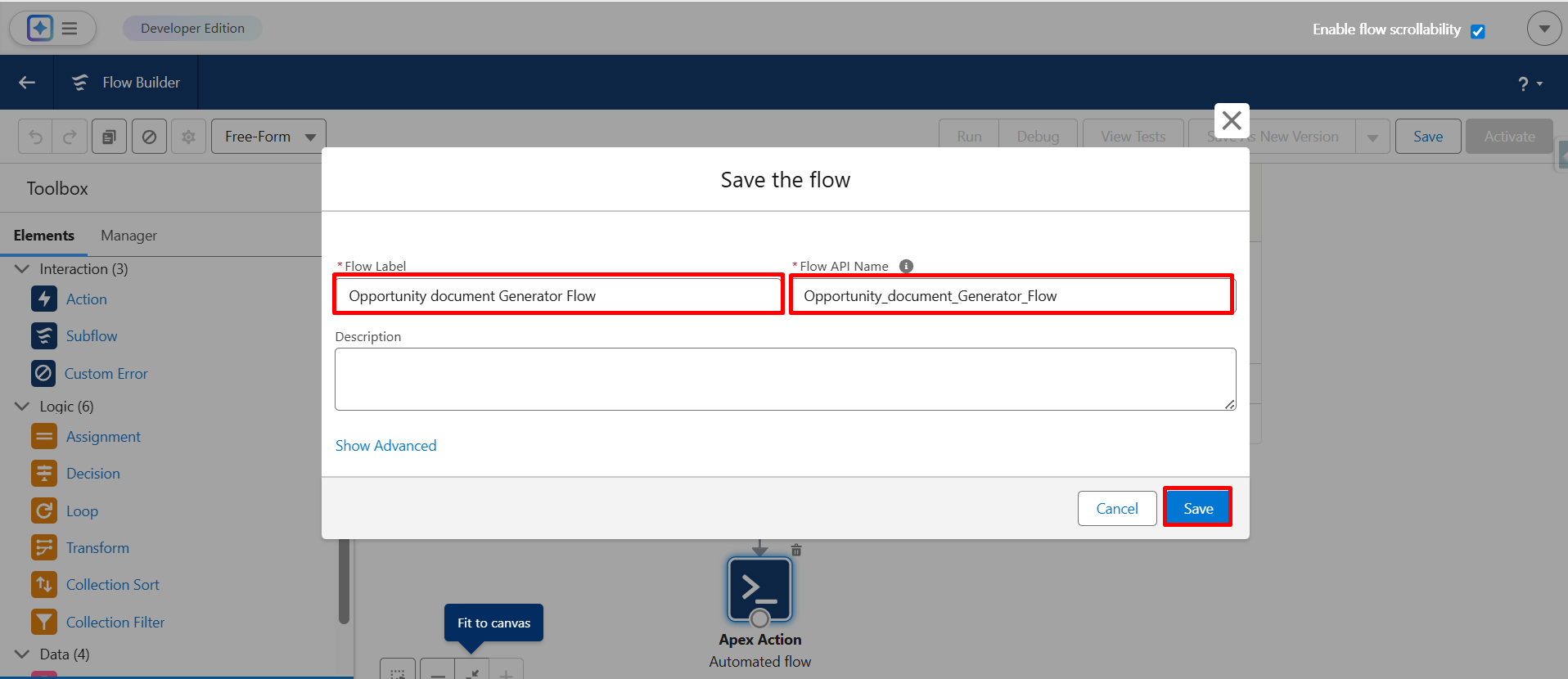
Step 16: Click on Activate to make the flow live.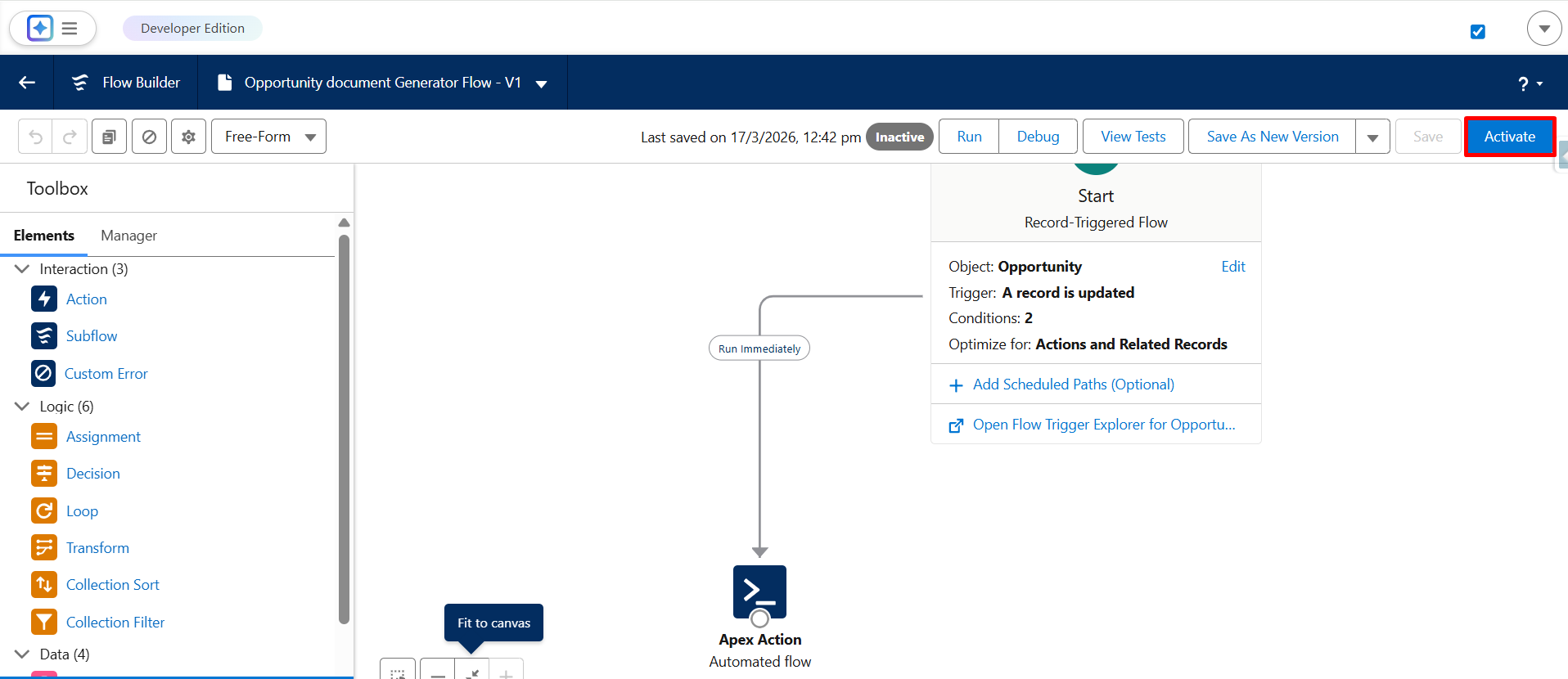
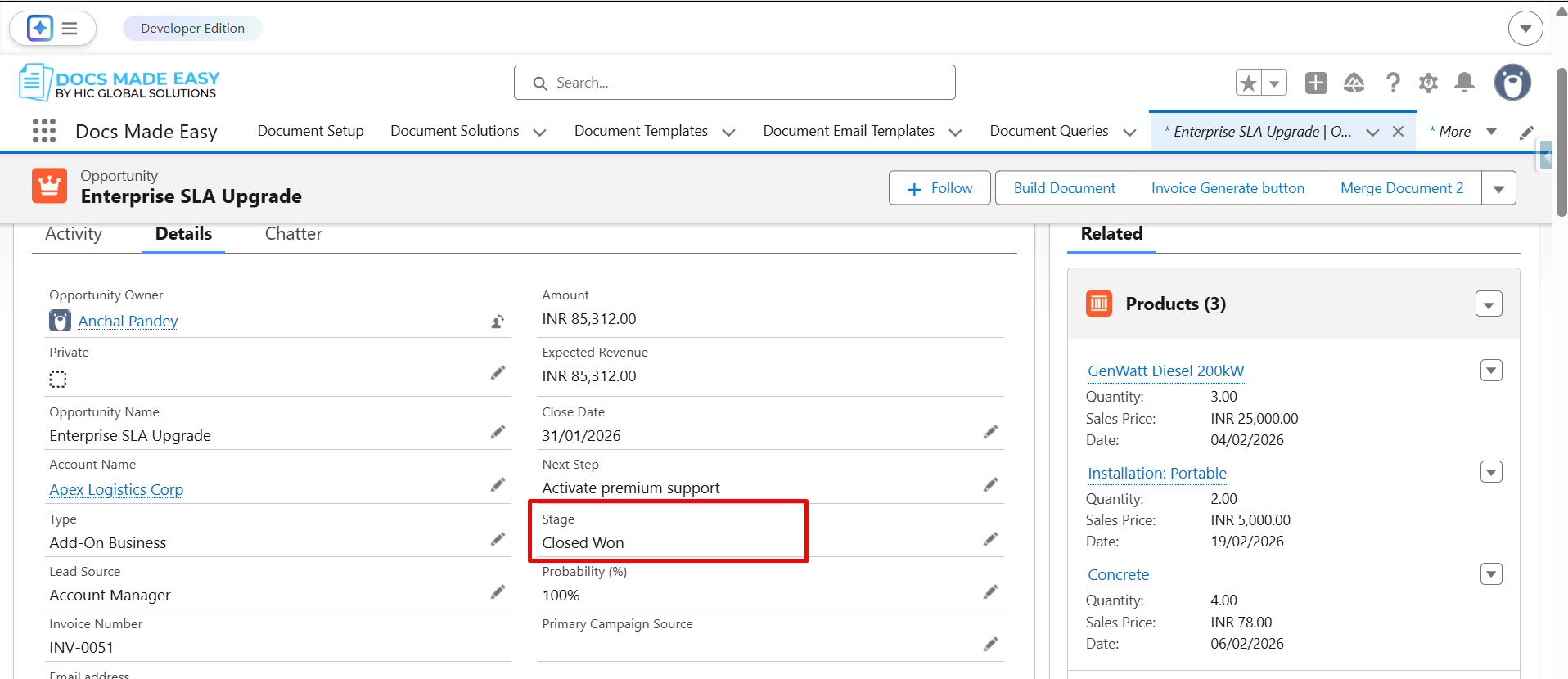
Step 17: Now, go to the Opportunity record, update the Stage to Closed Won, and click on Save.
Step 18: Once the record is saved, the generated document will automatically appear in the Related (Notes & Attachments) section.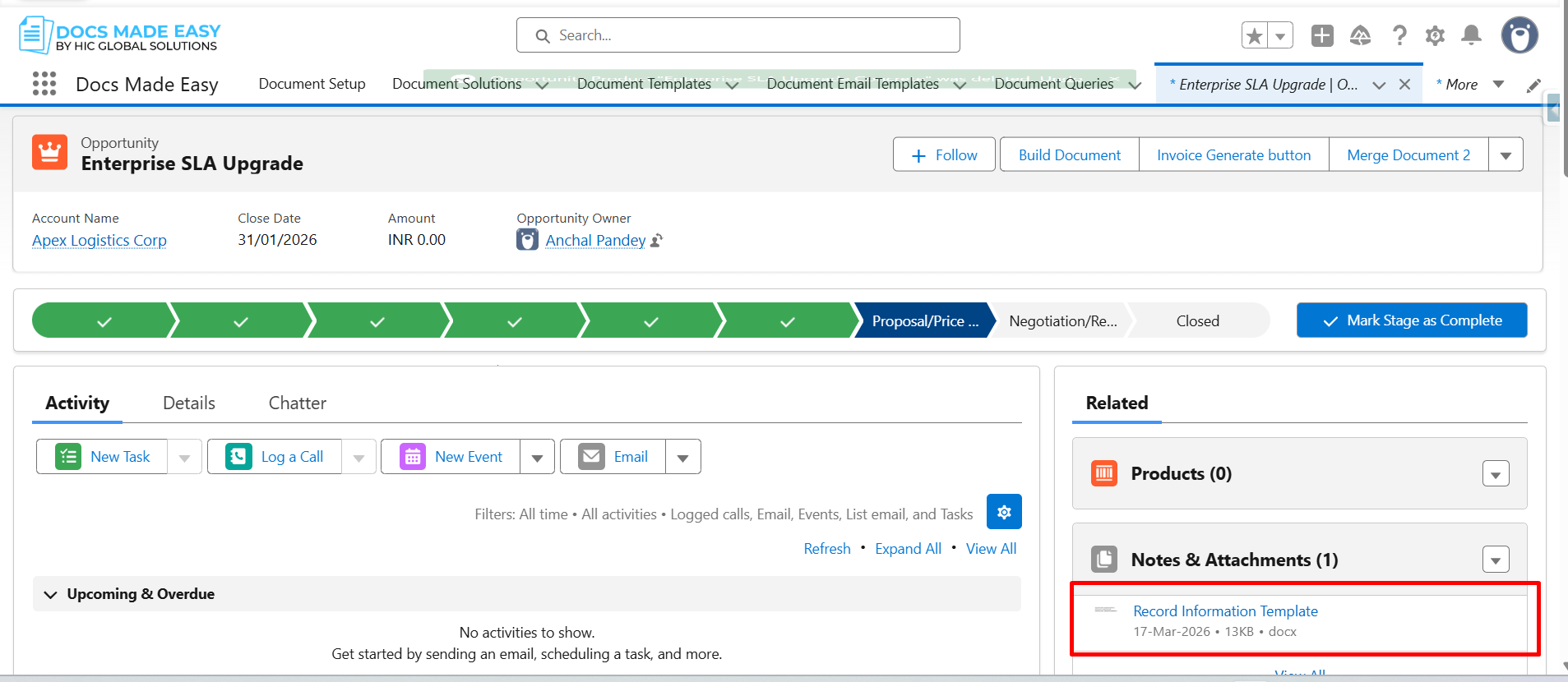
Was this article helpful?
That’s Great!
Thank you for your feedback
Sorry! We couldn't be helpful
Thank you for your feedback
Feedback sent
We appreciate your effort and will try to fix the article