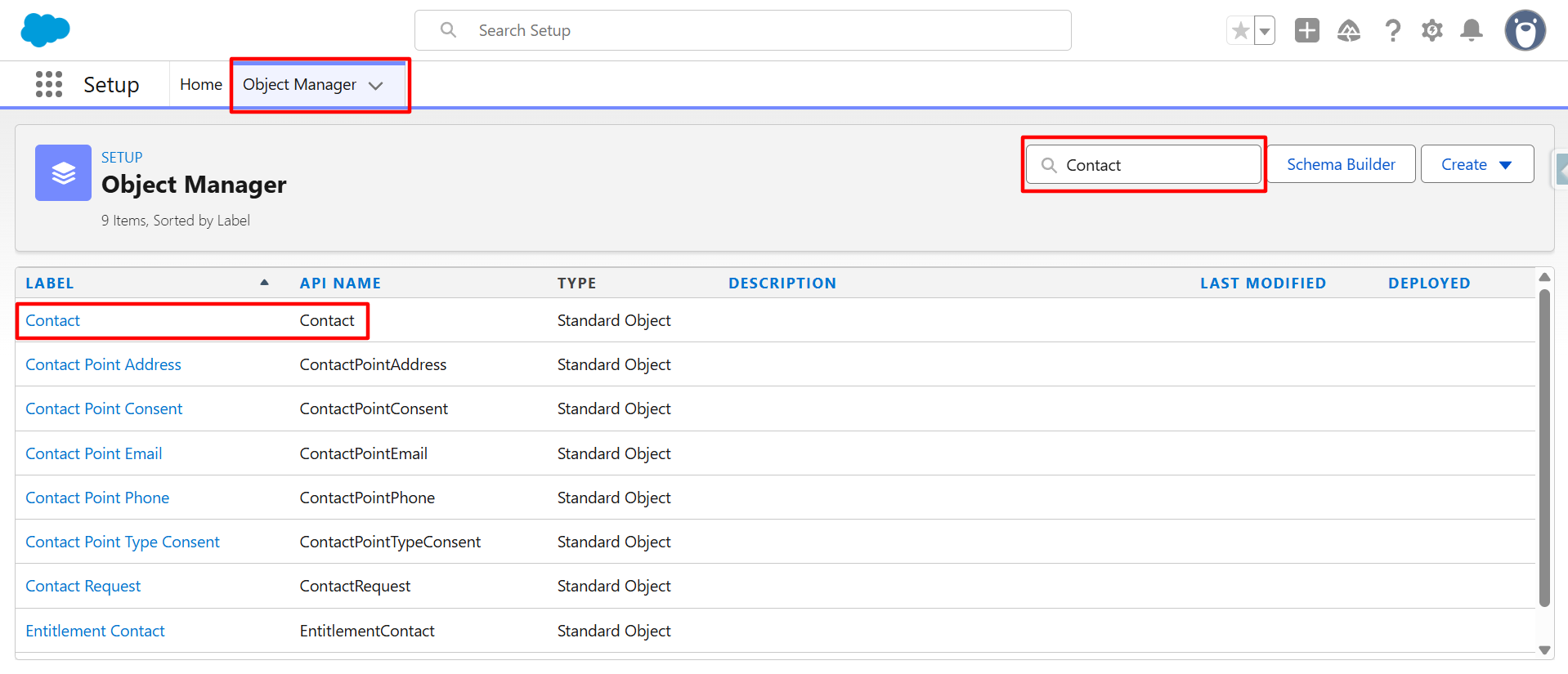
Step 1:- Search for the object to which you want to send documents for e-signature in the Object Manager search bar, then select it to open.
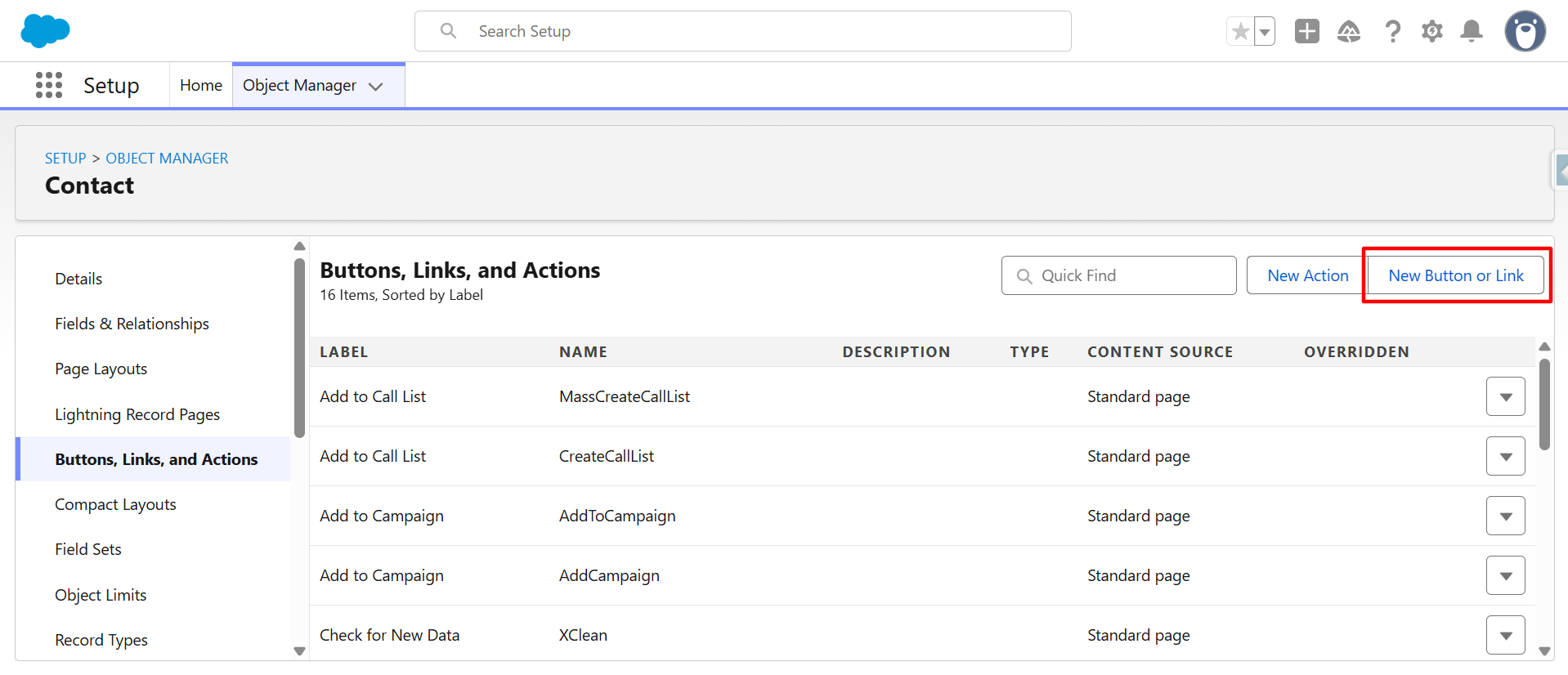
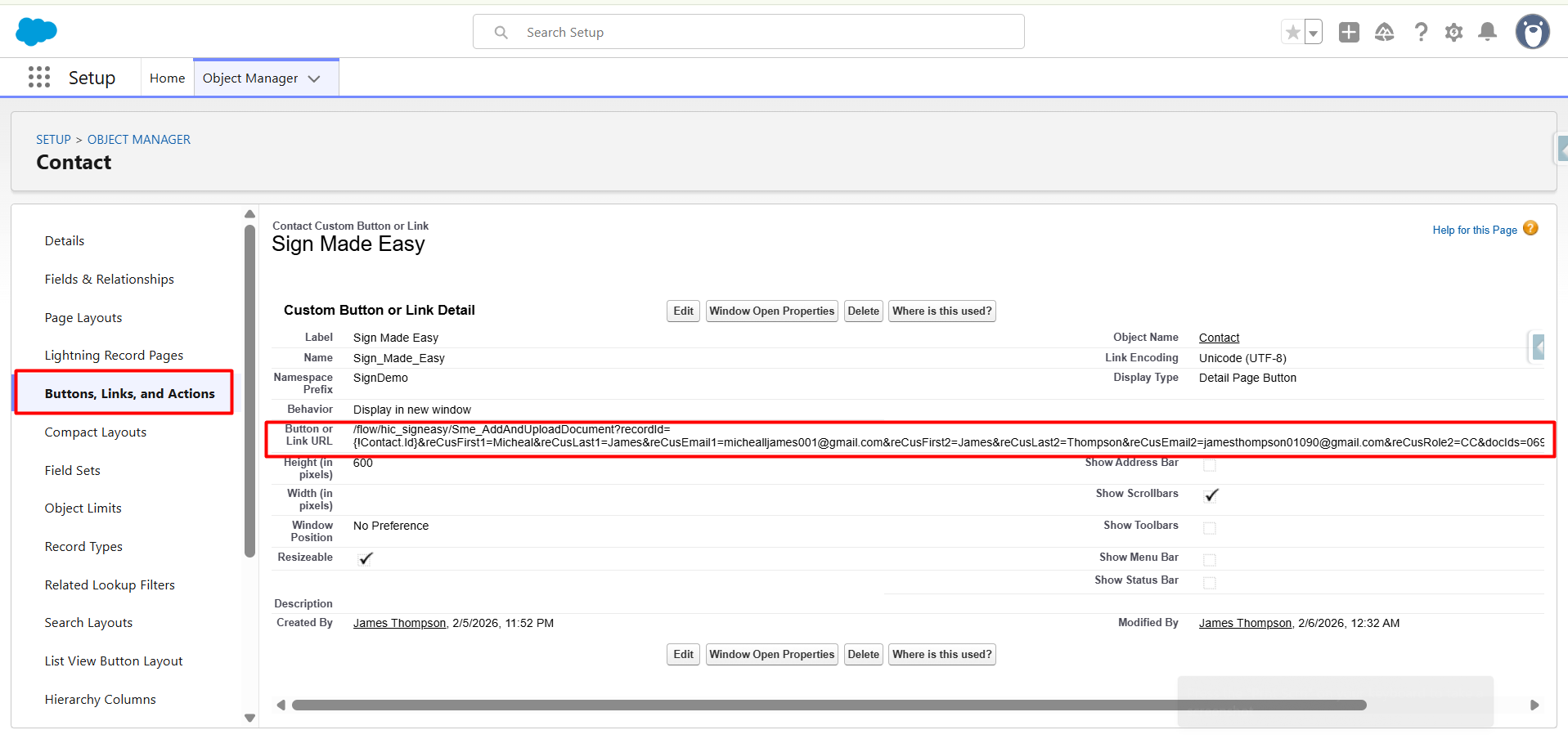
Step 2:- Navigate to the ‘Buttons, Links, and Actions section and select the SME button if you have already created otherwise click on New button or link button.
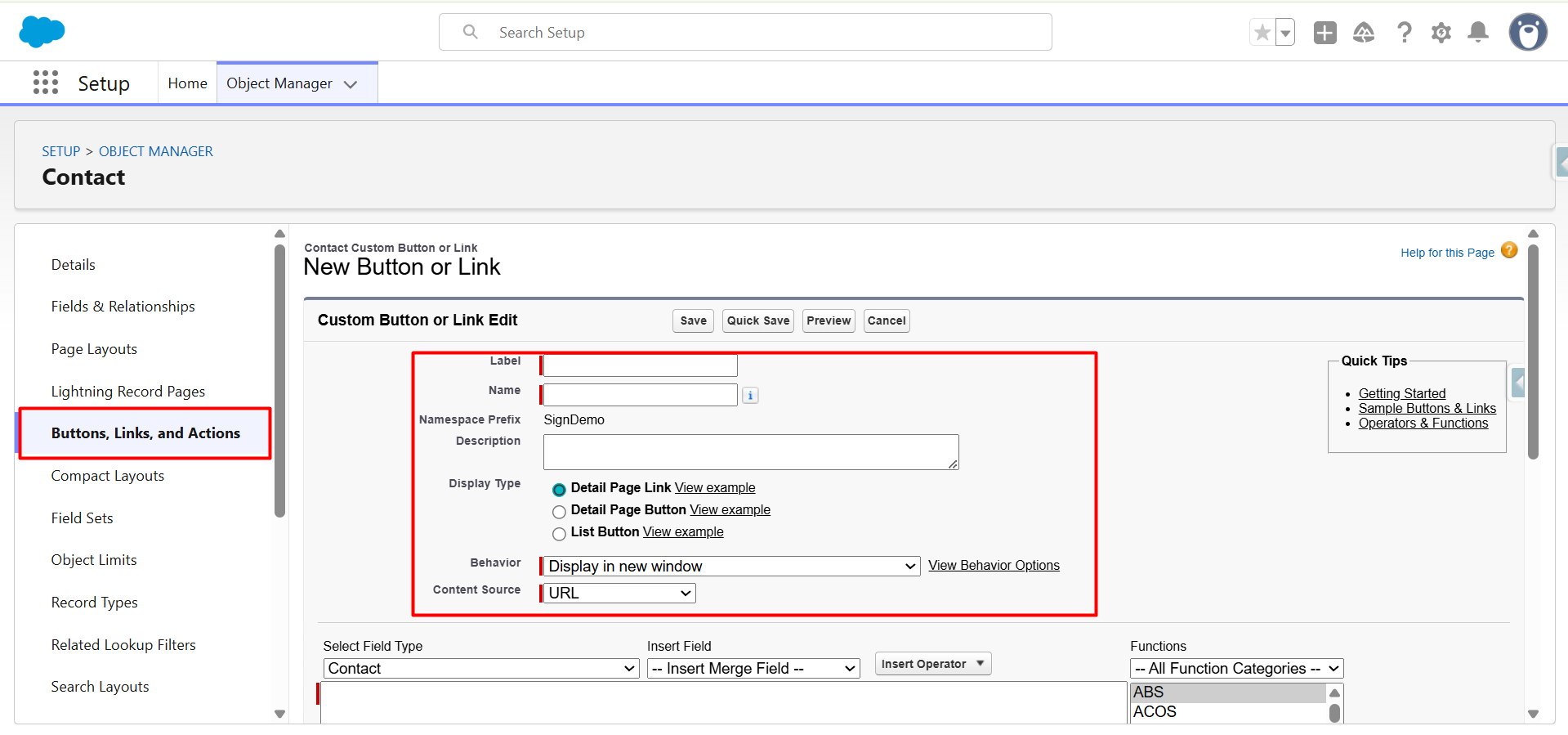
Note:- Standard button URL for SME Button :
/flow/hic_signeasy/Sme_AddAndUploadDocument?recordId={!Contact.Id}
You can change the recordId parameter value according to your choice.
Note :- Display type will be Detail Page Button for adding button in detail record page.
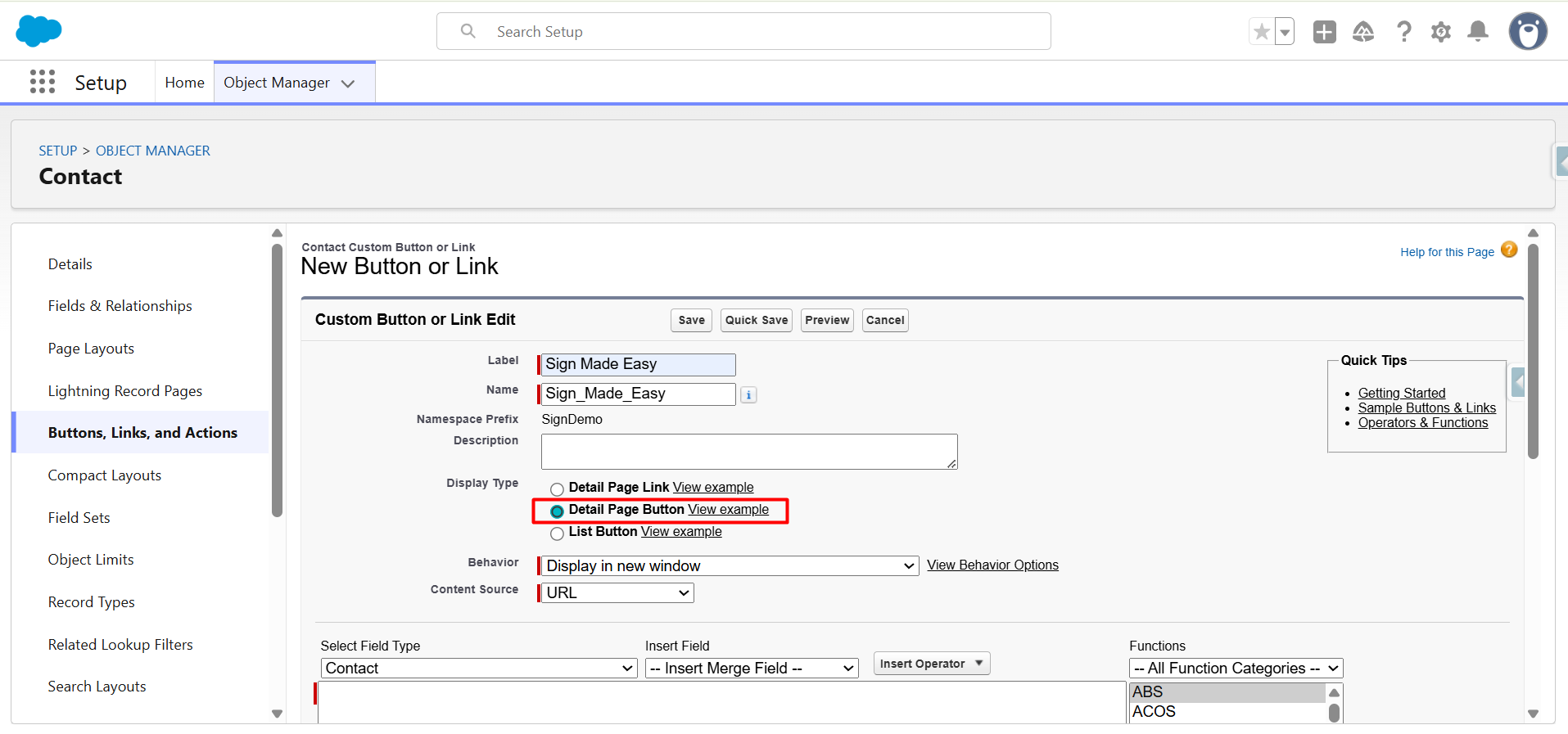
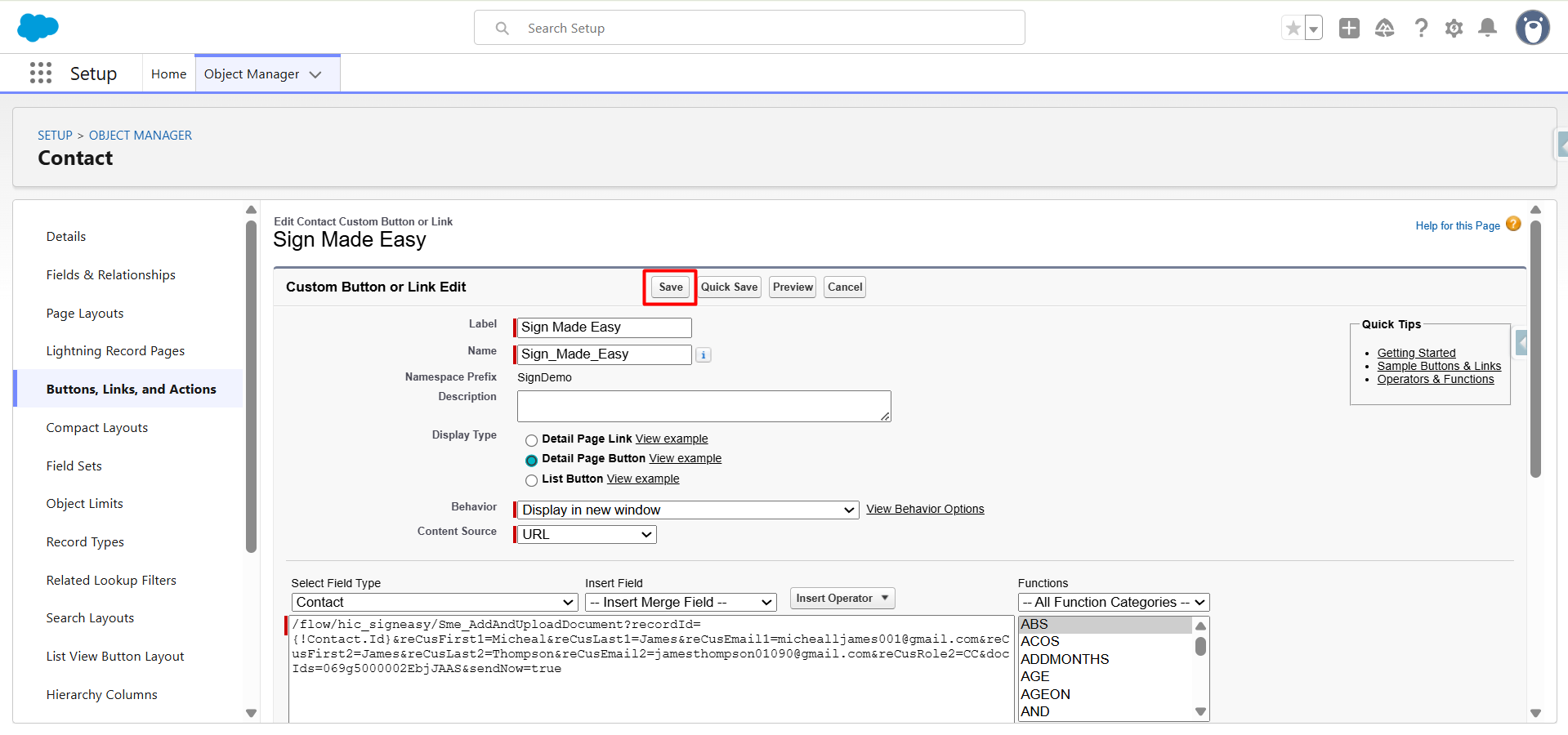
Step 3:- Add the button link in the Custom Button or Link Editor. Refer Sign parameters.
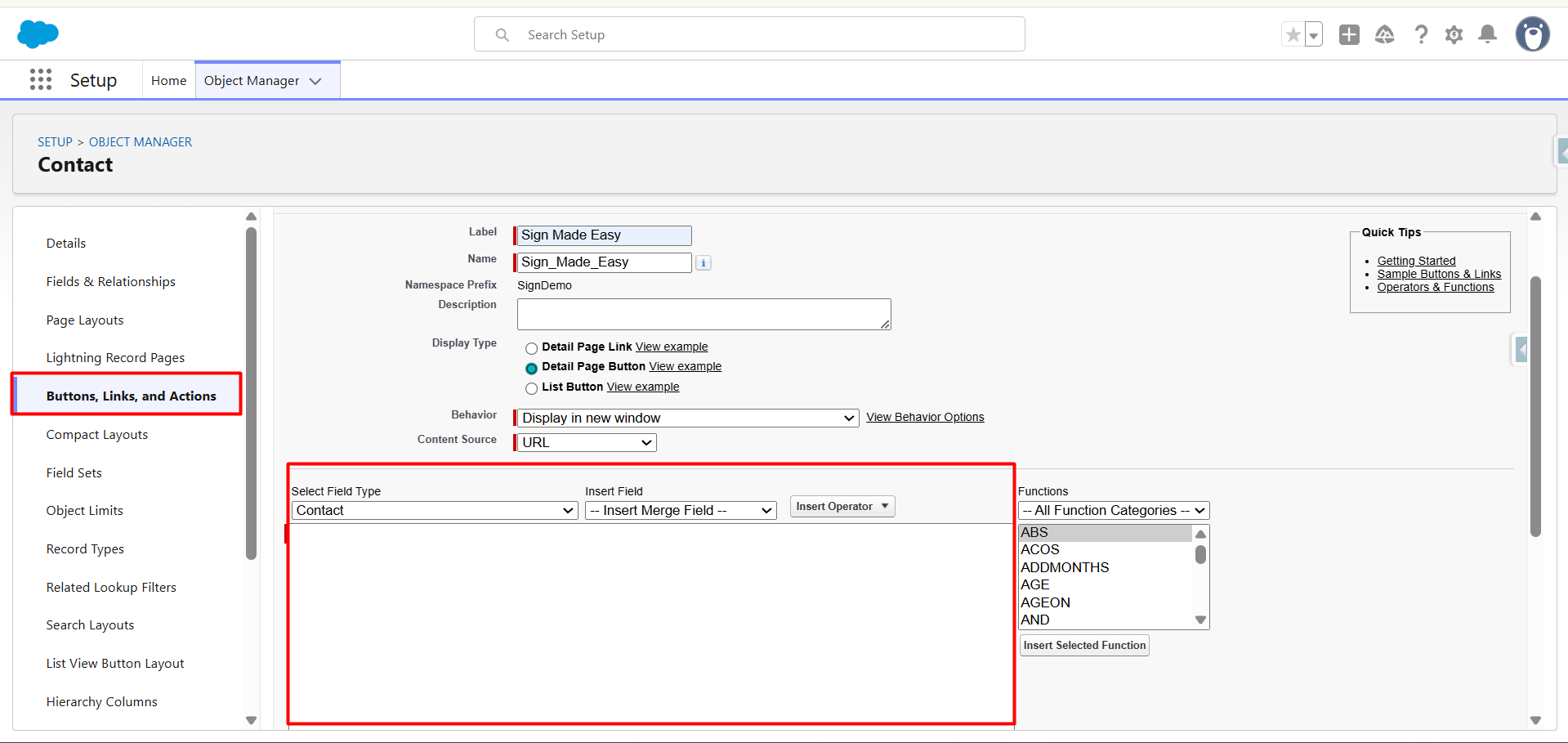
Step 4:- Add Recipient
You can add the existing records of Lead, Contact and User objects as recipients using standard recipients parameters otherwise you can add custom recipients. Refer Sign parameters.
reCusFirst = Used for adding custom recipient First Name.
reCusLast = Used for adding custom recipient Last Name.
reCusEmail = Used for adding custom recipient Email.
reCusRole = Used for adding custom recipient Role.
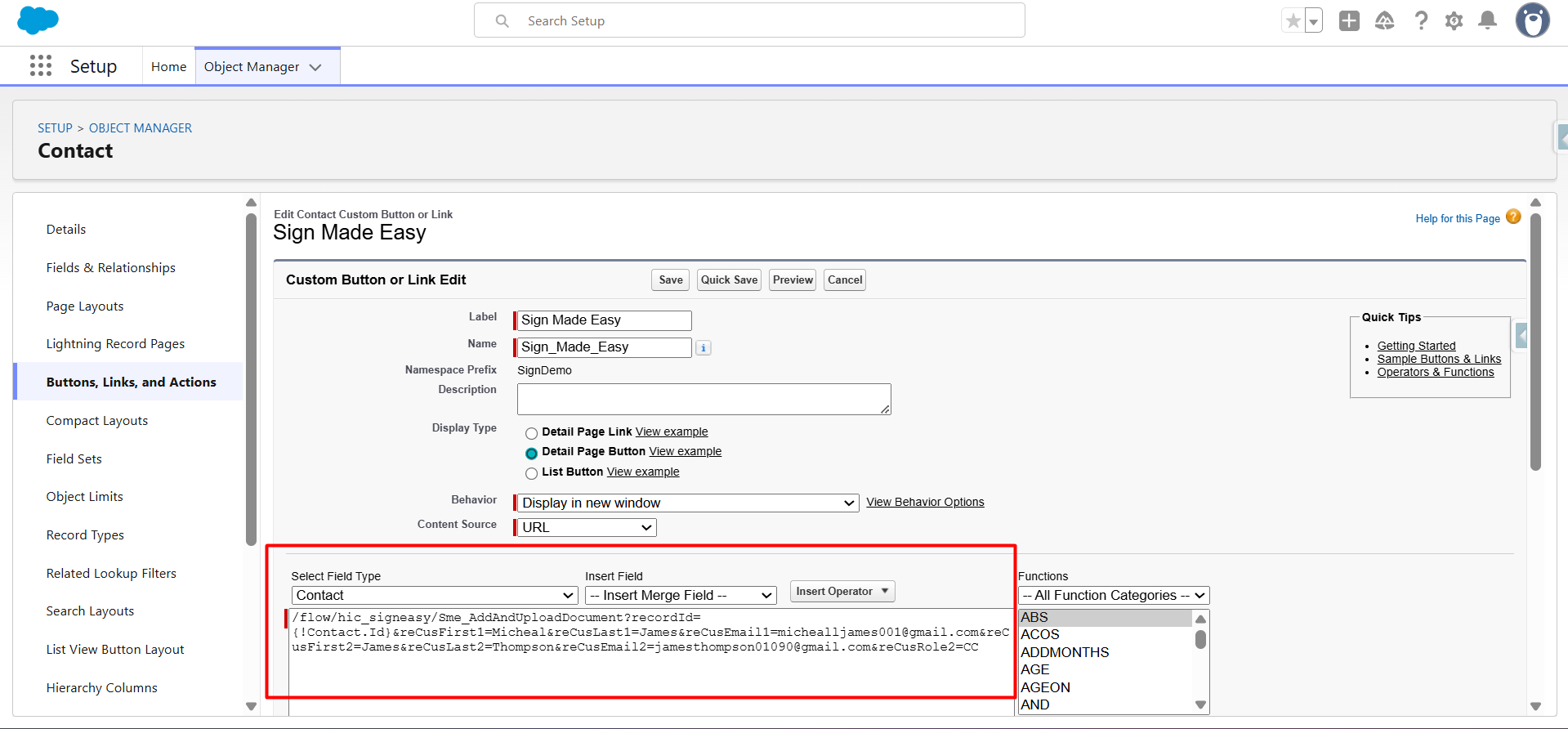
Example :- /flow/hic_signeasy/Sme_AddAndUploadDocument?recordId={!Contact.Id}&reCusFirst1=Micheal&reCusLast1=James&reCusEmail1=michealljames001@gmail.com&reCusFirst2=James&reCusLast2=Thompson&reCusEmail2=jamesthompson01090@gmail.com&reCusRole2=CC
Step 5:- Add document
Parameter Name : &docIds
Parameter Description : Document ID that automatically selects a document on the screen.You can add multiple document IDs through commas.
Example of multiple document : &docIds=069g5000002EbjJAAS,069gK000006mtaPQAQ
Note : Supports a maximum of 3 documents. The document must be present in the related Notes & Attachment record of the parent.
Ref : &docIds=069g5000002EbjJAAS.
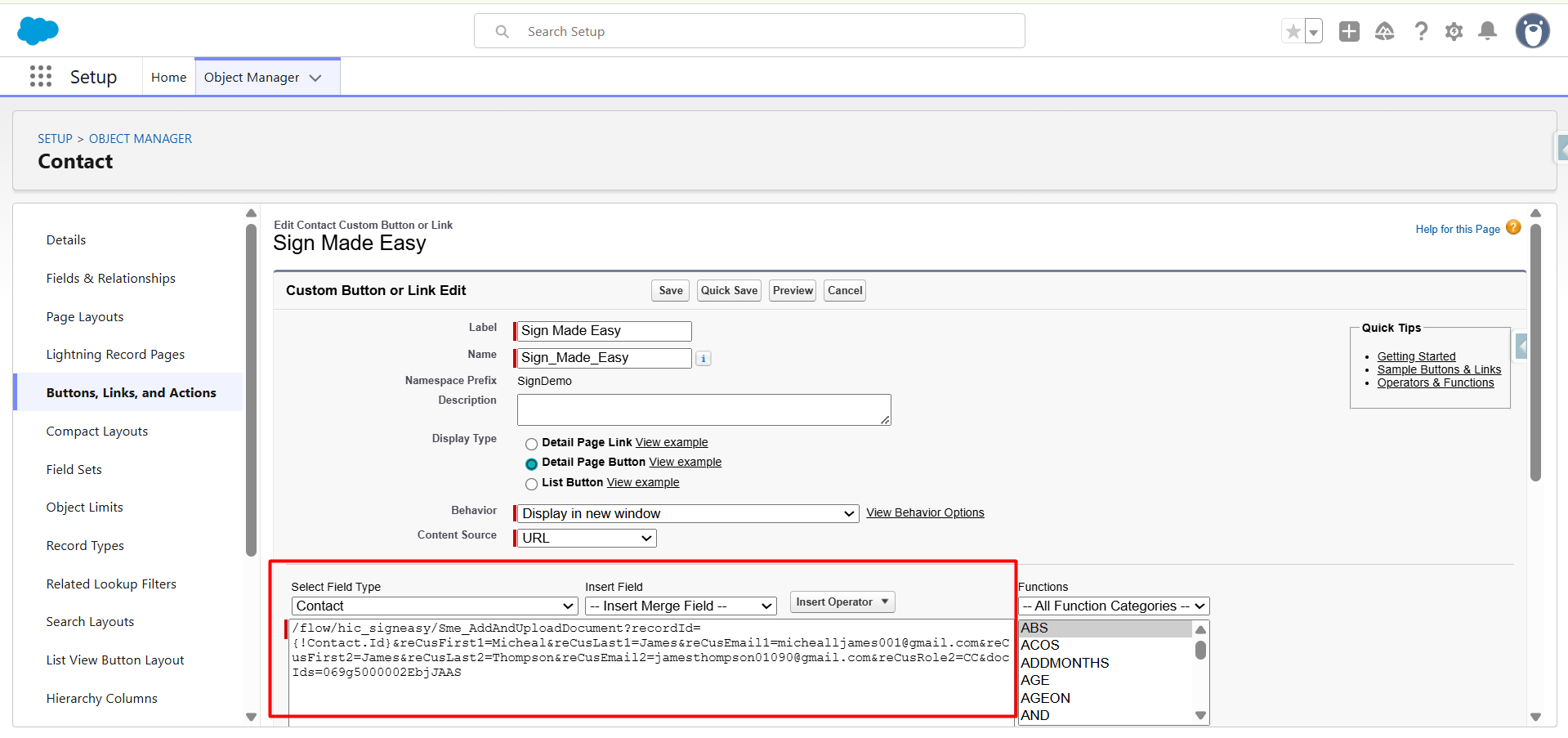
Example:-
/flow/hic_signeasy/Sme_AddAndUploadDocument?recordId={!Contact.Id}&reCusFirst1=Micheal&reCusLast1=James&reCusEmail1=michealljames001@gmail.com&reCusFirst2=James&reCusLast2=Thompson&reCusEmail2=jamesthompson01090@gmail.com&reCusRole2=CC&docIds=069g5000002EbjJAAS
Step 6:- Add SendNow parameter
Parameter Name : &sendNow
Parameter Description : Send Now parameter is used to mail to the recipients directly.
Example : &sendNow
Ref : &sendNow=true
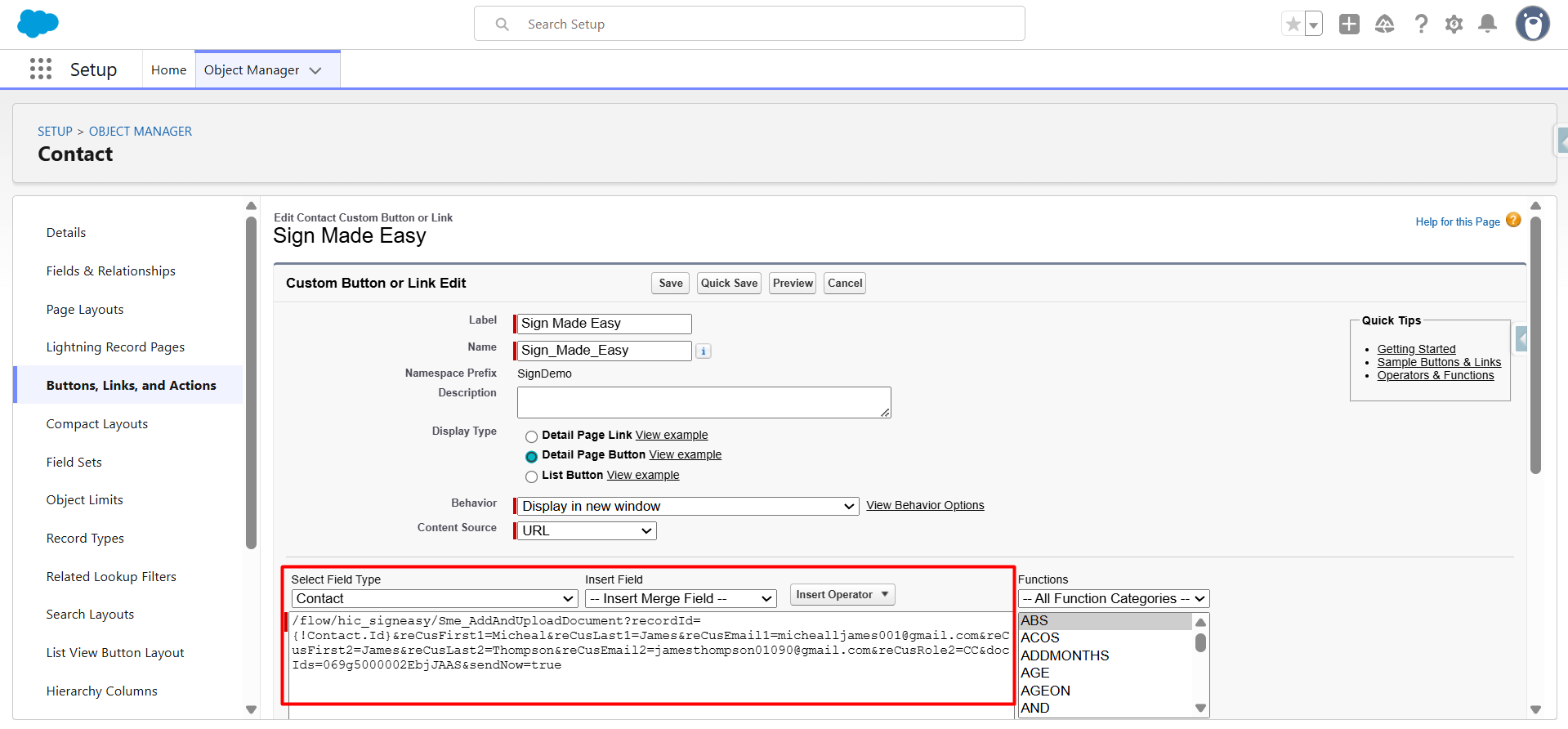
Example:-
/flow/hic_signeasy/Sme_AddAndUploadDocument?recordId={!Contact.Id}&reCusFirst1=Micheal&reCusLast1=James&reCusEmail1=michealljames001@gmail.com&reCusFirst2=James&reCusLast2=Thompson&reCusEmail2=jamesthompson01090@gmail.com&reCusRole2=CC&docIds=069g5000002EbjJAAS&sendNow=true
Step 7:-Click Save.
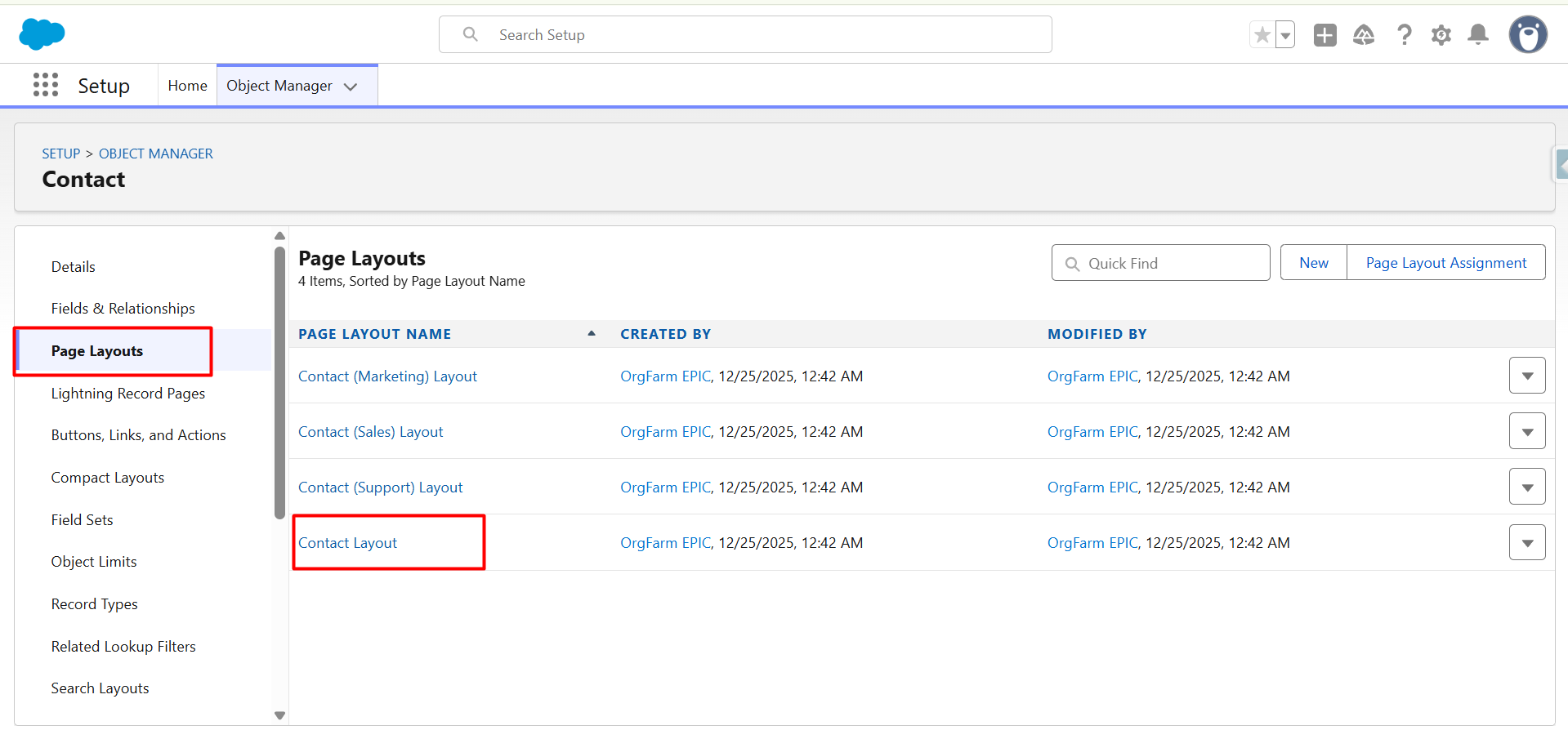
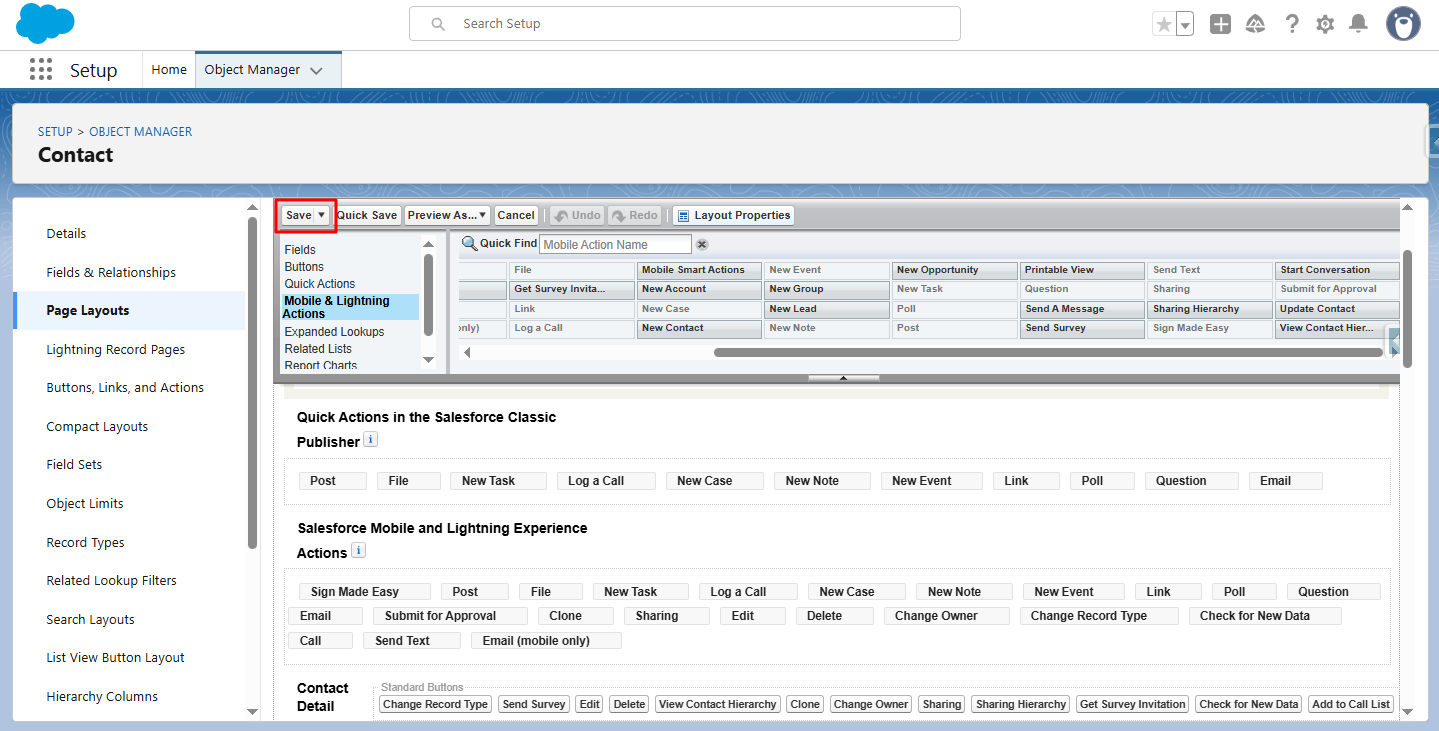
Step 8:- Navigate to the page layouts section and select the desired page layout for adding button.
Step 9:-Navigate to the Mobile & Lightning Actions section and search the button and drag and drop into the Salesforce Mobile & Lightning Experience Actions section.
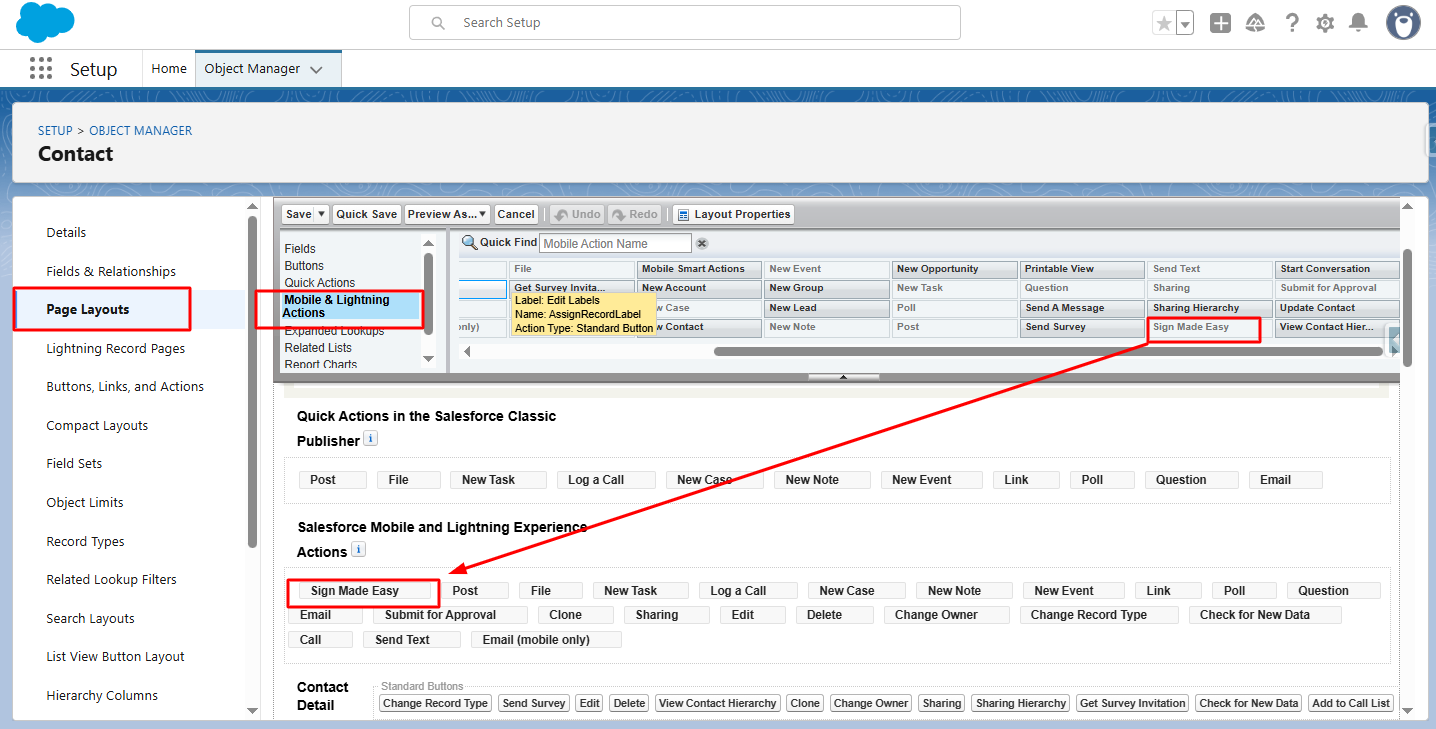
Step 10:- Click Save.
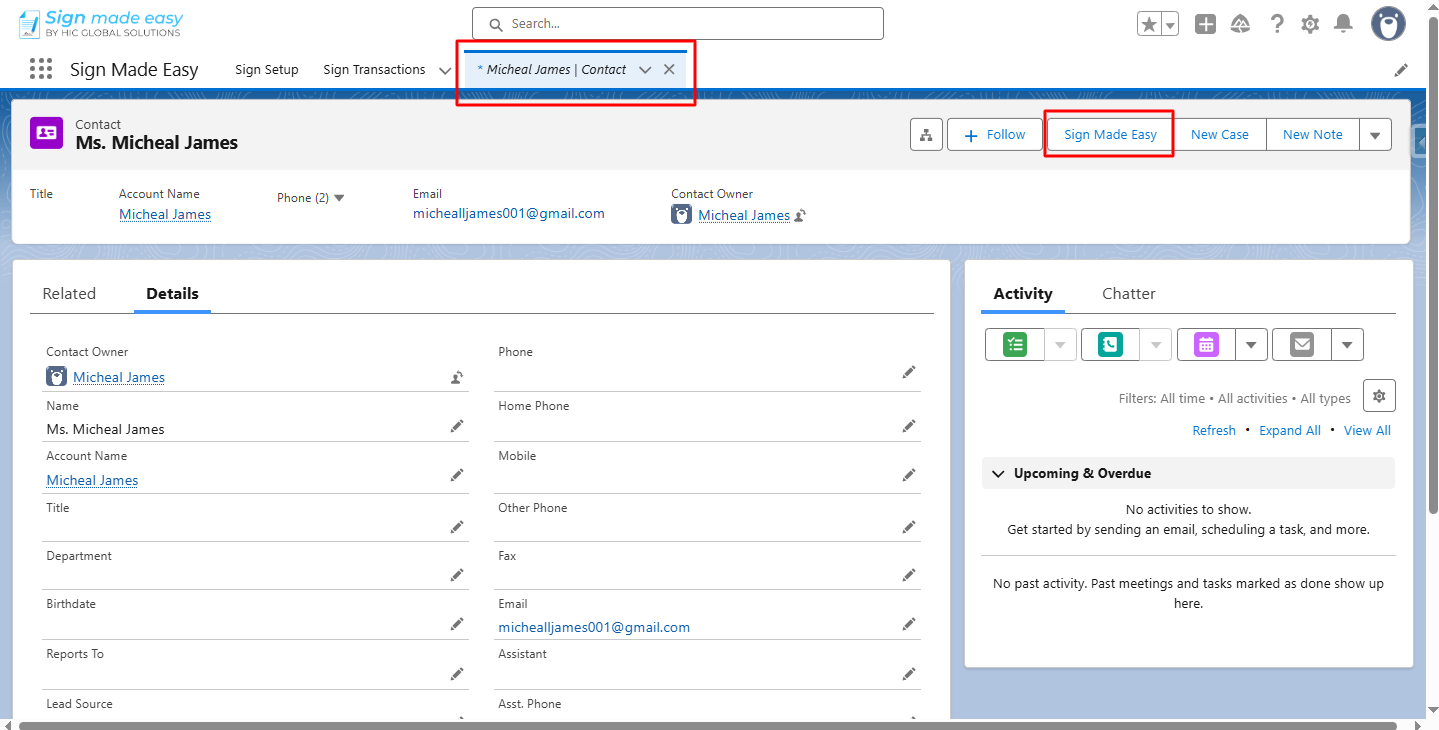
Step 11:- Go to the object’s record detail page and click the button you created.
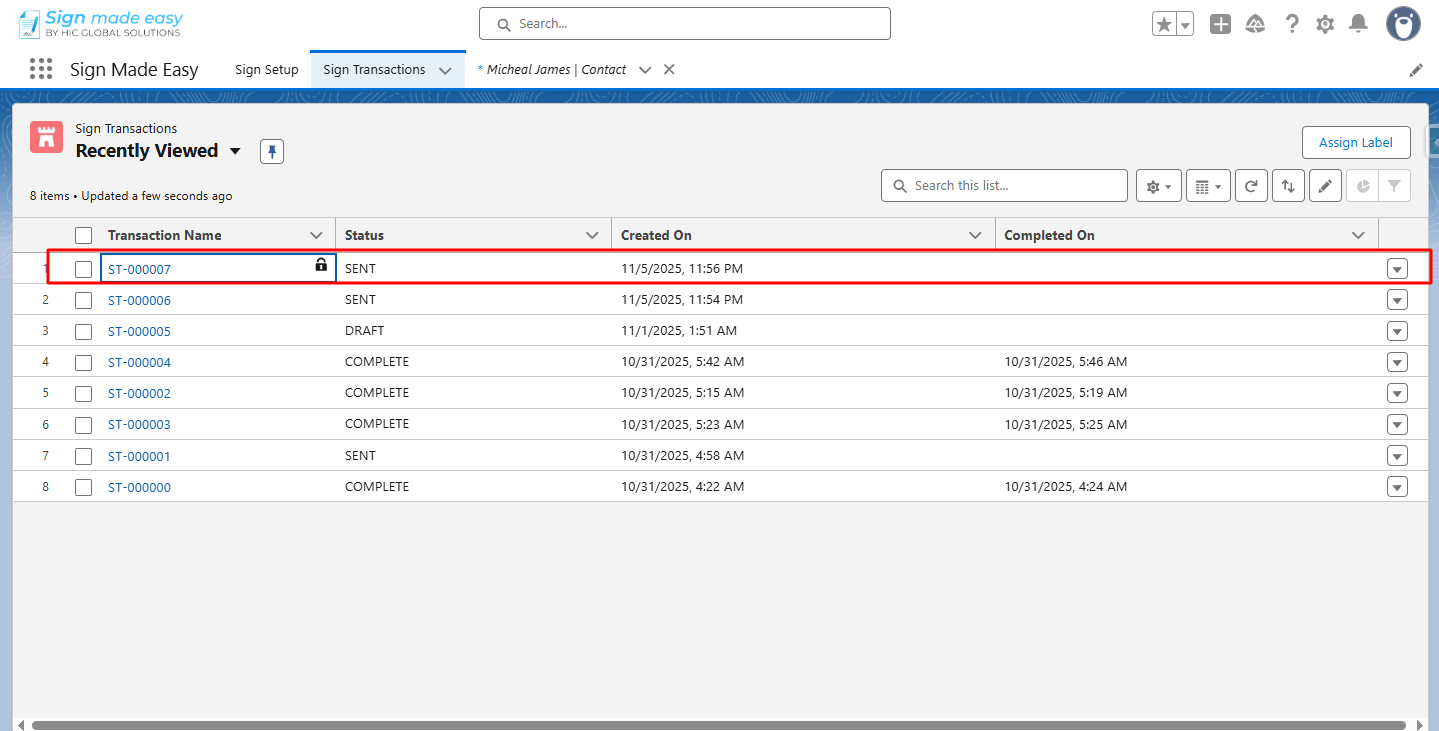
Email is successfully sent to the recipients.
Was this article helpful?
That’s Great!
Thank you for your feedback
Sorry! We couldn't be helpful
Thank you for your feedback
Feedback sent
We appreciate your effort and will try to fix the article